
Variation Setup > WYSIWYG
Using the on-page editing tools for Express Agents
This page is about the "WYSIWYG" tools available when Creating an Express Agent. The tools discussed below are available when you click the WYSIWYG button on Step 3 of the agent-creation process.
You can set up many A/B test variations "visually", using our on-page WYSIWYG tools.
- If you haven't already, hit the Create button at the top of the Conductrics Admin to start Creating an Express Agent.
- When you get to Step 3, select Conductrics Express and then WYSIWYG.
- For the Show the variations where? field, provide the full URL for the page you want to do your editing on.
- Click the purple WYSIWYG button for the B Variation.
Your web page should open in a new browser tab, with a Conductrics Tools widget at top right (or top left) as shown here:
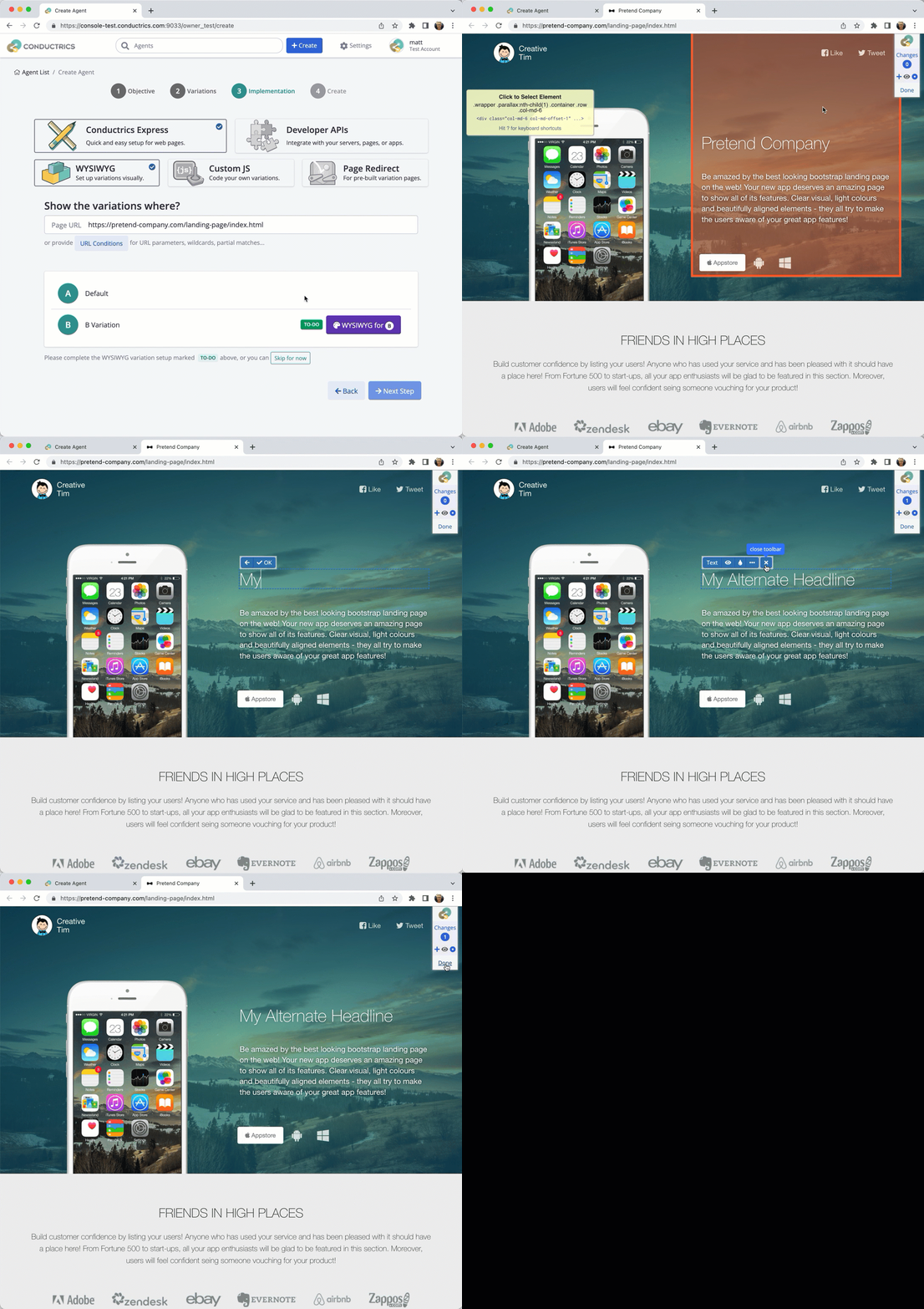
Now you can use the Conductrics Tools widget to add one or more changes to your page. For instance, in the animated screenshot above, a simple text change is added.
If your A/B Test calls for changing the text of some existing page element (such as a "Hero" or "CTA" area, or the label on a button or navigation item), you could probably use more or less the same steps to make your changes.
No WYSIWYG Tools?If the Conductrics Tools widget doesn't appear, please verify that the Conductrics Script Tag has has been added to your pages. If you can't add the script tag yet, you might be able to use our Chrome Extension in the interim. Please feel free to contact Conductrics if you have any questions or problems with the WYSIWYG tools.
Getting to Know the WYSIWYG Tools
Here's a screenshot of the Conductrics "WYSIWYG Tools" widget (at top right):
- Use the Plus Icon ( + ) to add a change by "pointing to" the page element you want to edit. See the "Pointing to an Element" section below.
- The blue circle shows the number of changes/edits. Here it's showing 1 to reflect that one change has been registered so far (changing the text to "My Alternate Headline).
- Click Done when you've added your changes and are ready to return to the Conductrics Admin (to save them).

Optionally, you can also:
- Click on the number of changes (the number 1 as shown here) to see details of each edit, where you can adjust or remove them as needed.
- Click on the Conductrics logo at the top to change the position of the tools widget.
- Use the Eye icon to quickly hide/undo your changes, so you can see the "before and after".
- Use the Record button to Record Page Changes using your browser's Dev Tools (best for those who know and love their Dev Tools "Elements" panel already).
Pointing to an Element
While in the "pointing" mode, you'll mainly want to:
- Move your mouse to highlight the element you want.
- Click to select the currently-highlighted element for editing. See the After you point to an element section below.
You can also:
- Press Ctrl-Enter to select the currently-highlighted element for editing. This can be handy in cases where you can't click on the element, perhaps because it's not a "visual element" per se (or perhaps it's a button that might trigger some other process).
- Press the
skey to rotate through 5 different selector methods. - Press Arrow Keys to navigate through the page element structure, which can be handy in cases where the element you need to select is non-visual (for instance a "container" what would be hard to click on directly).
- The Left Arrow key tries to highlight the "parent" of the current element.
- The Right Arrow tries to highlight the first "child" of the current element.
- The Up/Down Arrows tries to highlight the prior or next "sibling" element.
- Press the ? Key to remind yourself of these keyboard shortcuts, plus a few more not listed here.

After you point to an element
When you click (or hit Ctrl-Enter) to select the highlighted element, a "floating toolbar" appears near the element, with a "Text" button and a few other buttons:
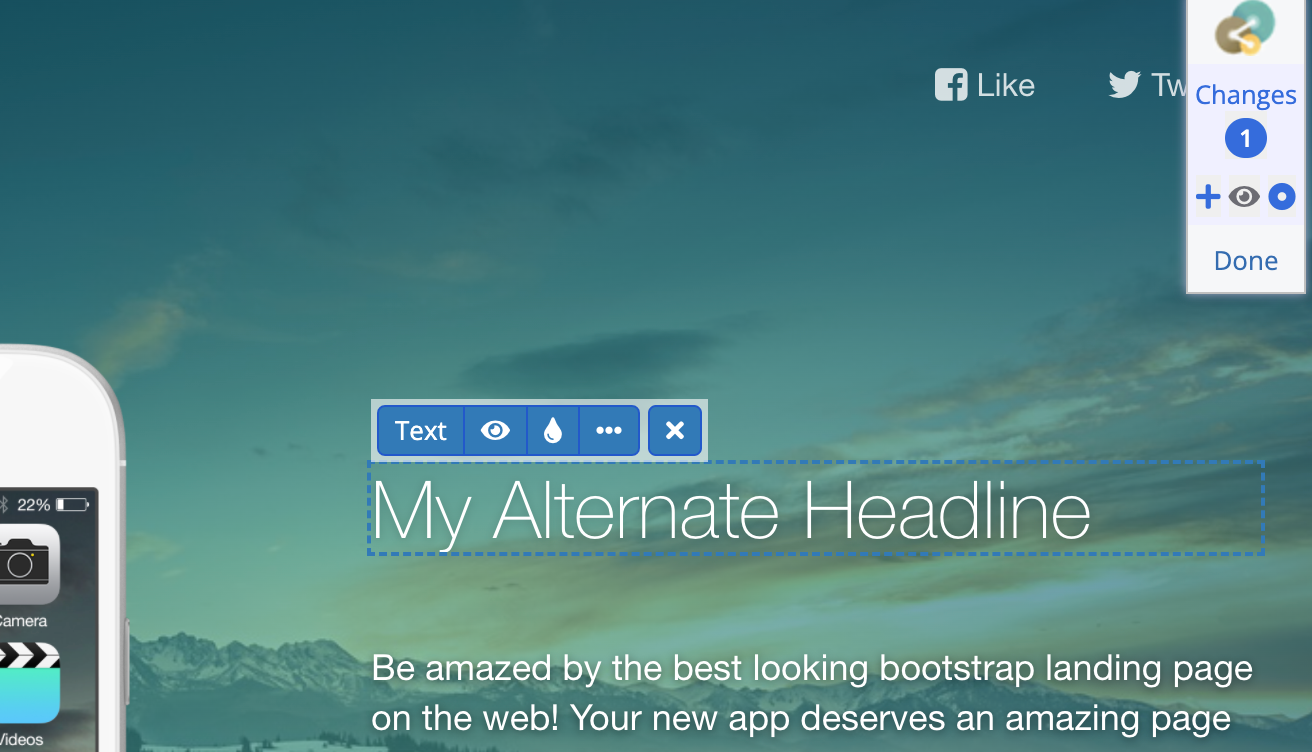
From the "floating toolbar", you can:
- Click the Text button to edit the text of the selected element, right in the page itself.
- Click the Eye icon in the floating toolbar if you want the element to be hidden in this variation.
- Click the Drop icon if you want to quickly change the color, background color, or other CSS property.
- Click the Ellipsis ( ... ) icon to bring up the Changes window, which you can use to register other types of changes to the current element.
Clicking on (or hitting Ctrl-Enter for) certain elements (such as images) will bring you directly to the Changes window, rather than showing the "floating toolbar".
The Changes Window
If you hit the Ellipsis ( ... ) icon from the "floating toolbar" discussed above, the Changes window will appear:
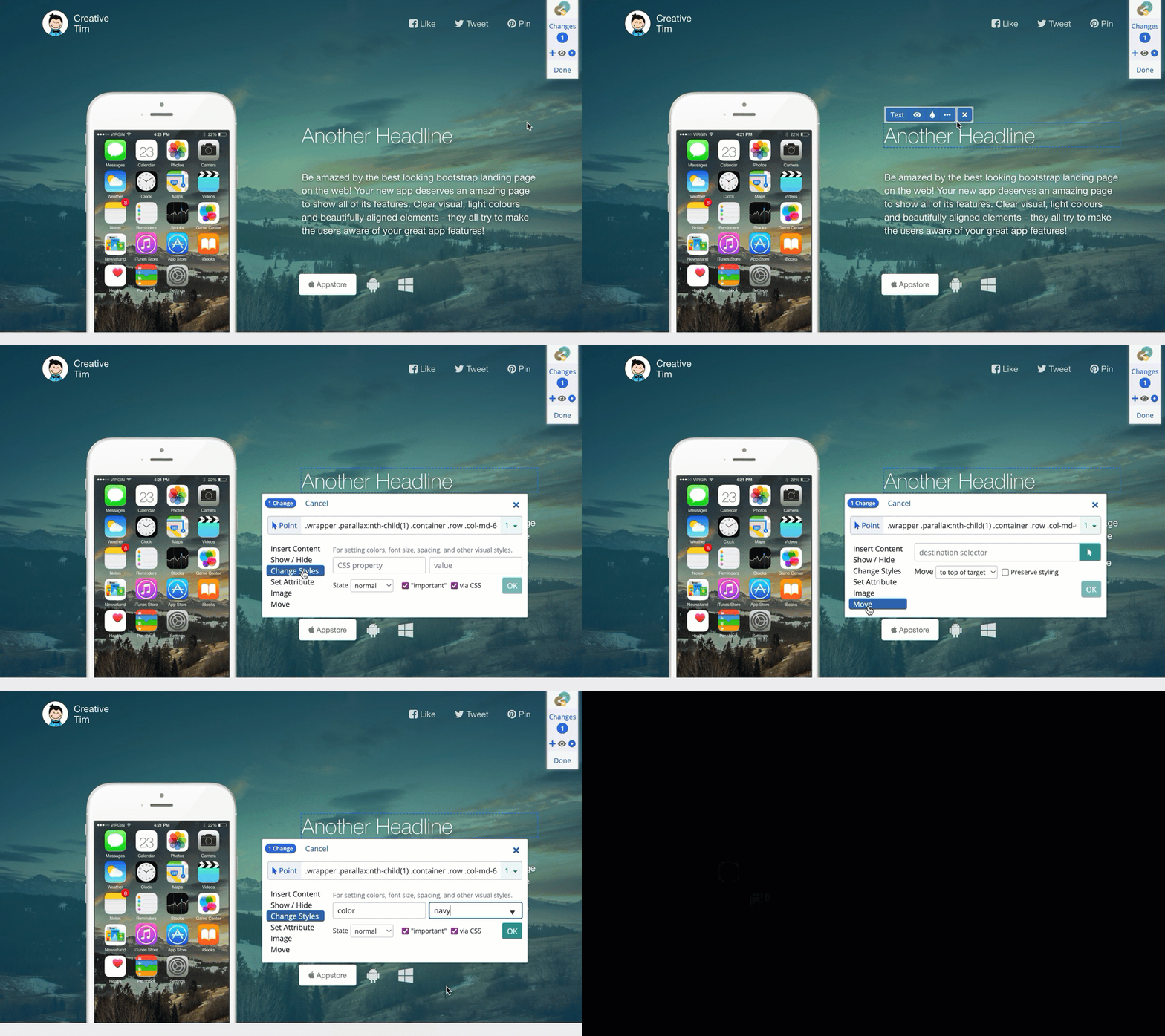
Here are the types of page edits/adjustments you can make:
- Insert Content - Use to change the text within an element, or insert new HTML into the element.
- Show / Hide - Use to show, hide, or remove the element altogether.
- Change Styles - Use to change the color, background, spacing, or other CSS styles for the element.
- Set Attribute - Use to change the HTML attributes or properties of the element. For instance, you could change the page that a link leads to, by adjusting its
hrefattribute. - Image - Use to provide an alternate image URL to display, or upload a new image file.
- Move - Use to physically change the order of elements on the page (such as swapping the position of two informational sections).
Each edit/change that you set up in Conductrics WYSIWYG mode is based on a CSS Selector. A CSS Selector is a way of "finding" an element (or multiple elements) on a web page. When you "point to" an element on the page with our WYSIWYG tools, Conductrics "writes" a selector that will find that same element later, when your test is actually running. You can also provide your own "bespoke" selector.Check out our CSS Selector Primer for the basics on selector syntax.
Affecting Single vs. Multiple Elements with the "Just One" Option
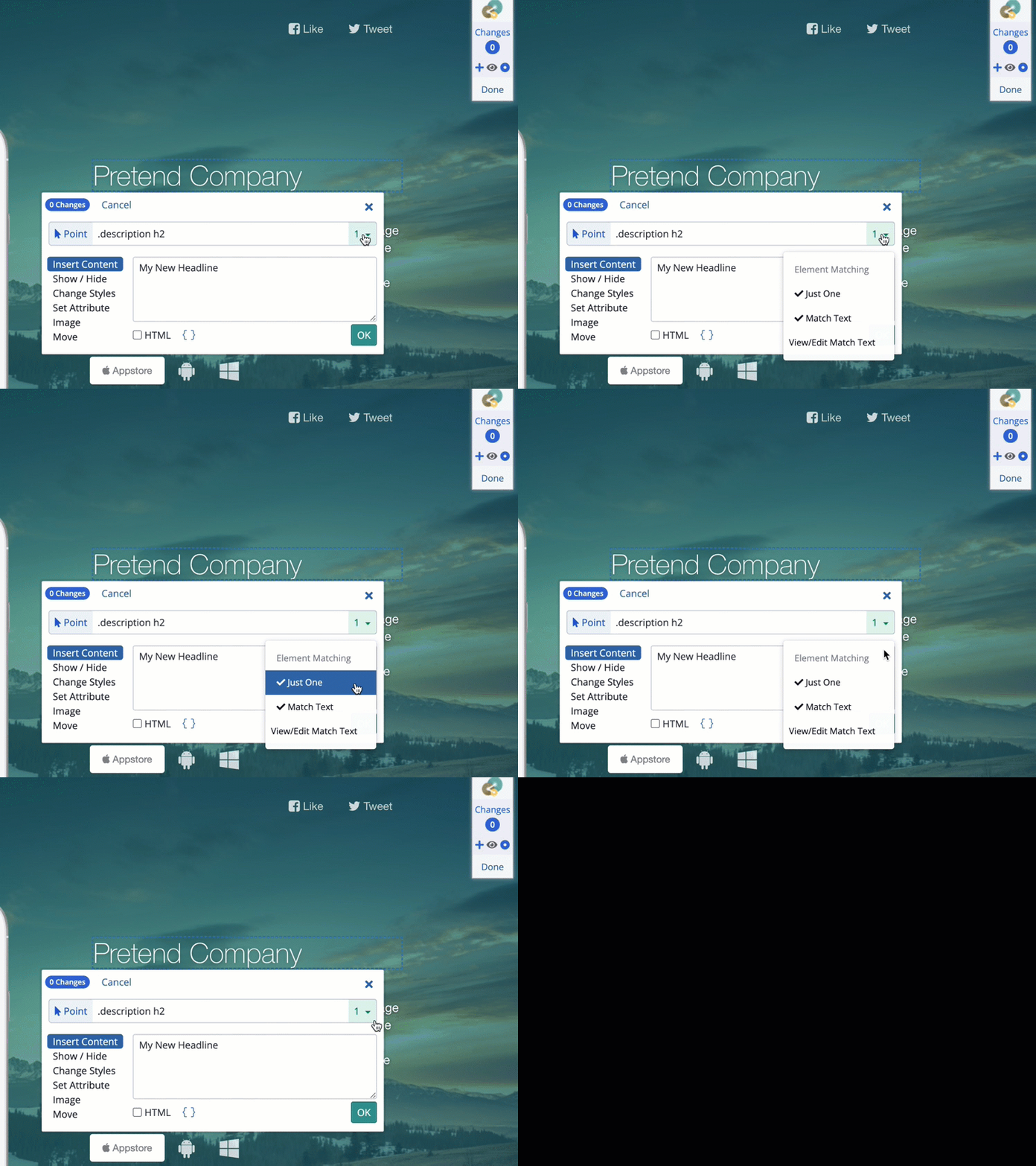
You can easily change multiple elements as well. Provide a selector that matches multiple elements, then use the dropdown menu to the right of the selector to uncheck the "Just One" option. In many cases you can "Point to" one of the elements, then make minor adjustments to the selector to get it to match the multiple elements you want.
Further Specifying Elements via the "Match Text" Option
You can also use the "Match Text" option (shown in the screenshot above) to only make your changes if the element contains a certain text string. This generally makes your test setup "safer", in case the structure of the page changes later. Conductrics will generally turn this option on when possible for new changes, as you "Point to" elements visually.
Reviewing or Removing Changes
You can review, edit, or remove the changes that you've made so far:
- Click the "Changes" number (2 in the screenshot below), which will bring up a list of changes. These are the changes that Conductrics will make to the page when your agent/test is actually running.
- Each of the edits/changes you have made appears in the list.
- Use the Pencil icon to review or adjust the properties of a change.
- Use the Trash icon to remove a change, without losing the rest of your work.
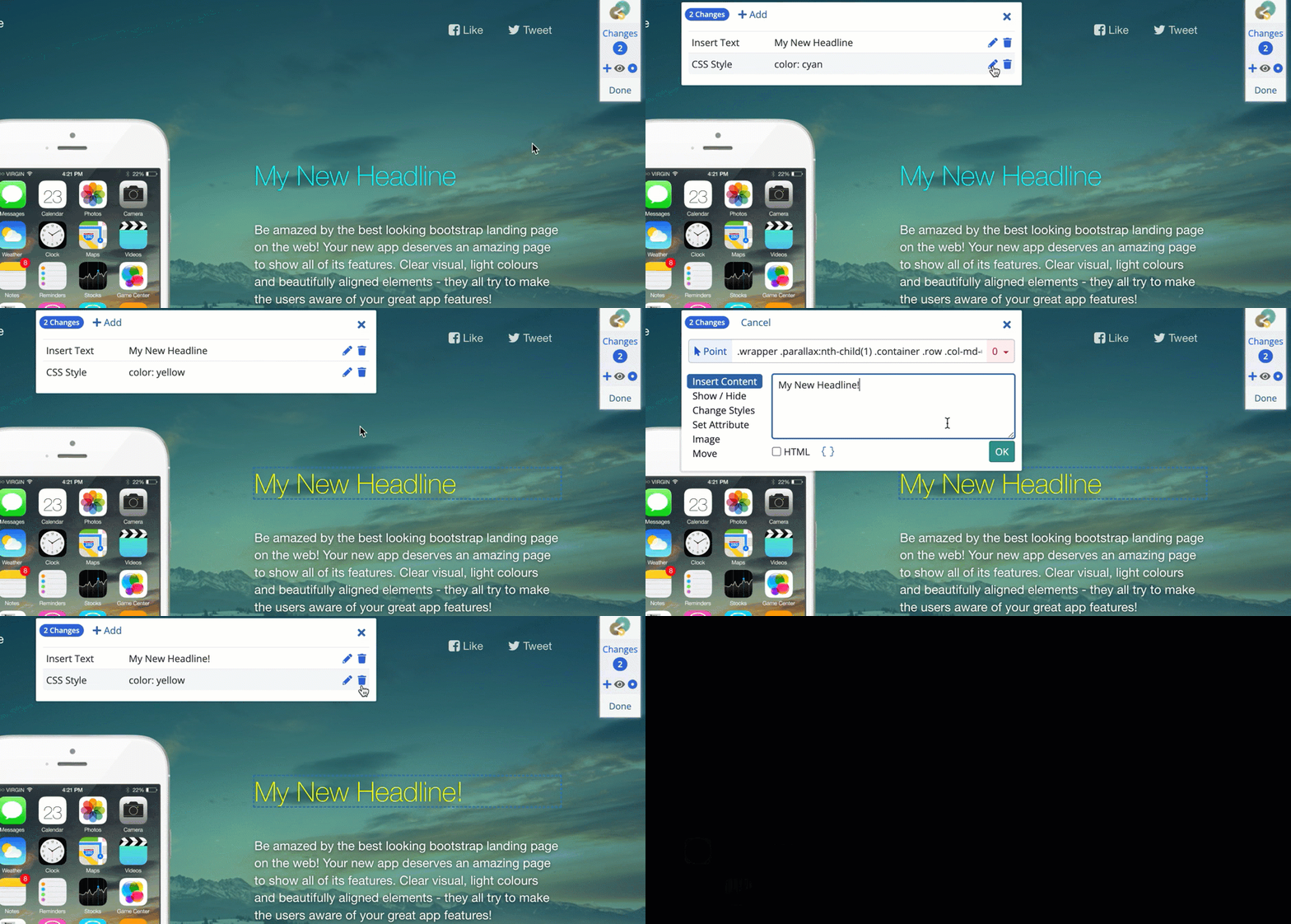
You can review, edit, or remove changes here
Updated over 1 year ago