
Using an Alternate Deploy Target
For migration purposes if switching Conductrics accounts, or other special circumstances
If you are using Conductrics Express, your pages probably already have the Conductrics script tag installed. There are a few situations where you might want your local browser to use the <script> tag from an "alternate" Deploy Target:
- If you started out with a trial/sandbox Conductrics account, and are now moving to a dedicated Conductrics environment and would like to do setup and QA locally before switching over for your actual visitor traffic.
- If you have the Conductrics
<script>tag placed on your pages for one Deploy Target, but you want to use a different Deploy Target in your browser for your local testing or QA (perhaps to try out a different version of your "Preboot" or other Deploy-Target-level settings). - If you're working with Conductrics on a new feature and have been given an alternate script URL which has the new feature active on a temporary Deploy Target.
The instructions discussed here will only affect your own browser on your local computer/device. Your actual visitors won't be affected unless you swap the "alternate" script tag out "for real" (see Script Tag Installation for details).
What You'll Need
Before you start, make sure you have:
- The Conductrics script URL currently being used on your pages (which you can get from the page's HTML source, or from the Network tab of your browser's Developer Tools, or from the Conductrics Admin under Settings > Deploy Targets).
- The Conductrics script URL for your "alternate" Deploy Target (either in the same Conductrics account or a different one), which may have been passed to you by Conductrics support, or you can get it from the Conductrics Admin under Settings > Deploy Targets.
Both script URLs will probably look something like this (the xxxxx parts will be different):
https://cdn-xxxx.conductrics.com/ac-xxxxxx/v3/agent-api/js/f-xxxxx/dt-xxxxxx?apikey=xxxxx
In the above URL, please note that:
- The Host is the part after the
://part but before the/ac-part. - The Path is the part starting with
/ac-but before the?near the end. - The Query is the part after the
?through to the end.
Using Charles Proxy
You can use Charles Proxy or similar software to "map" the <script> tag on your page to the "alternate" script tag that you want.
These instructions assume you are using Charles, but there are a number of similar tools available. We tend to use Charles here at Conductrics, but we've heard good things about Fiddler and mitmproxy.
After you download and install Charles, here's how to set up the "mapping":
- In Charles, go to Tools > Map Remote
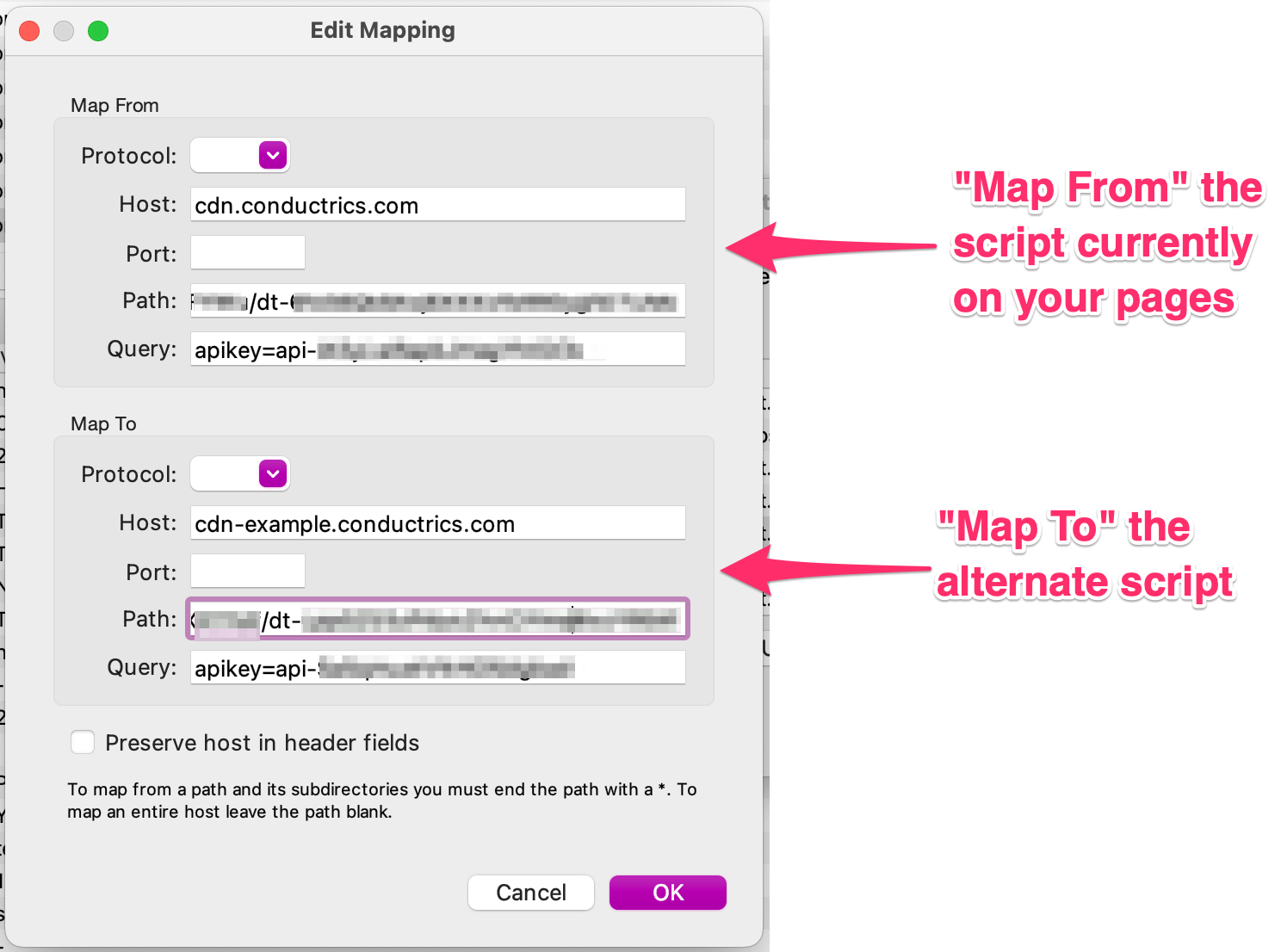
- Click Add to get the Edit Mapping dialog as shown below.
- In the Map From area, provide the Host, Path, and Query for the script URL currently on your pages (see screenshot below).
- Similarly, in the Map To area, provide the Host, Path, and Query for the script URL for the "alternate" Deploy Target.
- Click OK to create the Mapping.
 Now make sure that the mapping you just created is checked in the Map Remote Settings dialog, and that the overall Enable Map Remote option is checked.
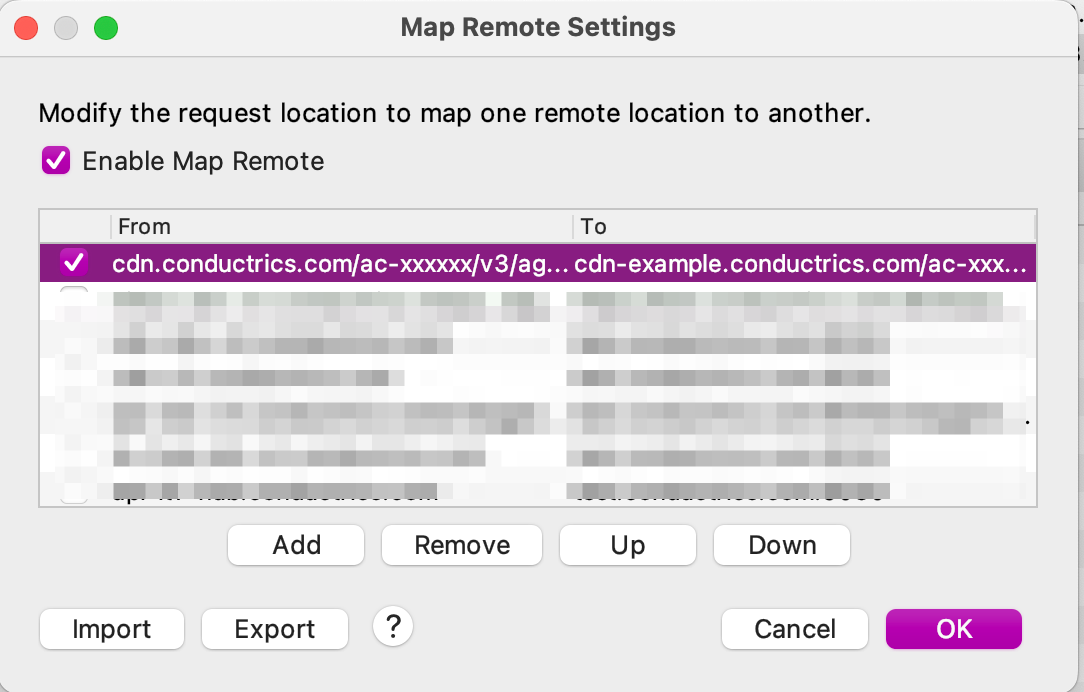
For further details about using the Map Remote function within Charles, please see the Map Remote Tool page in the Charles documentation.
Verifying That You're Getting the Alternate Script
Assuming that the Conductrics Debugging Messages are enabled for your "alternate" Deploy Target, you can look for the debugging message shown below, which will show the Deploy Target ID (starting with dt-) which generated the Conductrics script that is actually executing in your browser.
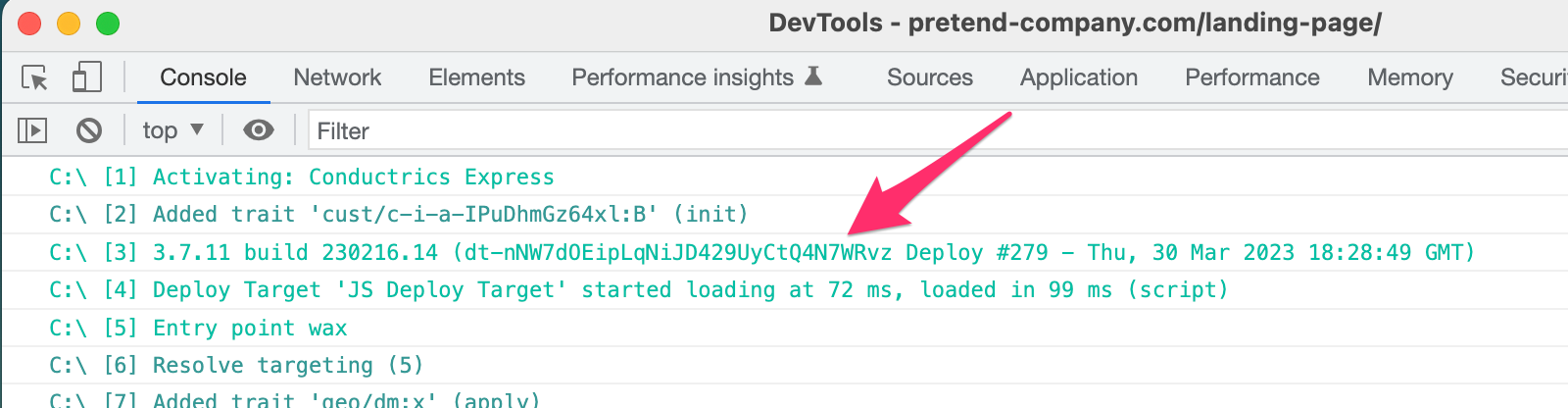
Verify that the dt- identifier in the debugging message matches up with the dt- portion of the "alternate" Deploy Target script URL (which you configured Charles to "Map To"). If so, the substitution is working correctly. Feel free to contact Conductrics if you need help.
If Your Site Uses a Strict CSPIf your site uses a strict Content Security Policy (CSP), you might need to also add a Rewrite rule in Charles (or equivalent feature in another tool) to "rewrite" the
Content-Security-Policyheader such that it "whitelists" the script tag from your alternate deploy target. Depending on how your CSP is implemented, your browser may refuse to run the script otherwise. There will be messages in your browser's developer tools to that effect if so. See Content Security Policies for details.
Updated over 1 year ago