
Google Analytics 4 Integration
Options for tying your Conductrics Agents to your GA4 implementation
Sending Variation Selections to GA4
If you are using GA4, it generally makes sense for your GA reporting to be aware of each visitor's variation assignments for any Conductrics-powered A/B Tests (or predictive targeting campaigns, etc).
Let's say a visitor gets selected for the "B Variation" for an A/B Experiment called Hero Promo Test 1. It makes sense for a corresponding event to be sent to your GA4 property, which is basically saying "Hey GA, this visitor just saw the B Variation for Hero Promo Test 1".
Conductrics provides a few options for sending such events, depending on how you use GA4:
- If you use GA4 via
gtag, we will callgtagautomatically each time the visitor is exposed to a variation (see the "GA4 via gtag" section on this page). - If you use GA4 via GTM, we can push GA4-friendly events into your page's Data Layer (see the "GA4 via GTM" section on this page).
- If you want Conductrics to send to GA4 on the server-side, we can push events to the GA4 Measurement Protocol (see the "GA4 via server-side Analytics Connector" section on this page).
A note about relying on GA only for your experiment analysisWhile it of course can be valuable to have your Conductrics variation selections in GA4 for exploratory and "downstream" analysis, we recommend that you complete your formal A/B Test analysis (that is, determining whether there was a "winner" with the appropriate level of statistical power without evidence of SRMs and so on) using the Conductrics A/B Testing Report rather than data collected via GA.
Of course the choice is ultimately up to you, but we strongly suggest discussing with Conductrics before relying solely on GA data for experiment analysis.
GA4 via gtag
If your GA4 implementation uses gtag (aka the Google tag), you can use our Simple GA4 integration.
To enable the gtag integration:
- Go to Settings > Deploy Target, then click Setup for your deploy target.
- Under the JavaScript tab, enable the Simple GA4 Integration via client-side gtag option as shown below.
- Choose the Event Style you prefer (discussed below), then hit Save Changes.
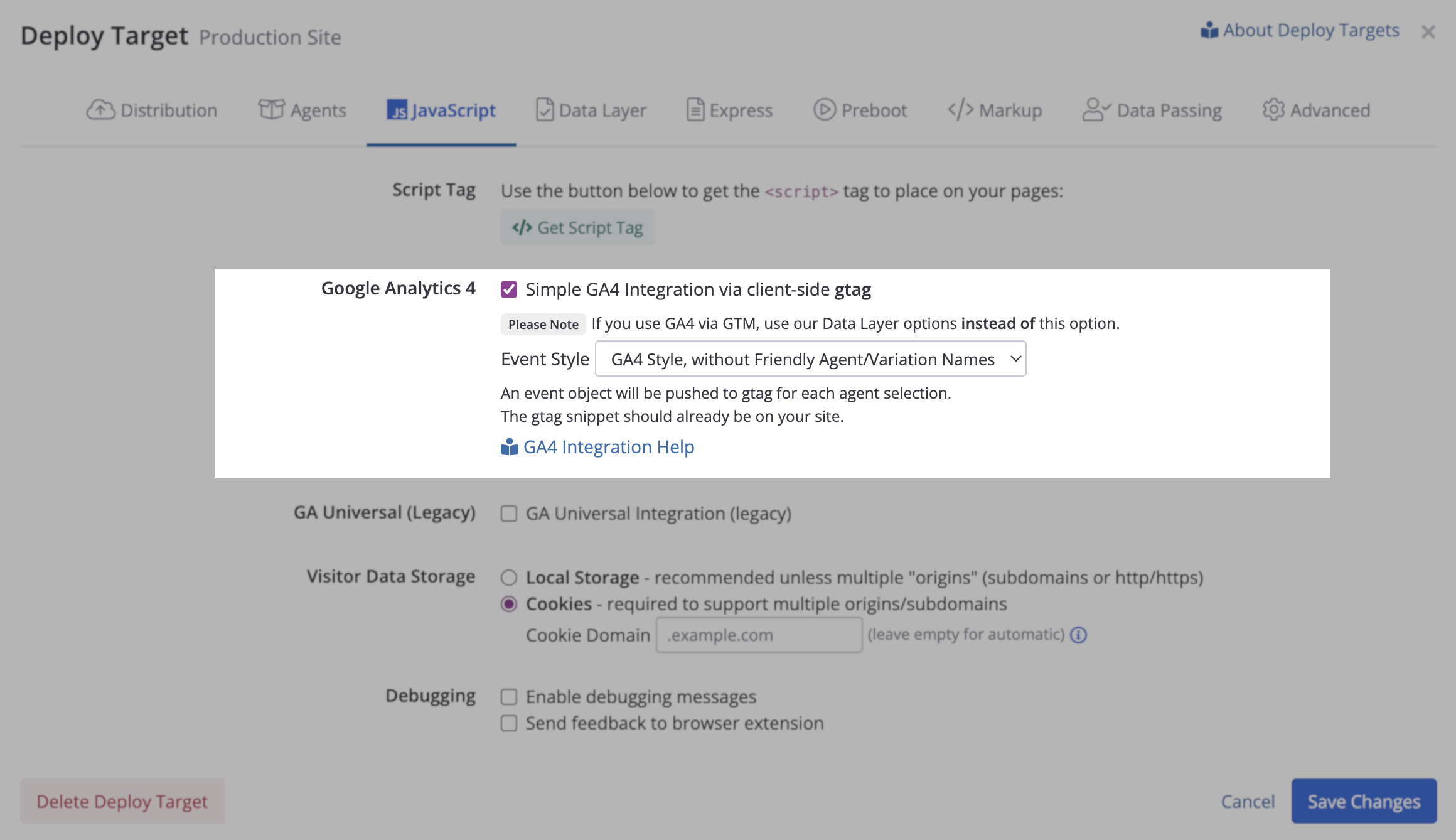
As shown in the screenshot above, you can choose an Event Style, which determines what fields/properties are sent to GA4 when a variation selection is made for one of your visitors:
- GA4 Style, with Friendly Names
- GA4 Style, without Friendly Names
- GA Universal Style (legacy)
Here's how the events are sent, depending on which of the Event Styles you choose:
gtag("event", "experience_impression", {
  exp_variant_string: "conductrics-a-my-ab-test-B",
  conductrics_agent_code: "a-my-ab-test",
  conductrics_agent_name: "My A/B Test",
  conductrics_variation_code: "B",
  conductrics_variation_name: "B Variation"
}
gtag("event", "experience_impression", {
exp_variant_string: "conductrics-a-my-ab-test-B",
conductrics_agent_code: "a-my-ab-test",
conductrics_variation_code: "B"
})gtag("event", "My A/B Test", {
event_category: "Conductrics",
event_label: "B Variation"
})The
experience_impressionname andexp_variant_stringin the GA4 Style options follow Google's guidelines for how third-party vendors should send experimentation-related events to GA4.
GA4 via Google Tag Manager
If your GA4 implementation uses Google Tag Manager, you can have Conductrics push "GA4 Style" variation selection events into the Data Layer on the page.
To enable the integration:
- Go to Settings > Deploy Target, then click Setup for your deploy target.
- Under the Data Layer tab, check the Enable Data Layer Support option as shown below.
- Choose the Event Style you prefer (discussed below), then hit Save Changes.
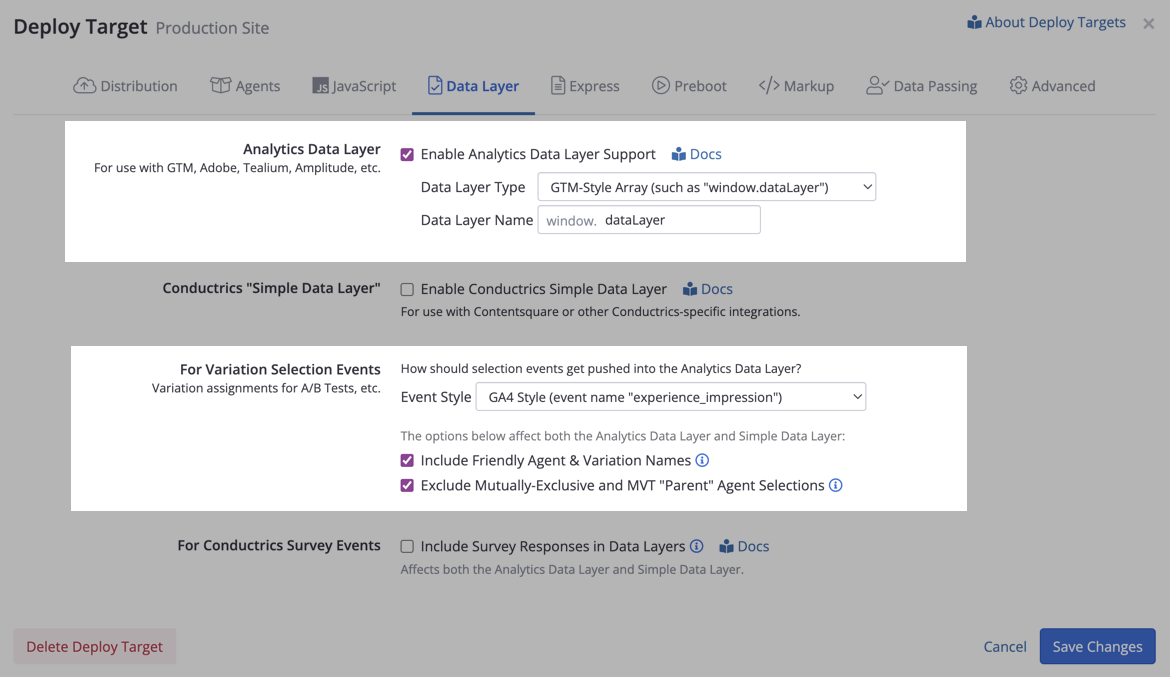
As shown in the screenshot above, you can choose an Event Style, which determines what fields/properties are sent to GA4 when a variation selection is made for one of your visitors:
If you choose GA4 Style, Conductrics sends the events like this:
window.dataLayer.push({
  event: "experience_impression",
  exp_variant_string: "conductrics-a-my-ab-test-B",
  conductrics_agent_code: "a-my-ab-test",
  conductrics_agent_name: "My A/B Test",
  conductrics_variation_code: "B",
  conductrics_variation_name: "B Variation"
})
window.dataLayer.push({
event: "experience_impression",
exp_variant_string: "conductrics-a-my-ab-test-B",
conductrics_agent_code: "a-my-ab-test",
conductrics_variation_code: "B"
})The
experience_impressionname andexp_variant_stringin the GA4 Style options follow Google's guidelines for how third-party vendors (such as Conductrics) should send experimentation-related events to GA4.
Alternatively, if you choose Conductrics API Style, the selection events are sent like this, discussed further on our Data Layer Support page.
window.dataLayer.push({
  event: "conductrics_selection",
  conductrics_selection: {
    item: {
      t: "s",
      a: "a-my-ab-test",
      c: "B",
      p: "r",
      a_name: "My A/B Test",
      c_name: "B Variation"
    },
    ep: "wax"
  }
})
window.dataLayer.push({
event: "conductrics_selection",
item: {
t: "s",
a: "a-my-ab-test",
c: "B",
p: "r"
},
ep: "wax"
})
Next StepsPlease note in order to ingest the event into your GA4 property you will still need to:
- Setup the necessary tags, triggers and variables in your GTM instance that will read from the pushed event to the dataLayer and send it to your GA4 property.
- Add the event and event parameters under Custom Definitions on your GA4 Property settings.
How to do this will depend on which Event Style you pick and on your analytics implementation requirements and structure.
GA4 via server-side Analytics Connector
Conductrics 3.7.13 and later provide a GA4 Connector as part of our Analytics Connectors feature.
To get started:
- Go to Settings > Analytics Connectors in the Conductrics Admin.
- Click Add Connector > GA4 Connector which will launch the form shown below.
- For the Measurement ID, provide the Measurement ID for your GA4 Property's Web Data Stream, found under Admin > Data Streams in the GA4 Admin. This is NOT the same as the Property ID.
- For the API Secret Key, provide the API Key that Conductrics should use to communicate with the GA4 Measurement Protocol. You may need to create one. Go to Admin > Data Streams in the GA4 Admin, then 'Measurement Protocol API Secrets' for your Web Data Stream.
- For the Event Style, choose the GA4 Style option or GA Universal Style as appropriate. See discussion and example events below.
- Fill out any of the other options you want, as discussed on the Analytics Connectors page.
- Click Save to create your connector. It should be ready for use in a few seconds.
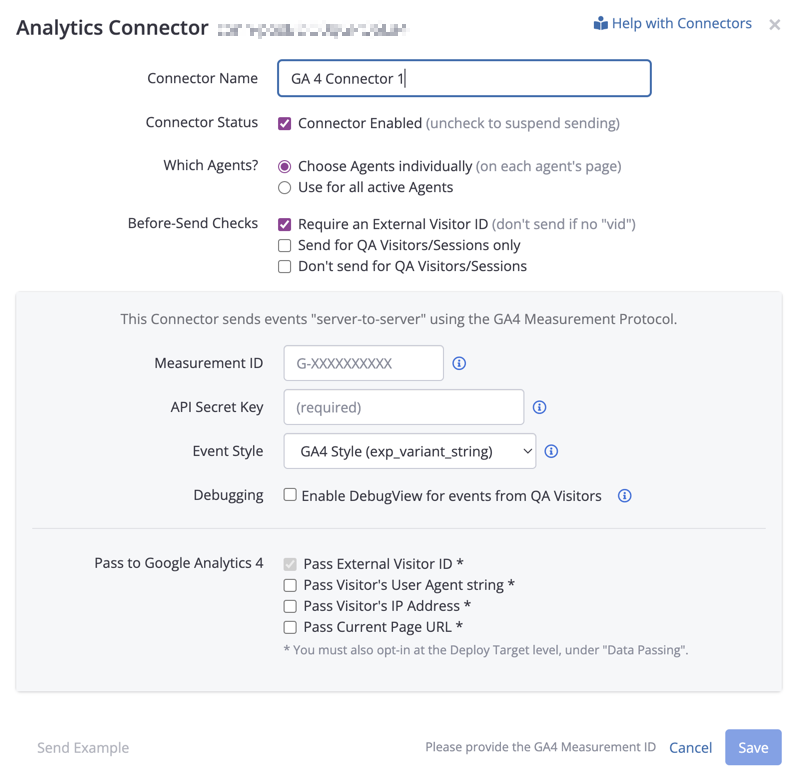
As shown in the screenshot above, you can choose an Event Style, which determines what fields/properties are sent to GA4 when a variation selection is made for one of your visitors.
Here's how the events are sent for the GA4 Style and GA Universal Style:
{
  name: "experience_impression",
  params: {
    exp_variant_string: "conductrics-a-my-ab-test-B",
    conductrics_agent_code: "a-my-ab-test",
    conductrics_variation_code: "B"
  }
}
{
name: "My A/B Test",
params: {
event_category: "Conductrics",
event_label: "B Variation"
}
}The
experience_impressionname andexp_variant_stringin the GA4 Style Event Style follow Google's guidelines for how third-party vendors such as Conductrics should send experimentation-related events to GA4.
Custom Event Templates
In addition to the GA4 Style and GA Universal Style options, you can also create your own "Custom Event Template" which uses whatever parameter names you want:
- For the Event Style option, choose Custom Event Style
- For the Custom Event Template, provide a JSON structure that contains:
- The desired event
name(as a string) - The desired event
params(as a nested object), with your desired name/value pairs.
- The desired event
For your convenience, a Start with Example button is provided, which starts you off as shown below.
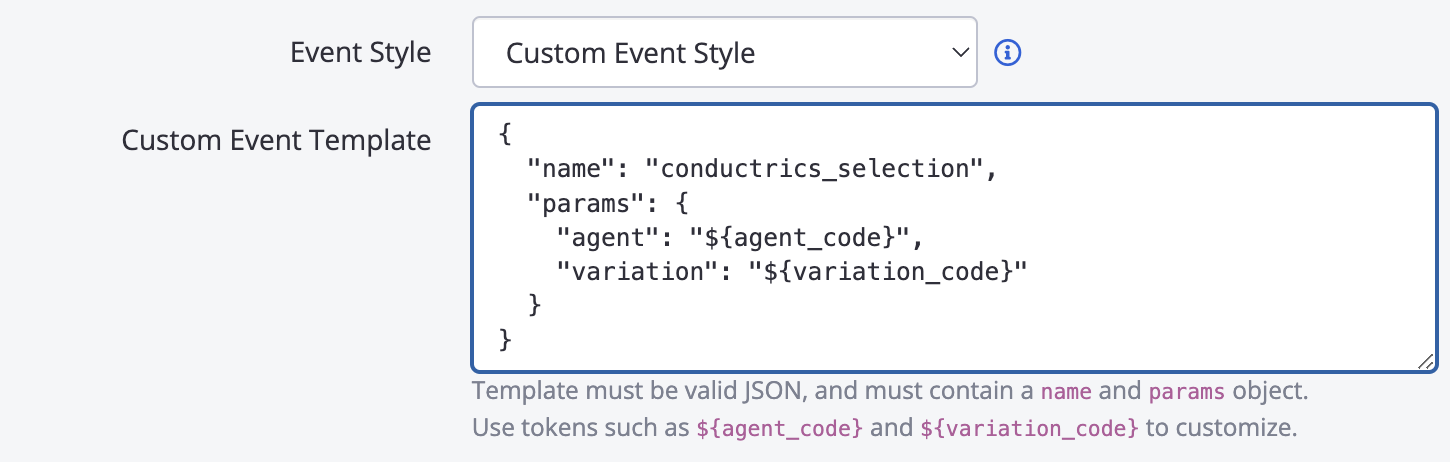
Within the template, use these "tokens" to create the event data you want to be sent to GA4:
${agent_code}will be replaced with the actual Conductrics agent code (unique identifier)${agent_name}will be replaced with the agent's friendly name (as displayed in the admin)${variation_code}will be replaced with the selected Variation code (such as "A" or "B")${variation_name}will be replaced with the selected Variation's friendly name (such as "B Variation")${policy_code}will be replaced with the Selection Policy used for the variation selection (such asrfor a "normal" random selection for an A/B experiment, orfif a fixed rule was used instead of random, etc).
You can adapt the event name and the params structure so that the agent/variation information is sent with the parameter names you want. For instance, you might want different event and parameter names, and for the agent and variation to be passed as their friendly names concatenated together, in which case you could use something like this:
{
  "name": "online_experiment",
  "params": {
    "exp_variant": "${agent_name}: ${variation_name}"
  }
}
Integration with GA4 Audiences
Auto-Creating GA4 Audiences for your Test Variations
This feature is planned for an upcoming Conductrics update.
Conceptually, this feature would basically give you a Create GA4 Audiences for this Agent button in the Conductrics Admin, which would create GA4 Audiences for each of the agent's variations, pre-configured to bucket visitors into the audience based on the exp_variant_string being passed from Conductrics at runtime (see the event examples in the sections above). The UI would encourage you to do this before launching a test to production.
There would also be a corresponding Archive GA4 Audiences for this Agent button, which would "archive" (essentially delete) the Audiences that we auto-created previously. You would do this after your test has been completed, and your GA-side analysis is complete.
Note that Conductrics would need permission to make changes to your GA4 property, which would happen via the customary authorization prompt that you may have seen while using other GA tools or Google Docs plugins, etc.
Please contact Conductrics if you'd like to discuss this future feature, or would like to try it out in "beta" form.
Using GA4 Audiences for Use in Conductrics Agents
This feature is planned for an upcoming Conductrics update.
If enabled, you would be able to select Audiences from your GA4 account, the members of which would get synced/pulled into Conductrics as Custom Visitor Traits for targeting or reporting purposes. Audience membership would most likely be refreshed on a daily or similar cadence.
Please contact Conductrics if you'd like to discuss this future feature, or would like to try it out in "beta" form. We would be interested in understanding and discussing the use cases that you're thinking of.
Updated over 1 year ago