
Chrome Extension
No Longer AvailableSadly, the Conductrics Chrome Extension is no longer available in the Chrome Web Store. Please use our Preview Launcher instead, which provides similar functionality.
You can use our Chrome Extension to test out how this service works before actually placing the scripts that are normally required. You can get a feel for how to set up experiments without having to install Conductrics on your actual site yet.
The extension causes your Chrome browser to add the Conductrics scripts on the fly when you visit your site in Chrome, which means that you can
- Use our visual in-page editing tools to set up the page changes that you want Conductrics to experiment with (your B variations, etc), and
- Use the preview functions to make sure the pages work the way you want them to.
Of course, even though you can do these things, nothing actually changes on your site as viewed by normal visitors until the Conductrics scripts have been added to your site for real. At that time you can stop using the Chrome extension.
Google Chrome OnlyThe Demo Tool is for the Google Chrome browser only. It will not work for Firefox, IE, Edge, Safari, etc. You can still use Conductrics with those browsers of course. You'll just need to install our scripts onto your pages to do so.
Getting Set Up
There are two basic steps:
- Install the Demo Tool extension.
- Enable the extension for your site.
First, go to Settings -> Deploy Targets, and click the Chrome Extension button. Alternatively, you can click Chrome Extension at bottom right of the main Agent List Page.
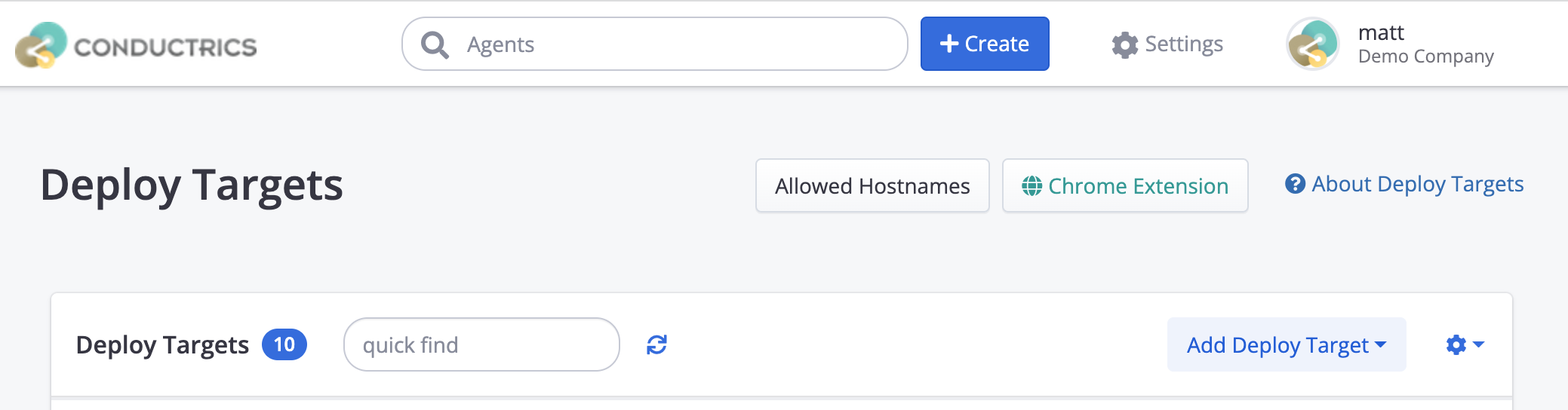
You'll get a little window that looks like this:
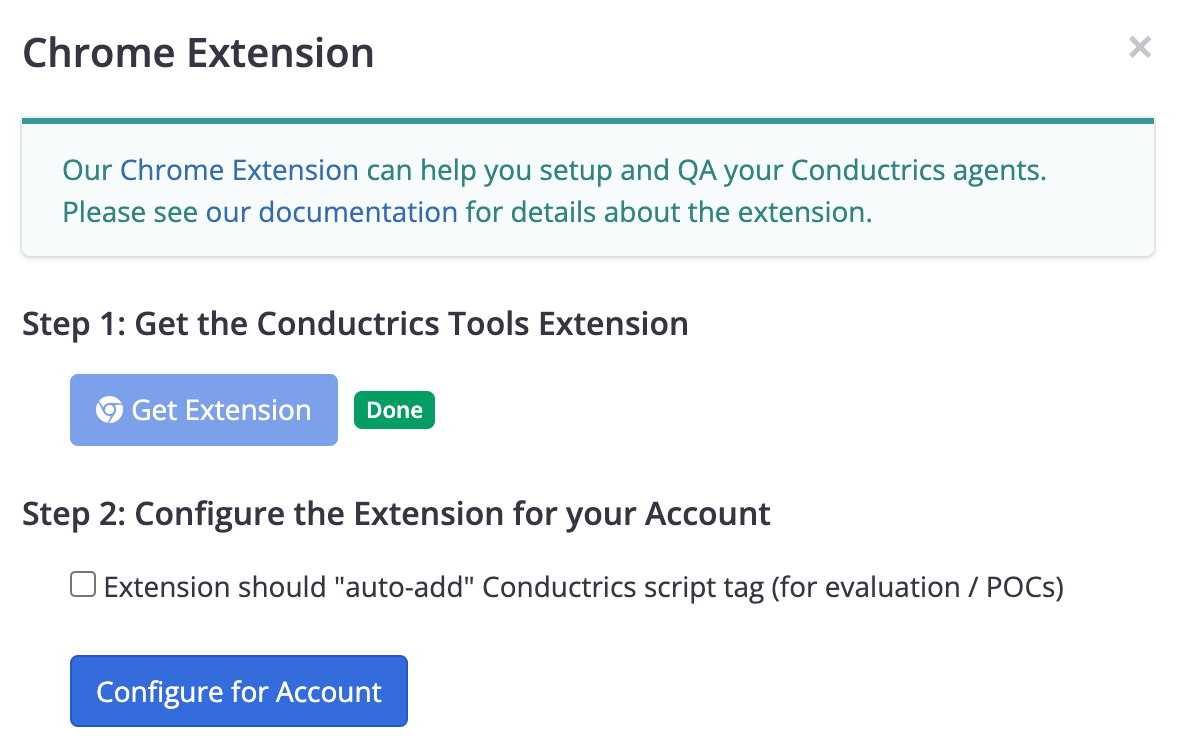
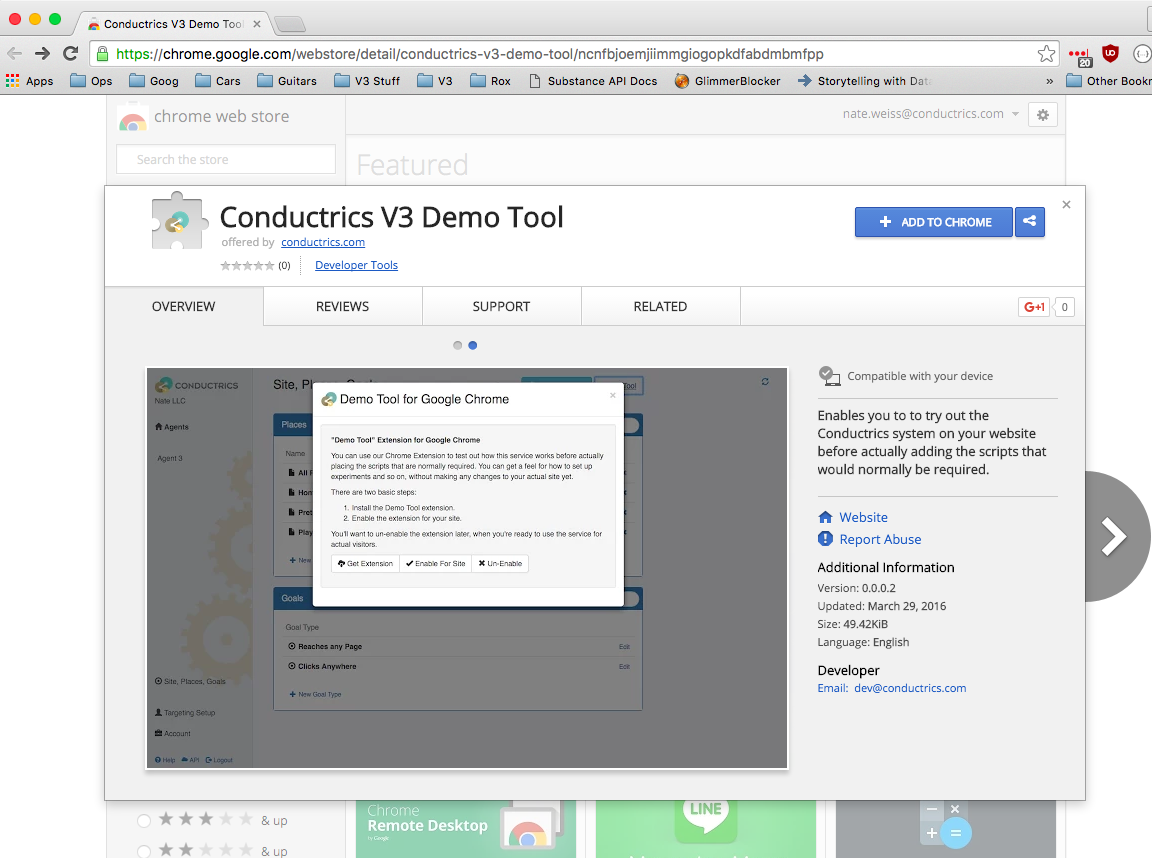
Click the Install the Demo Tool extension button, which will bring you to the extension's page in the Chrome Web Store. Click the Add to Chrome button.
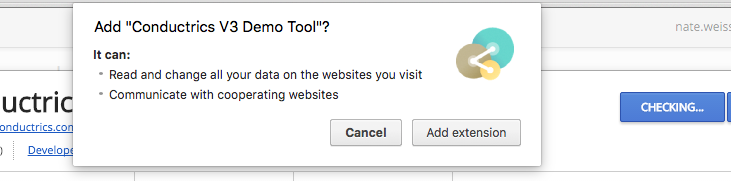
You will get a confirmation message like this.
You'll note that the extension needs the Read and change all your data permission in order to add our functionality to your pages in your browser (this is the main purpose for the extension). It needs the Communicate with cooperating websites permission to let our admin website configure it with the details for your Conductrics account.
Assuming you click Add extension, you should get a message letting you know the extension has been installed:
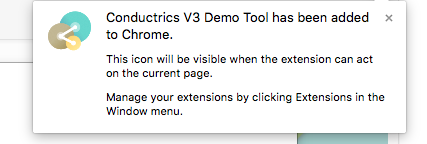
Now that you've installed the extension, return to our admin, where you should still be at the little window that you saw earlier.
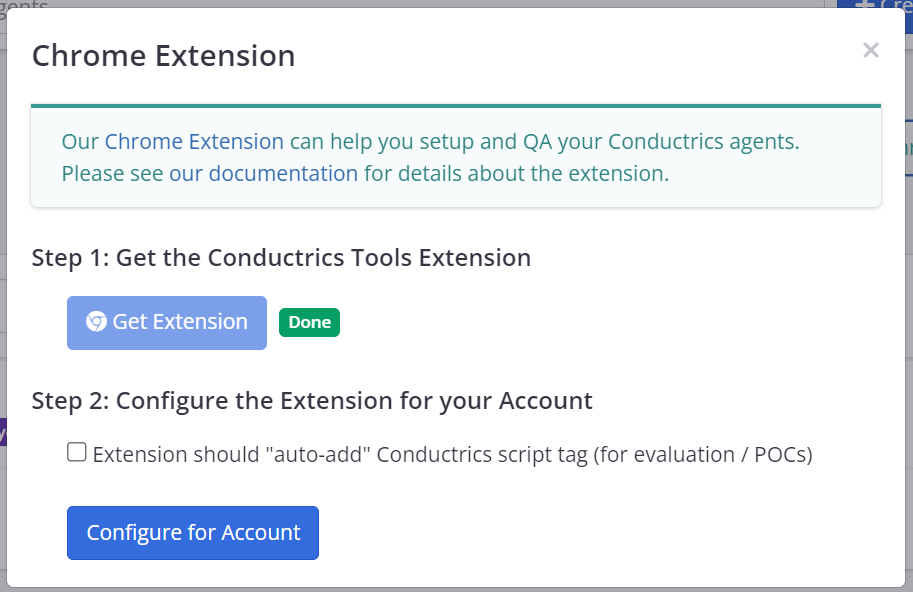
You can check the Extension should "auto-add" Conductrics script tag option right here, or you can do it later directly on the Extension itself under Settings , but either way its needed for the extension to actually add the script tag so make sure its checked at some point.
Then go ahead and click Configure for Account. This sends your account code and a few other details to the Chrome extension, so it has enough information to include the agents for your account.
Which pages will the extension add the scripts to?When you click Configure for Account, the extension is enabled for all pages on which the selected deploy target has been added to, and which match the list of allowed hostnames in your Conductrics setup. You can see (and modify) this list by going to Settings -> Distributions and clicking the Allowed Hostnames button in the sidebar. The extension will only add the Conductrics script to pages that have a hostname matching one of the hostnames in this list.
If you later change the Hostnames for your site, you will need to click on the Chrome Extension button again and re-click the Enable the extension for your site button to configure the new hostnames in the extension.
That should do it. Now you can try using our Express point-and-click tools to set up experiments, preview the changes that would be made on your pages, and so on. Of course, because the functionality is being added locally in your browser, only you see the changes.
If you want someone else on your team to also see the changes, send them these instructions and have them install the extension too (they will need to log into our admin in order to be able to set things up, just as you did).
Disabling or Uninstalling the Extension
If you have any trouble with the extension, or you just don't need it anymore, feel free to disable it temporarily or remove it.
To disable the extension temporarily, choose Window > Extensions from Chrome's main menu. Find the Conductrics Demo Tool extension in the list, and uncheck the Enabled checkbox. You can always re-check the checkbox later if you want to use the extension again.
To remove the extension completely, you also go to Window > Extensions from Chrome's main menu, then click the trash can icon to remove the extension completely. You can always re-install it later.
Updated over 1 year ago