
Script Tag Installation
For Conductrics Express or the Local JavaScript API
If you want to use Conductrics Express or our Local JavaScript API, you'll want to add the Conductrics script tag to your pages.
Adding the Script Tag
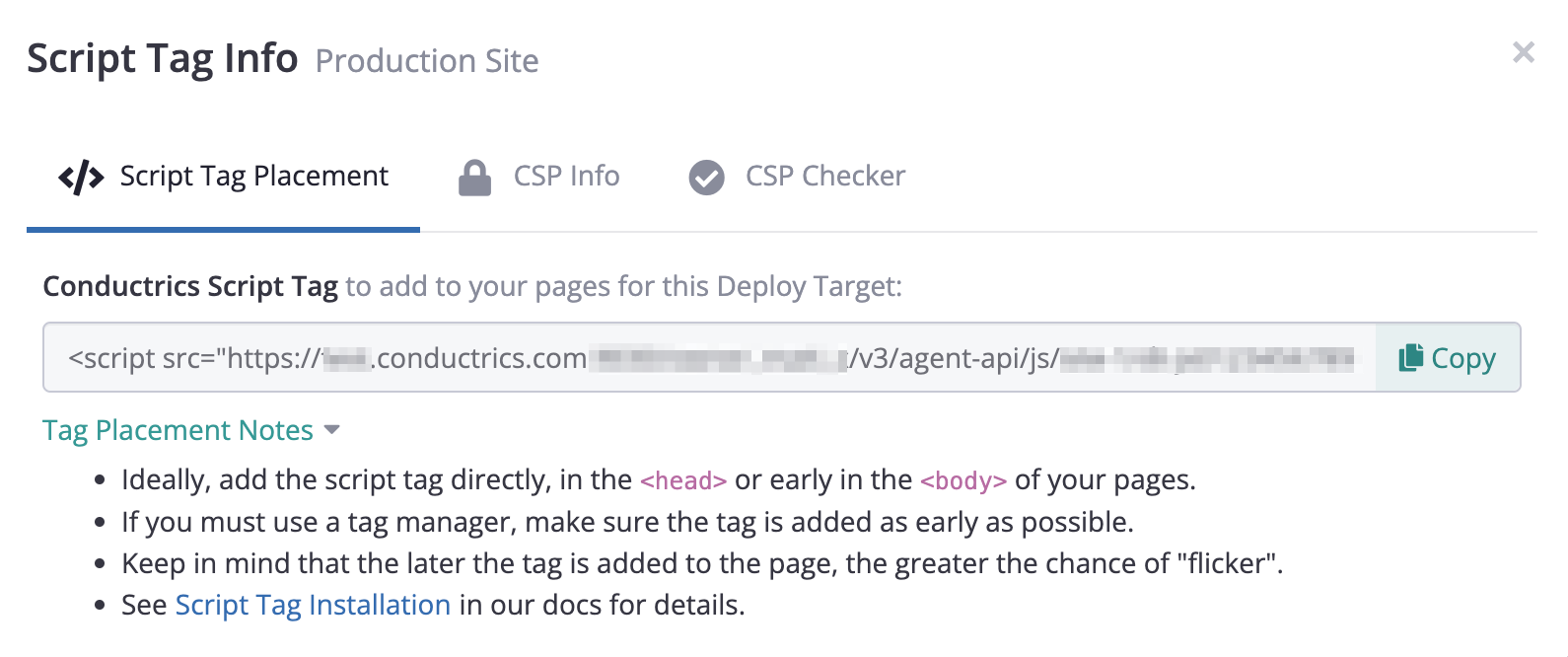
To get the script tag to add to your site:
- Go to Settings > Deploy Targets in the Conductrics Admin.
- Click Get JS Tag for the Deploy Target that represents your site (for new accounts, there's probably a default one called "Production Site").
- Copy the
<script>tag and add it to your page.
The exact steps for adding the script tag to your pages will depend on how your site works internally, such as whether it uses "static file" or uses a CMS, and so on. Feel free to reach out to Conductrics if you have any questions.
Script Tag Placement: The Conductrics script tag should be placed as early in the page as possible. Place it in the <head> portion of your pages if possible, or near the top of the <body> portion.
Conductrics and Content Security PoliciesIf your site uses a Content Security Policy (CSP) to enforce what scripts get added to the page, please refer to CSPs and Nonces for details.
Adding the Script Tag via a Tag Manager
If you are going to use a "tag manager" such as Google Tag Manager (GTM), Adobe Launch / DTM, Tealium, or Ensighten to include our script tag, please try to make sure our tag gets included as early in the page load process as possible, preferably synchronously (that is, not "async").
You may be used to including "analytics" scripts at the bottom of the page (or asynchronously via a tag manager) to speed up page load times, but keep in mind that in most cases you're asking Conductrics to do more than just analytics. You're also asking it to make changes to your pages, and you probably want those changes to be applied early in the page load process to avoid "flicker".
That said, we understand that sometimes a tag manager may be the only reasonable way to embed scripts onto a page. We do our best to avoid "flicker", but the later in the page load process we get added to the page, the later we'll be able to make the page changes called for by your tests or optimization agents. You may find that you prefer to avoid certain types of experiments using Conductrics Express, mainly those that appear "above the fold" on the first page load of the visitor's session, and which also change existing content/elements on the page.
Please feel free to reach out to Conductrics with any questions about tag placement!
Control Over the Contents of the Script Tag
The contents of the script tag is affected by various things:
- The test or optimization "Agents" that you currently have running
- The "Goals" you have set up to track conversion events
- The targeting and other settings that you're using
You can use various Deployment Options to control the contents of the script tag:
- You can have multiple Deploy Targets, perhaps one for each of your sites, or to separate your Production vs Staging or QA type environments.
- Each Deploy Target gets its own Conductrics script tag.
- You can specify which of your company's Teams should be included in each deploy target (in other words, who can add tests and optimizations to which sites or environments?).
- You can specify that the contents of the script tag should only be updated when an authorized person on your team specifically goes through a "Deploy Now" step. You can further specify that Two-Factor Authorization (2FA) is required to deploy changes.
What's Next?
Once you've installed the script tag, you can either set up some kind of test or optimizations visually with Conductrics Express, or start working with our Local JavaScript API as a developer.
Check out the Start Here page for more, and feel free to reach out to Conductrics if you have any questions. We're here to help!
Updated 5 days ago