
QA Sessions for REST API
If you are using our REST-Style API to call your Conductrics agents in a "server-side" manner, you may sometimes want a way to easily QA your site or app. Conductrics provides a "QA Sessions" feature for this purpose.
With QA Sessions, you can:
- Pre-select a particular agent variation, so that you get shown the "A" or "B" or whichever variation you want to QA.
- View the "calls" being made to Conductrics when you interact with your site or app, so you can see when your application asks for agent selections or sends goals/rewards back to your agents.
- View the "logs" from your Conductrics calls, so that you can see how your various rules and conditions are being interpreted, which agents are being called where, and so on.
REST API OnlyAt this time, QA Sessions work only with our REST-style API (aka Web Service).
QA Sessions don't work with Conductrics Express or our "native" support forAndroid or iOS.
Enabling QA Sessions
The first step is to enable QA Sessions, which is an option at the Deploy Target level. Just go to Settings > Distribution and hit Edit for the appropriate Deploy Target (remember that only REST API deploy targets are supported at this time).
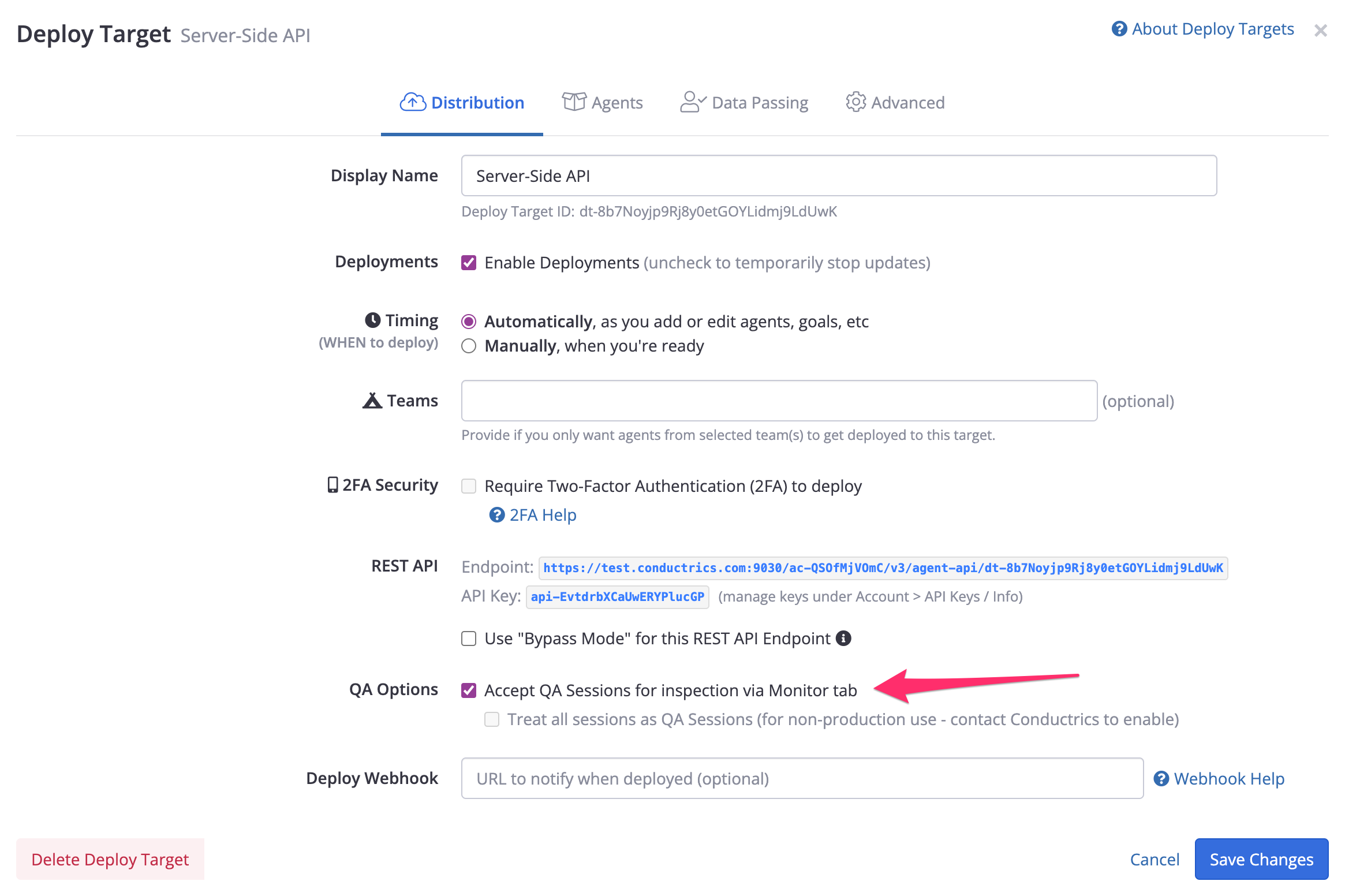
Enabling QA Sessions for a given REST API Deploy Target
Using QA Sessions
To use QA Sessions:
- Go to one of your API Agents (not an Express agent) in the Conductrics Admin, then hit the QA Sessions link at bottom right of the agent's page. You should see the QA Sessions form appear, as shown below.
- Provide your Session ID, so that Conductrics knows to treat your "session" as a QA Session. Where you'll get the Session ID from will depend on how your site or app is communicating with Conductrics. You might be able to grab it from a "cookie" or similar - ask your dev team or contact Conductrics for help if you're unsure how to get it.
- Optionally provide a "Pre-Selection" for each agent variation you want to be selected for when your site or app communicates with Conductrics.
- Hit the QA Session button (with "start" icon as shown below) to register your Session ID.
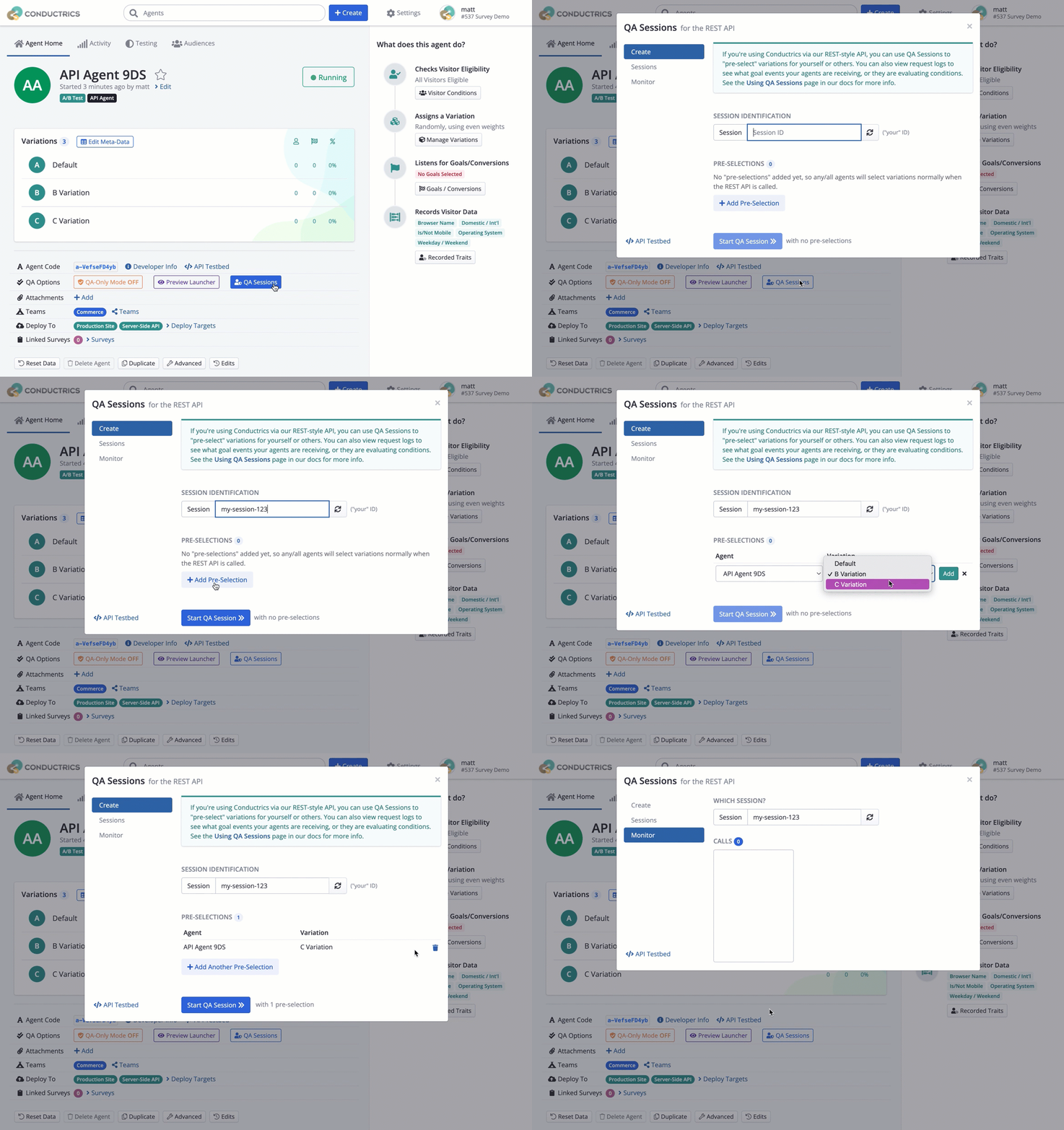
Starting a QA Session
Now go ahead and visit whatever page or screen of your site or app that should cause it to call Conductrics. If you chose a "Pre-Selection", you should see that you are now "selected" for the variation(s) you requested.
Changing the "Pre-Selections" for a QA SessionYou can change the pre-selections for a given agent (for a given Session ID) if you wish. Your new selection will take precedence over the prior one.
Monitoring Your QA Session
Once you've registered a QA Session ID as discussed above, you can view the API calls made by your site or app for your QA Session.
QA Session Monitoring can help you:
- Verify that Conductrics is being called at the right times from your side,
- Understand how Conductrics is evaluating any conditions or rules that you may have placed on your agents,
- See what variations are being assigned by your Conductrics agents,
- See what goals ("conversion events") are being sent by your site or app back to Conductrics.
Just provide the Session ID that you want to "monitor", then click Show. You'll see the calls made to Conductrics for that Session ID in a list on the left:
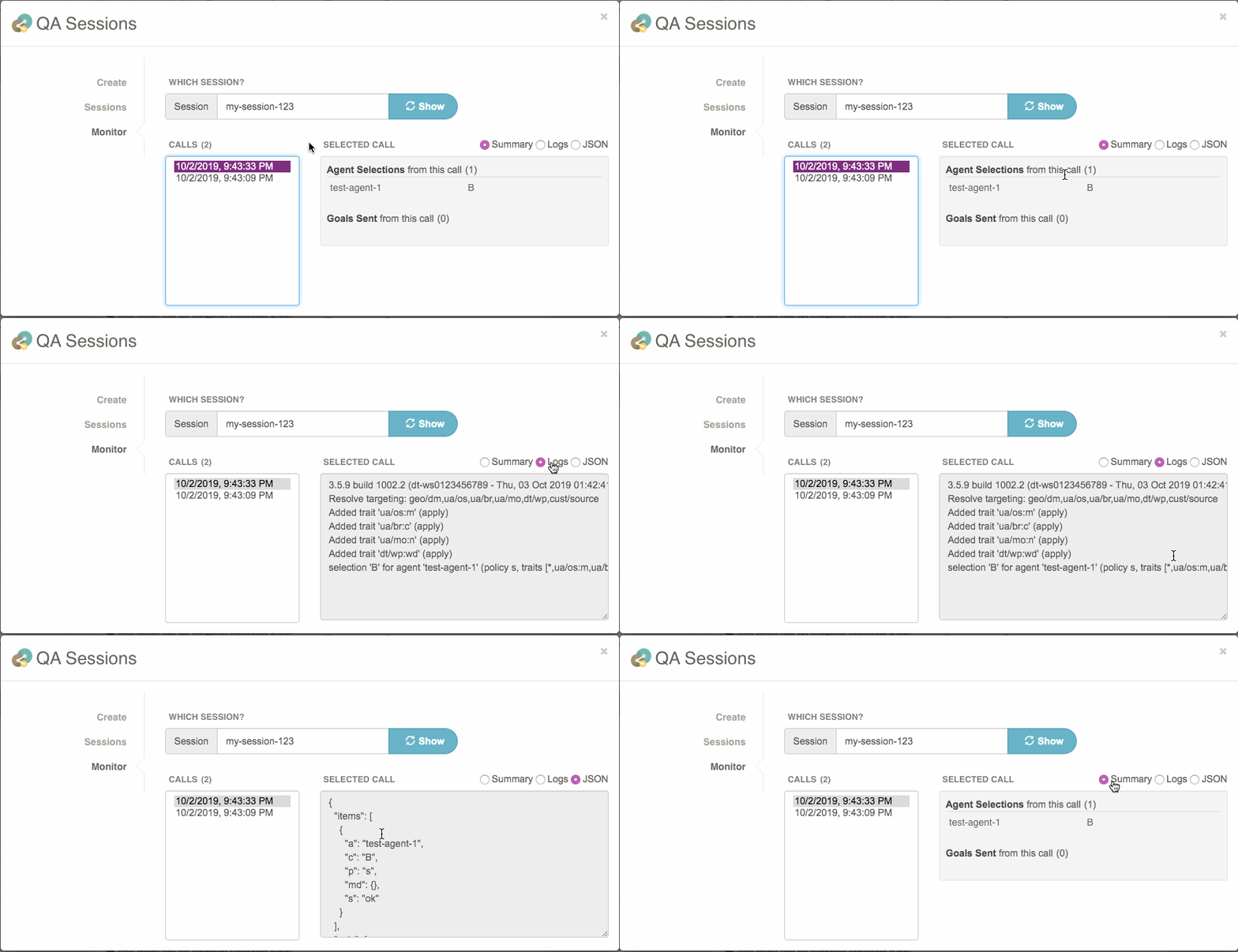
As you can see above, you can select each of the calls to see:
- A Summary of the agents and goals triggered by the call
- The Logs for the call
- The JSON response that Conductrics returned for the call
QA Sessions Last for 2 HoursEach QA Session is discarded after 2 hours. That includes the log/monitoring information shown above. If you need a different timeout, please contact Conductrics to discuss.
Listing your QA Sessions
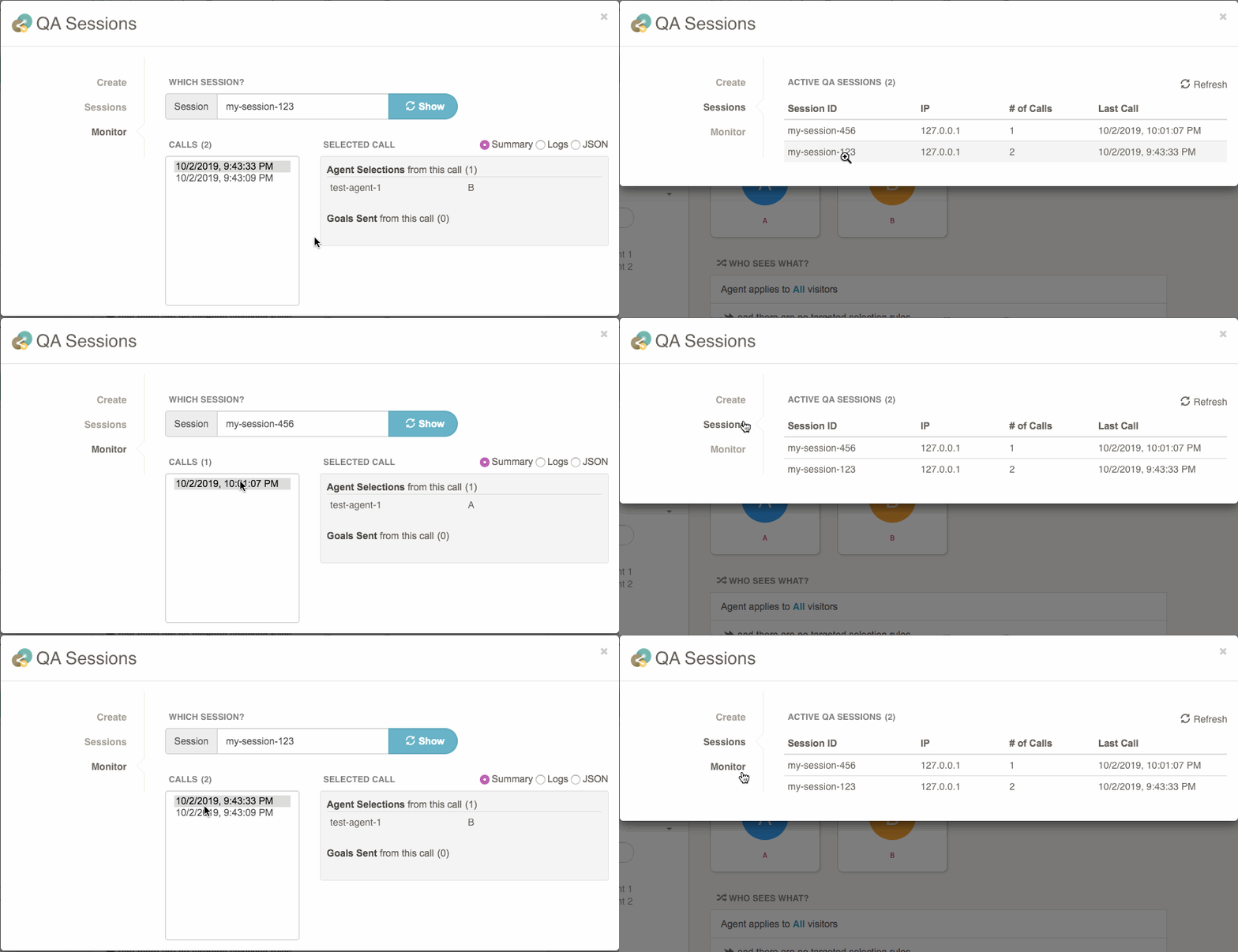
You can use the Sessions tab of the QA Sessions window to list the currently-active QA Sessions. You'll see any Session IDs that you've created recently, along with those of your colleagues.
Treating All Sessions as QA SessionsWe support an option where all Session IDs will be treated as QA Sessions (there's a screenshot that shows the option "greyed out" at the top of this doc page). This can be useful in situations where it's not convenient or possible for your QA team to know their own Session IDs (the IDs passed from your site or app to Conductrics). This option is intended for QA purposes only. Please contact Conductrics to discuss enabling this option (you can't enable it yourself). We will only enable it for deploy targets that are not (and will not) be used in production.
Updated over 1 year ago