
Using a "Substitute" JS file
For QA purposes before an update to your account
Occasionally, Conductrics may provide you with a "substitute" JavaScript file to use in your local browser or computer. This might be because your account is due for an important Conductrics version update, or if we are working with you to reproduce a bug or validate a new feature.
There are a couple of ways to use the substitute file.
Using "Local Overrides" in Chrome
To use the substitute JS file in Chrome (on the desktop), you can use Chrome's "Local Overrides" feature. For a full explanation of Local Overrides, see this page in the chrome documentation.
To get started:
- Open Chrome's developer tools.
- Open the Sources tab, and then open the Overrides sub-tab.
- If you've never used Local Overrides before, follow the link to select a folder for your overrides.
Now tell Chrome to use the substitute file you got from Conductrics:
- Pull up a page in your browser where you're using Conductrics via JavaScript normally (either Express or the JS API).
- In the Network tab of your dev tools, find the request for the normal Conductrics script (just use the Filter field to search for "dt-"), then right-click and hit Save for overrides as shown in the screenshot below.
- Chrome should switch you to the Sources tab, with the current JS from the "normal" Conductrics script tag shown.
- Copy and paste the JS from the "substitute" file, completely replacing the "normal" JS content.
- Hit Ctrl-S or Command-S to save (you're just saving to your local drive - this won't affect anyone else).
Now reload the page. You should be running the substitute code and can verify correct behavior.
To switch back and forth between the "normal" and "substitute" code, just check/uncheck the Enable Local Overrides checkbox under Sources > Overrides in your dev tools.
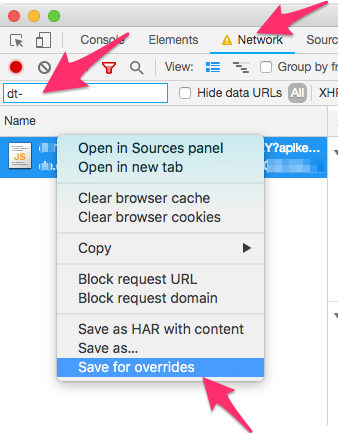
Using the "Save for overrides" context menu is the easiest way to use the substitute file in Chrome
Using Charles Debugging Proxy
You can also use a "debugging proxy" such as Charles to intercept the requests for your "normal" Conductrics script tag, instead returning the JS from the "substitute" you got from Conductrics. This is similar conceptually to using Local Overrides in Chrome as discussed above, except that it will work for other browsers on your computer as well.
In Charles you use the Map Local tool for this purpose. See this documentation page for details, but the basic steps would be:
- In Charles, go to Tools > Map Local.
- Add a local mapping rule something like the screenshot shown below, based on the URL for your "normal" script tag.
- In your browser, reload one of your pages that use Conductrics. You should now be using the substitute code.
When setting up the local mapping:
- The Host will be something like cdn-v3.conductrics.com or de.cdn-v3.conductrics.com or similar, depending on your country/locale.
- The Path is the portion of the URL starting with
/acbut before thedt-part, with a/*at the end as shown below. - The Local Path is the folder where you saved the "substitute" file from Conductrics.
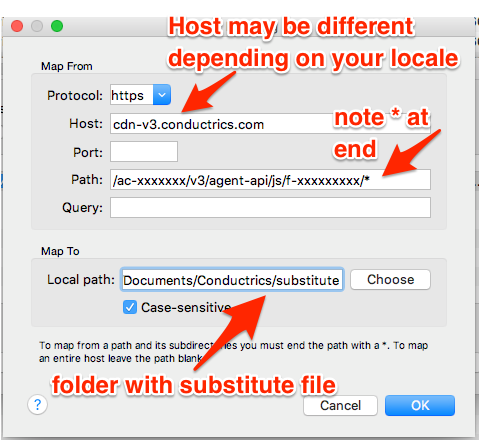
Setting up a Map Local rule
If you see an error message in your browser about SSL, you may need to enable SSL Proxying in Charles for the Conductrics script host (cdn-v3.conductrics.com or similar).
Updated over 1 year ago