
Notifications
You can get notifications about the Agents, Goals, and other stuff in your Conductrics account.
There are currently two main types of notifications:
- Change Notifications, about edits and other changes to your agents, goals, etc.
- Scheduled Notifications, which provide regular updates about running agents.
You can receive these notifications:
- via email, as an hourly or daily digest
- via chat room messages posted by a Conductrics "chat bot"
You can also review the notifications in the Conductrics Admin.
What are Change Notifications?
Change notifications occur when someone makes an important change in the Conductrics Admin (or via one of the Administrative APIs).
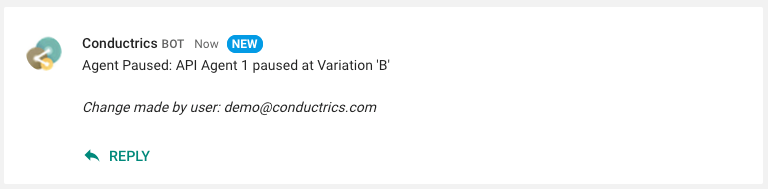
For example, you might get a notification like this when you or someone else pauses an agent:
What are Scheduled Notifications?
Scheduled notifications occur on a regular schedule to keep you informed.
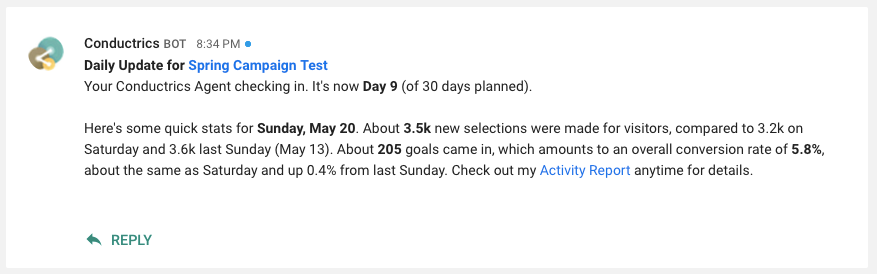
For example, you can receive "Daily Status Update" notifications like this at the start of each day:
Setting up Email Notifications
To set up how you and other users in your Conductrics account should receive notifications, you can create and subscribe to a Notification Stream. Conceptually, streams "watch" for certain events happening within Conductrics, and notify whoever is subscribed.
Go to Settings > Notifications in the Conductrics Admin and hit the New Stream button, which brings up a dialog as shown below.
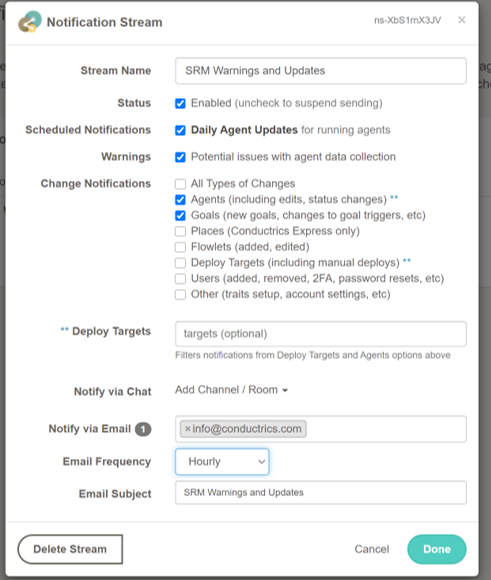
In the Notification Stream form shown above:
- Give the stream a name for display in the admin, perhaps something like "Agent Updates".
- Check off the types of notifications you want to be included. The checkboxes shown above will be selected by default, so you'll be notified mainly about changes to your agents and their progress. But you can select other notification types as well - for instance if you want to be notified when new users are added to your Conductrics account.
- Under Notify via Email, select whichever users you want to receive the selected notifications via email.
- Adjust the Email Frequency as desired - you can choose between Hourly, Daily, or Right Away. For example, "Daily" means that people will get just one email a day for this notification stream, which will contain all of the matching notification events that occurred during the prior 24 hours.
When you're ready, hit the Done button to create the Notification Stream, which will appear in the admin something like this:
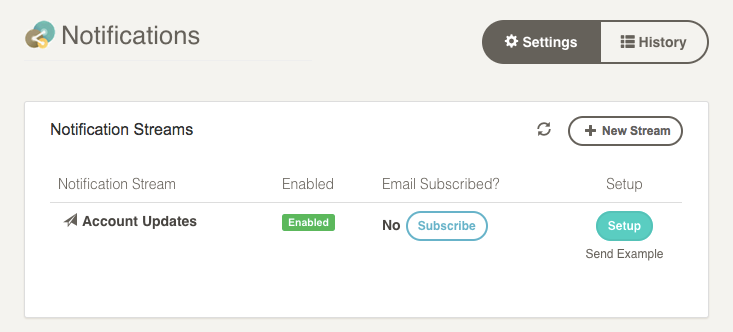
You can subscribe yourself to email updates for a stream via the Subscribe button as shown above. You can also unsubscribe yourself similarly.
PermissionsYou won't be able to create or edit notification streams unless you're an account admin. But you can still subscribe/unsubscribe yourself to existing streams even if you're not.
Setting up Notifications via Slack
In addition to email notifications, you can have Conductrics send notifications to a Slack channel. People on your team can join the channel to see notifications as they occur using the Slack app for iOS or Android, via the Slack desktop app for Windows or Mac, or via the web interface at Slack.com.
- Sign into Slack.
- Create a new channel and give it a name such as Conductrics Agents (or you can use an existing channel).
- Go to https://api.slack.com/apps/new which should give you a form to register a new App (see screenshot below). For the App Name, use Conductrics (or similar name). For the Development Slack Workspace, choose the appropriate workspace for your company.
- Click Create App.
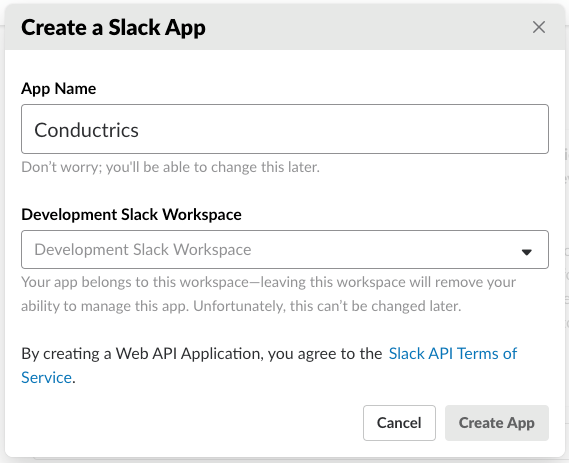
Creating a new Slack App for Conductrics
Next, you'll create an "Incoming Webhook", which is what gives Conductrics the ability to post to your Slack channel.
- Hit Incoming Webhooks.
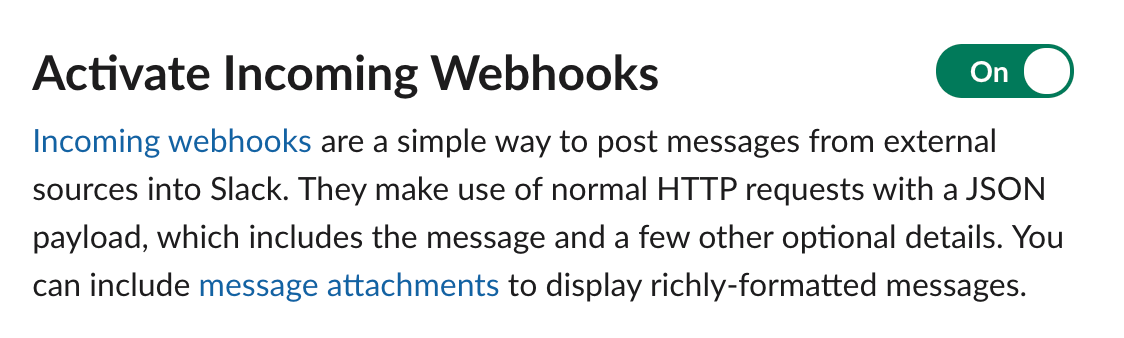
- In the Activate Incoming Webhooks area, switch the toggle to "On" if it's not already:
- Click the Add New Webhook to Workspace button:
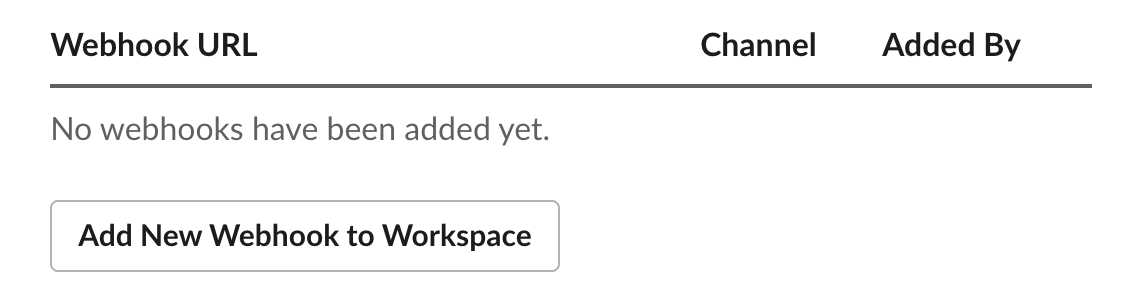
- You'll be prompted for the channel that you'd like Conductrics to post messages to. Pick an appropriate channel (such as #conductricsagents, or perhaps #optimizations) and click Authorize.
- Copy the Webhook URL to the clipboard:

Now you'll paste the Webhook URL you got from Slack and paste it into the Conductrics Admin.
- Go to Settings > Notifications > Settings and hit Setup for an existing Notification Stream, or create a new stream as discussed in the section about email notifications above.
- Under Notify via Chat, paste your Webhook URL into the Add Channel/Room field and hit Add.
- Save your changes to the notification stream.
You can test the integration by hitting Send Example. After a few moments you should see a message in the Slack channel you specified, something like the following:
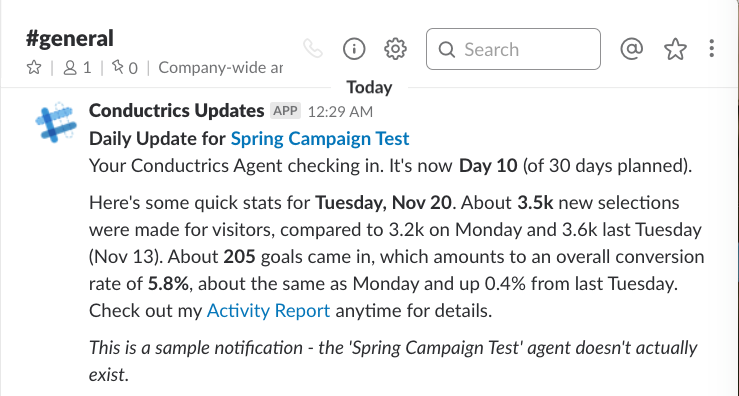
Sending a sample "update" to your Slack channel to test the integration
Setting up Notifications via Google Hangouts Chat
In addition to email notifications, you can have Conductrics send notifications to a Room in Google Hangouts Chat, which is part of G Suite.
Anyone on your team can join the room to see notifications as they occur using the Hangouts Chat app for iOS or Android, or via the Hangouts Chat web interface.
Talk amongst yourselves as wellYour team can also use the room to discuss what's going on with your testing or optimization efforts, track the progress of the creative assets for upcoming tests. You can add attachments, search past discussions, and any of the other stuff you'd be able to do with Hangouts Chat in general.
You'll need to create a "Webhook" for Conductrics to use to post messages to your room.
- Sign into Hangouts Chat using your G Suite account.
- Create a new Room and give it a name such as Conductrics Agents (or you can use an existing room).
- Click the room's title bar and choose Configure Webhooks as shown below.
- Click Add Webhook and type Conductrics for the name of the webhook, then click Save.
- Use the button provided to copy the Webhook URL, so you can paste it into the Conductrics Admin.
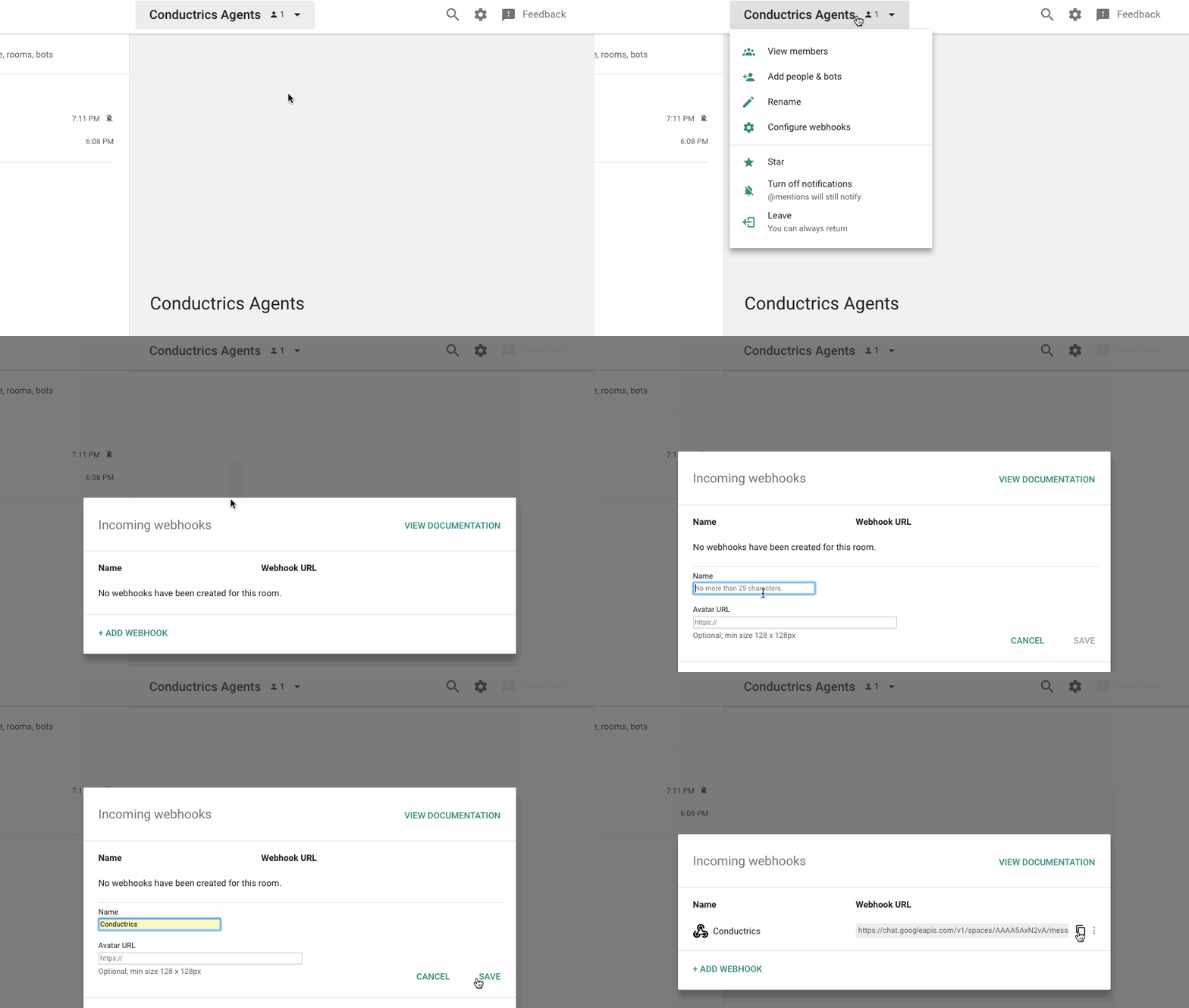
Getting a Webhook URL for Conductrics to use to post to your Hangouts Chat room.
Now you'll paste the Webhook URL you got from Hangouts Chat and paste it into the Conductrics Admin. This is how you "authorize" Conductrics to post messages to your room.
- Go to Settings > Notifications and hit Setup for an existing Notification Stream, or create a new stream as discussed in the section about email notifications above.
- Under Notify via Chat, paste your Webhook URL into the Add Chat Room field and hit Add.
- Save your changes to the notification stream.

Testing It Out
You can test that the chat integration is working by doing something like creating a new agent or goal, etc (depending on what types of changes you've enabled for the notification stream).
If you selected a scheduled notification type such as Daily Status Updates, you can generate an example message via the Send Example button near the Setup button for your notification stream.
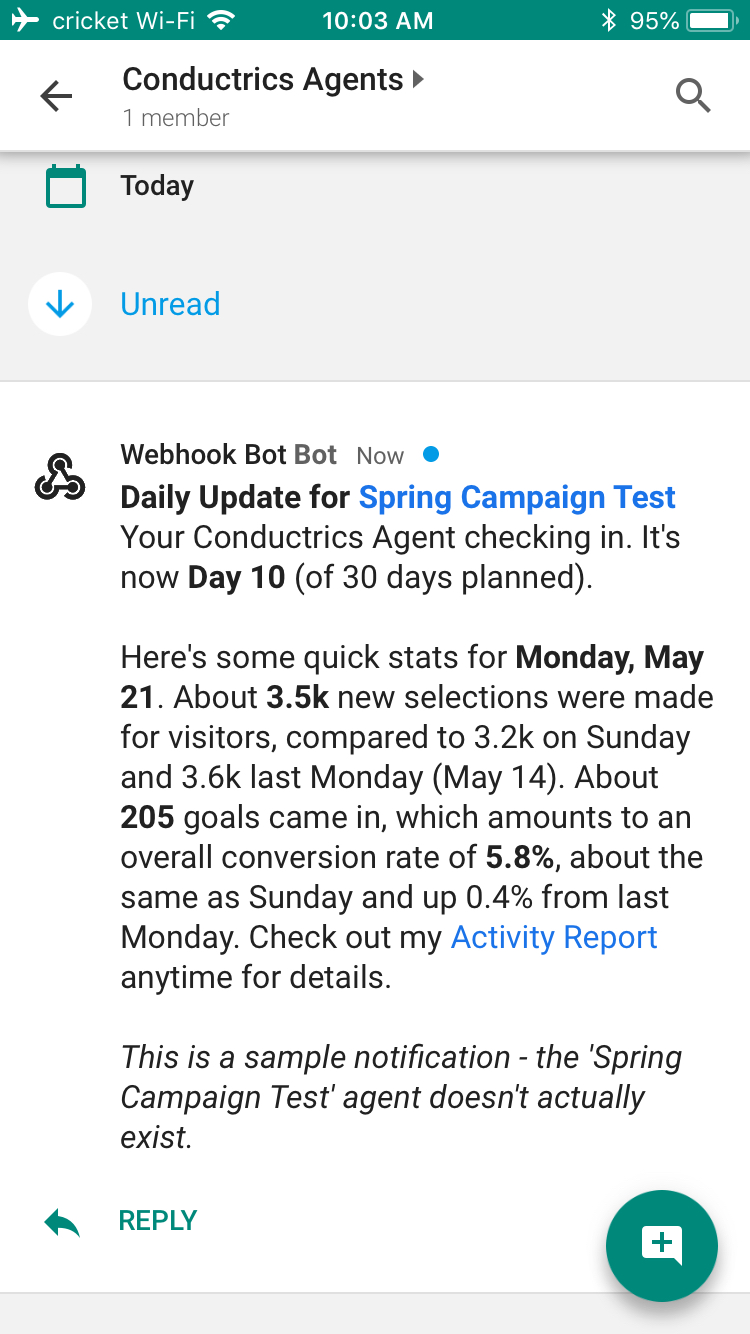
Here's what the example notification looks like in the Hangouts Chat app on an iPhone.
Viewing the Notifications History
You can review notification events at any time using the History tab under Settings > Notifications.
These events are the same ones that you can have actively sent out via email or chat as discussed in the sections above. They are logged by Conductrics when people make changes to agents or other items via the Conductrics admin or via one of our APIs.
Over time, quite a few events will accumulate in the history, but you can filter them by agent, goal, or type of notification. You can also filter by the user who made the underlying change/edit in your account.
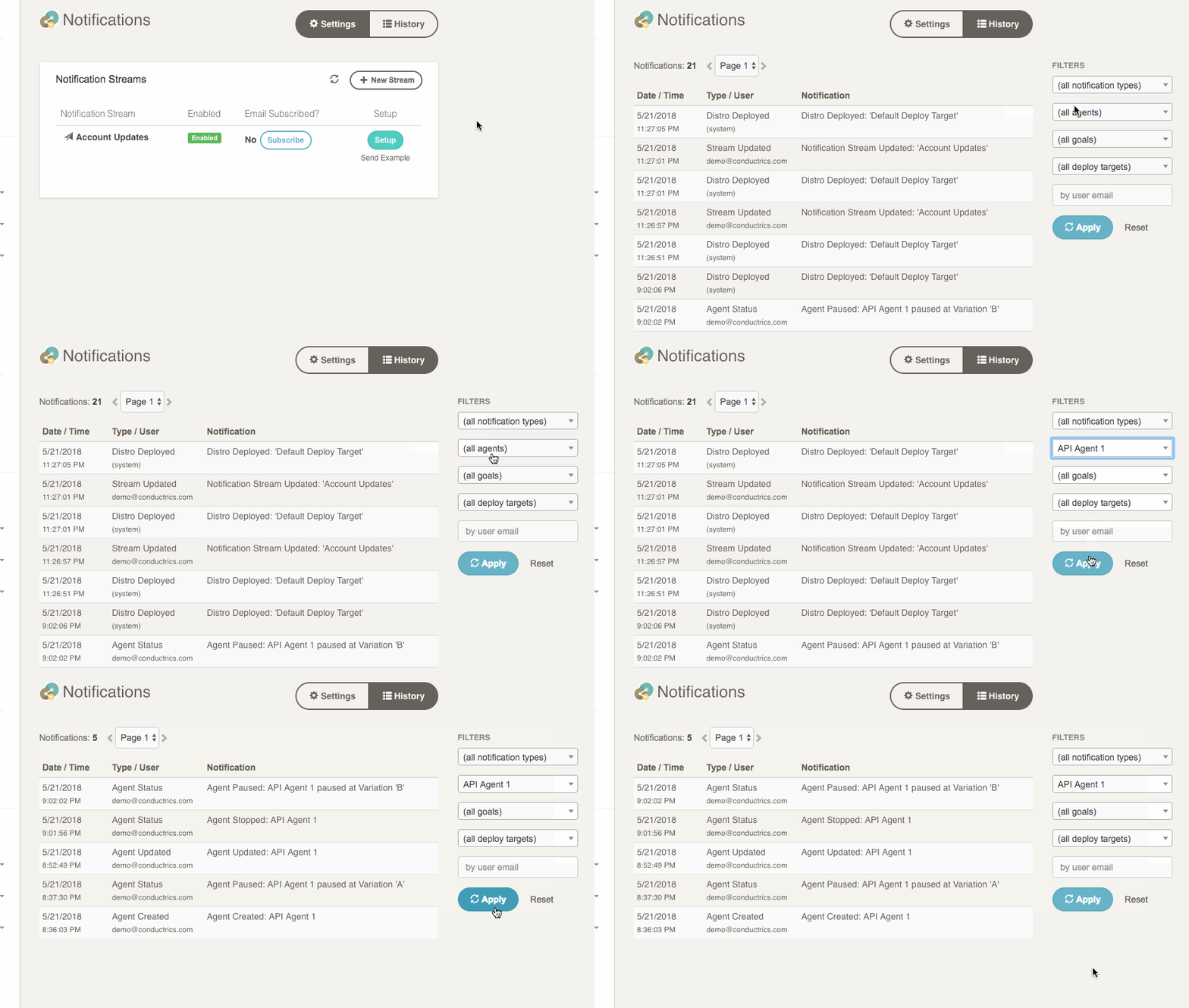
Notification events will show up in the History even if you don't have any notification streams that actively send them out via email or chat.
Notifications: Warnings
Selecting the Warnings: Potential Issues with Agent Data Collection will instruct Conductrics to check for sample ratio mismatch (SRM) error. SRM errors occur when the ratio of actual users selected for each treatment does not match the agent's selection weights. In a simple A v B test, the default setting is a 50/50 ratio. If Conductrics detects that there is not a 50/50 split in users selected for the A and B experiences, the notification stream will trigger a warning to alert your team to review the configuration and ensure each experience is being rendered properly in the web page or app.
Technical Note: SRM TestConductrics uses the Chi-squared Goodness of Fit Test to determine if the observed selections are drawn from the probability weights selected in the agent. While the default is to select users with equal probability into each treatment, Conductrics SRM check will automatically use any custom weight settings when running the SRM test. For example, if the selection weights are set to A=50, B=30, C=20, then Conductrics will check to ensure that the observed selections have this 50/30/20 ratio.
Updated over 1 year ago