
Deployment Options
Controlling when and where your Conductrics agents are deployed
Conductrics offers a few different deployment options:
- Conductrics-Hosted with Automated Deployments - the simplest, most direct method. Changes you make on the Conductrics side show up without any further intervention. This is the default configuration, and is often best for small teams that want to work with the least fuss and bother.
- Conductrics-Hosted with Manual Deployments - intentionally adds an extra step to the process. Changes you make on the Conductrics side don't roll out to the public until you hit a separate Deploy Now button in our admin. You can set your permissions up so that only some people have authorization to sign off on a deployment. This can be good for large companies that have a lot of people working on the site.
- Self-Hosted with Manual Deployments - moves the JavaScript that powers your Conductrics agents to your side. This way, your internal CMS or content deployment policies can ensure that your Conductrics-related changes roll out exactly when you want them to. Also, the code is first party which may make it easier to use the system in security- and privacy-minded companies.
Deploy Targets
You can manage your deployment options in the Conductrics Admin, under Settings > Deploy Targets. Your account probably already has a couple of Deploy Targets with the default settings, something like this:
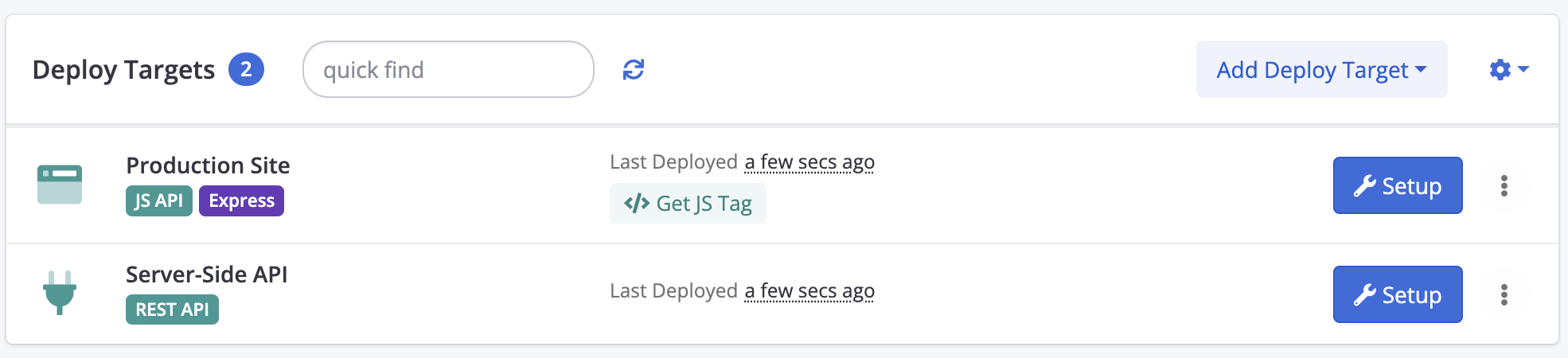
Right now we're focusing on "client-side" Deploy Targets, indicated by the Express badge as shown above. By default, your Conductrics account has one such Deploy Target, called Production Site, but the name may have been changed in your account, and/or there may be additional Deploy Targets listed.
You'll note that there's also a Server-Side API Deploy Target shown above. That's how you control settings and deployments for the Conductrics REST API. Most of the same concepts apply.
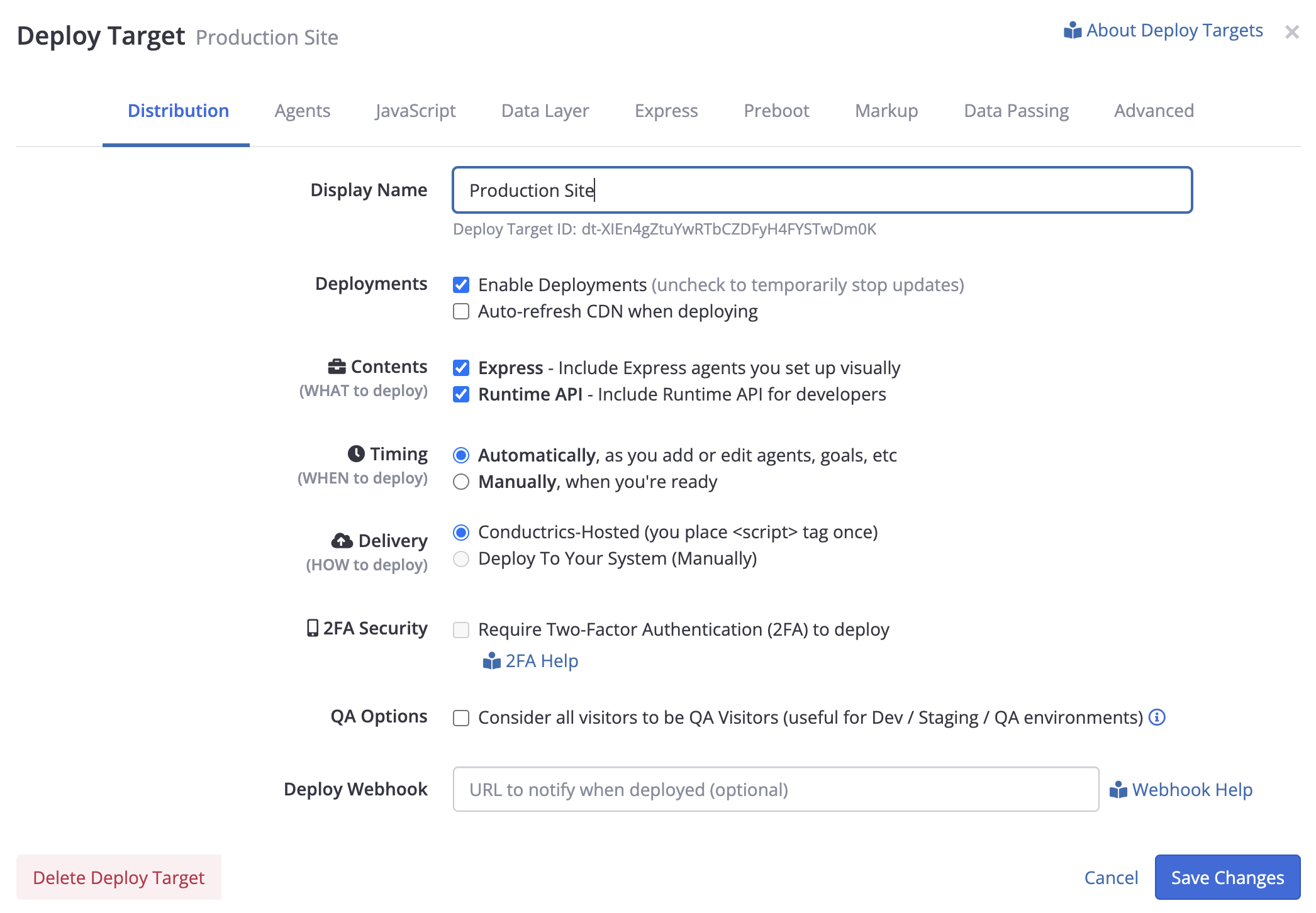
Click Setup for the Production Site Deploy Target to view or change its details. This brings up a window that shows your current deployment options:
Manually-Timed Deployments
You can set the Timing option to Manually, which means that additions and changes to your Conductrics agents (or goals or any other Conductrics-related changes) won't roll out to the public until you (or the appropriate person in your organization) explicitly deploy them.
To set it up:
- Click Setup for your Deploy Target.
- Under the Distribution tab (shown above), choose Manually for the Timing option.
- Leave the Delivery option set to Conductrics-Hosted (the other options are discussed below) and save your changes.
Then, when you're ready to deploy:
- Return to Settings > Deploy Targets page in the Conductrics Admin.
- Click Deploy Now for your Deploy Target.
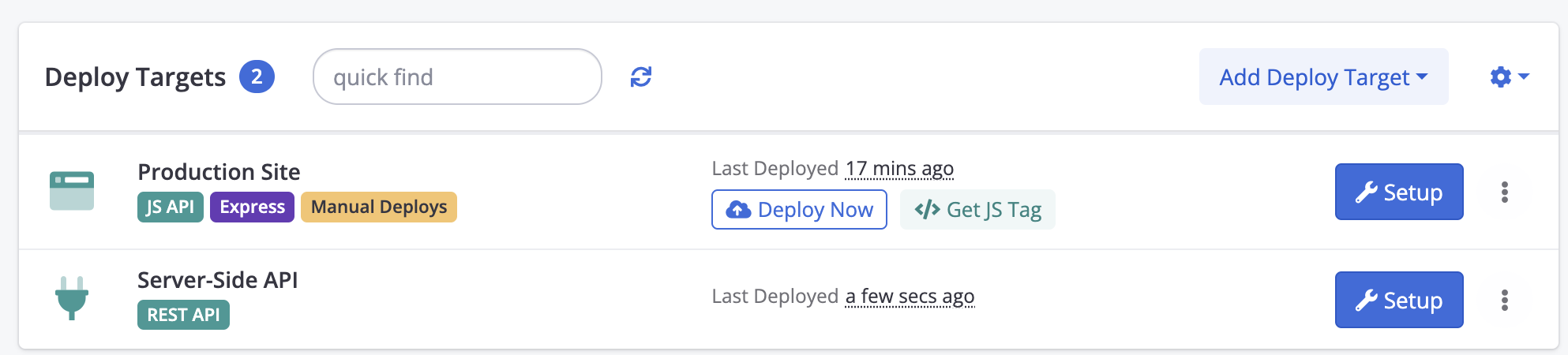
You'll get a confirmation message, like so, which helps you understand what's changed since the last deployment:
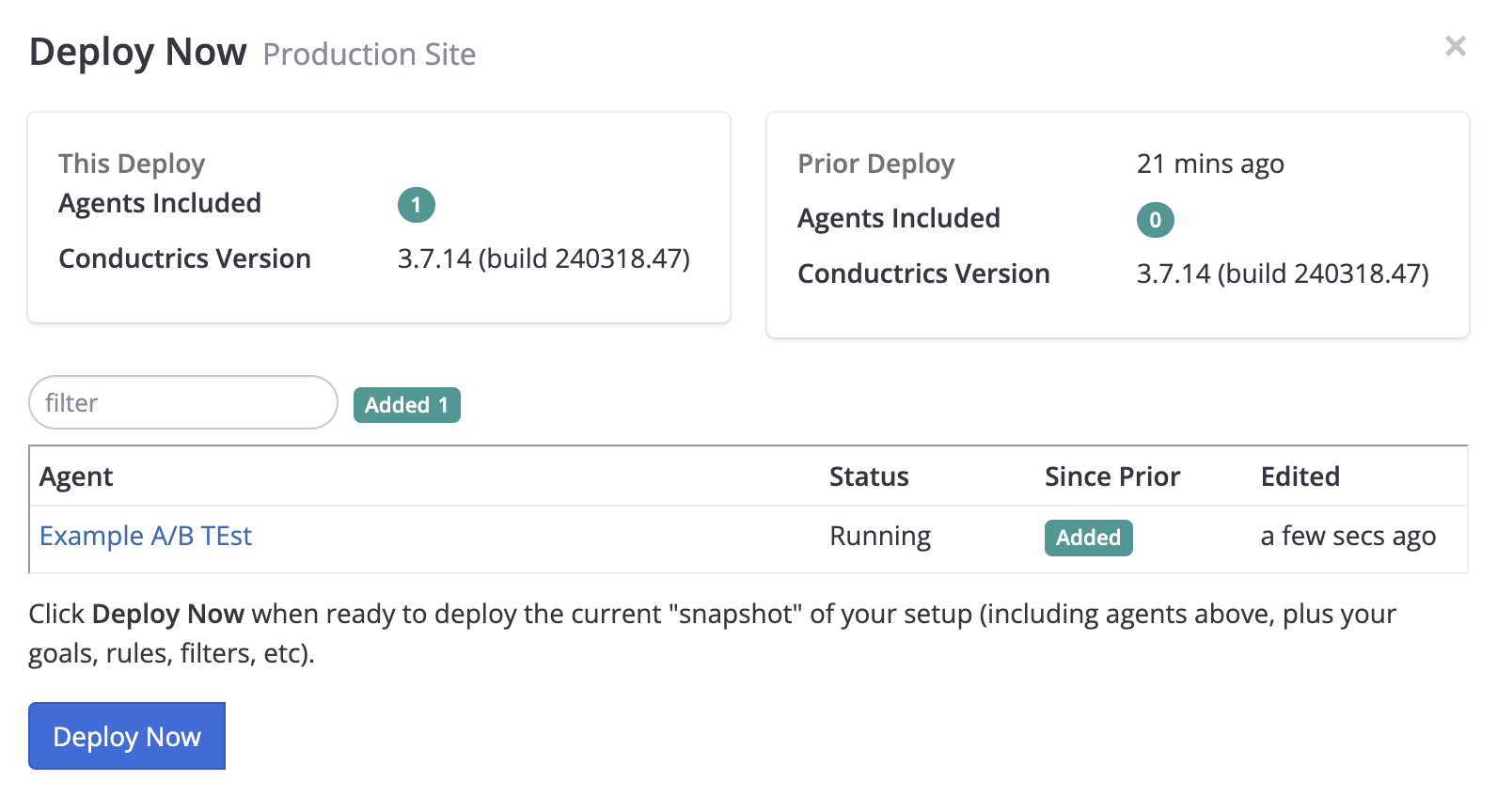
If everything looks good, simply click Deploy Now to confirm, and a snapshot of your Conductrics setup will start rolling out to your visitors.
Two Factor DeploysYou can require confirmation via Two-Factor Authentication (2FA) before a manual deployment can proceed. This can improve security and minimize the risk of an accidental deployment. See Two-Factor Deploys for details.
Webhook NotificationsYou can have Conductrics post the latest JavaScript to a webhook on your side whenever you hit Deploy Now in our admin (as discussed above). You can use this to automatically check the code into your source control systems, etc. See Using Webhooks for details.
Deploying to Your Internal Systems
You can change the Delivery option so that the JavaScript that powers Conductrics is served up by your site via your own CMS or CDN or however else you serve the rest of your web content.
To set it up:
- Click Setup for your Deploy Target.
- Set the Timing option to Manually.
- Set the Delivery option to Deploy to Your System (Manually) and save your changes.
You'll note that the Deploy Target now shows a status of Not Deployed, and provides a Deploy Now button which we will get to in a moment:
Then, when you're ready to deploy:
- Return to the Settings > Distribution page.
- Click Deploy Now for your Deploy Target.
You should get a prompt like this:
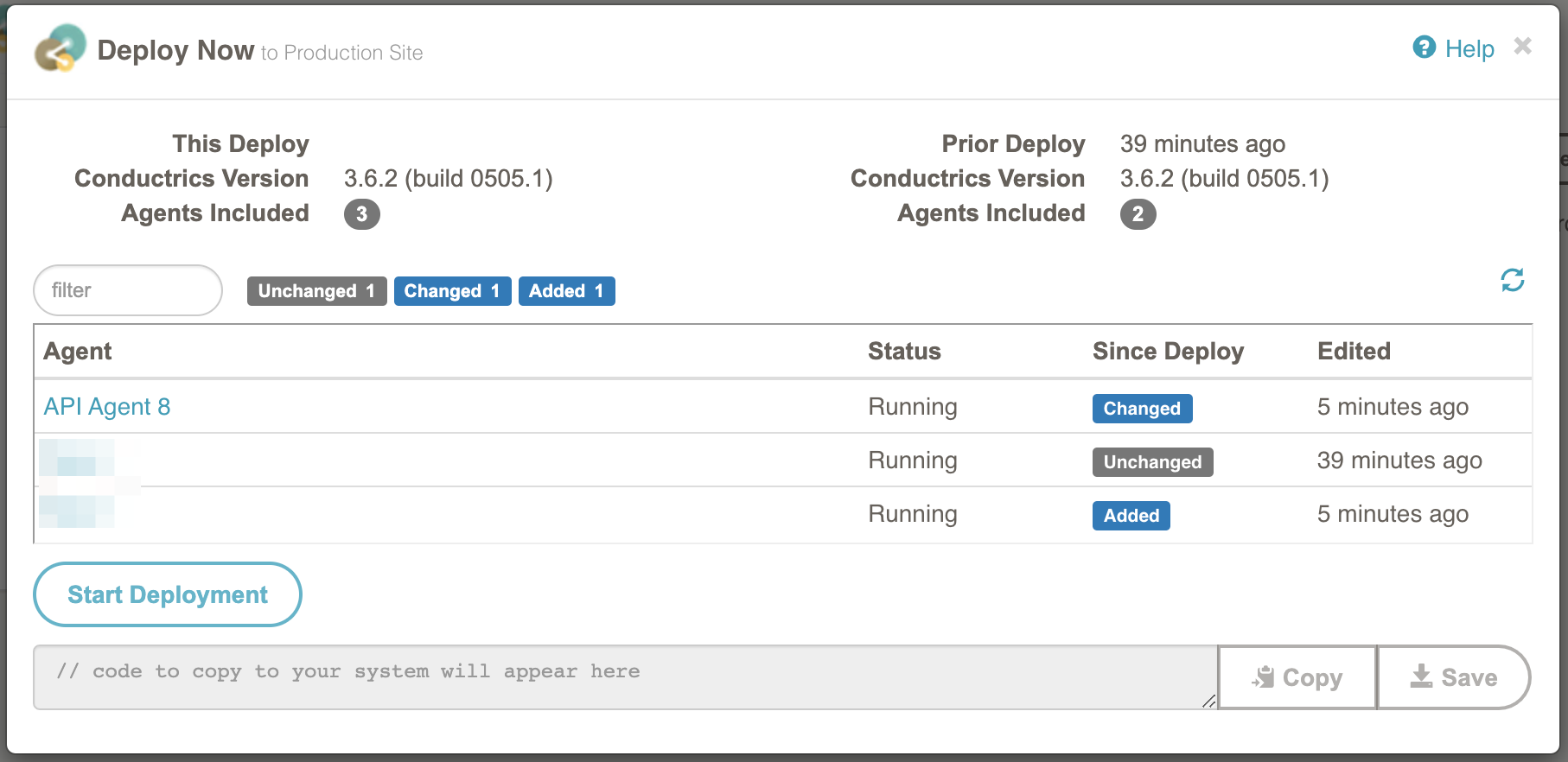
Go ahead and click Start Deployment. The prompt will present some code to copy or save to your system, like so:
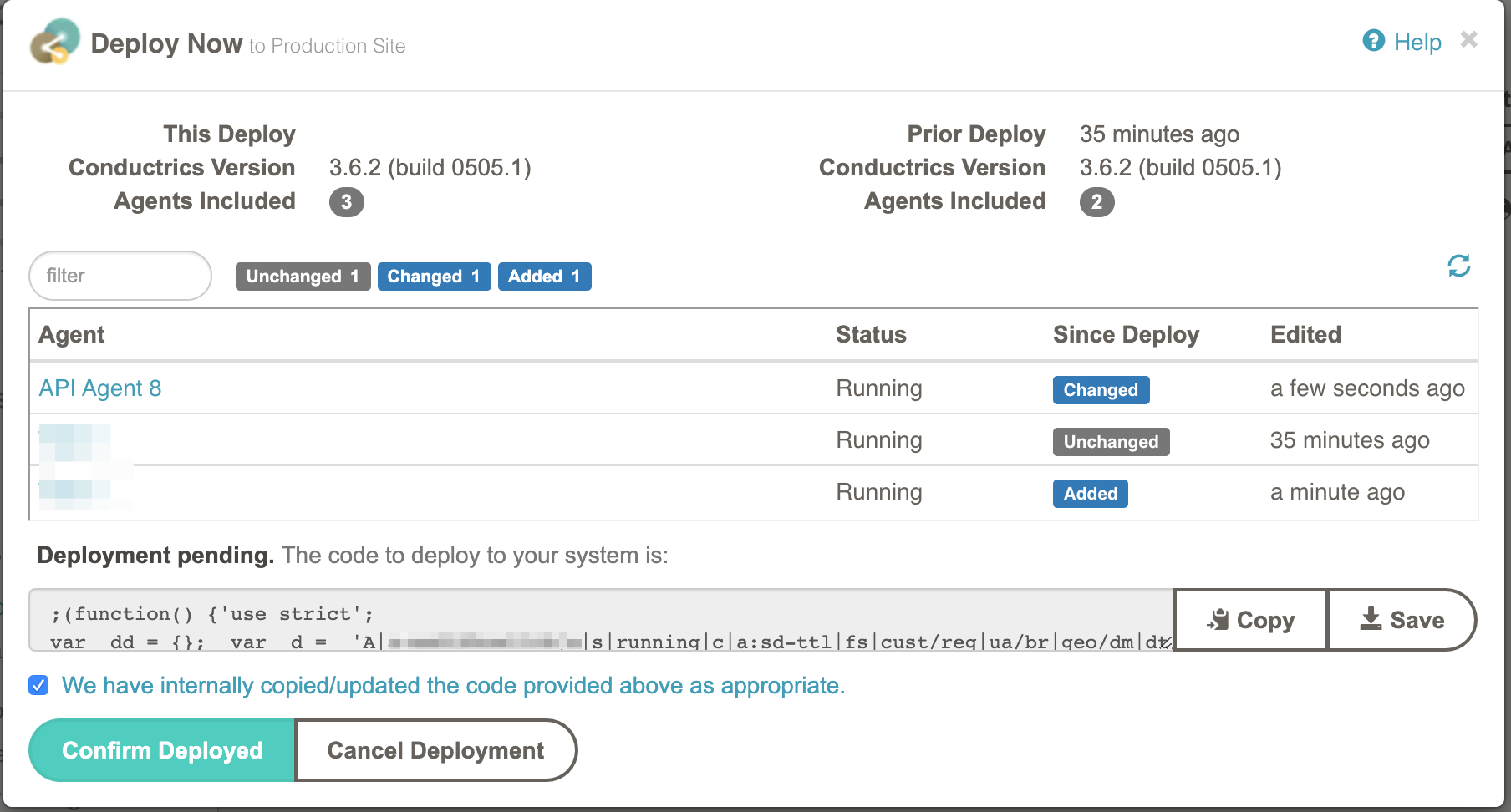
To complete the deployment:
- Click Copy to copy the code to your clipboard, or click Save to save it to a file.
- Paste, save, or move the code/file to whatever location is appropriate (see notes below).
- When you're done, check the We have internally copied/updated the code checkbox.
- Click the Confirm Deployed button.
You should now see a status of Deployed for your Deploy Target.
What exactly you do in Step 2 above will depend on the tech you use on your side. For instance:
- You might paste the code into a simple .js file if your site works with static files, or
- You might use it to update a content object or similar if you are using a CMS, or
- You might check the code into source control, or
- You might add the code to a Tag Manager if you use one.
In any case, it's up to you to come up with the appropriate mechanism to get the code put in the right place, and include it in your pages with an appropriate <script> tag.
Adding Additional Deploy Targets
In some cases, you may want to set up an additional deploy target.
For instance, if you have a separate QA or Staging environment, you may want to be able to deploy to the QA/Staging environment separately from your real (e.g. production) environment. In such a case you can give each environment its own Deploy Target so you can manage when changes to agents, goals, and other Conductrics settings get deployed to the two environments separately.
Each Deploy Target has its own / tagIf you're using Conductrics Express and/or the JavaScript API, you'll want to paste the appropriate
<script>tag into each of your actual environments. Get the script tag from the JS Options tab for each deploy target.
When does the agent roll out to each deploy target?If the Production deploy target is set to use the default automatic deployment behavior, the agent should roll out to the Internet within a minute or so. If the target is set for one of the manual deployment behaviors, then you or an authorized person need to hit Deploy Now to actually roll the agent out. See the above sections for more about automatic versus manual deployment options.
Updated over 1 year ago