
Survey Options
Conductrics Surveys offer a number of options for how the survey is presented to your visitors.
You can set these options:
- While Creating a Survey, as "Step 3" of the four-step process.
- For an existing survey, by hitting Survey Details, then Survey Options as shown below.
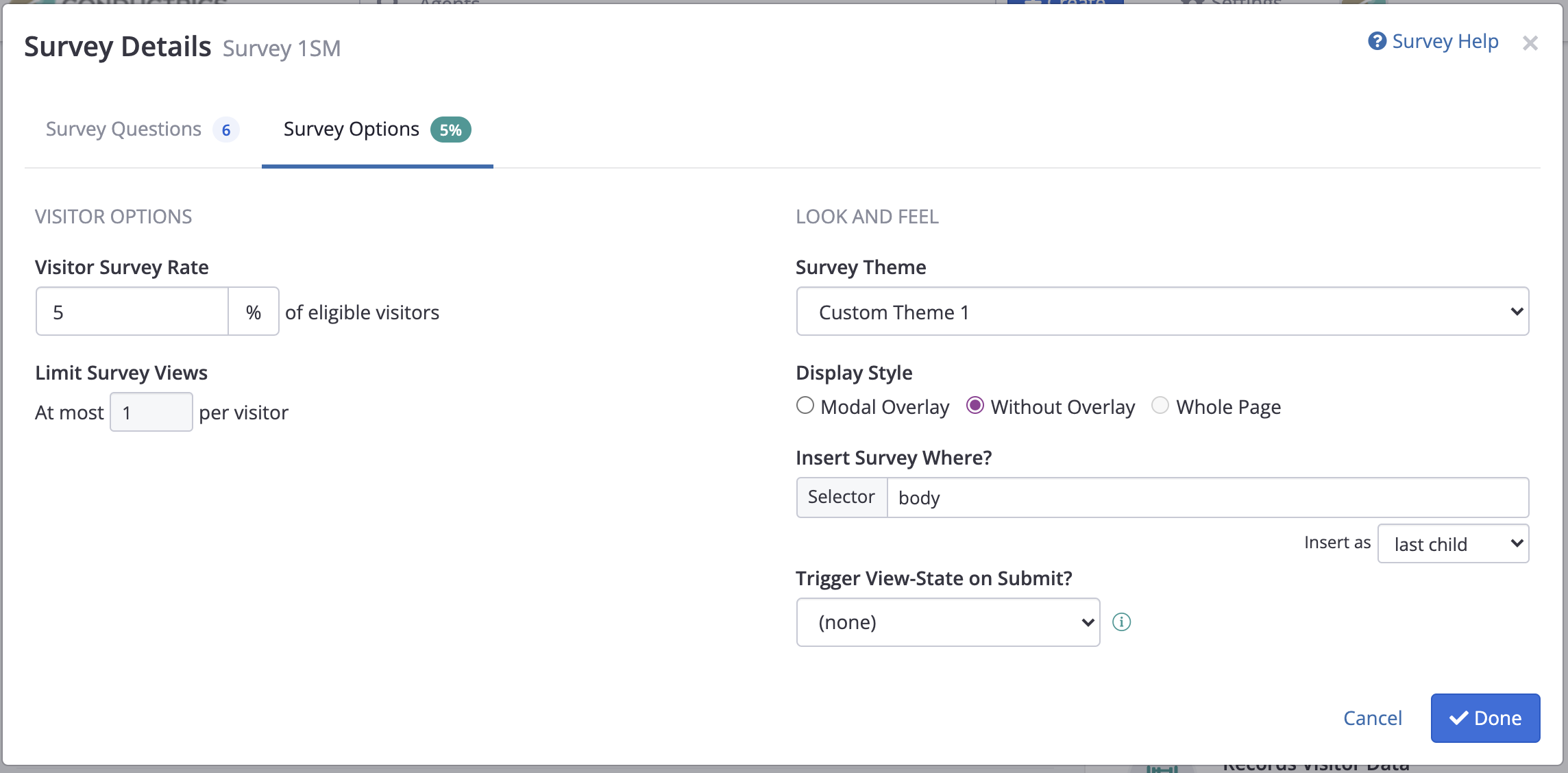
Adjusting the Visitor Survey Rate
You can easily determine the percentage of eligible visitors that should get your survey.
For instance, in the screenshot above, a Visitor Survey Rate of 5% is used, so about 5 out of every 100 eligible visitors would be exposed to the survey. Of course, not every eligible visitor will actually respond to the survey, but about 5% of them should see it.
Behind the scenes, the percentage uses the same basic logic as an A/B test, where the "B" experience is getting the survey. Adjusting the Visitor Survey Rate as discussed above is basically just setting the weight of the "B" variation. See Surveys: Under the Hood for details.
Adding Targeting RulesSeparately, you can also add targeting rules that include or exclude visitors from consideration in the first place. For instance, you might have a set of Custom Visitor Traits in Conductrics that represents the visitor's enrollment or status in a loyalty program. You can then easily add a rule that says that only the enrolled visitors should get the survey, or only the non-enrolled visitors, or the visitors at the "Gold" tier, etc. See Targeting with Conductrics for more about the different types of targeting rules you can use.
Adjusting the Look and Feel
Several options are provided for customizing the visual presentation of your Conductrics surveys.
Survey Theme
If you have defined a custom Survey Theme to customize the look and feel of your surveys, you can select the theme under Survey Options. Custom themes allow you to adjust colors, fonts and so on, so that your surveys look more integrated and natural when they appear on your site.
Creating a custom theme is fairly straightforward, check out Survey Themes for details. However, if you don't have any custom themes, you can just use the default theme ("Basic Survey Theme") provided by Conductrics.
Display Style
The Display Style option affects what kind of "container" your survey appears within, and whether the visitor can still interact with the rest of the page while the survey is visible.
-
Modal Overlay - This option causes the survey to appear in a "modal" overlay (sometimes called a "lightbox"). By "modal" we mean that the visitor will need to either respond to the survey (or exit out of it) before they can go back to doing whatever they were doing on your page.
-
Without Overlay - This option means that the survey is added to the page, but the visitor can still interact with the page normally (rather than "interrupting" the visitor with a "modal" approach).
-
Whole Page - This option is not generally available yet, but is envisioned for use in mobile "WebViews" or with email campaigns. Contact Conductrics if you'd like to discuss such a use-case.
Insert Survey Where?
This option allows you to specify what element in the page's "Document Object Model" (DOM) the survey should be added to. It could be used to make the survey appear "inline" within a certain section of your page.
In most cases, you'll want to leave this at the default setting of body, but if you wish you can provide your own selector to specify the containing page element. The accompanying "Insert As" dropdown allows you to adjust where the inserted should be inserted within the given page element (for coders, this adjusts the "position" used when Conductrics actually inserts the survey HTML via insertAdjacentHTML.
Triggering a View State Change on Submit
You may have a scenario where you want Conductrics to take some kind of immediate action when a visitor submits a survey response.
For instance, imagine that:
- You have a survey which asks the visitor which Industry they are in.
- On the same web page, you have another Conductrics Agent which uses "targeting rules" to show some kind of special promotional content to visitors in certain industries.
So, the targeting agent needs to wait for the survey to be submitted. Only then should it activate and check whether it should do something based on the Industry that the visitor identified as.
You can accomplish this as follows:
- In the survey, use the "Retain Response As Visitor Trait" option for the Industry question.
- Use that "Industry" visitor trait in the Targeting Agent's rules/conditions (perhaps forcing the visitor to Variation B if they answer "Finance" and Variation C if they answer "Travel", etc).
- Create a View-State called "Industry Identified" or similar.
- Set the Targeting Agent to activate when the View-State is reached.
Have a similar scenario? Feel free to reach out to Conductrics to discuss.
Updated over 1 year ago