
Tealium-Style Data Layers
If you use the Tealium JavaScript library on your website, Conductrics offers ways to make use of information in your page's Data Layer object (utag_data) within your Conductrics implementation. These are modeled after our similar Data Layer Support for the more traditional "array style" of data layer (window.dataLayer).
This documentation assumes that your pages have a Tealium-style Data Layer, aka Universal Data Object, which is a "flat" object of name/value pairs typically called
utag_data. If your pages instead use an array-style Data Layer, such aswindow.dataLayer(GTM / GA) orwindow.appEventData(Adobe), please refer instead to our standard Data Layer Support doc page.
Enabling the Data Layer Support
In the Conductrics Admin:
- Go to Settings > Deploy Targets and hit Setup for your Express / Local JS Deploy Target. See Deployment Options for more information about Deploy Targets in general.
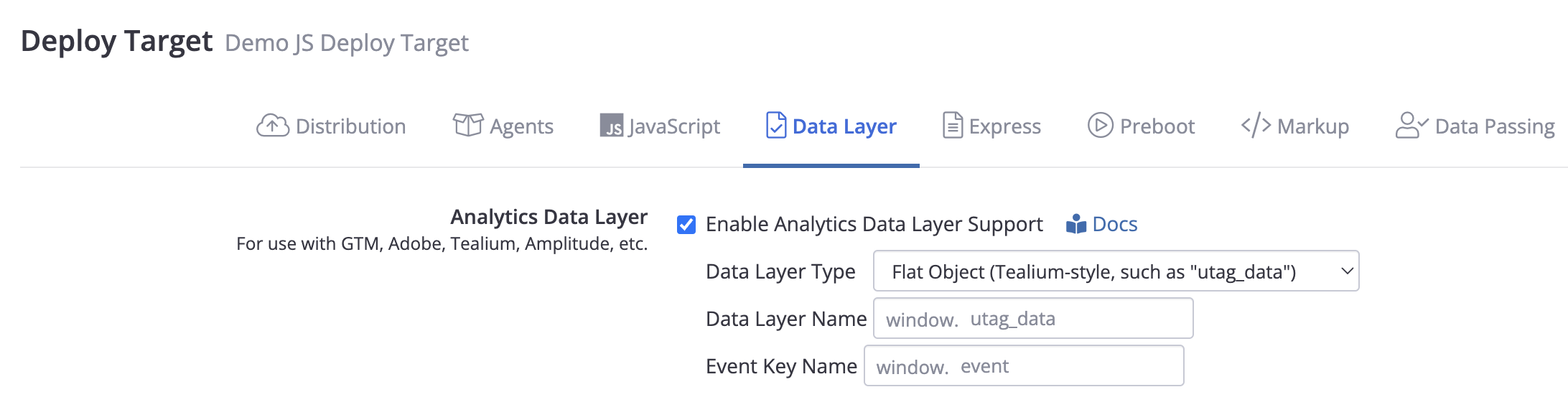
- Under the Data Layer tab, check Enable Data Layer Support and set the Data Layer Type option to Flat Object (Tealium Style) as shown below.
- You can leave Data Layer Name empty to use the default name of
window.utag_dataunless you need to use a different name (probably unlikely if you're using Tealium specifically). - You can leave Event Key Name empty to use the default key of
event, but you may want to useut.eventortealium_eventinstead (see the section about triggering Goals/Rewards below).
Here's what that looks like in the Conductrics Admin:
Using Data Layer Values in Agent Conditions
You can use values from your data layer in Conditions within Conductrics.
- For instance, you can use them in "Agent Applies To" conditions to include or exclude certain visitors from a test or optimization.
- Or you can use them in "Targeted Selection" conditions to always expose certain visitors to get the "B" variation.
To use your data layer values in agent conditions:
- In the Conductrics Admin, go to Settings > Visitor Data > Other Visitor Data and look for the Data Layer Parameters option. In there specify the keys/names of the values that you'd like to be able to use in your conditions.
- Now return to your agent and note that the keys are available in the dropdown on the left when creating a new condition. You can use a variety of operators to include/exclude visitors or whatever is needed, specify multiple values, various combinations of "and" vs "or" logic, etc.
A note on the timingConductrics reads the current value from the data layer when the condition is actually evaluated. For instance, if you use conditions to determine whether a visitor is eligible for an experiment, Conductrics will attempt to look in the data layer at the moment that the agent "activates" and starts checking its visitor conditions. It's up to you to add any relevant values to the data layer before Conductrics needs them.
Triggering Conductrics Goals/Rewards from Data Layer Events
You can have Conductrics watch for certain events being pushed into the data layer, triggering a goal so that your agents get rewarded when the data layer events occur.
When setting up a goal in the Conductrics Admin, choose "hits Data Layer event" in the "Trigger" section, as shown below. Then provide the event name that should trigger the goal.
If needed, you can also provide conditions based on other values in your data layer.
- Provide the data layer key name and value in the "conditions" field shown above, separated with an = sign.
- For instance, if you wanted to specify that the goal should fire for "purchase" events only if the product category is "phones", you could provide something like:
category=phones - You can also provide a regular expression using / notation, such as
product.sku=/phone-[0-9]+/to match product SKUs such asphone-123and so on. - If you need to provide multiple conditions, put each on its own line.
- Alternatively, you can use the Event Conditions button to specify more elaborate conditions.
For instance, let's say you want to send a goal to your Conductrics agents when a view event exists in the Data Layer, provided that the Data Layer also has a page_name value which is set to order_confirmation:
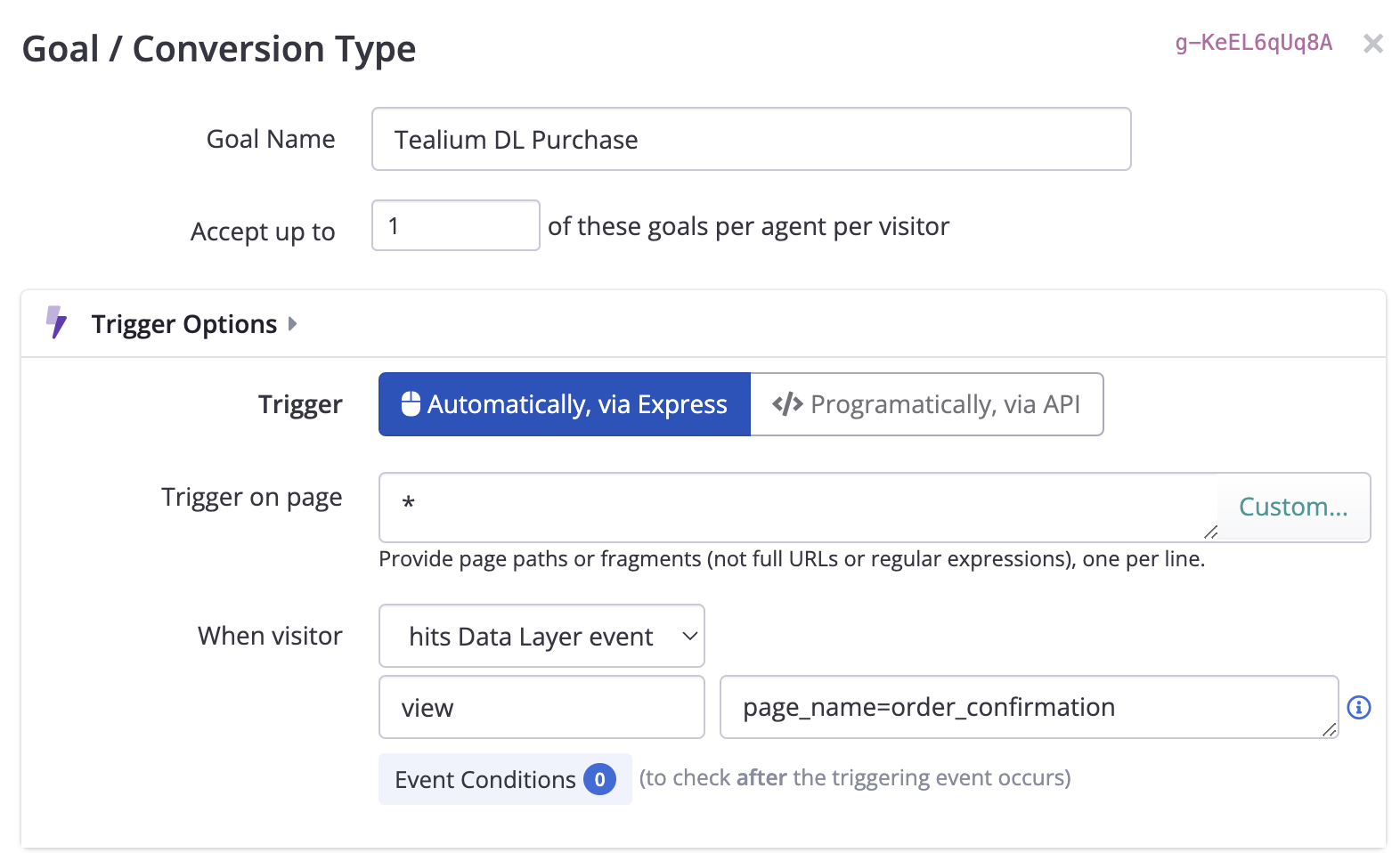
By default, Conductrics will be looking for a value called
eventin the Data Layer, meaning that you'd need to have at least{"event":"view", "page_name": "order_confirmation"}inutag_datafor the goal to trigger.You may instead want Conductrics to look at
ut.eventortealium_eventwhen looking for "events" in the data layer. If so, go back to your Deploy Target and change the Event Key Name option (see screenshot earlier on this doc page).
The Conductrics Debug Messages can be very helpful when verifying whether your goal events can be triggered successfully via the Data Layer.
Reading Numeric Goal Rewards from the Data Layer
For bookings, purchases, and other e-commerce scenarios, you may want to define goal/conversion events that have numeric values, such as the amount of money spent on a product or ticket after checkout (see the Goals / Conversions doc page for more about numeric-valued goals).
If the numeric value is available in the data layer, you can have Conductrics "read" the value from the appropriate data layer key. That way the goal event will be recorded with the appropriate value in the Conductrics reporting. Just check the Read actual numeric value from page option for your Goal Type, then choose the "Data Layer Key" option and provide the key (name) that the value should be read from:
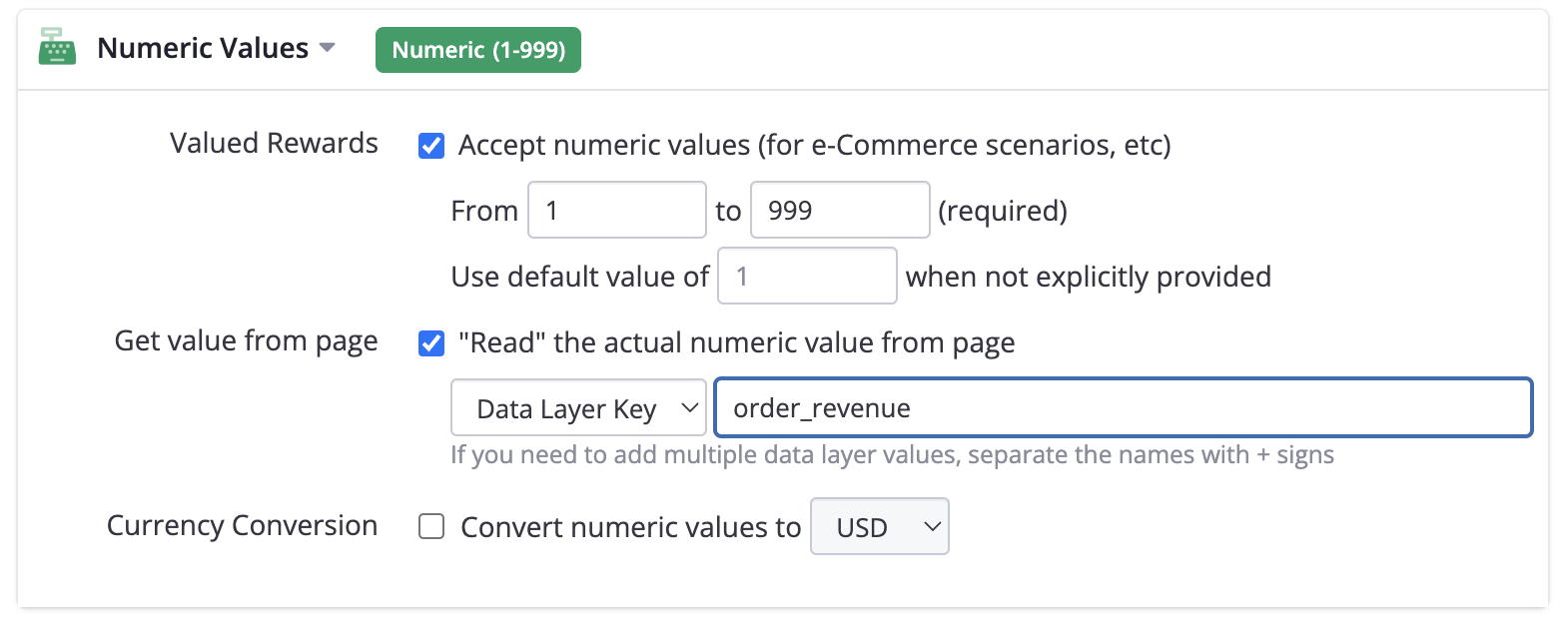
Tealium recommends that numeric values be provided as strings, so in this case we would expect that the data layer includes something like
{"order_revenue": "19.99"}.
You can have Conductrics read the goal value from the data layer even if the goal is triggered from a non-data-layer event. For instance, it might be sufficient to simply have the above goal trigger when a "checkout complete" type page is loaded, rather than triggering when a specific event appears in the data layer. You can still have the numeric value read from the data layer, as long as the value will be present in the data layer when the triggering event occurs.
Enabling "Data Layer Watching"
Due to the "flat" nature of the Tealium-style data layer object, it isn't as well suited for "detection" of changes to the data layer after Conductrics first loads.
If you like, you can enable an advanced setting that should allow goals to be triggered in single-page-app (SPA) type scenarios. To enable it, go to the Advanced Settings tab for your Deploy Target and set Data Layer: Watch for events/changes to true.
Caveats:
- The "watching" won't work in IE and other "legacy" browsers (specifically, the
Reflect.definePropertyandnew ProxyAPIs must be available). No errors should occur; the goals simply won't be detected. - If
utag_datais populated on your pages usingvar(such as in many of Tealium's example snippets), then the "watching" will break ifutag_datais overwritten with a completely new object. If you need Conductrics to detect whenutag_datais completely overwritten, useletinstead ofvarwhen settingutag_datainitially. - Conductrics unfortunately has no way to "see" changes that were made to
utag_databefore Conductrics itself originally loaded. It will only be able to see whatever is inutag_datawhen Conductrics first loads (and changes to the data thereafter).
Conductrics strongly suggests discussing this option with your Tealium implementation team before enabling it.
Pushing Variations/Selections into your Data Layer
Conductrics can add information to the data layer whenever an agent makes a variation selection.
For each variation selection (that is, for each Conductrics agent where the visitor "got" a variation), Conductrics will set Data Layer properties like the following:
{
  "conductrics_selection.a-xxxxxxx.c": "B",
  "conductrics_selection.a-xxxxxxx.p": "r",
  "conductrics_selection.a-xxxxxxx.a_name": "My A/B Test",
  "conductrics_selection.a-xxxxxxx.c_name": "New Hero"
}
In the above fictitious example:
a-xxxxxxxis the agent code in questionBis the selected variation coderindicates the "random" Selection Policy
If there are multiple agents on the page, each will add properties similar to example shown above.
You can control which Selection Policies make it into the data layer. For instance, if you wish to filter out "Fixed" selections, go to the Advanced Settings tab for your Deploy Target and set the Data Layers: Exclude Selection Policies setting to
f.
We also support a "legacy" selection format, where the selection info gets added as an object to the data layer in a single key called
conductrics_selection. If you need to use this style, go to the Advanced Settings tab for your Deploy Target and set Data Layer: Flatten selection items to false.
Passing Custom Visitor Traits to Conductrics
You can pass Custom Visitor Traits to Conductrics via your data layer.
- The key name should be
conductrics_traits - The value should contain the traits you want to set, as
name:valuepairs such asloyalty-status:goldortravel-type:business. Use spaces or commas to separate multiple pairs, for instance:
{"conductrics_traits": "loyalty-status:gold,travel-type:business"}
The assumption is that you've already defined the custom "Trait Type" (such as loyalty-status) in the Conductrics admin, which includes the trait values that might get set (such as gold or platinum or whatever). See Custom Visitor Traits for details. If you attempt pass a custom trait via the data layer that hasn't been defined first, it won't do any harm, but Conductrics will ignore it.
Specifying the Data Layer Key at the Trait Group Level
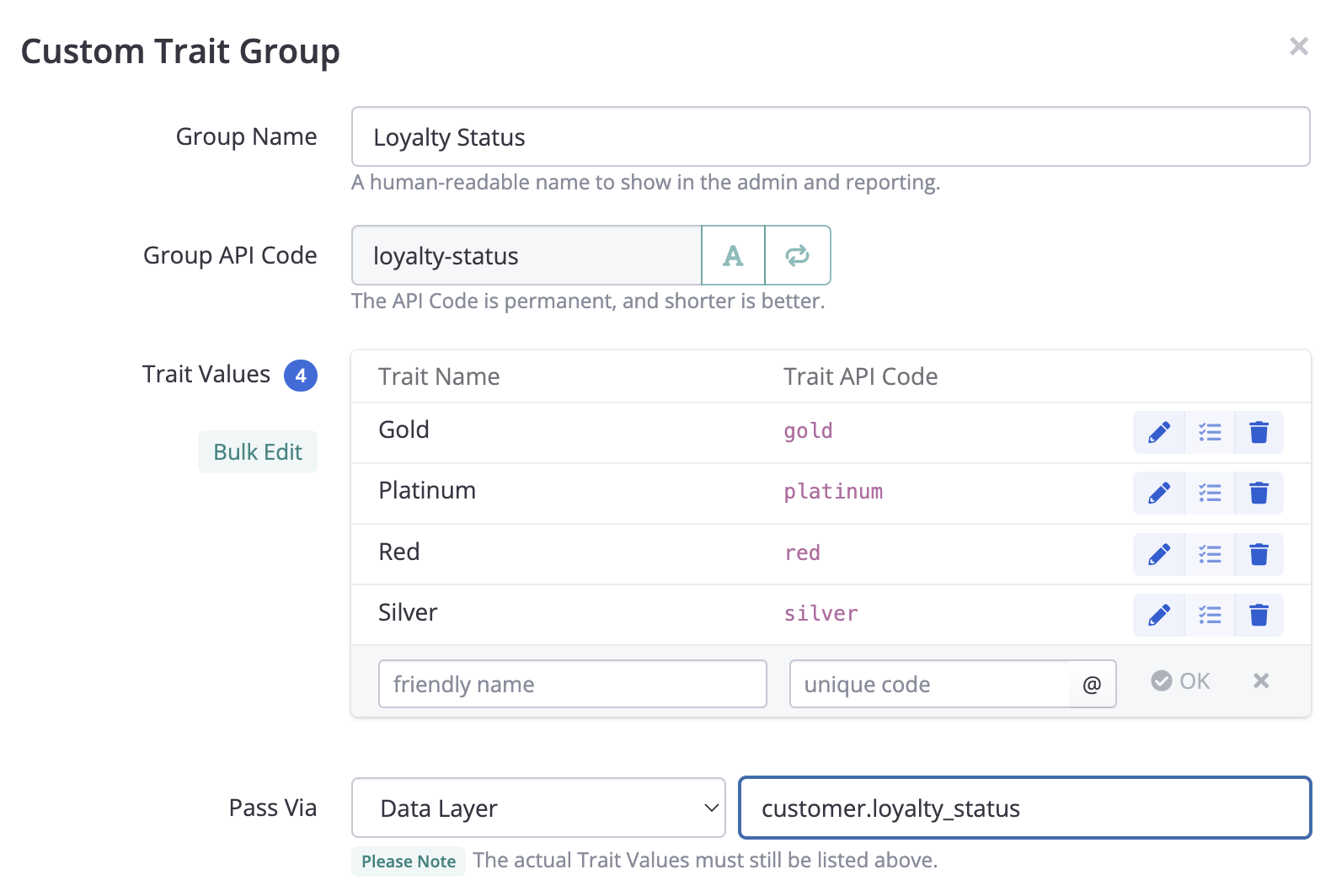
Another way to set traits from the Data Layer is to tell Conductrics a data layer key name that it should read the values for a particular Trait Group from. For instance, if you had a value in the data layer like:
{"customer.loyalty_status": "platinum"}
Then you might set up the Trait Group like so. Set the "Pass Via" option to Data Layer, and provide the appropriate data layer key name as shown below. Conductrics will attempt to read the value from the data layer, and set the trait value accordingly.
Updated over 1 year ago