
Variation Setup > Custom JS
Providing your own JavaScript code to render an agent's page variations
This page is about the Custom JavaScript options available when Creating an Express Agent. The tools discussed here are available when you click the Custom JS button on Step 3 of the agent-creation process.
Conductrics makes it easy to "bring your own JavaScript code" to make whatever changes are needed to display a variation for an A/B test or targeting scenario.
- If you haven't already, hit the Create button at the top of the Conductrics Admin to start Creating an Express Agent.
- When you get to Step 3, select Conductrics Express and then Custom JS.
- For the Show the Variations Where? field, provide the full URL for the page you want your Custom JavaScript code to run on. (If you want it to run on multiple pages, hit the URL Conditions button to get more specific.)
- Click the purple Custom JS button for the B Variation.
The Custom JS window will appear, where you can provide your JavaScript code:
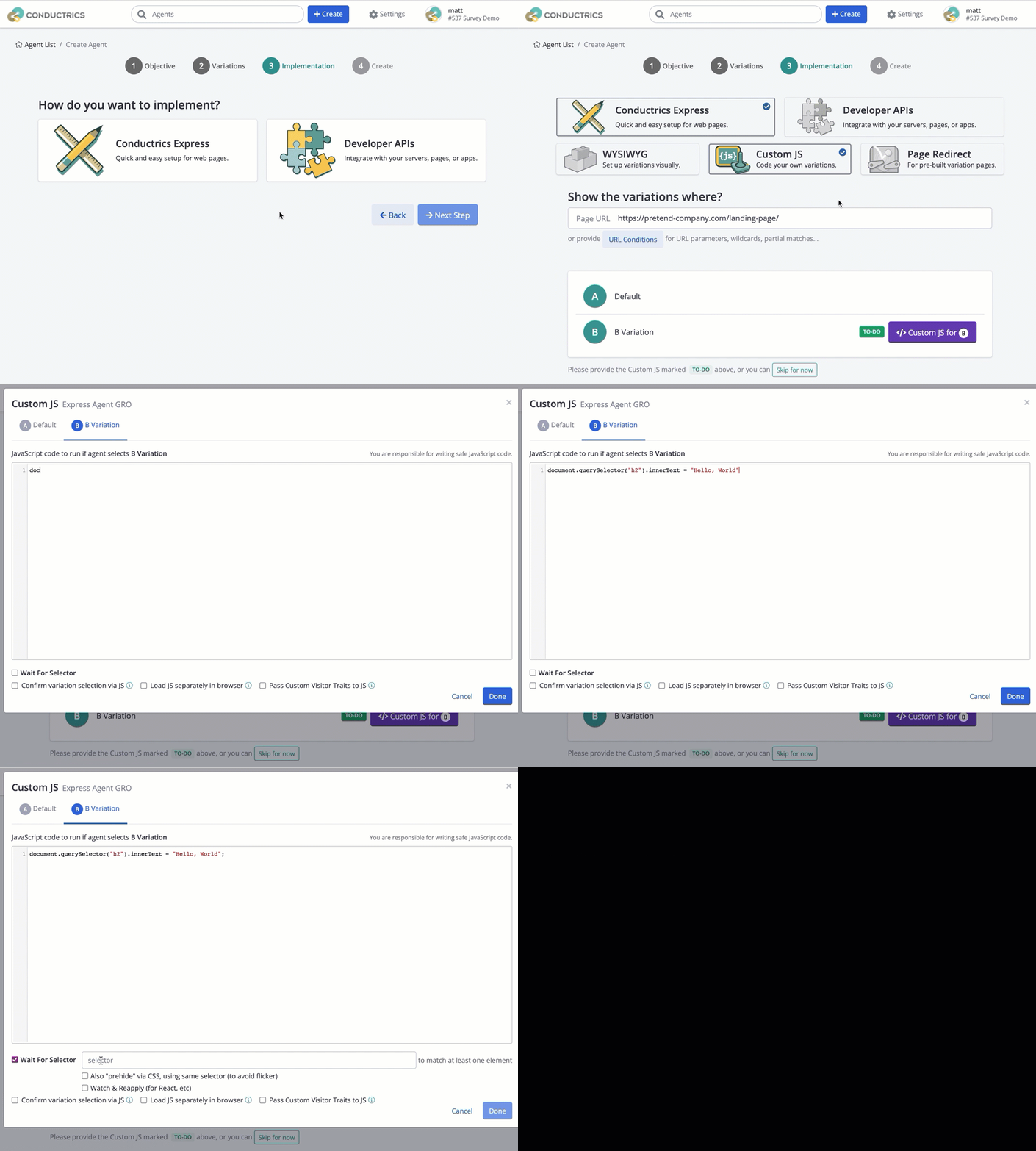
Additional VariationsIf you need to provide Custom JS for multiple variations, you can use the tabs at the top to switch between the variations (labeled Default vs B Variation in the screenshot above, but you may have more variations).
Don't Know JS?If you're not familiar with JavaScript, you can often set up simple test variations "visually" using our WYSIWYG editing mode. See Creating an Express Agent for an overview of the options available.
Previewing and QA
You can Preview and QA your JavaScript-powered agents in the same way you would for an Express agent that you set up "visually". See the Using the Preview Launcher page for details.
"Wait For Selector" for Dynamic Pages
Conductrics provides some helpful options to help with situations where the part of the page that you want to change may not have loaded yet when the Conductrics script first runs. For instance, your test might call for changing some text on a sign-up form of some kind, but perhaps that sign-up form doesn't appear until the user clicks a button.
In such a case you probably want Conductrics to "wait" until the form exists on the page, and only then execute the JS code you provided. You can accomplish this by providing a "Wait For Selector" when providing your JavaScript code.
There are currently three options provided (see screenshot below):
- Wait for selector to be present - If you check this option, you are prompted for a CSS selector that Conductrics should "watch for". Generally, you will want to provide a selector that matches a containing element, the presence of which indicates that it's now "safe" to execute your JavaScript.
- Also "prehide" the selector - If you check this option, Conductrics will use an auto-generated stylesheet rule which attempts to keep the matching portion of the page from appearing until after your JavaScript runs. This can be helpful to avoid "flicker" in some situations.
- Watch and reapply (for React, etc) - Check this option if JavaScript from elsewhere may also be trying to control the elements in question. After executing your code for the first time, Conductrics will "watch" for changes within the elements you specified with your selector. Whenever other code tries to change the contents of the elements, Conductrics will re-execute your JavaScript code, which presumably will cause the "correct" variation content to display.
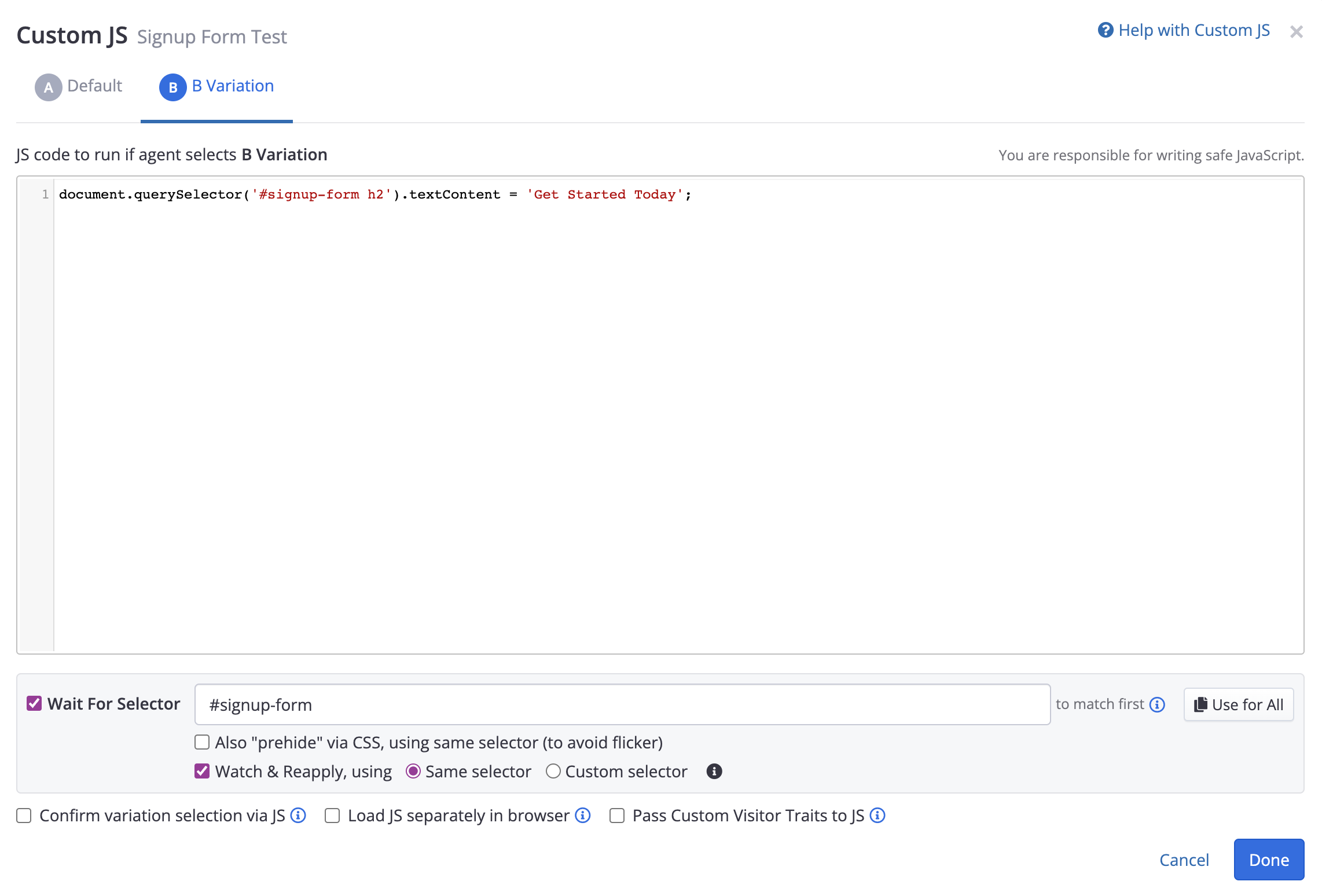
Providing a "Wait For Selector"
For instance, in the fictitious scenario above, the test calls for the variation to change a signup form's "heading" text to "Get Started Today". The corresponding JavaScript code is short and sweet, but it can't work properly if the signup form itself has not yet loaded/appeared on the page (because the call to document.querySelector will return null).
A simple solution is to simply provide a selector such as #signup-form as the "Wait For Selector" as shown above.
When the page actually loads for a visitor:
- Conductrics will check to see if the selector matches.
- If the selector matches, Conductrics executes the JavaScript provided, which changes the heading text to "Hello World" (or whatever is appropriate of course).
- If the selector doesn't yet match anything, Conductrics will wait for it to match. When and if the selector matches later (presumably because the visitor hit a "Sign Up" type button to invoke the signup form), Conductrics executes the provided JavaScript.
- Additionally, because the "Watch and reapply" option has been checked, Conductrics will re-execute the provided JavaScript if some other code (such as a React component or similar) subsequently makes changes within the
#signup-formportion of the page.
"Watch and Reapply" code may get called repeatedlyDepending on the nature of your pages, it's possible that the JavaScript code you provide may get called repeatedly during the page load process, or while the visitor is interacting with the page. Therefore, the code you provide probably shouldn't do anything too "heavy" or time-consuming. Simple DOM manipulations should be fine, but try to keep it short and sweet. If you have any questions please feel free to reach out to Conductrics.
Get Fancy with View StatesIf you need more control in a "Single Page Application" type scenario, check out the Triggering View-States page in this documentation.
Eligibility Tab
You can use Custom JS as Eligibility/Entry criteria for the agent. In this field you can run any necessary logic through JS to determine if a visitor should be eligible for this agent or not, as long as the code returns true or false to consider the visitor “eligible”, see animated screenshot attached. You can still provide non-JS Eligibility Conditions as before, and can use both together if you wish.
You can also provide an agent-level “Eligibility Selector” if your experiment needs to look at a data attribute or similar to determine visitor eligibility. This means that you no longer need to use a repeated “Wait For Selector” for each variation, since this one will be done at the agent level and not per variation.
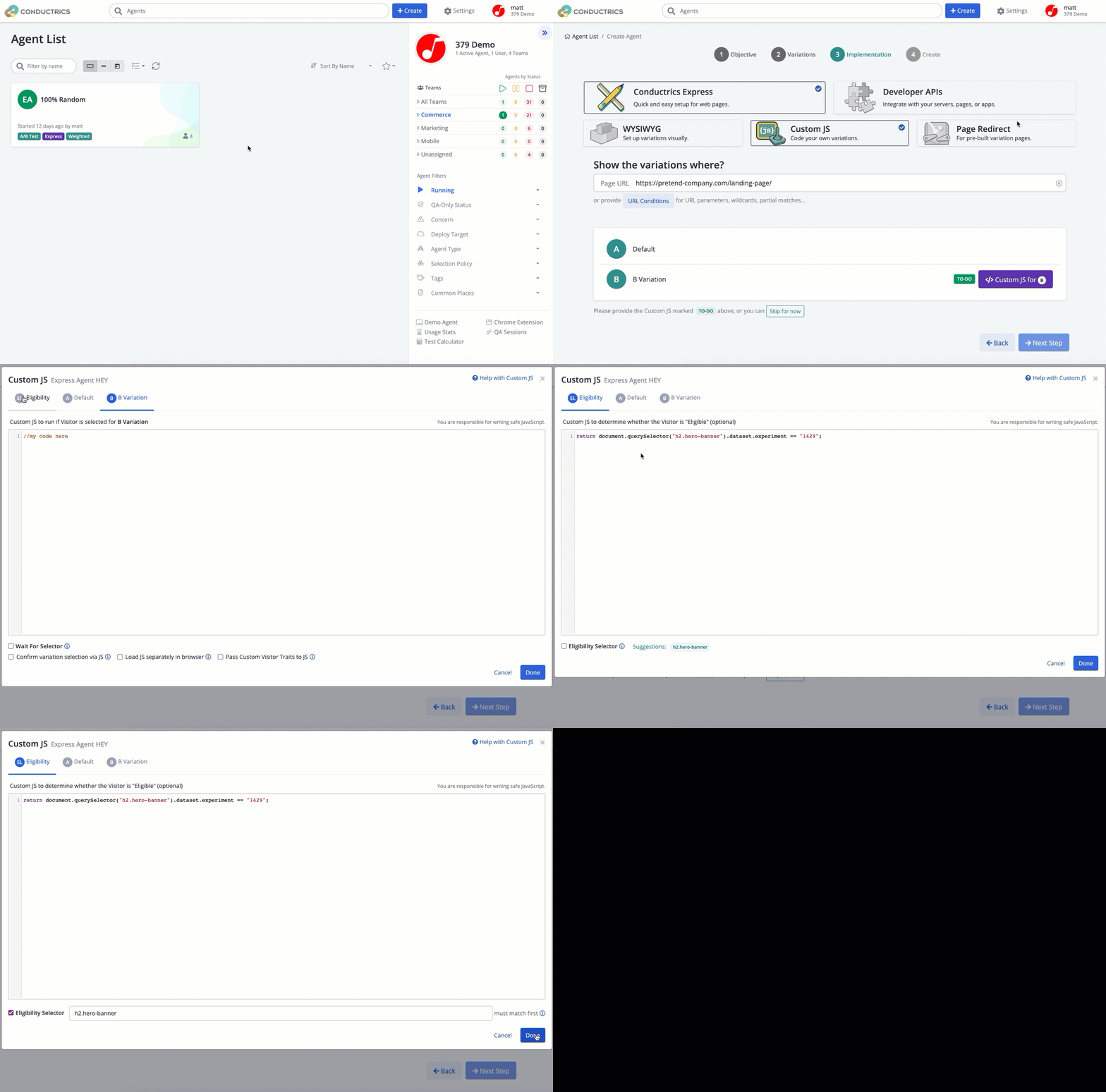
Its worth noting that:
- The Eligibility Selector runs before the Eligibility JS. In other words, the Elgibility JS depends on the Elgibility Selector to be present.
- As other Eligibility criteria, the eligibility JS happens before the agent selects a variation.
Additional Options for Custom JS
Load JS separately in browser
With the Load JS separately in browser enabled, your JavaScript code will be fetched when needed, as a separate file from the CDN. This means the size of the "main" Conductrics script file will be that much smaller, though it could introduce a bit of additional "latency" when Conductrics loads the JS (which will happen when the visitor arrives at a page where the agent should activate).
- Generally speaking, turning this option on makes sense if you are providing a large amount of JavaScript, AND the agent only applies to certain pages that most visitors won't necessarily encounter ("down the funnel").
- When unchecked (the default), your Custom JS will be "baked into" the main Conductrics JavaScript file, so that it is already loaded and ready for immediate execution. This is the recommended setting in most cases. Feel free to contact Conductrics to discuss.
Confirm variation selection via JS
With the Confirm variation selection via JS option on, your Custom JS code is responsible for telling Conductrics whether the variation could be successfully displayed / presented to the visitor. This can be useful in situations where you can only tell programmatically whether your code can actually proceed with displaying whatever the test plan calls for.
- If enabled, your JS code must call
cdx.confirm(true)to indicate that it has successfully presented the variation to the visitor. Only then will the variation selection be "counted" in Conductrics. - When unchecked (the default), Conductrics assumes that your code was able to successfully render/present the variation (unless it encounters an uncaught JavaScript error/exception), and will count the visitor as "in the test" for reporting purposes.
Pass Custom Visitor Traits to JS
With the Pass Custom Visitor Traits to JS option on, your JavaScript code can get the value of a Custom Visitor Trait via cdx.trait('my-trait'), where my-trait is the code for the trait group you're interested in.
Please note that the 'Script Passing' option must also be enabled for the desired trait group(s). See Custom Visitor Traits for information about creating Visitor Trait groups in Conductrics.
Getting the Current Agent Code
If your Custom JS logic needs to know the agent currently being processed, you can obtain its Agent Code (aka API Code) by reading the value of cdx.agent from within your variation-level JS code. You can also obtain the selected variation for the current agent, via cdx.sel() which will return an object such as {c:'B', p:'r'} (where c represents the selected variation code, and p indicates the selection policy).
To enablecdx.agent and cdx.sel(), please go to the Advanced tab for your Express Deploy Target and set Express Custom JS: Provide 'cdx' object to your variant-level JS code to true.
Updated over 1 year ago