
Visitor Lookup Tables
Starting in Conductrics 3.7.6, a "Lookup Tables" feature is available which can be helpful for supplying Conductrics with bits of information about individual visitors.
At a high level, the basic workflow is this:
- Create a "Lookup Table" in the Conductrics Admin.
- Upload a comma-separated (CSV) text file that contains the per-visitor information.
- Create Conditions to include/exclude visitors from agents or to create variation targeting rules, and/or have Conductrics treat one of the fields in the Lookup Table as a Visitor Trait.
Once set up, Conductrics will "look up" information per visitor when you call the REST API. If there is a matching record, the corresponding data from the CSV will be used to evaluate your Conditions (or set your Visitor Trait).
Real-Time Data is Always Better! :)If possible, it is greatly preferable to pass such visitor information to Conductrics as Custom Visitor Traits or Custom Input Params when actually calling the REST API. Generally speaking, we'd like you to think of Lookup Tables as a last resort, for when it's just not possible to provide the information when making the API calls at runtime. Please feel free to contact Conductrics to discuss.
REST API OnlyThe Lookup Tables feature is currently for use with the Conductrics REST API only (which includes our Swift/iOS via REST or Java/Android via REST helper libraries). It doesn't work with Conductrics Express or the Local JS API in the browser.
Creating a Visitor Lookup Table
To create a Lookup Table in the Conductrics Admin:
- Go to Settings > Visitor Data, then select the Lookup Tables tab.
- Click Create Lookup Table.
- Fill in the form to create your new Lookup Table.
If the Lookup Tables feature doesn't appear to be enabled for your Conductrics account, feel free to reach out to us if you'd like to use it. There generally isn't an added cost - we just want to make sure you understand the purpose of the feature and that you shouldn't use any personally-identifiable information (PII) in your Lookup Tables.
The most important part here is specifying the Fields (columns) that will appear in your CSV files. Provide the column names, one on each line as shown in the screenshot below. These field names will need to match the columns in your CSV files exactly, including capitalization.
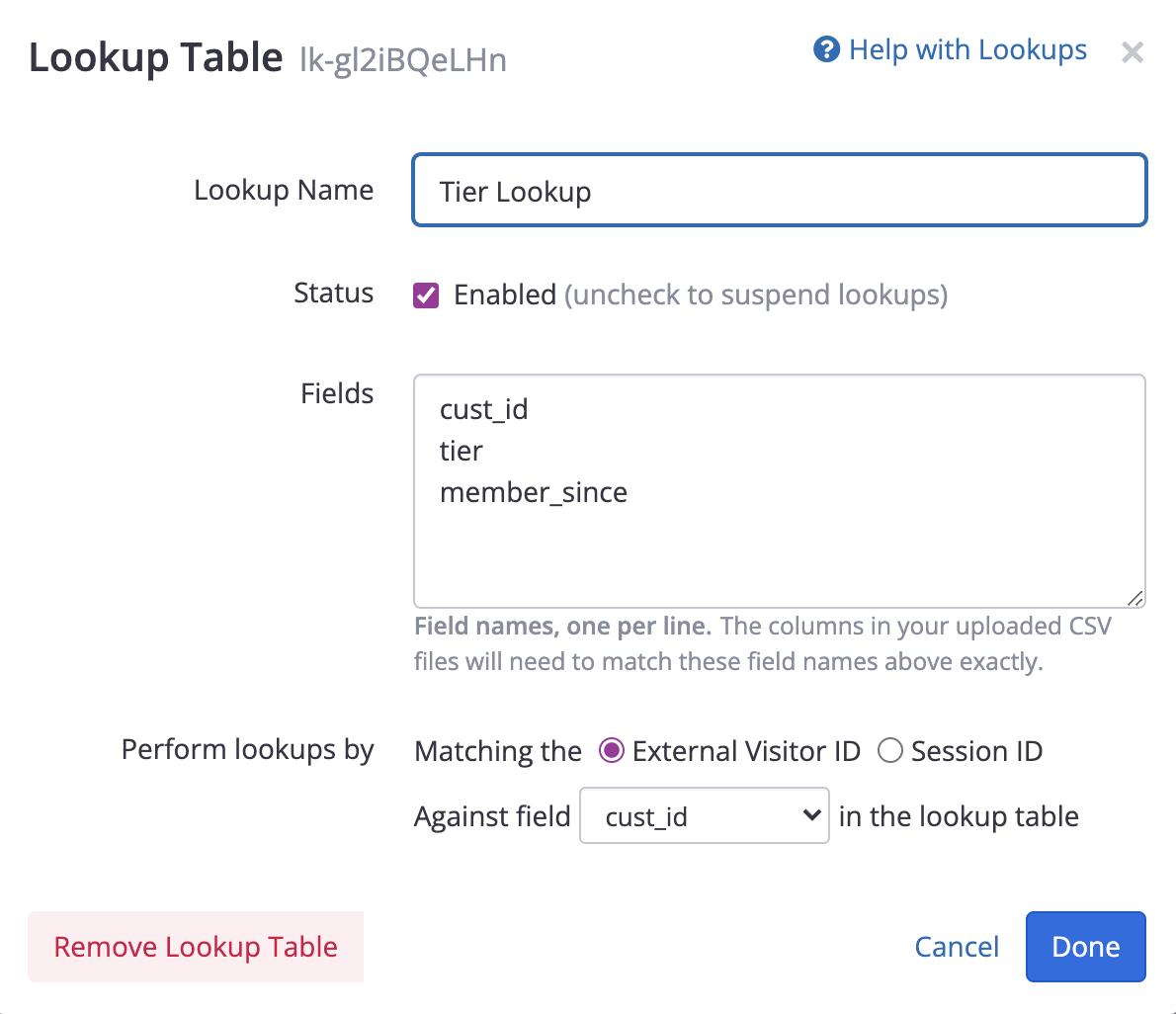
Note that one of the fields is expected to be a visitor identifier. There are two options, under Perform lookups by:
- You can choose to have that field match against the "External Visitor ID", which you can pass to the REST API as the
vidparameter (see the Runtime API Reference) - Or you can choose to have the field match against the Session ID, which you provide as the
sessionparameter when calling the REST API.
Consider using alternate or hashed identifiersThere is no need for either the "External Visitor ID" or the "Session ID" to be a actual/meaningful identifier for the visitor/customer. We encourage you to have a less-meaningful identifier per visitor, that you use just for Conductrics (or other third-party systems). If that's not possible, you could consider "hashing" the actual identifier before passing it to Conductrics (and of course you'd use the same hashing in the CSV file you upload for your Lookup Table). Feel free to contact Conductrics if you'd like to discuss.
Once you create your new Lookup Table, it should appear in the list as shown below:
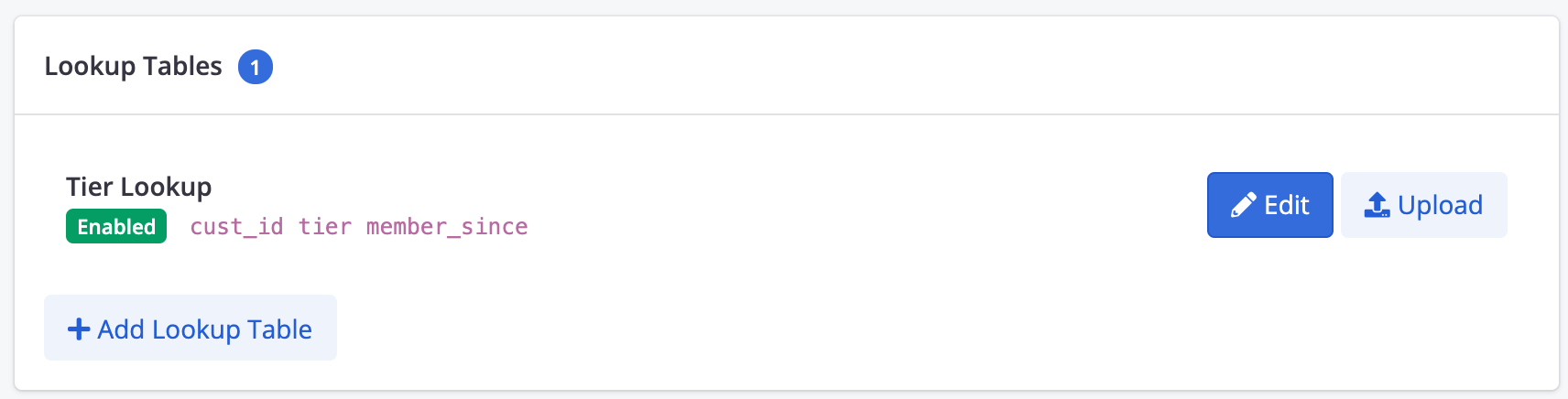
You'll find that you can now set up Conditions in your Agents or Goals that use the fields from your Lookup Table. You can therefore create tests/agents that include/exclude visitors based on the fields, or create Goals that only fire if the visitor has a certain value for a field, and so on.
Uploading Actual Data Records as CSV
At this point, you have an "empty" Lookup Table. To populate the Lookup Table with actual information:
-
Create a CSV from whatever internal or other system the data can be found in. Make sure that the column names match up exactly with the field names you specified when creating the Lookup Table (see section above).
-
Go to Settings > Visitor Data > Lookup Tables, then hit the Upload button for your Lookup Table (see screenshot above).
-
Choose the CSV file from your local computer, and click Upload.
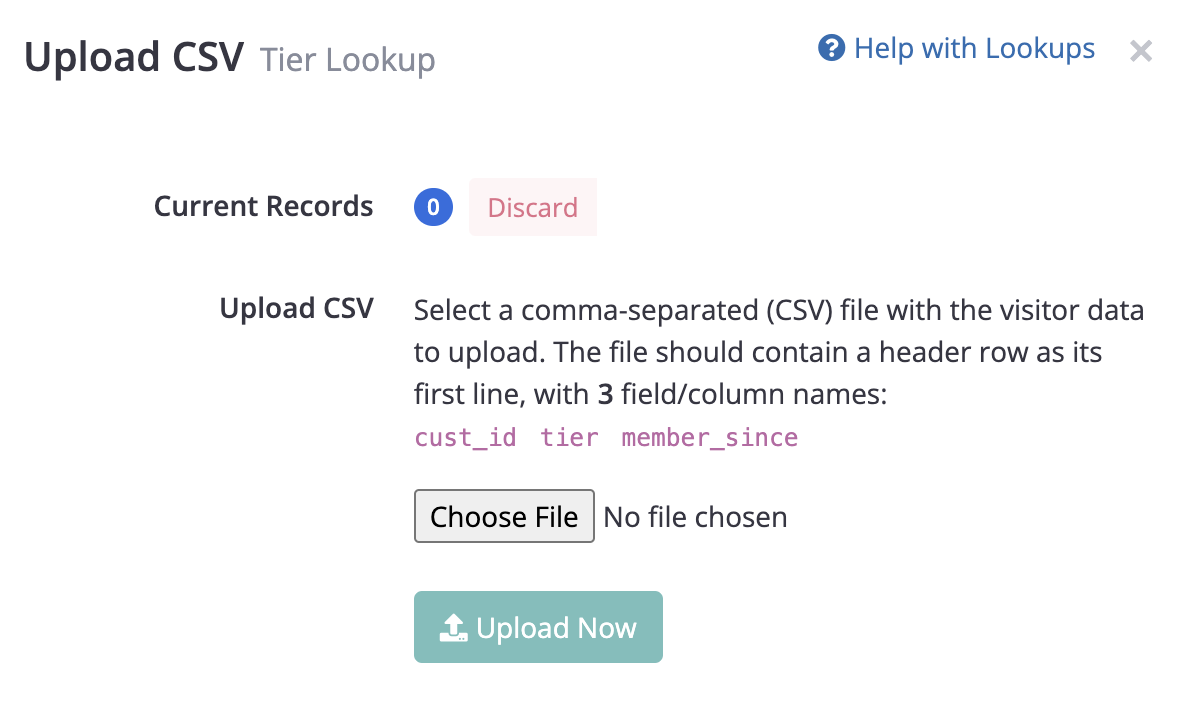
If you get an error message saying that the CSV could not be updated, make sure that:
- The first line of the CSV file contains is a "header row", meaning that column names appear on the first line of the file (and therefore, the first actual data record is on the second line of the file).
- The column/field names in the first line of your file match up exactly with the fields you specified when creating the Lookup Table (see sections above).
- There are no additional column/field names, other than the ones specified when creating the Lookup Table.
- The file is a plain comma-separated text file, not an Excel .xls or .xlst file, etc (though Excel can export to CSV).
Uploads will replace current recordsThe information you provide in the CSV will overwrite any information previously uploaded for each visitor identifier. For instance, in the example above, the
cust_idcolumn in the CSV is the identifier, so uploading a new version of the CSV will overwrite and replace any prior uploads for eachcust_id.
Records can also be "uploaded" via an APIIf you want to automate the population of your Visitor Lookup Tables, it's also possible to provide the same field-level information via an API, rather than via a CSV file in our admin. Please reach out to Conductrics for the details.
Discarding RecordsYou can completely remove all records from a lookup table via the "Discard" button (see above screenshot). Once you confirm, all records will be discarded immediately and forever. There is no way to undo this operation, so make sure you have the original CSV file if you still need it!
Actually Using the Lookups with the REST API
Assuming that you have a Conductrics Agent (or Goal) that uses field(s) from a Lookup Table in its Conditions or Targeting Rules, you don't have to do anything special when calling the REST API, other than providing the correct session or vid parameter when calling the API.
Conductrics will try to look up a previously-uploaded record for the given vid or session identifier. If it finds one, it will use the value from the appropriate field/column to satisfy your Conditions (or set a Visitor Trait, see below).
-
If you chose the Matching the External Visitor ID option for the Lookup Table (see screenshot earlier on this page), you should provide a
vidparameter when calling the REST API. If you don't, the REST API call will process normally, but the "lookup" won't occur and therefore any conditions, etc., that use the lookup table data won't match. -
Likewise, if you chose the Matching the Session ID option for the Lookup Table, Conductrics will try to find an uploaded record that matches the
sessionparameter you supply to the REST API. If no uploaded record matches, then any any conditions, etc., that use the lookup table data won't match.
See the Runtime API Reference page for info about providing thesessionand/orvidparameters. All matching is case-sensitive.
Using Lookup Data as Visitor Traits
If you would like the values in one of the CSV columns to be set as a Custom Visitor Trait:
- Create the Lookup Table as discussed above.
- Create a Custom Trait Group (as discussed here) and set the Pass Via option to Lookup Field as shown below.
- Choose the field from your Lookup Table as the source of the Visitor Trait.
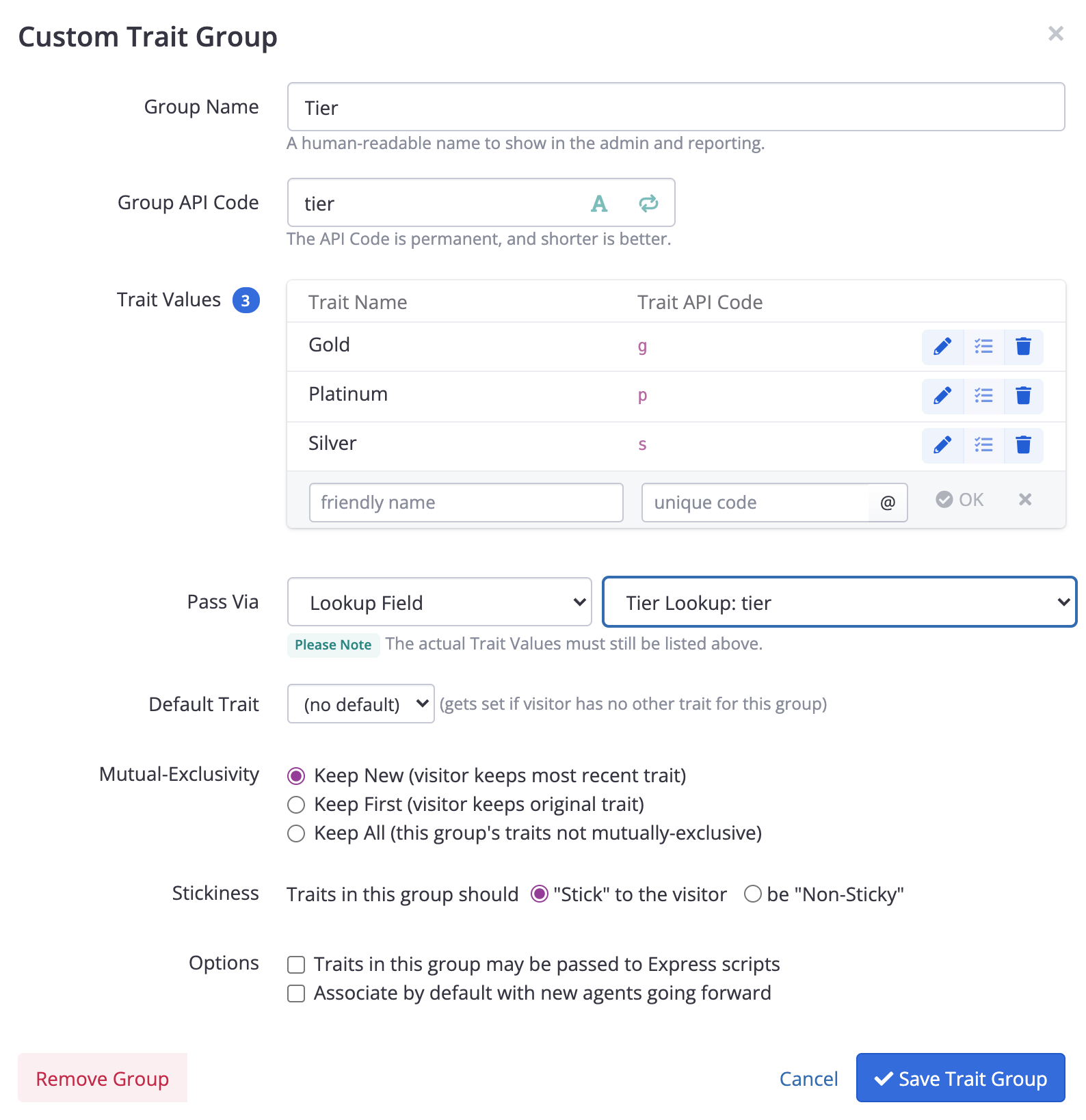
For instance, the screenshot above shows a Trait Group called "Tier", with three allowable values for Gold, Platinum, and Silver. The value for a given visitor would be "looked up" from the corresponding field in the Lookup Table (so the tier column in an uploaded CSV).
The "Pass Via" option will only work if the values in your CSV match up exactly with the "Trait API Codes" for the Trait Values. For instance, in the example above, the CSV would need to have a field (column) namedtierand the values would need to beg,p, orsexactly (the matching is case-sensitive).
If you want to set Visitor Traits from your Lookup Table fields, but it's not a one-to-one mapping, you can use Conditions to define the and/or style "logic" for when to turn a trait on for a visitor. Use the "Conditions" button for the trait as shown in the screenshot above (that's the little "bulleted list" icon between the pencil and trash can). From there you can define your Conditions based on your Lookup Table fields (such as "if tier is Gold and member_since > Jan 1" then set the "New Gold Dream" trait).
Updated over 1 year ago