
React Native Support
Overview
The basic idea is that we will generate a module that you can download and use in your React Native application.
Once you have installed our module, it will contain all the latest information about your agents, and what they have learned. (Check out the Runtime API Overview if you're not familiar with Conductrics agents conceptually.)
This module will allow you to run experiments within your application without waiting for anything from our servers. Events are dispatched to us asynchronously after they happen.
Installation
The React Native module we provide is one kind of "Deploy Target" that you can create within our interface.
Creating a React Native Deploy Target
Go to Settings > Deploy Targets > Add Deploy Target > React Native.
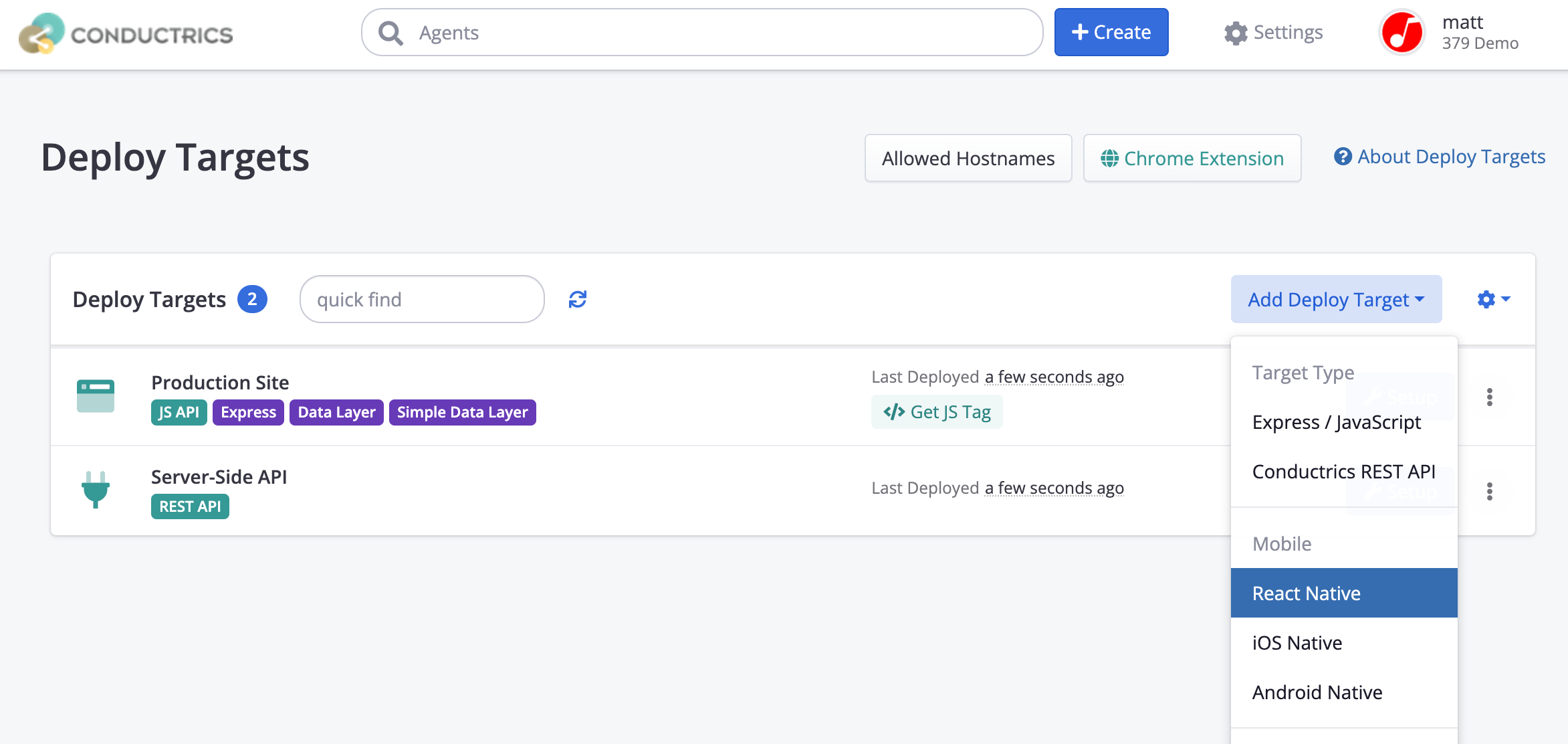
The default options should be fine for your first Deploy Target.
You just want to fetch one URL from the new Deploy Target:
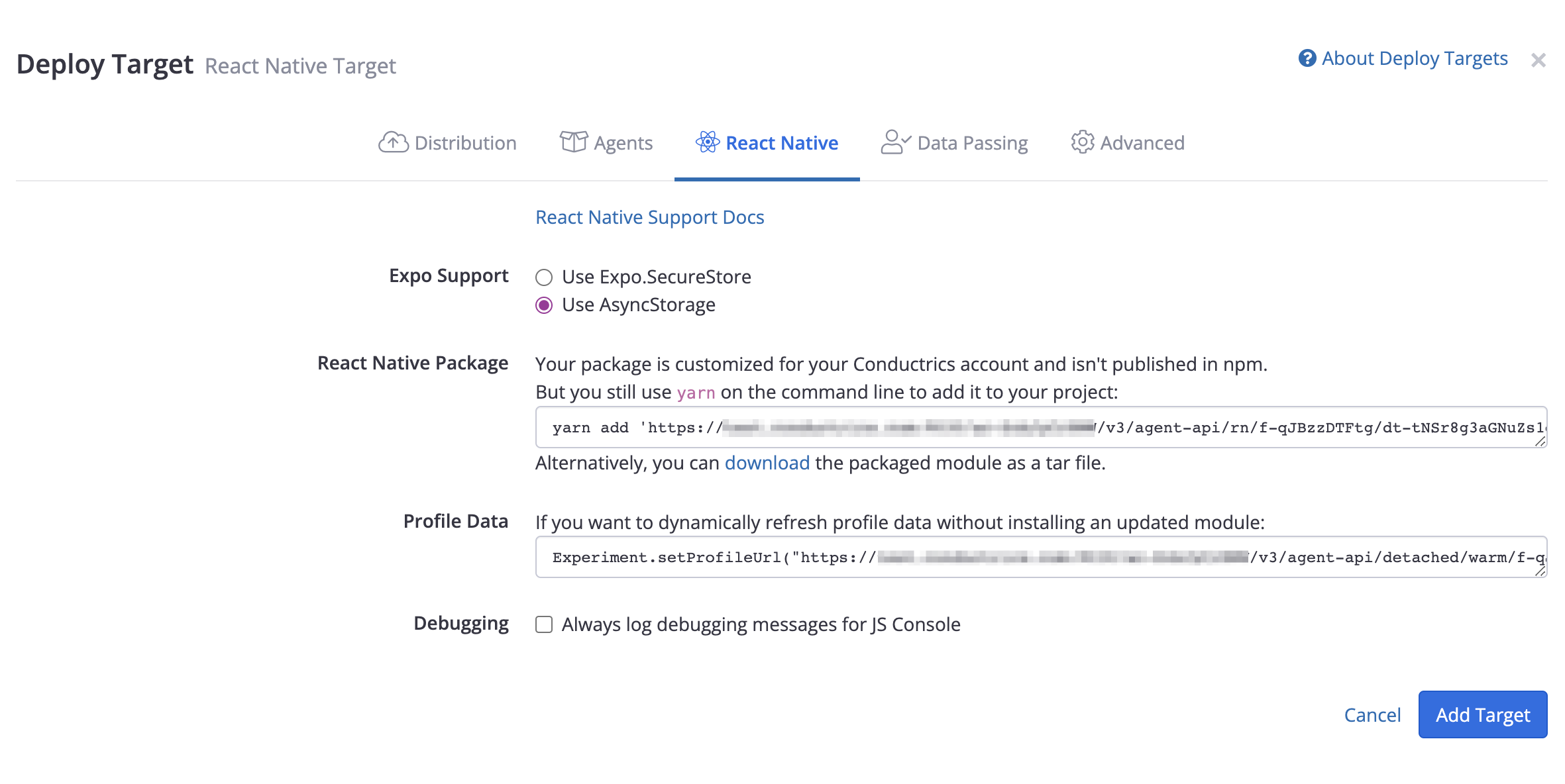
Copy this yarn add ... command to the clipboard, and click Add Target.
Once that is saved and deployed, you can install it in your React Native app using the yarn command you saved.
$ yarn add '<deploy target url>'This will install a module named conductrics-react-native. This module contains the current state of the machine learning, and the current state of your agents.
React Native Components
Also defined are two important classes for your use in React Native: Experiment and Variant.
You import them like this:
import { Experiment, Variant } from 'conductrics-react-native/classes';Then use them in your views like this:
<View>
  <Experiment agent="a-ilPp3c0adj">
    <Variant loading><Text>Loading...</Text></Variant>
    <Variant code="A"><Text>A was chosen.</Text></Variant>
    <Variant code="B"><Text>B was chosen.</Text></Variant>
  </Experiment>
</View>
Experiment nodes require the agent property, which must correspond to an agent code that already exists in your system (and is included in the distribution package that npm installed).
Variant nodes allow two (optional) special optional properties:
defaultwill be rendered if no decision can be made (due to an error, or if the user is not eligible for the Experiment).loadingwill be rendered initially, while the Experiment reaches out to our server to check the status of the Experiment (if this is enabled in our console).
You can place default and loading on nodes that also correspond to a choice:
        <View>
          <Experiment agent="a-example">
           <Variant default code="A"><Text>A was chosen.</Text></Variant>
           <Variant code="B"><Text>B was chosen.</Text></Variant>
          </Experiment>
        </View>
You can also put default and loading on empty Variants, to cause nothing to be rendered in their respective cases:
        <View>
          <Experiment agent="a-example">
           <Variant loading></Variant>
           <Variant default code="A"><Text>A was chosen.</Text></Variant>
           <Variant code="B"><Text>B was chosen.</Text></Variant>
          </Experiment>
        </View>
Note: if default is not specified, the first Variant is assumed to be the default.
Important: Likewise, if no loading Variant is specified, the first Variant will be visible. Use the example above if you want to show nothing during that time.
Profile Data
If you want your app to load an updated set of "profile data" (that is, the set of active Conductrics agents, goals, and other settings) from your Deploy Target when the app launches, you can use the Experiment.setProfileUrl() method:
import { Experiment, Variant } from 'conductrics-react-native/classes';
Experiment.setProfileUrl("https://...");
This will download a JSON packet from our server, to learn the latest state of the Deploy Target, so you can start/stop agents, add/remove agents from the Deploy Target, change option weights, etc, and see those changes propagate to your app the next time it launches.
You can find the correct URL for your Deploy Target by going to Settings > Deploy Target > Setup > React Native.
Sending Rewards
To send rewards, you send a message to us like this:
Experiment.sendReward(goalCode, value); // value - float, default = 1.0This will send a small message to us via HTTP. You can use this at any time after an Experiment has rendered, according to any custom business logic you need.
The goalCode parameter is from any Goal Type registered in your account, see Goals / Conversions.
Providing Visitor Traits and Other Options
The more traits you can set the more information the machine learning will be able to consider when making optimizations, and the more insightful the reporting can be for you.
To set Custom Visitor Traits for a user, set them before Experiments render (so they can be considered when choosing which Variant to render).
Like this:
Experiment.setApiOptions({
  traits: ['status:vip','source:email']
});
It's important this happen as early in your application's lifecycle as possible. Many options that are changed after decisions are made will have no effect.
You can provide any of the options supported here: Runtime API Parameters. For instance, you can provide a "Do-Not-Track" instruction like so:
Experiment.setApiOptions({
  traits: ['status:vip','source:email'],
  dnt: true
});
Discarding the "Visitor Session"
You can call Experiment.clearSession() if you want to discard the local history of agent selections, goals made, etc. For instance, you might want to do this at app launch time while your app is in a "QA" type mode, so that each app launch represents a fresh "visitor" in terms of Conductrics processing.
import { Experiment, Variant } from 'conductrics-react-native/classes';
Experiment.clearSession()
Note: it's important to call clearSession() before any Experiment is attached to a View by React (before the componentDidMount event on an Experiment).
Reinstalling / Updating the React Native Module
From time to time there could be a bugfix or enhancement for the code we provide in our React Native module. In such a case, you will need to update the module in your React Native project.
First, make sure your React Native Deploy Target has been re-deployed recently, which you can find out by visiting Settings > Deploy Targets in the Conductrics Admin.
If you use "Manual Deploys", you may need to do a "Deploy Now". If not, stop and then re-start an agent in the Deploy Target to force it to re-deploy. See Deployment Options for more information about Manual vs Automatic deployments.
Next, execute the following in your React Native project:
yarn remove conductrics-react-native
yarn cache clean
yarn add '<deploy target url>' as discussed above
Let us know if you have any questions!
Updated over 1 year ago