
Managing API Keys
For use with our Runtime REST API or Administrative APIs
You need an API Key to authenticate to:
- Our REST API for instrumenting an Experiment or other Conductrics Agent at runtime. For this you'll want a Runtime API Key.
- Our Administrative APIs for getting reporting data or doing things like creating new Agents or Goals programmatically. For this you'll want an Admin API Key.
Managing Runtime API Keys for the REST API
To view or create Runtime API Keys for use with our REST API for instrumenting an Experiment or other Conductrics Agent at runtime:
- Go to Settings > API Keys / Info in the Conductrics Admin.
- Click Create API Key at top right, then choose Conductrics REST API.
- The new API Key appears in the list, with a REST API marker as shown below.
For examples of how to use your new API Key, see API Usage via REST API.
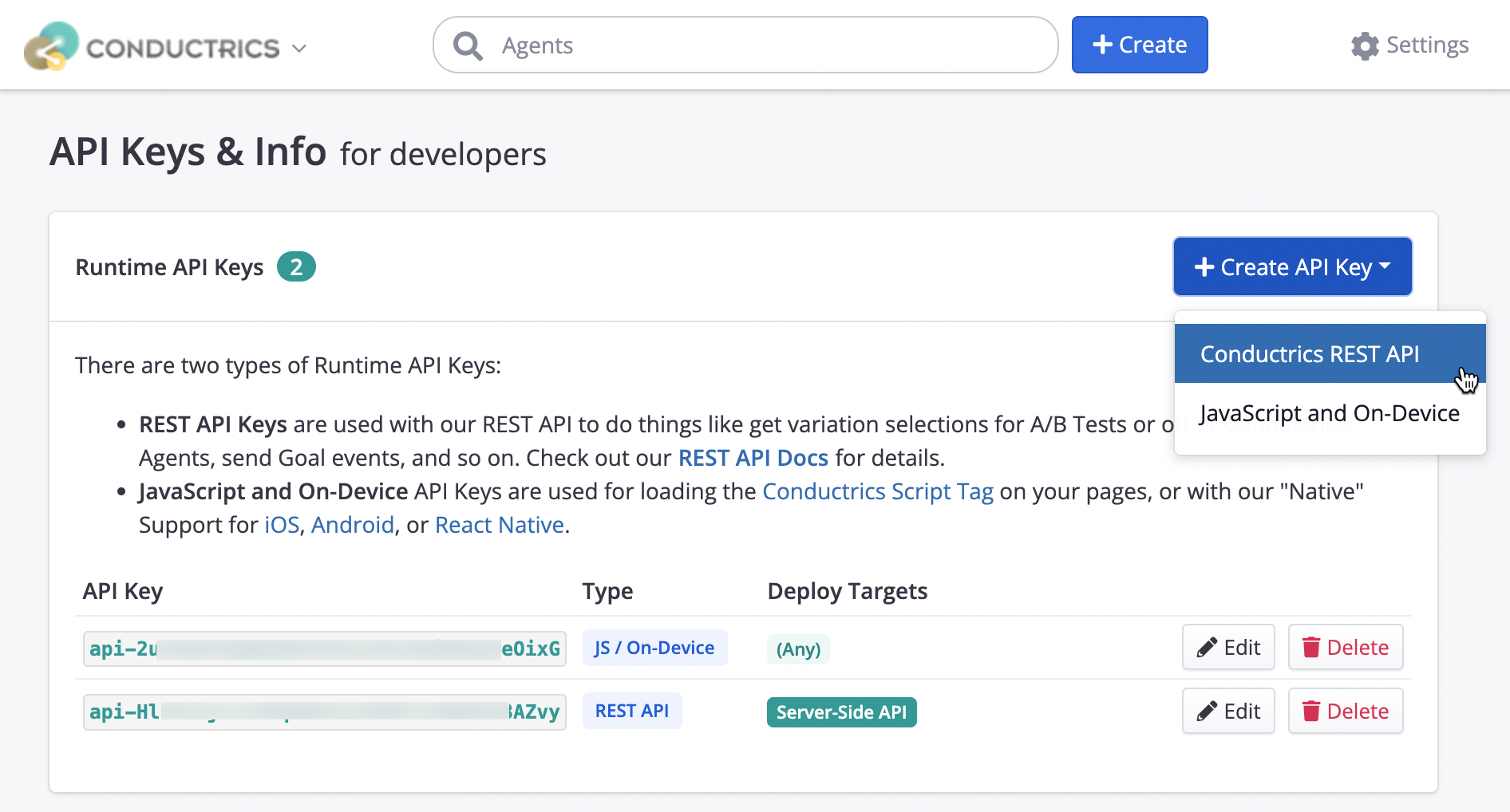
Assigning REST API Keys to Specific Deploy Targets
If you like, you can assign your API Keys to specific REST API Deploy Targets. For instance, you might want to use separate API Keys for authenticating to the REST API for Staging versus Production, or you might want separate API Keys for different internal applications.
- To assign Deploy Targets to a Runtime API Key (either one that you just created or an existing one), just hit the Edit button for an API Key, then choose the REST API Deploy Target(s) that you want the API Key to work for.
- Any REST API Deploy Targets that you don't associate with the Deploy Target will return a 403 (Not Authorized) response if you try to use the given API Key with them.
- If you want to go back to allowing the API Key to work with any REST API Deploy Target, just remove all Associated Deploy Targets (leaving the field blank).
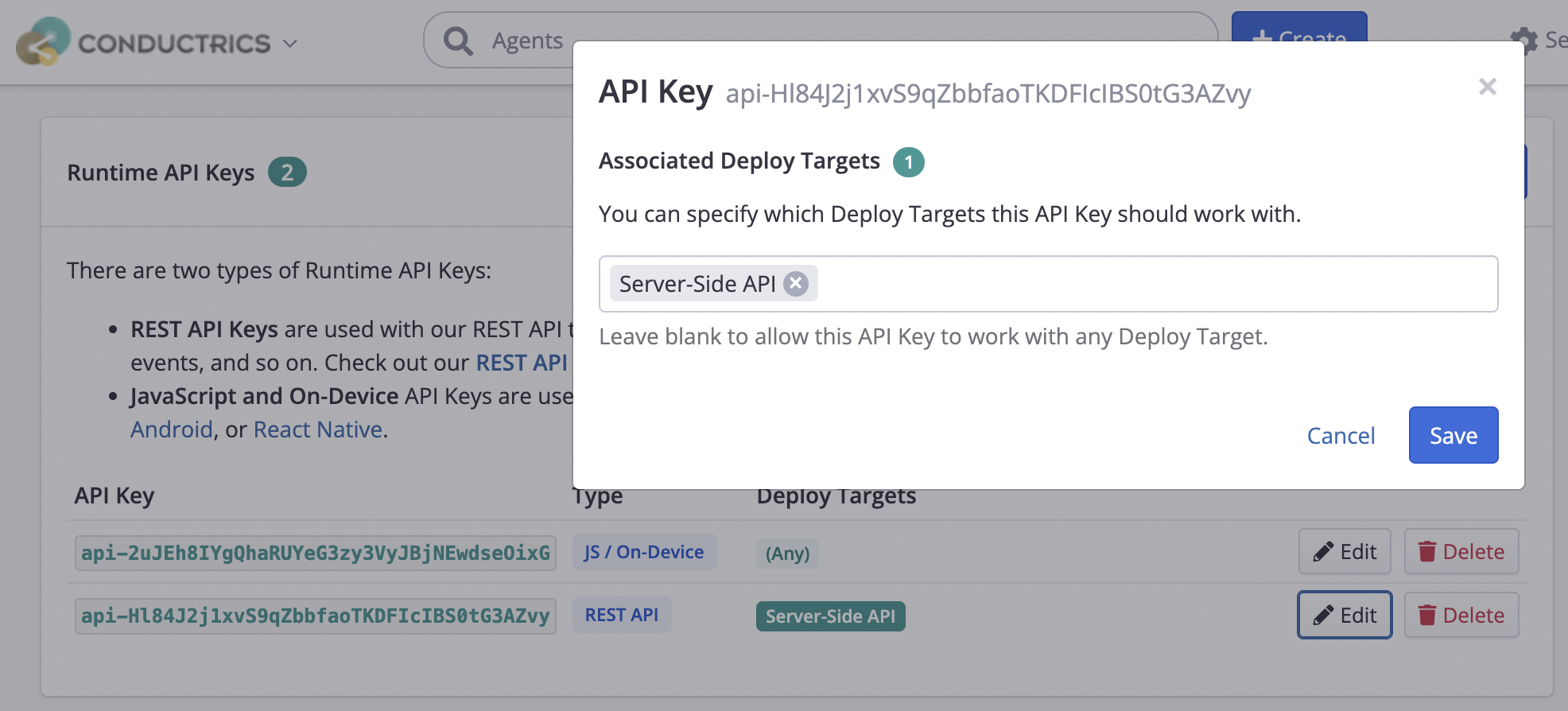
Removing an API Key
To remove an API Key, just hit the Delete button (see screenshots above) and confirm that you want to delete it.
Make sure it's not in use 🤔Before deleting an API Key, make sure it's not in use in any code on your side, as the REST API will start returning a 403 (Not Authorized) response right away. There's no way for you to re-create an API Key once deleted.
Managing Admin API Keys
To view or create Admin API Keys for getting reporting data or doing things like creating new Agents or Goals programmatically:
- Go to Settings > API Keys / Info in the Conductrics Admin.
- Click New Admin Key, then choose the access level that the new API Key should have:
- Choose Reports and List Agents (read-only) to create an API Key that can get information (such as the list of agents or reporting data), but can't make changes.
- Choose Agent Author / Admin for an API Key that can create or make changes to Agents, Goals, and so on.
- Click Create to confirm the desired access level. The API Key appears in the list as shown below.
Please refer to our Admin APIs Overview page for information and examples for using your new Admin API Key.
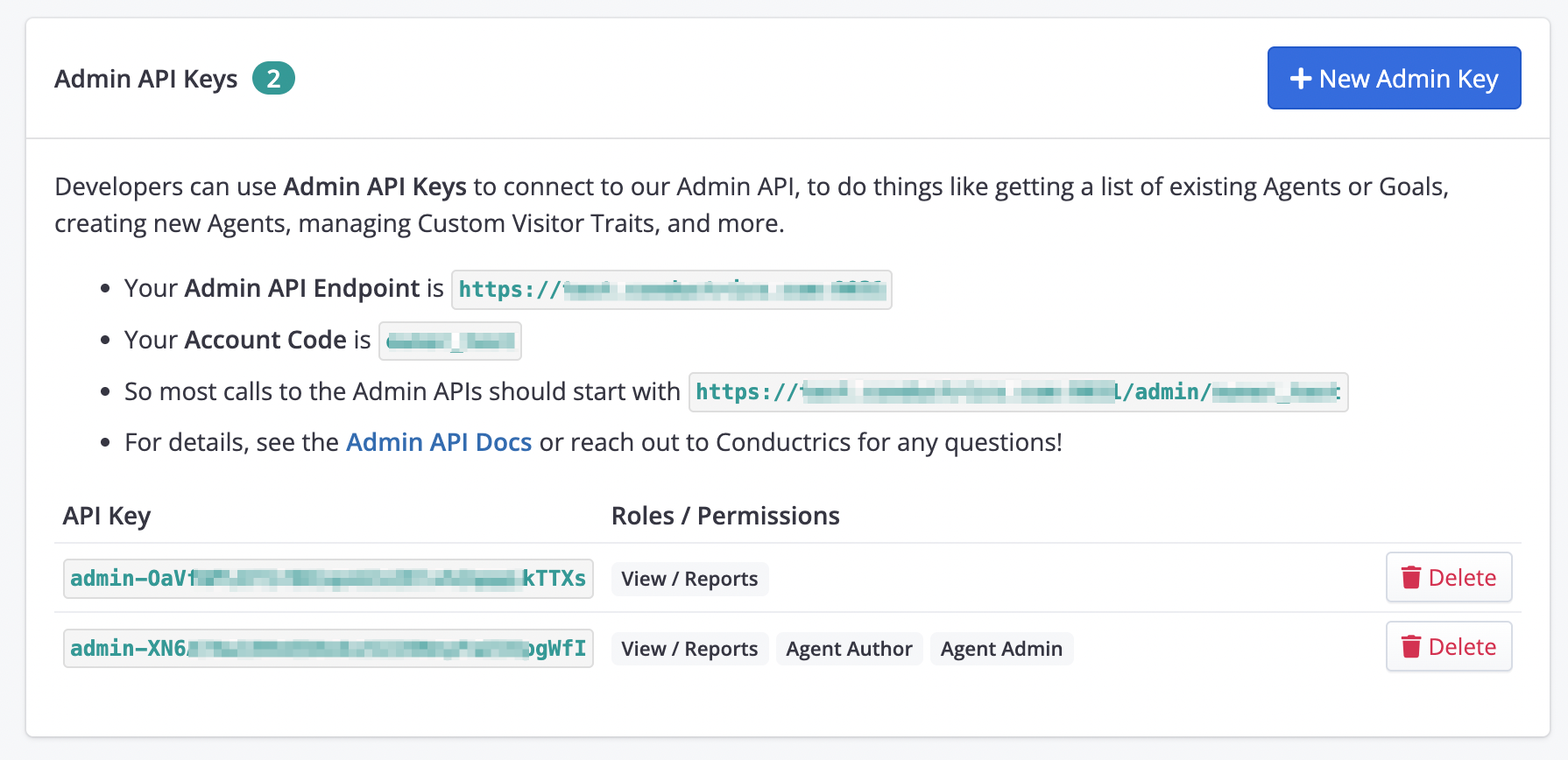
Managing API Keys for JS / On-Device Use
While less common, if you're using Conductrics Express or our Local JS API, you may also want to manage the API Keys used to serve the Conductrics Script Tag.
- These API Keys are noted with the JS / On-Device marker (as shown in the screenshots earlier in this page).
- To create one, follow the same steps as when creating an API Key for the REST API, except choose JavaScript and On-Device from the dropdown (see screenshots earlier on this page).
- This type of API Key is also used to power the "native" versions of our Mobile Support.
Removing JS / On-Device API KeysBe careful about removing a JS / On-Device API Key. If it's in use by any Conductrics Script Tags on your pages, the CDN will start returning "Not Found" or "Not Authorized" errors instead of the needed JS content.
Updated over 1 year ago