
Teams
Organize users and agents by team to help everyone stay focused
If you have more than a few people using Conductrics, you may want to create a few "Teams" in Conductrics to help keep things organized.
Here's how teams work:
- You create teams in our admin, via Settings > Users / Teams.
- Each team can have any number of users (and each user can be on multiple teams).
Your Conductrics Agents can also be assigned to teams:
- Each team member can easily filter the Agent List page, showing just their teams' agents.
- When someone creates a new agent, they can assign it to one of their teams.
- Everyone can still see agents from other teams if they wish.
Finally, Deploy Targets can also be assigned to teams, providing a way to ensure that only agents created by people on certain teams end up on one website or mobile app or another, etc.
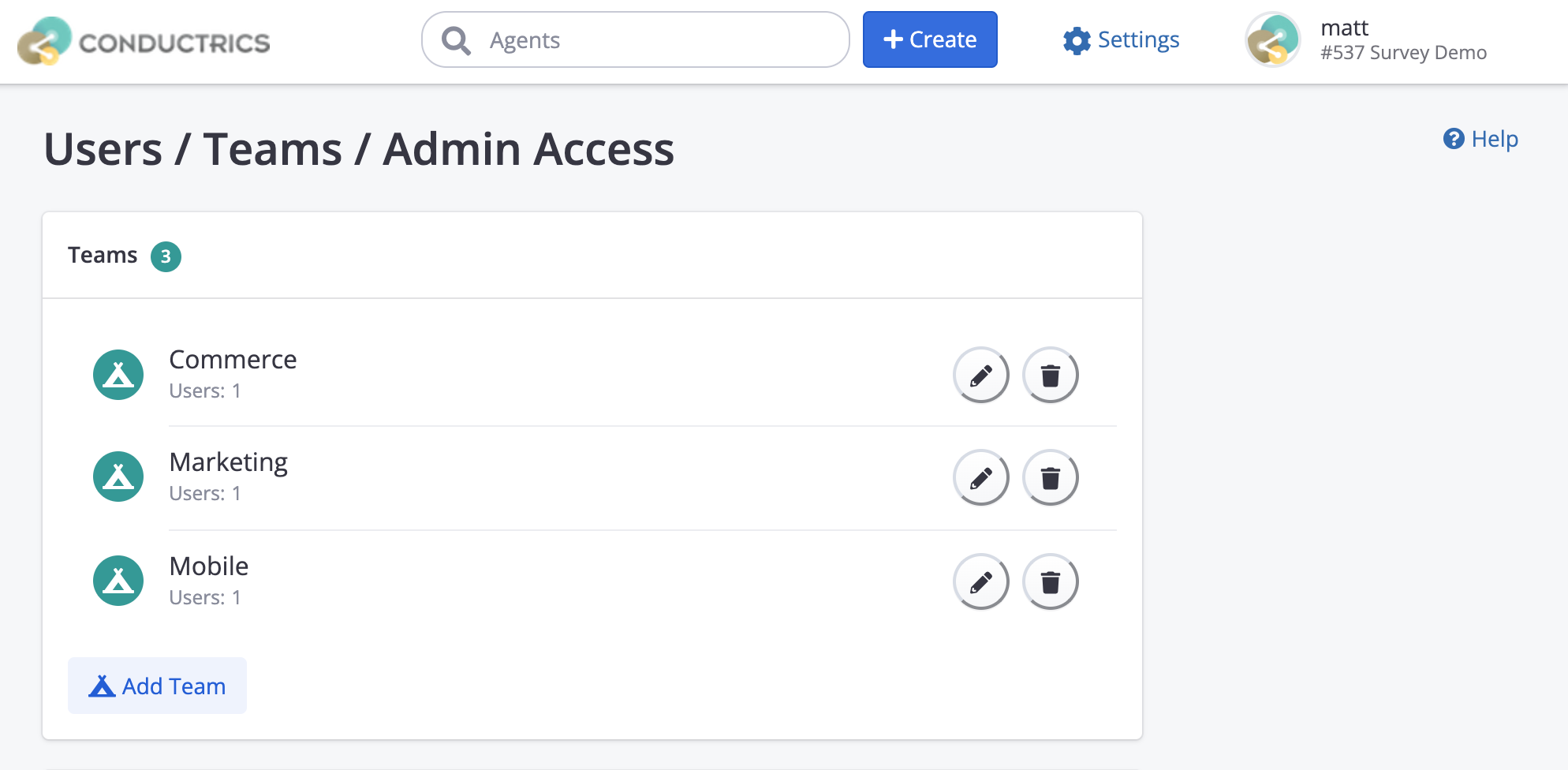
Creating a Team
To create a team, just go to Settings > Users / Teams in our admin and hit Add Team. Then just provide a team name and pick the users you want to be in the team, as shown below:
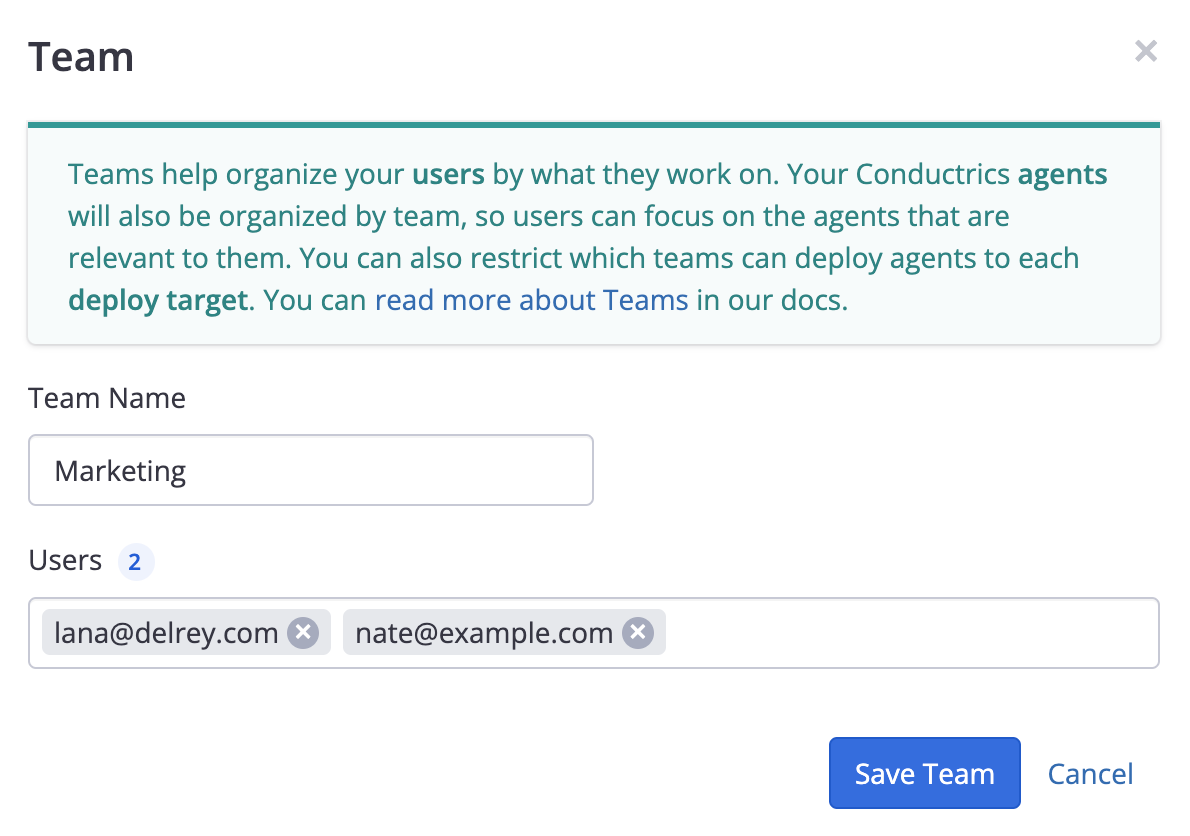
Creating a team
Once you've created your teams, you can add/remove users by editing the team (see above), or you can use the checkboxes provided at the user level as shown below:
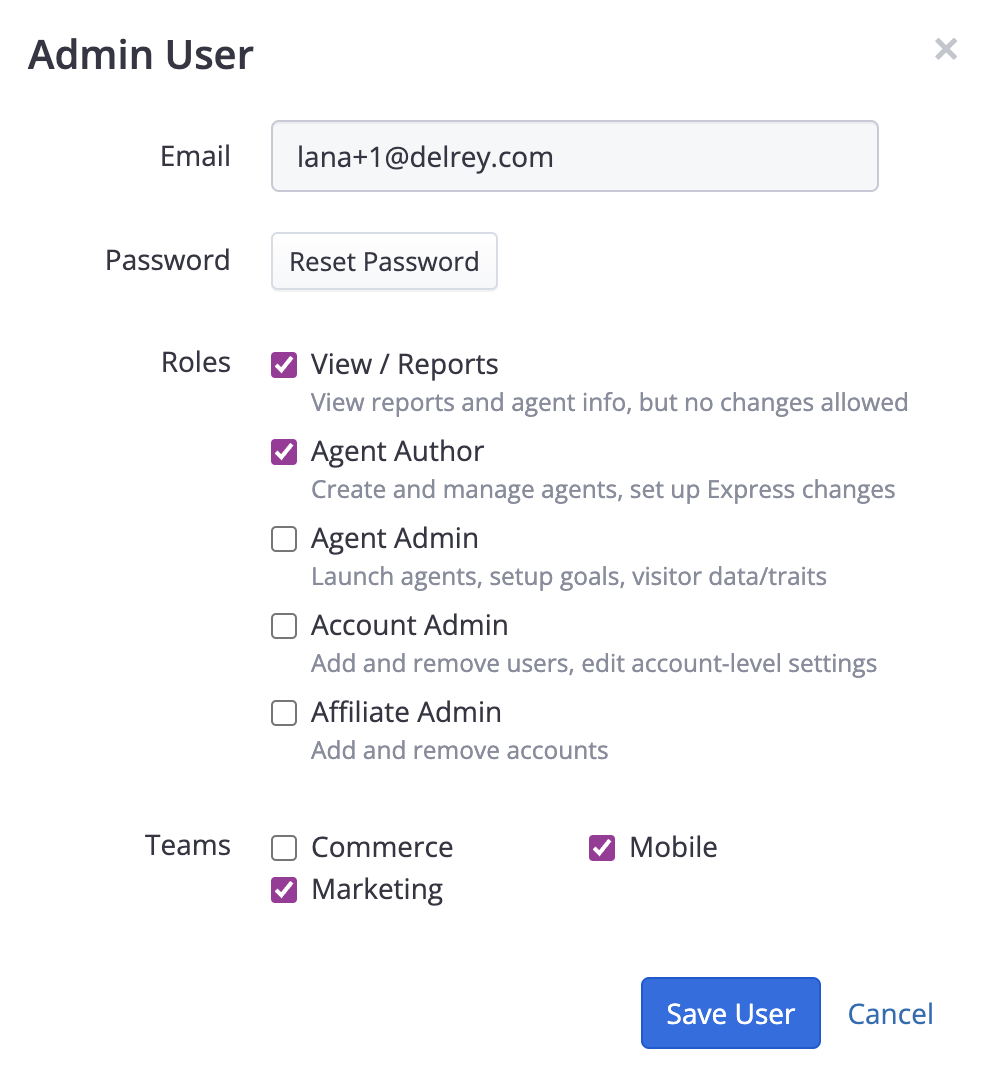
You can change which teams a user is on from here as well.
Assigning Agents to Teams
The main benefit of using Teams is to keep the agent list organized.
Once you've set up some teams, you'll see "tabs" for each team in the sidebar of the main Agent List Page. You can click on the team name, or the green / yellow / red status numbers, to quickly filter the list of tests/agents, like so:
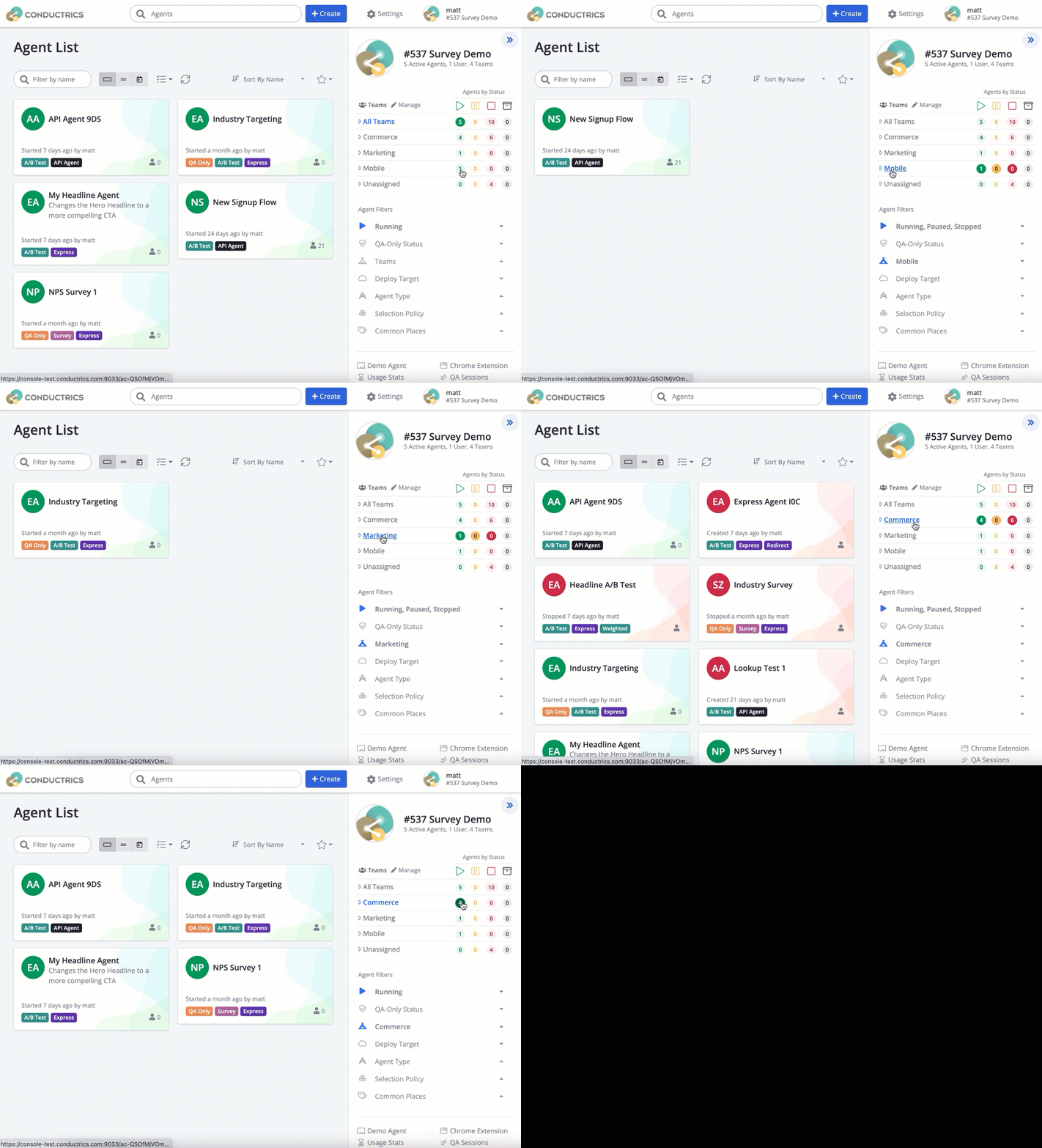
Switching between teams in the agent list
Other Teams Can Still ViewNote that everyone can still choose "All Teams" as shown above, which will show all agents in your Conductrics account. So, don't think of teams as a "private" space per se - they are more about keeping things organized.
That said, only those users that are assigned to the same team as the agent can make changes to the agent. In other words, users from other teams can view but not modify.
New Agents
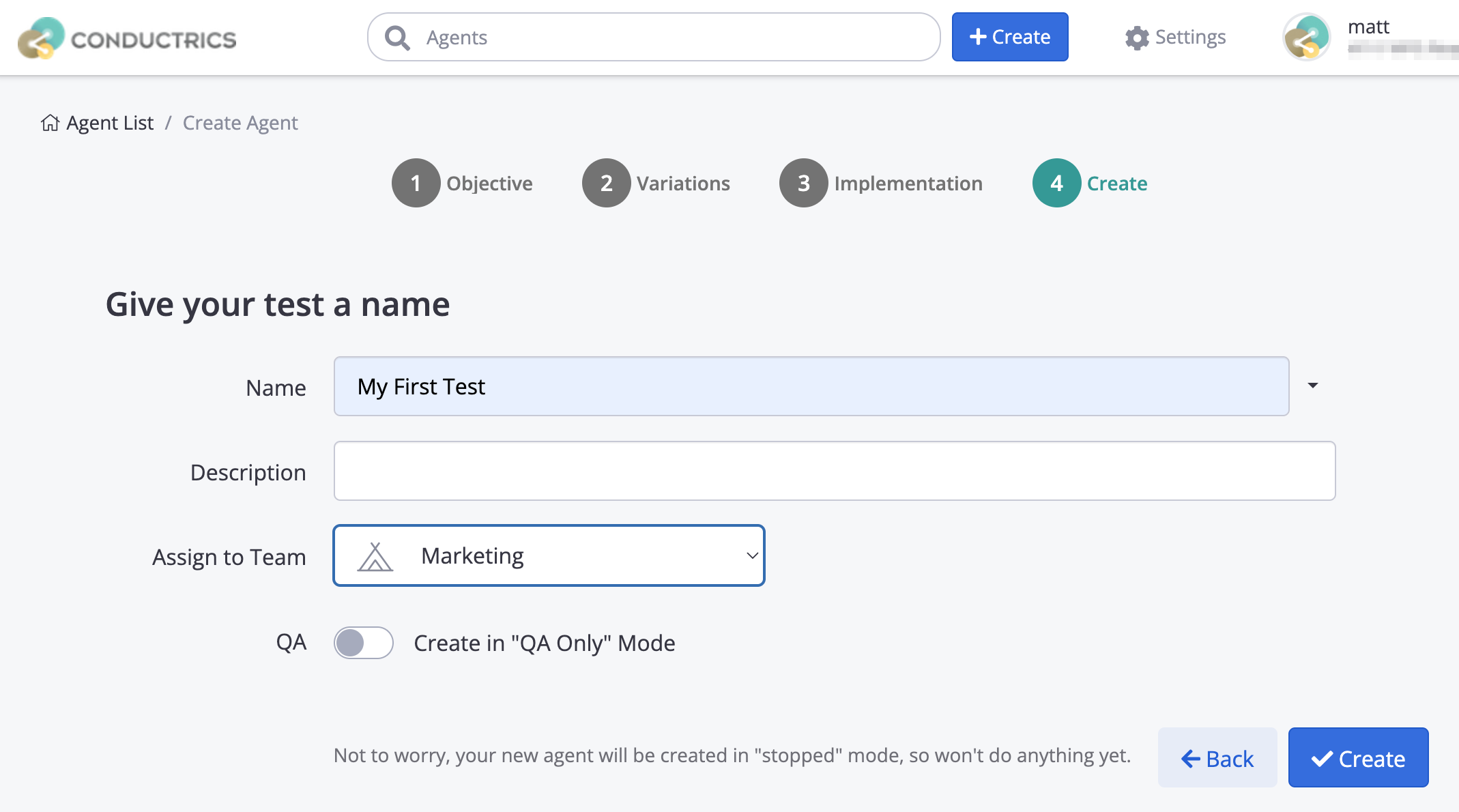
When Creating an Agent, you can pick the initial team for the agent. That's on the last step of the "Create" process; here's what it looks like:
Sharing with Other Teams
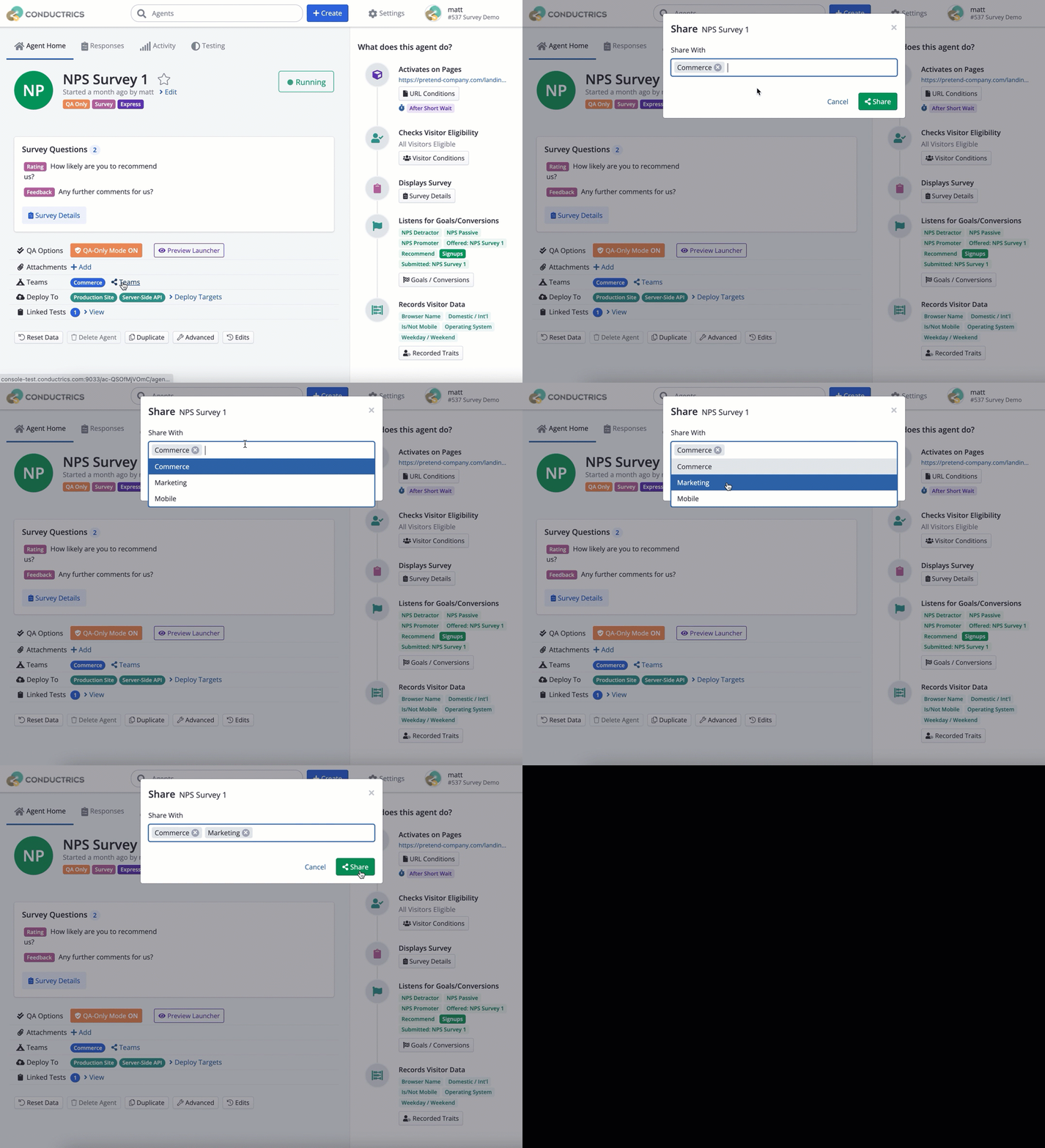
If you want to change which teams an agent is assigned to, you can use the "Teams" link at bottom left of the Agent's Home Page. That brings up a simple form where you can pick the appropriate teams:
"Sharing" an agent with another team
If you have a lot of agents to assign, you can make team assignments for many agents "en masse" from the agent list. Use the "checklist" icon to enter "Bulk Select Mode", then select the agents you want and choose Assign Team from the menu.
Assigning Deploy Targets to Teams
If you want, you can make your Deploy Targets be team-specific. Doing so means that the deploy target should only contain those agents that are assigned to the same teams as the deploy target.
- For deploy targets that include "All Agents", the target will only contain those agents that are assigned to the same teams as the deploy target.
- For deploy targets that include "Selected Agents", the target will only be available to select for those agents that have been assigned to the same teams as the deploy target.
For instance, you might have a deploy target for Web, and another one for iOS. You might assign the Web target to the "Marketing" team, and the iOS target to the "Mobile" team. This way it's pretty easy to keep the agents from only being deployed where they belong.
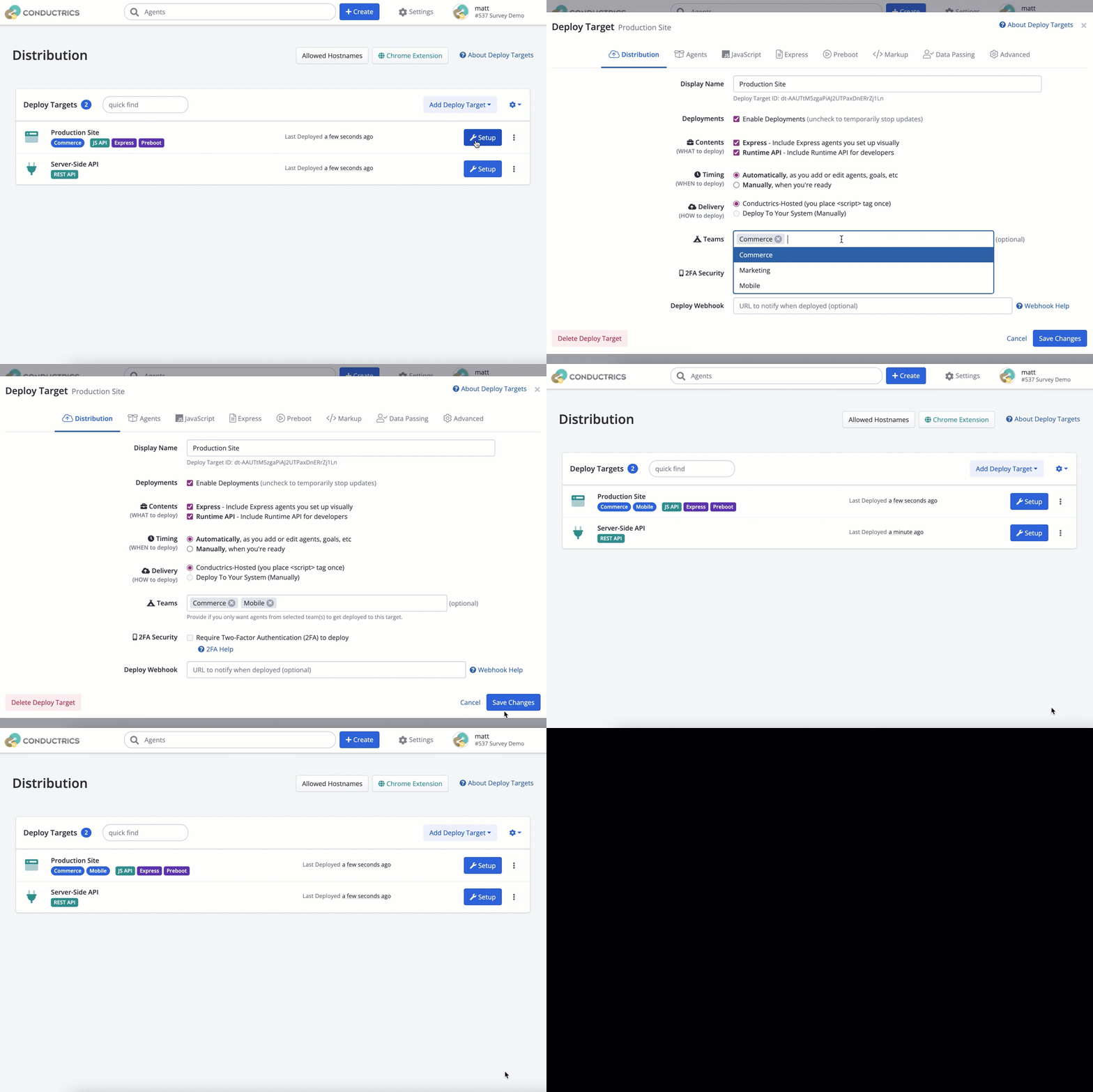
Just go to Settings > Deploy Targets and choose the appropriate team (or teams) for the deploy target, as shown below:
Assigning a team to a deploy target
Updated over 1 year ago