
Sending Survey Data to Adobe Analytics
If you use Adobe Analytics, you can send survey data through our connector to your Reporting Suite of choice.
This integration will let you collect:
- The Survey Response ID (the ID that identifies each unique response)
- The Survey name
- The Question name
- The user Response to each question
Requirements
In order to make use of this feature you will need to:
- Provide an available eVar in your Reporting Suite (to hold survey response IDs)
- Provide an available list var in your Reporting Suite (to hold the survey questions / answers)
- Set up a Classification on the chosen
list(done in Adobe Admin) - Set up a Classification Rule (done in Adobe Admin)
The details are provided in the following sections.
Setting up the integration in Conductrics
To get started:
- Go to Settings > Connectors in the Conductrics Admin.
- Hit Edit for your Adobe Analytics Connector. (If you haven't set up a Connector for Adobe yet yet, Click Add Connector > Adobe Analytics as discussed in the main Analytics Connectors page.)
- Fill out the form as discussed below.
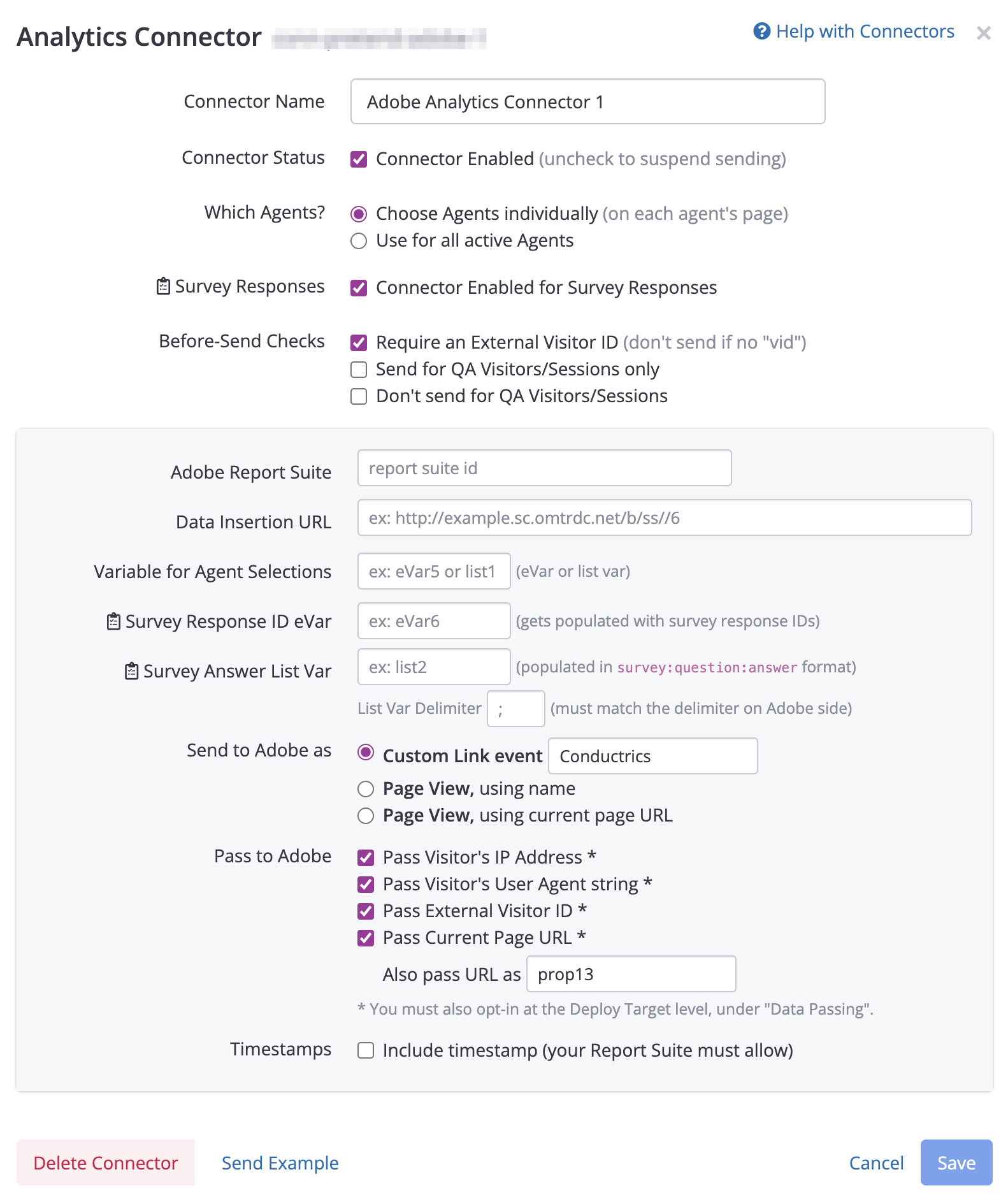
Most of the fields shown above will already be populated if you're using an existing Connector. If not, you can go through the steps over at Analytics Connectors, then return here.
There are two fields specific to surveys, marked with a little "survey" icon:
- Survey Response ID eVar
- Survey Answer List Var
For the Survey Response ID eVar you need to provide us to which Adobe eVar you would like for us to send the Survey Response ID. When visitors submit survey responses, Conductrics will populate this eVar with a unique identifier for the Survey Response, which you can use to look up the response in Conductrics later if desired.
For the Survey Answer List Var you need to provide an available list var from Adobe Analytics. Most Adobe Analytics accounts only have three list vars available, so you will be providing list1, list2, or 'list3here. This List Var will be populated with the actual survey questions and answers that each visitor provides when filling out your surveys. (The questions and answers are provided in the formSurvey:Question:Answer` which will be then broken down into separate fields via the Classification Rule that you'll set up in Adobe below.)
Once you filled both fields, click Save.
Setting up the integration in Adobe Analytics
Within the Adobe UI, we will need to go through 3 main steps in order to set up everything properly. This includes setting up the list var, the classifications and the eVar.
There are a bunch of steps in this section, but please note that you should only have to go through this process once in most cases (or possibly once for Staging vs Production, if you separate your Report Suites in that way). You should not have to do this again and again for each survey you create.
List variable and Classifications
In the Adobe Admin:
- Go to the Admin > All Admin > Report Suites page.
- Select the Report Suite you want to use to ingest the Survey data.
- Click on Edit Settings > Conversion > List Variables.
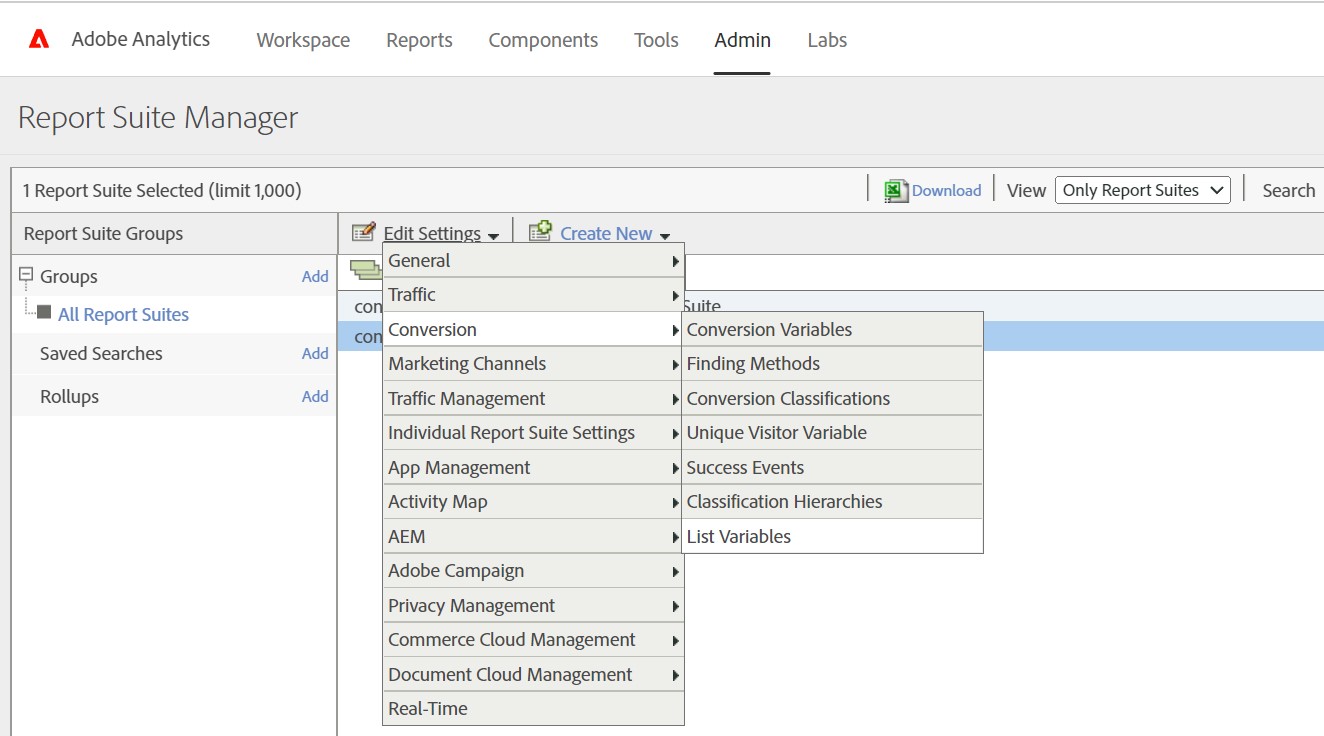
This will take you to the List Variables configuration page, which should look somewhat like this:
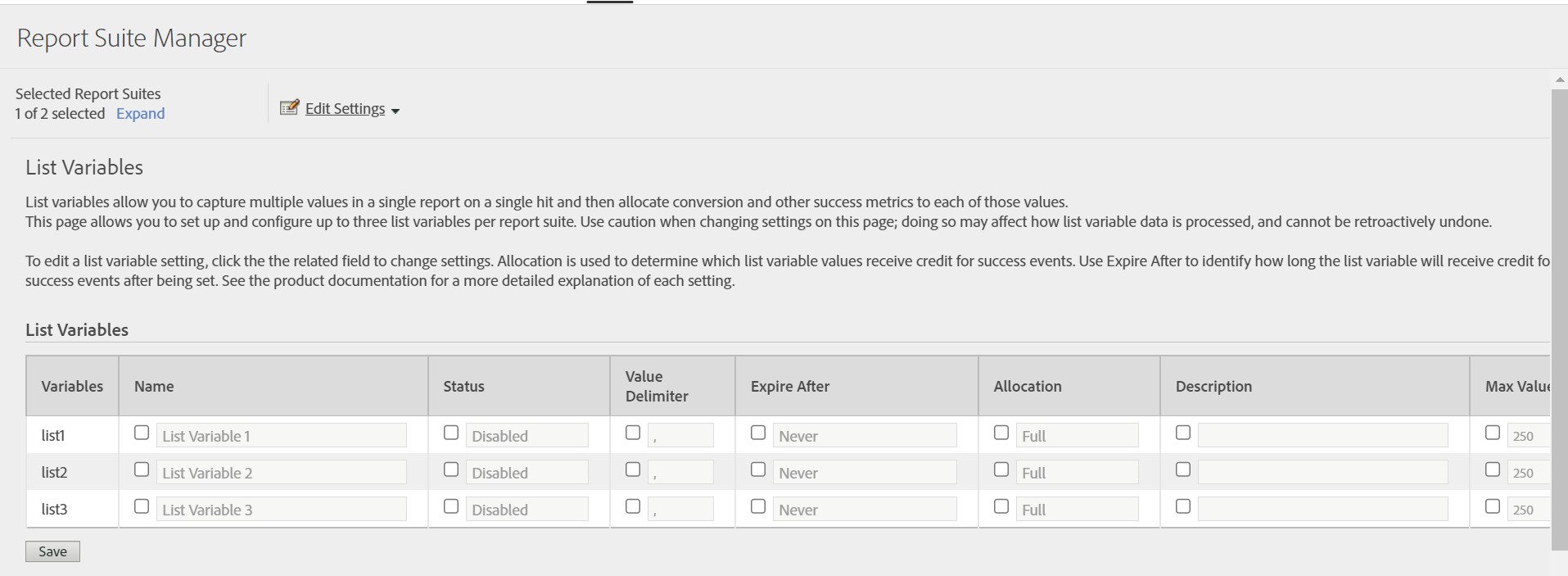
For the list var that you want to use (the one you specified in the Conductrics Admin above):
- Set the Status for the list var to Enabled if it's not already.
- If needed, replace the Value Delimiter for said list variable to match the List Variable Delimiter shown in the Connector settings in the Conductrics Admin. If you accepted the default values, that means changing the Adobe default of
,(comma) to the Conductrics default of;(semicolon). - Click Save to keep your List Variable settings.
We use ";" as the default delimiter since as it is fairly unlikely to appear in question titles or answers, but you can use a different delimiter such as
|if you prefer. The important thing is that the delimiter should match in Adobe and Conductrics.
It sticking with the default values, you should end up with your chosen list var looking something like list1 below:

Now we need to build the Classifications in charge of telling this list variable what fields it will receive. To do this we will click on the Edit Settings button on this same page, and then pick Conversions > Conversion Classifications:
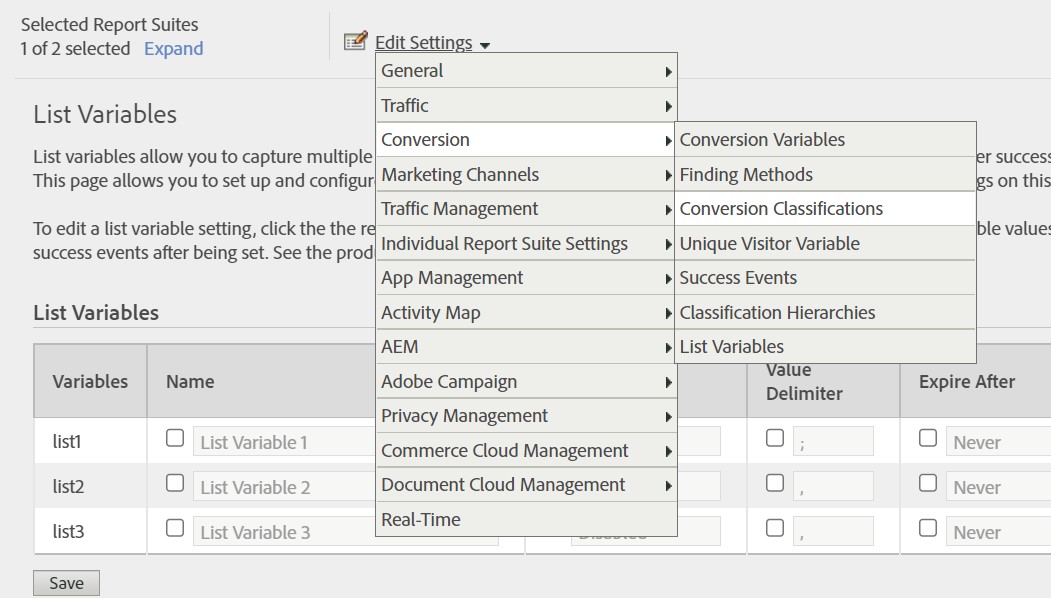
Once we land on the Conversion Classification page, the first thing we need to do is pick the List Variable of choice from the dropdown menu under the Select Classification Type header
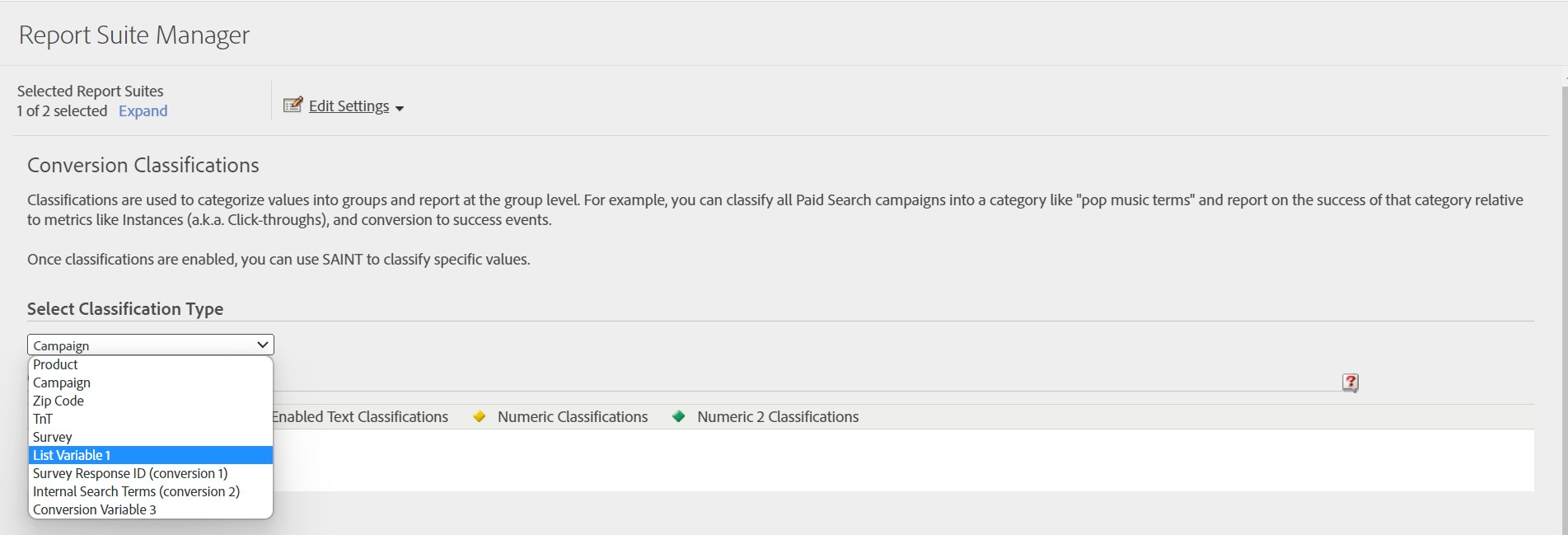
Once we got out List Variable selected, we will start adding our Classifications. Click on the little arrow button to the right of the List Variable 1 text, as shown here:
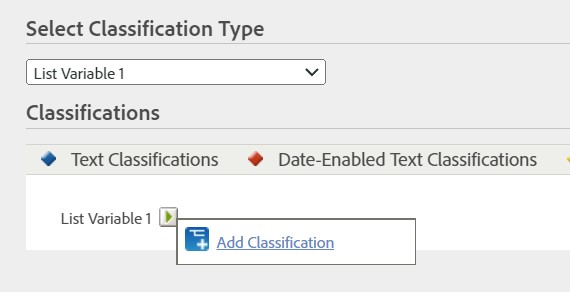
This will open up a window that will let us type in whatever name we want for the classification. Note that there are 4 data points that we are interested in collecting:
- The Survey being answered
- The Question from said survey
- The Response to that question
- All the 3 previous values bundled together.
The reason we are doing this is because it gives enough flexibility on the reporting side to breakdown or group each data point as needed.
So starting off with the Survey, once the modal opens up we will just type in Survey for the Name field under Text Classification, and hit Save as shown below:
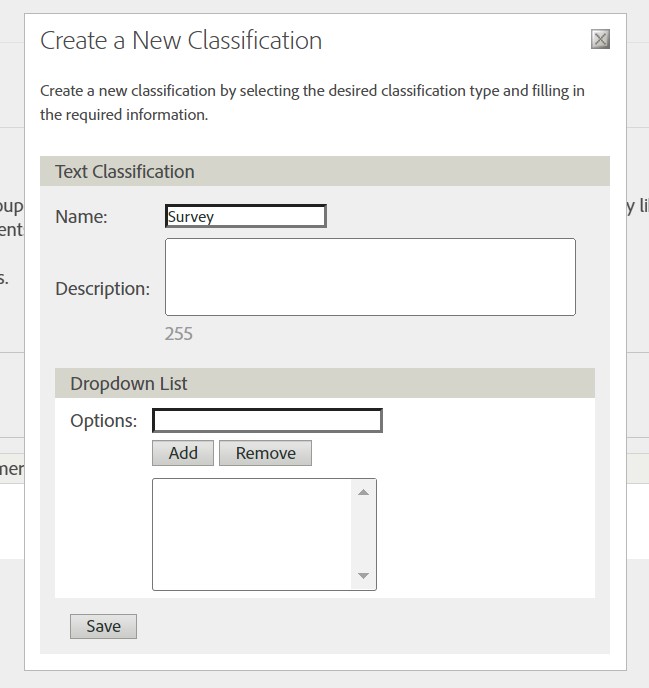
We then repeat this same process 3 more times. You can pick whichever names you find best for each classification, as long as you remember that each is going to be used to access one specific data point from the 4 described above (Survey, Question, Response, and then all 3 bundled together).
Once we finish creating the 4 Classifications we should end up with something like this:
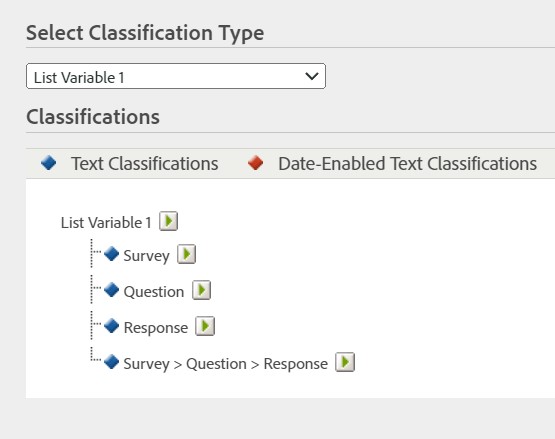
Now for the last step, we need to set up a Classification Rule, which works as the middleman between the data collection and the List Variable Classification. The Classification Rule looks at the information being provided from Conductrics and places each corresponding piece into the 4 Classifications we just built.
Click on Admin > All Admin, then click on Classification Rule Builder.
We should land on a page like this:
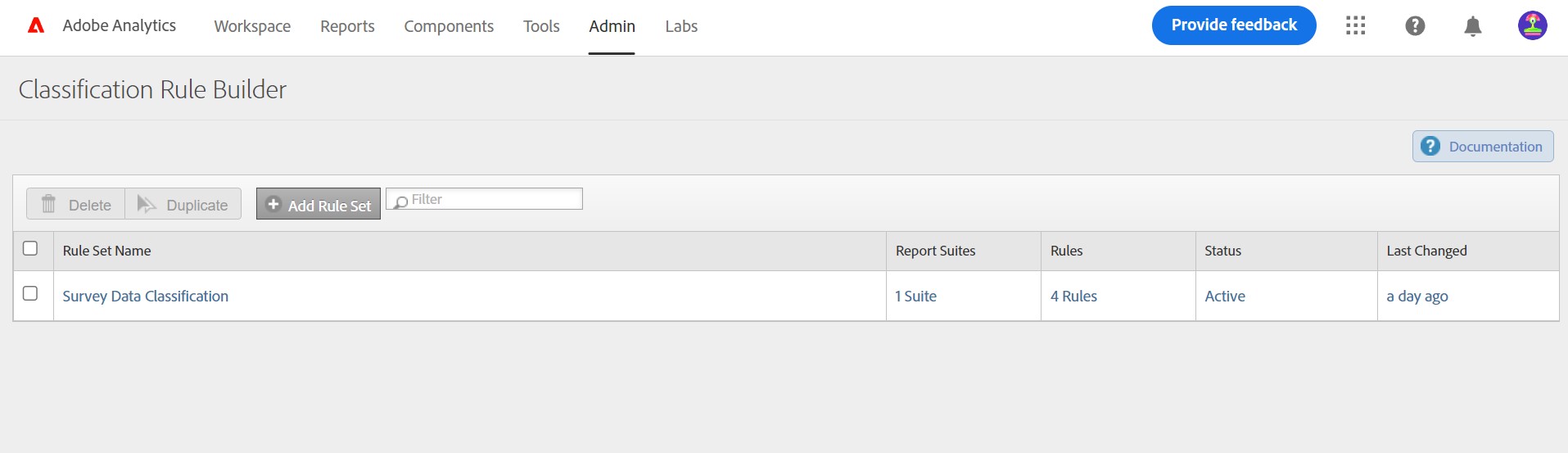
Now click on the + Add Rule Set button which will open up a window for us to type a rule name. I picked Survey Data Collection but you can name it anything that works for you.
Then we click Create Rule Set, and then a row with the Rule Set Name we just created should appear (like the 1st row on the above image).
Click on the Name of the Rule Set we just created and it will take us to a new page that looks like this:
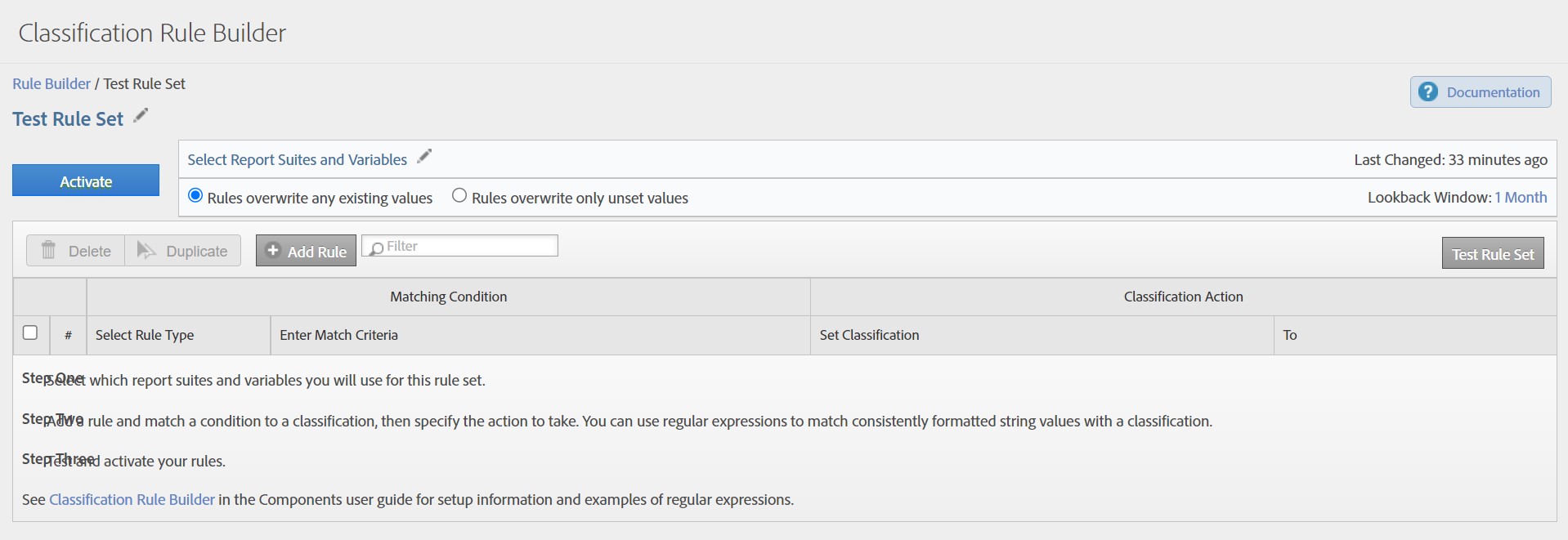
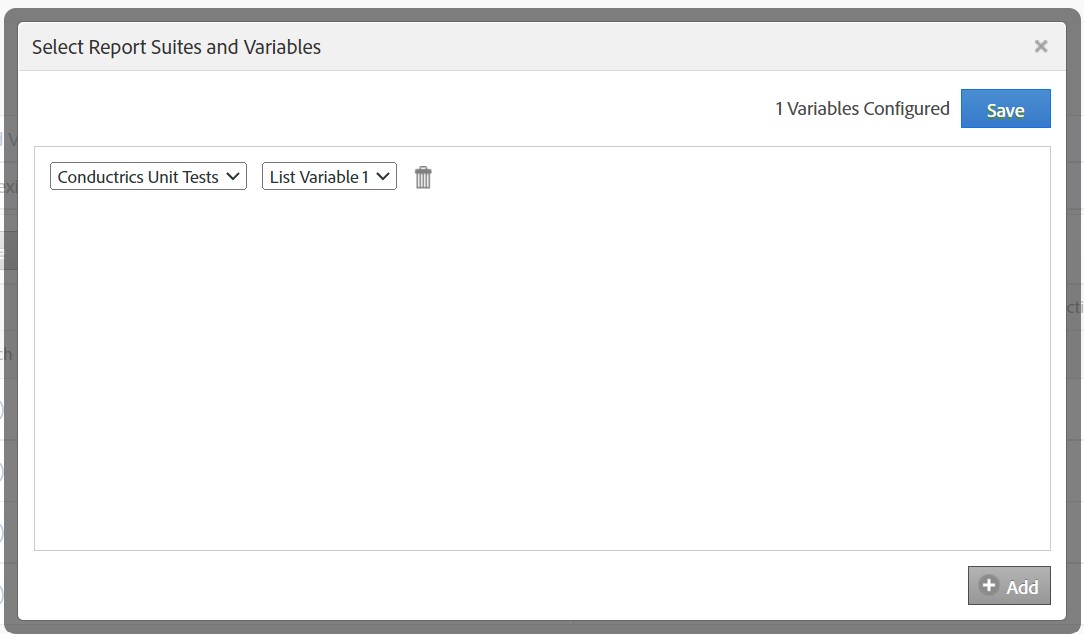
The first thing we want to do is click on the Select Report Suites and Variables link. This will open up an empty window. At the bottom right corner, click on the + Add button. This will display 2 dropdown menus in which we will have to select the Reporting Suite we used in the Conductrics setup, and then the List Variable used above when setting up the Classifications.
In the end you should have something like the image below. Click Save to close the window.
Now lets proceed by adding our first rule, clicking on the + Add Rule button. A new row and a dropdown menu will show up. Choose Regular Expression. This will open a new modal like the one below
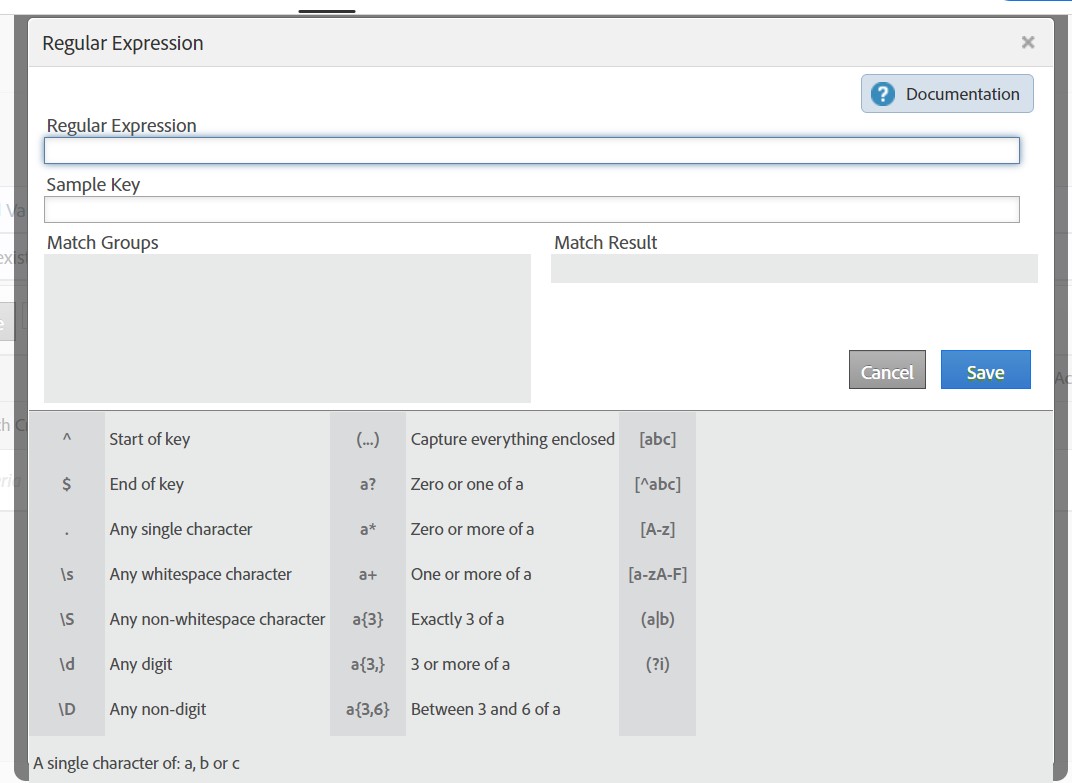
On the Regular Expression field, copy and paste the following:
^([^:]+):([^:]+):([^:]+)$and then click Save. This will close the Regular Expression window and you'll see this pattern added into the Enter Match Criteria column of our row.
We will now move to the 3rd column named Set Classification, click on the empty space and a dropdown will appear. From it we will pick Survey. We then move to the 4th column (the "To" column), click in the empty space and type in $1 as shown below.
This tells Adobe that it should take the first section of the string that Conductrics sends (thats what the $1 is for), and populate the Survey Classification with it. By the end you should see the following:

We now need to do the same for the other 3 classifications. To make it faster, we will check the checkbox all the way left on the first row, and then click on Duplicate. A 2nd row will appear. We then move to the 3rd column, and replace the Survey field value with the Question value from the dropdown. And as for the 4th column, we replace the $1 with $1 > $2
For the record, you are free to just type in $2 which in return will display just the Question value. The reason why we suggest typing in $1 > $2 which in return will display "Survey > Question" is because it might happen that you are using a same question in multiple Surveys, and this way you will be able to identify them faster when building a report that uses this values, avoiding potential confusion or mix of questions.
We will repeat the process again, duplicating one of the existing rows, and we will now change the 3rd column field to our Response value, and on the 4th column we will type: $2 > $3 (Above note also applies in this case).
And at last we will do this one more time, 3rd column field will be set to our remaining classification, and the 4th column we will set it to $1 > $2 > $3 which will return a full string of Survey > Question > Answer.
By the time you finish with the 4th row, you should end up having the following:
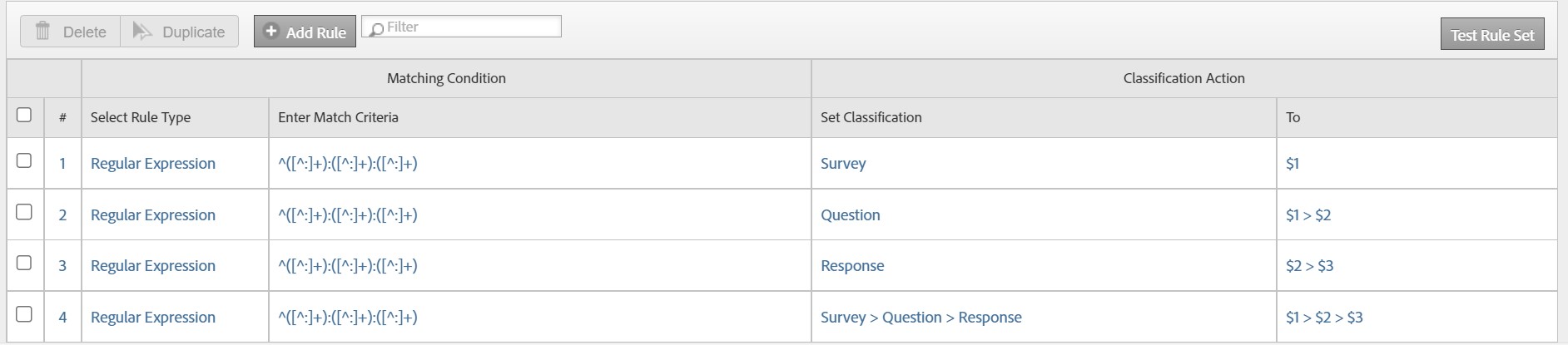
As the final step, you will click the blue Activate button on the top left, which will start applying this set of rules to the values collected on the List Variable we chose.
The Survey Response ID eVar
When you set up the Survey Response ID eVar on the Conductrics Admin, you are telling us into which Adobe Conversion Variable we should pass the Survey Response ID. Ideally, it will be an already available enabled eVar, maybe one not used before. But that's not always the case, and you might want to revisit your Conversion Variables to change some specific settings, like the display name for example.
In order to do this, we will head to the Admin > All Admin > Report Suite page. Select the desired Report Suite, and then click on Edit Settings > Conversion > Conversion Variables like below:
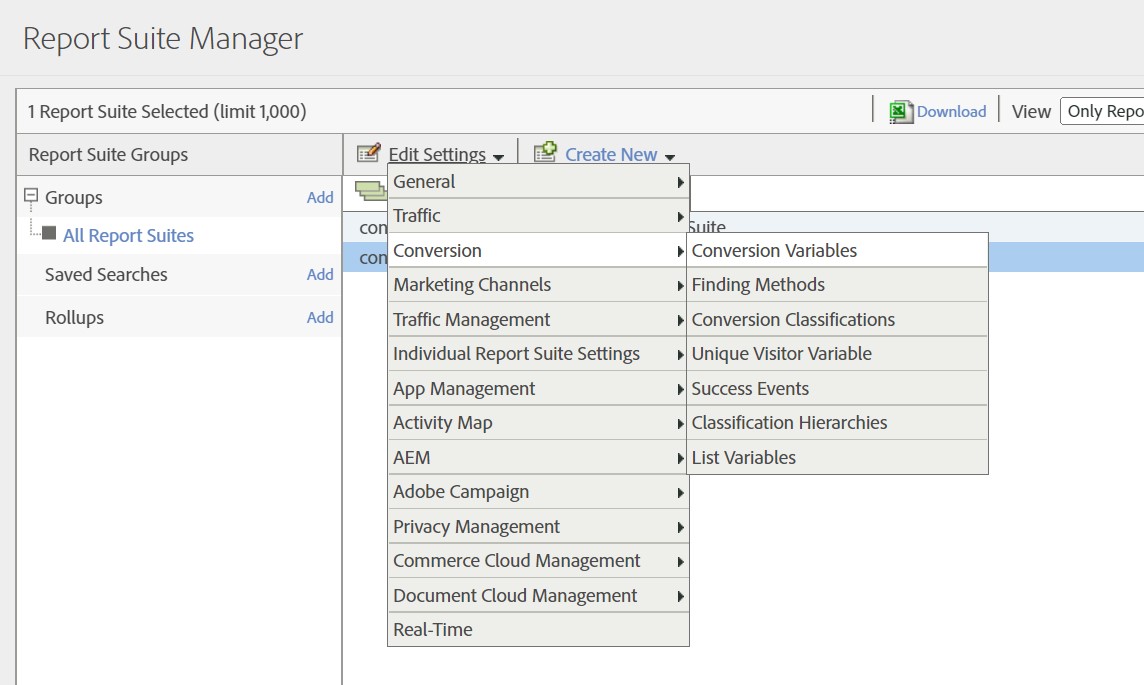
Once on the Conversion Variables page, the first thing you need to check is if there is a row with the corresponding eVar Number that you provided on the Conductrics UI. If not, you can either use the Add New or the Show Enabled/New buttons to look for the corresponding eVar.
When finding it, click on the little plus sign on the left of it. This will open up the eVar settings as shown below (this screenshot shows eVar4, but you should use whichever eVar you specified for the Survey Response ID eVar in Conductrics (see initial steps above):
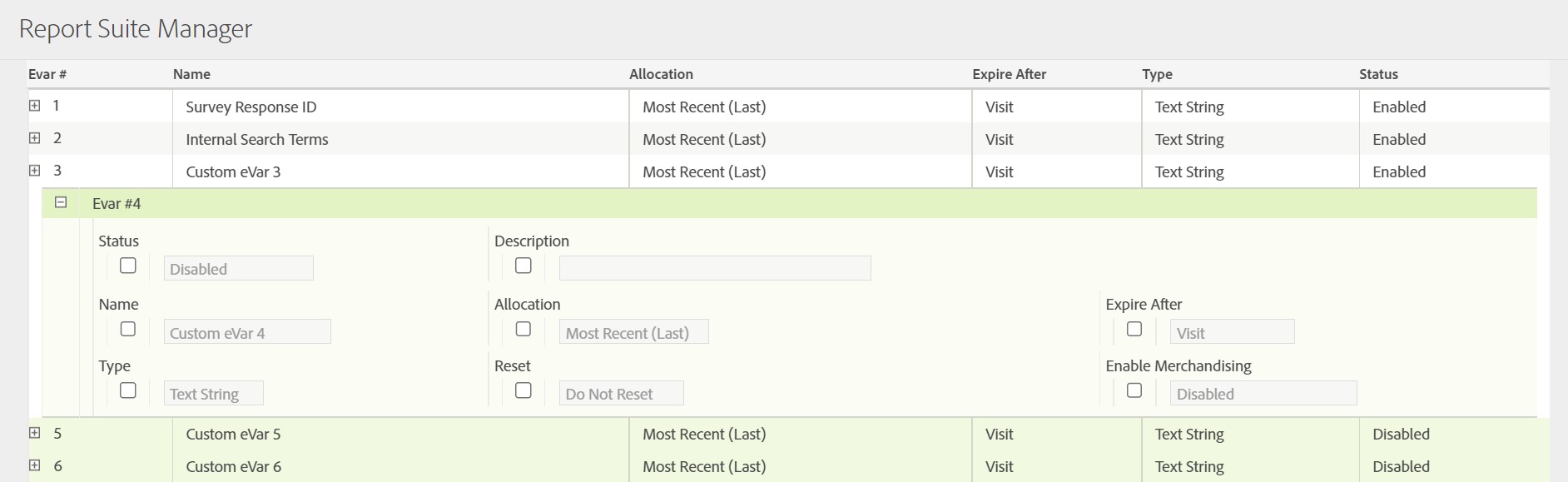
So once you pick the eVar you provided on Conductrics UI, make sure to:
- Change the Status to Enabled if it's not enabled already.
- Change the Name to "Survey Response ID" or something similar that works for you or your team. (Remember that we are using this eVar to hold the ID that belongs to each Survey response)
The rest of the settings you can change to your preference depending on the rules or norms your Analytics teams provides. If none you can just leave it as is.
Once you finish, click the Save button all the way at the bottom of the page.
And with that you successfully configured everything needed on the Adobe Analytics side.
Please note that Classification Rules may take some time to propagate out to the Adobe Analytics network. If possible we recommend waiting a few hours before testing it out.
Enable The Connector for Your Surveys
Finally you can tell your Conductrics Surveys to use the Connector by associating the Connector with your Survey(s).
- Go to your Survey in the Conductrics Admin.
- Click Connectors near the bottom of the page as shown below.
- Check the desired Connector (or Connectors).
- Click Select, then Save Changes.
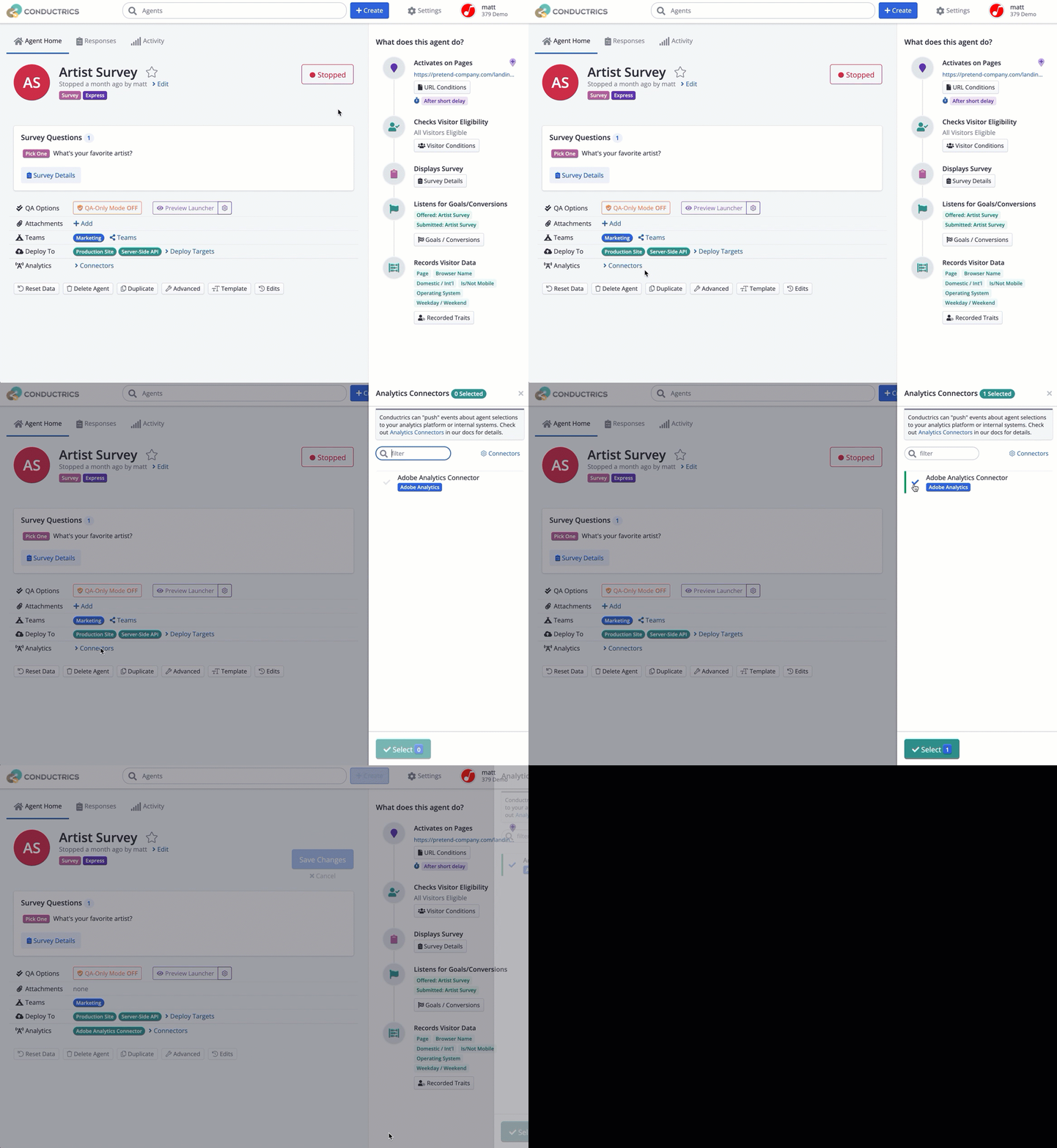
See Enabling Connectors on a Per-Agent Basis for details.
What Happens Behind the Scenes
When a visitor submits an actual response to one of your surveys:
- The survey response is sent from the browser to Conductrics for processing.
- Conductrics "records" the survey response for the internal Conductrics reporting.
- Conductrics checks to see if any Adobe Analytics Connectors are enabled for the survey.
- Assuming that there is an Adobe Analytics Connector for the survey in question, Conductrics uses the Adobe Analytics Data Insertion API (version 1.4, provided by Adobe) to "send" the survey response to the corresponding Adobe Analytics Report Suite.
- The Classification Rule on the Adobe side splits the survey response into the four separate fields (assuming that you set up the Classifications as suggested above) for display purposes within your Adobe reporting.
Each survey response (that is, each actual survey submission from a visitor) is sent to Adobe via a single POST to the Adobe Data Insertion API. The API accepts an XML document, which Conductrics populates as follows:
- The eVar you specified when setting up the Connector is populated with a unique identifier for the survey response.
- The list var you specified is populated with the answers to each of the survey's questions, in the form
Survey:Question:Answer(see discussion below). - The
linkTypefield is set too - The
linkNamefield is set toConductrics(unless you provided a different value for the Custom Link event field in the Conductrics Connector settings). - A few other bits of required information such as the current page URL and IP Address are populated as well.
List Variable Specifics
If you're curious about how the survey responses are populated in the list var, let's consider a fictitious survey scenario. Let's say you have a survey called Satisfaction Survey, and the survey asks two questions. The first question is an NPS score, and the second question asks their Industry.
Each time a visitor fills out the survey, Conductrics assembles a string to provide to the list var in Adobe. The string will contain each of the survey's answers, in the form Survey:Question:Answer, where:
- Survey is the Survey Name as shown in the Conductrics Admin.
- Question is the Question's "Reporting Name" as specified when setting up the survey.
- Answer is the visitor's actual answer, which might be a number or a string, depending on the type of survey question.
Assuming the survey contains multiple questions, the Survey:Question:Answer "pattern" will be repeated for each question, and the "patterns" will be separated with semicolons (or whatever delimiter you specified at the Conductrics Connector level in the steps above).
Putting that all together, if a visitor fills out the survey with an NPS of 10 and an Industry of "Medical", Conductrics would send something like this as the value of the list var:
Satisfaction Survey:NPS:10;Satisfaction Survey:Industry:Medical
The Classification Rule that you set up on the Adobe side should then take over, "splitting" the colon-separated pieces of each Survey:Question:Answer into $1, $2, and $3, and slotting those into the 4 Classifications that you established earlier.
Please note that the delimiters (the colon character used for each survey answer "pattern", plus the semicolon or other list delimiter) are automatically stripped from any free-text or string values that the visitor might provide. Any remaining special characters are XML-escaped as needed.
Troubleshooting
If survey responses don't seem to be appearing in your Adobe reporting:
- Verify that the Analytics Connector hasn't been disabled in the Conductrics Admin (go to Settings > Analytics Connectors, then check that the Enabled status hasn't been unchecked for your connector)
- Verify that your Analytics Connector is associated with your Survey as discussed in the "Enable Connector for Your Surveys" section above.
- If you are viewing the survey in QA mode (see Survey Preview / QA for details), make sure that the Connector DOES NOT have its Don't send for QA Visitors/Sessions option checked.
- If you are seeing the eVar for the Survey Response IDs getting populated but you aren't seeing the actual survey questions/answers being populated in Adobe, verify that your List Variable delimiter in Adobe matches the delimiter option on the Conductrics side (discussed in the sections above).
- If you are seeing survey questions and answers being populated but they aren't formatted as you'd expect (such as the Question and Answer showing where you'd expect to see only the Survey Name), review the Regular Expression and other parts of the Classification Rule discussed above.
Feel free to contact Conductrics if you have any questions. We're happy to help!
Updated over 1 year ago