
Content Security Policies (CSPs)
This page explains what you'll need to do to use Conductrics Express (or our browser-side JavaScript API) on web pages that use a [Content Security Policy] (https://developer.mozilla.org/en-US/docs/Web/HTTP/Headers/Content-Security-Policy) (CSP).
These instructions are only relevant if your site implements a strict Content Security Policy, and you're using client-side Conductrics functionality such as Conductrics Express or our in-browser JavaScript API. They don't pertain to our REST API.
CSP / Nonce Checklist
Here's what you'll need to do:
- Allow the Conductrics script to be included on your page. You can use the CSP script-src or script-src-elem directives for this. See the next section for details.
- Allow the script to send event messages back to Conductrics so that we can update our reporting numbers. You can use the CSP connect-src directive for this. See the section below for details.
- If you want to use the "WYSIWYG" editing mode for setting up variations, you also need to allow Conductrics to add the editing panels to your pages. Note that if you have a separate staging or QA type environment, you would only need to allow the editing mode to work in that environment, not your production environment.
See the following sections for details.
Getting Required CSP Info
- Go to Settings > Deploy Targets in the Conductrics Admin.
- Hit the Get JS Tag button for your Deploy Target.
- Go to the CSP Info to get the values to add to your Content-Security-Policy header.
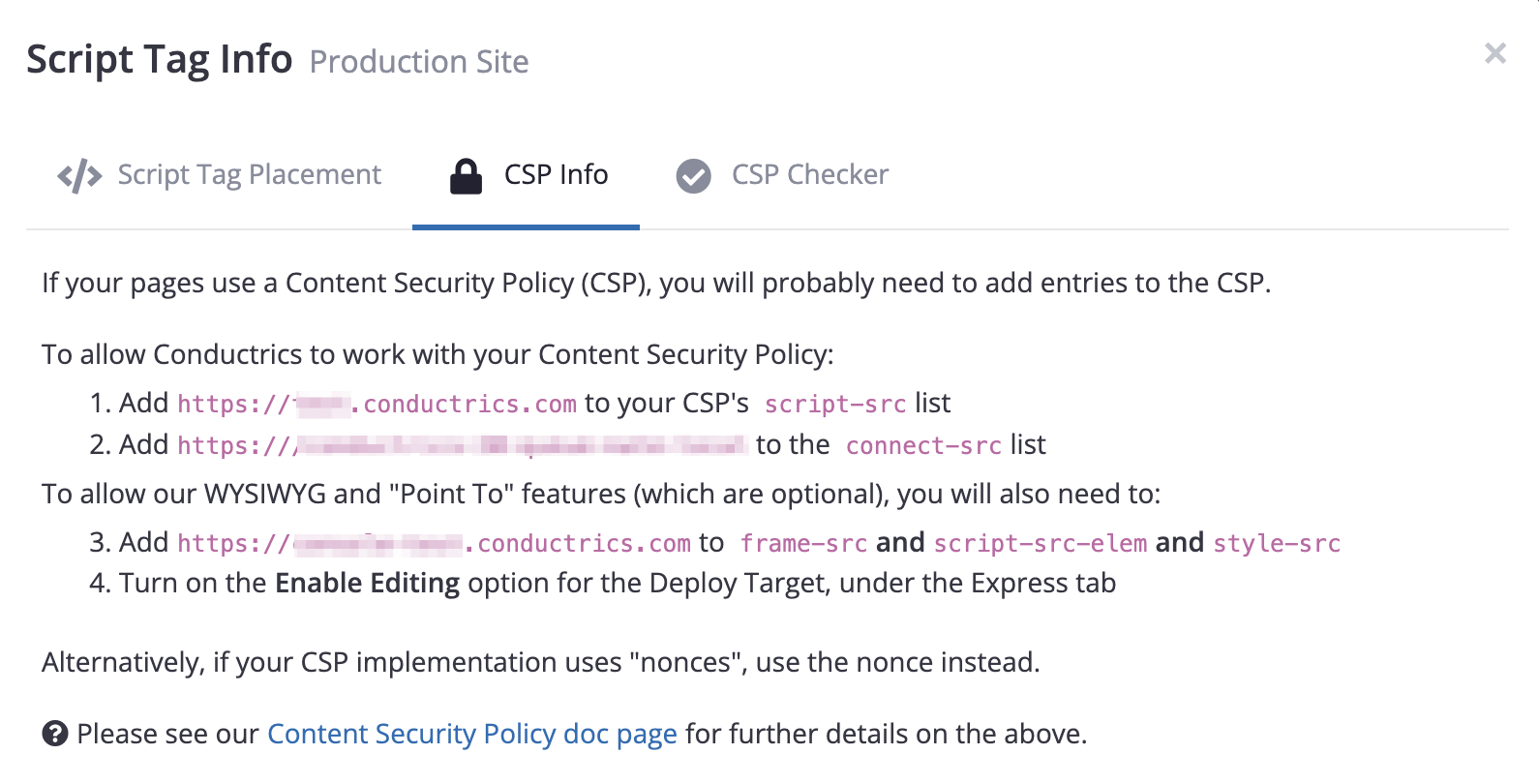
Using the CSP "Checker"
The Conductrics Admin contains a simple "CSP Checker" which you can use to verify that the required entries have been added to your CSP.
- Go to Settings > Deploy Targets in the Conductrics Admin.
- Hit the Get JS Tag button for your Deploy Target.
- Under the CSP Checker tab, paste in a page URL and hit the Check button as shown below.
Here's what that looks like if you provide a URL for a page that has a CSP, but where the required entries have not been added:
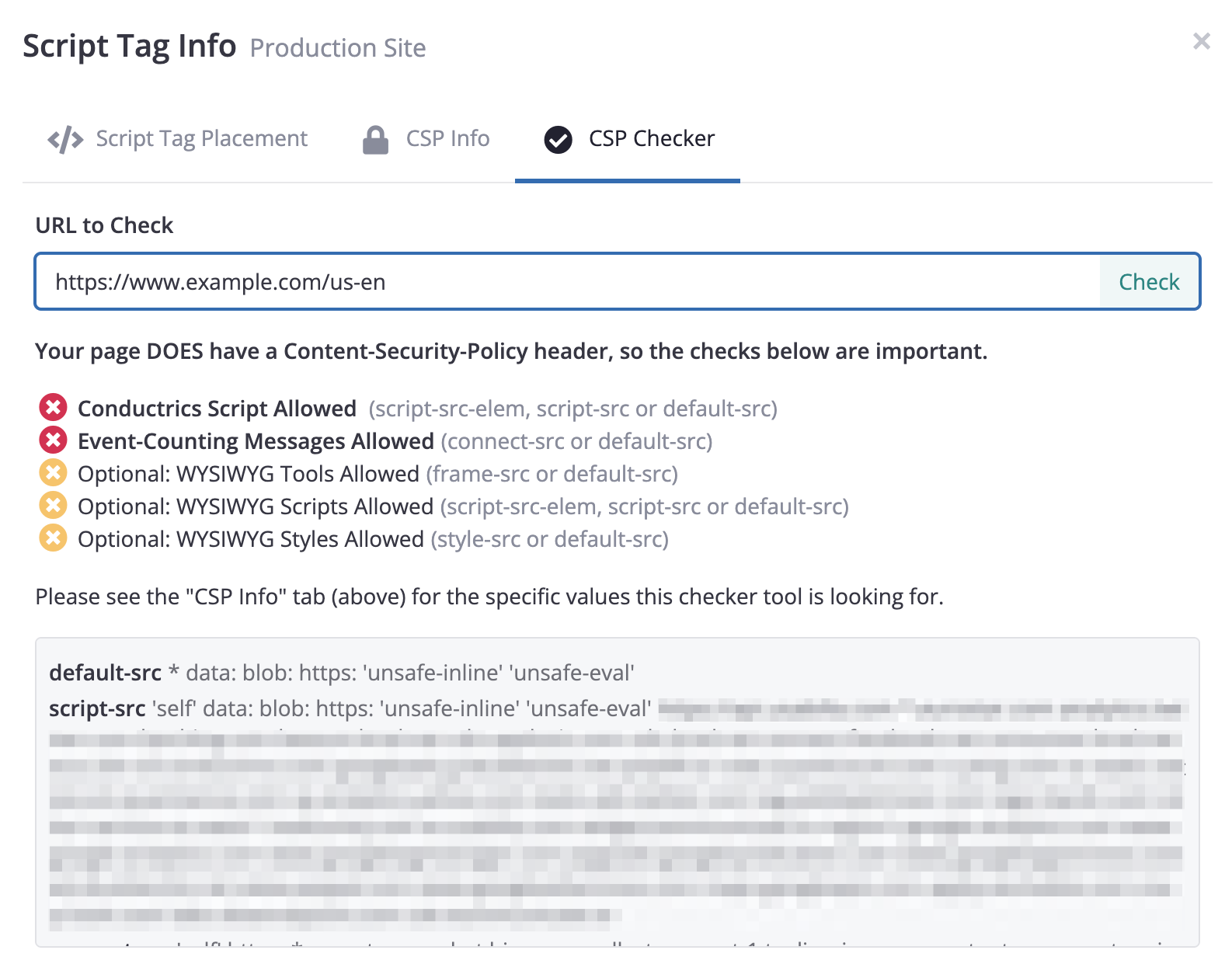
Once the required entries have been added, the red "X" icons above would turn to green "Checks".
Please note that the CSP Checker tool may not successfully validate every possible CSP scenario (for instance a CSP that whitelists the Conductrics script at one level, but then denies it at a different level). Feel free to contact Conductrics if you have any questions.
Reviewing your Current CSP Manually
You can also find your current CSP "manually", using your browser:
- Open up your browser's Developer Tools and find the Network tab (it is probably empty if you just opened your Developer Tools).
- Reload the page, which should populate the Network tab.
- Click on the entry for the page itself (as opposed to the various scripts and images and so on), which is probably the first entry in the list.
- Look at the headers for the page, and find the
Content-Security-Policyheader. The CSP you're looking at is the same thing that browser is using to determine whether a given third-party asset (such as the Conductrics script tag) is "allowed" on your site.
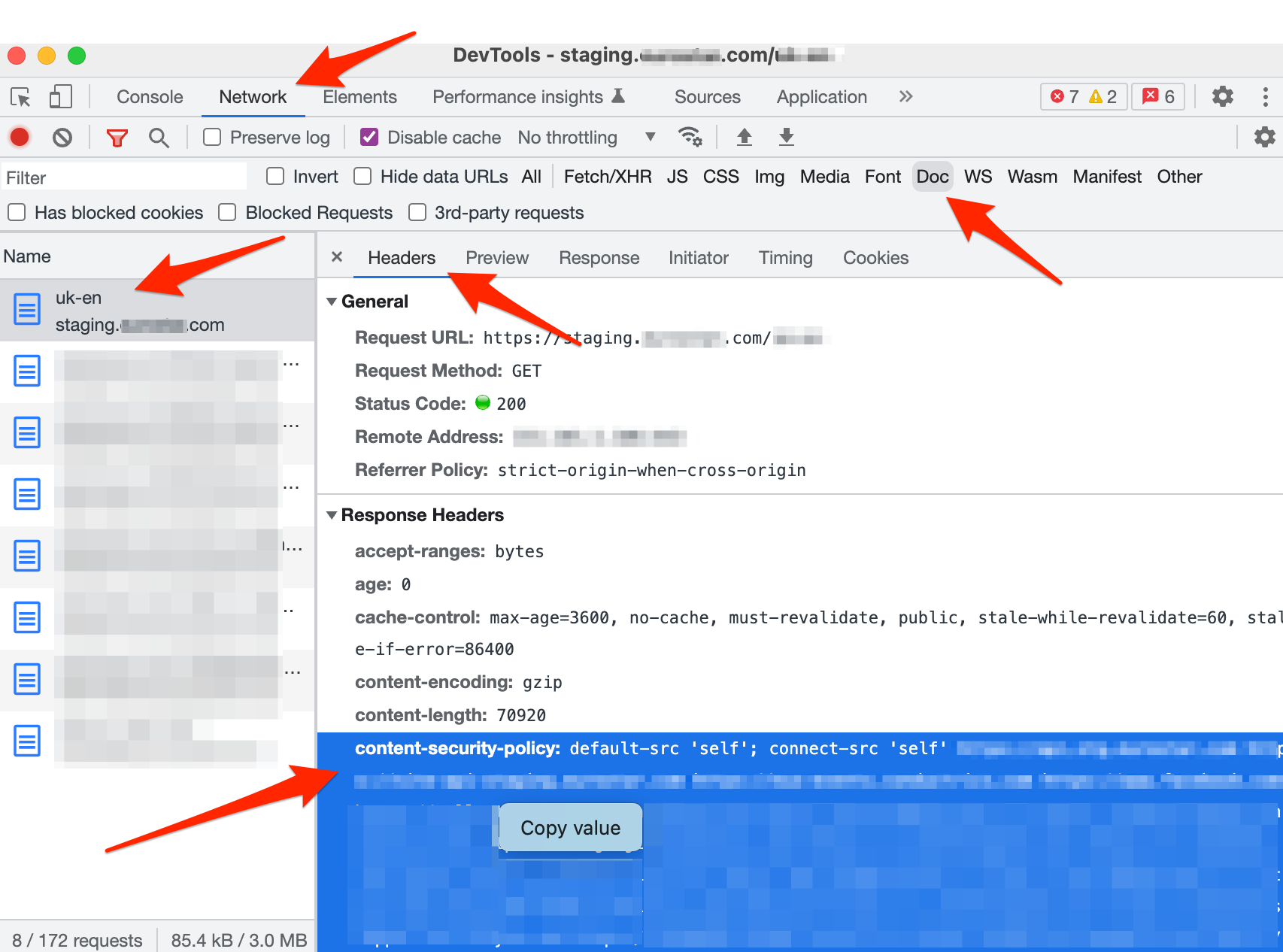
Viewing the CSP manually via the Chrome Dev Tools (the UI will be slightly different in other browsers)
Quick Tip: Some CSP headers are long and hard to read as-is. You may find it easier to copy-and-paste the header into a text editor for easier viewing. You can use the search-and-replace in your text editor to add a couple of newlines after each semicolon. That will make it a lot easier to read.
Once you can view the CSP, you can check whether it has the required entries for Conductrics:
- Does the CSP have a
script-srcorscript-src-elementry to allow the Conductrics script tag? You can get the expected value from the CSP Info tab as discussed above. See also the How to embed the Conductrics script with a nonce and How to embed the Conductrics script without a nonce sections below. - Does the CSP have a
connect-srcentry to allow event messages back to Conductrics? You can get the expected value from the CSP Info tab as discussed above. See also the Allowing event messages to be passed back to Conductrics section below for details. - If you want to use the WYSIWYG editing mode on the pages in question, does the CSP have
frame-src,script-src-elem, andstyle-srcentries to allow our editing tools to be added to the page? You can get the expected value from the CSP Info tab as discussed above. See also the If you plan on using the "WYSIWYG" editing mode section below for details.
There are also browser extensions available for most browsers to make it easier to view your CSP.
While less typical, your site could provide its CSP via a
<meta>tag in your page's HTML (as opposed to in an HTTP header as discussed above). So, if you don't see a Content-Security-Policy header at all, it's worth checking if there's a<meta>tag withhttp-equiv="Content-Security-Policy"in your page HTML. See the notes about the<meta>tag usage at the MDN doc page about CSPs.
How to embed the Conductrics script with a nonce
Let's say you have the following Conductrics script tag, which you've gotten from our admin:
<script src="https://cdn-v3.conductrics.com/ac-example/v3/agent-api/js/site-1/dt-example-0123?apikey=api-9999999"></script>
When adding it to your page, all you need to do is add a nonce attribute that matches the generated nonce from your CSP header (the nonce might be provided in the script-src, script-src-elem, or default-src directives).
So, let's say that for a particular page view, the Content-Security-Policy header from your servers looks like this:
Content-Security-Policy: script-src 'nonce-example-12345';
The above uses a script script-src directive for clarity, but you may want to use script-src-elem instead or in addition, depending on whether you are targeting browsers that support CSP Level 2 or 3. In any case, you now need to provide the same value to the nonce attribute for the
<script nonce="example-12345" src="https://cdn-v3.conductrics.com/ac-example/v3/agent-api/js/site-1/dt-example-0123?apikey=api-9999999"></script>
How to embed the Conductrics script without a nonce
If you're not using nonces in your CSP implementation, you can instead "whitelist" the Conductrics origin shown in the src origin of your script tag. The origin will be something like https://cdn-v3.conductrics.com but the exact origin will depend on your region and whether you're using a dedicated Conductrics environment.
For instance, when you get the suggested
<script src="https://cdn-v3.conductrics.com/ac-example/v3/agent-api/js/site-1/dt-example-0123?apikey=api-9999999"></script>
The "origin" in the snippet above is cdn-v3.conductrics.com. Yours may be different, depending on whether you are using a "dedicated" Conductrics environment. Use that origin in your CSP (for example script-src-elem https://cdn-v3.conductrics.com;).
Allowing event messages to be passed back to Conductrics
You will also need to allow the Conductrics script to send messages back to the Conductrics servers for counting purposes. These messages are what we use to increment the number of selections made and goals/conversions reached, and to update our machine learning models.
The messages are not used to track individual visitors; they are used to update aggregated counts and statistics only. Please refer to the Visitor Data & Privacy page for an explanation of what information is passed back to Conductrics in these messages.
The Conductrics script uses the standard Beacon API internally to actually send the event messages, and that API doesn't support nonces. Therefore, you will need to add a connect-src directive to your CSP to allow the browser to send these messages back to Conductrics.
You can get the origin to use in the connect-src directive from the CSP Info tab shown earlier on this page; it may start with events or cdn or similar, depending on your region and whether you're using a dedicated Conductrics environment. Reach out to us if you have questions.
As an example, after implementing your nonce (see prior section) and the connect-src directive, you might end up with a CSP header something like the following:
Content-Security-Policy: default-src 'self'; script-src 'nonce-example-12345'; connect-src https://events-example.conductrics.com;
If you plan on using the "WYSIWYG" editing mode
If you want to use the "WYSIWYG" editing mode for setting up variations, you also need to allow Conductrics to add the editing panels to your pages. You can skip these steps if you don't intend to use the visual editing mode.
Not Necessarily Needed in Production!Note that if you have a separate staging or QA type environment, you would only need to take these steps to allow the visual editing mode to work in that environment, NOT your production environment.
To allow this, you'll need to have two things to your CSP:
-
A frame-src directive that allows iframes from the same base URL (origin) that you use to log into the Conductrics admin, such as
https://console-v3.conductrics.comor similar (the exact URL may vary depending on your region and whether you use a dedicated instance of Conductrics). You will also needscript-src-elemandstyle-srcdirectives with the same origin/value. -
If your CSP doesn't allow it already via your existing style-src or default-src directives, a nonce that allows Conductrics to add inline styles while using the visual editing mode.
You can get the origin to use in the connect-src directive from the CSP Info tab shown earlier on this page; it will probably contain console or admin. As an example, after implementing your nonce for script-src and style-src, plus the connect-src directive from the prior section, you might end up with a CSP header something like the following:
Content-Security-Policy: default-src 'self'; script-src 'nonce-example-12345'; connect-src https://events-123.conductrics.com; frame-src https://console-v3.conductrics.com; style-src 'nonce-example-12345';
Again, you can skip the above for your production environment if you plan on using the visual editing mode in your staging or QA environment only, or not at all.
You'll need to allow unsafe-inline if you want to use Mustache-style variable substitution (the "Variables" option) when inserting HTML via the WYSIWYG editing mode.
Frequently Asked Questions
Q: Do we have to enable unsafe-inline?
A: No. Conductrics doesn't require you to add inline scripts to your page; unsafe-inline should not be required (unless of course you plan to provide custom script code that itself requires it).
Q: Do we have to enable unsafe-eval?
A: No. In its CSP-aware mode, Conductrics doesn't use eval() or equivalent code in our JavaScript; unsafe-eval should not be required (again, unless of course you plan to provide custom script code that itself uses eval or similar).
Q: Do we have to add connect-src to our CSP?
A: Yes. The Conductrics script needs to be able to send messages to the Conductrics servers. This is how we count conversion events, etc. See the section above for details.
Q: Do we have to add frame-src to our CSP?
A: Yes, if you want to use the "visual editing" (aka WYSIWYG) part of Conductrics Express. If you don't need to use the visual editing mode, you don't need to do anything for frame-src in your CSP.
Updated 4 days ago