
QA with Express Previews
Previewing variations on pages that use Conductrics Express or our Local JS API
Conductrics provides a simple "Preview Launcher" that you can use to preview and QA your variations.
Only Running or Paused AgentsThe Preview Launcher (and other related functionality discussed on this page) only work for Conductrics Agents that are Running or Paused. You can, however, use the Preview Launcher with agents that are in "QA-Only Mode". This way you can preview your agent variations in your production environment, without the agents affecting your normal visitors.
Not for REST API or MobileThe Preview Launcher is specifically for use with client-side Conductrics in the browser, meaning Conductrics Express agents or API Agents that you use via our Local JS API . If you're using our REST API or one of our "wrappers" for mobile, see QA Sessions for REST API which provides similar functionality.
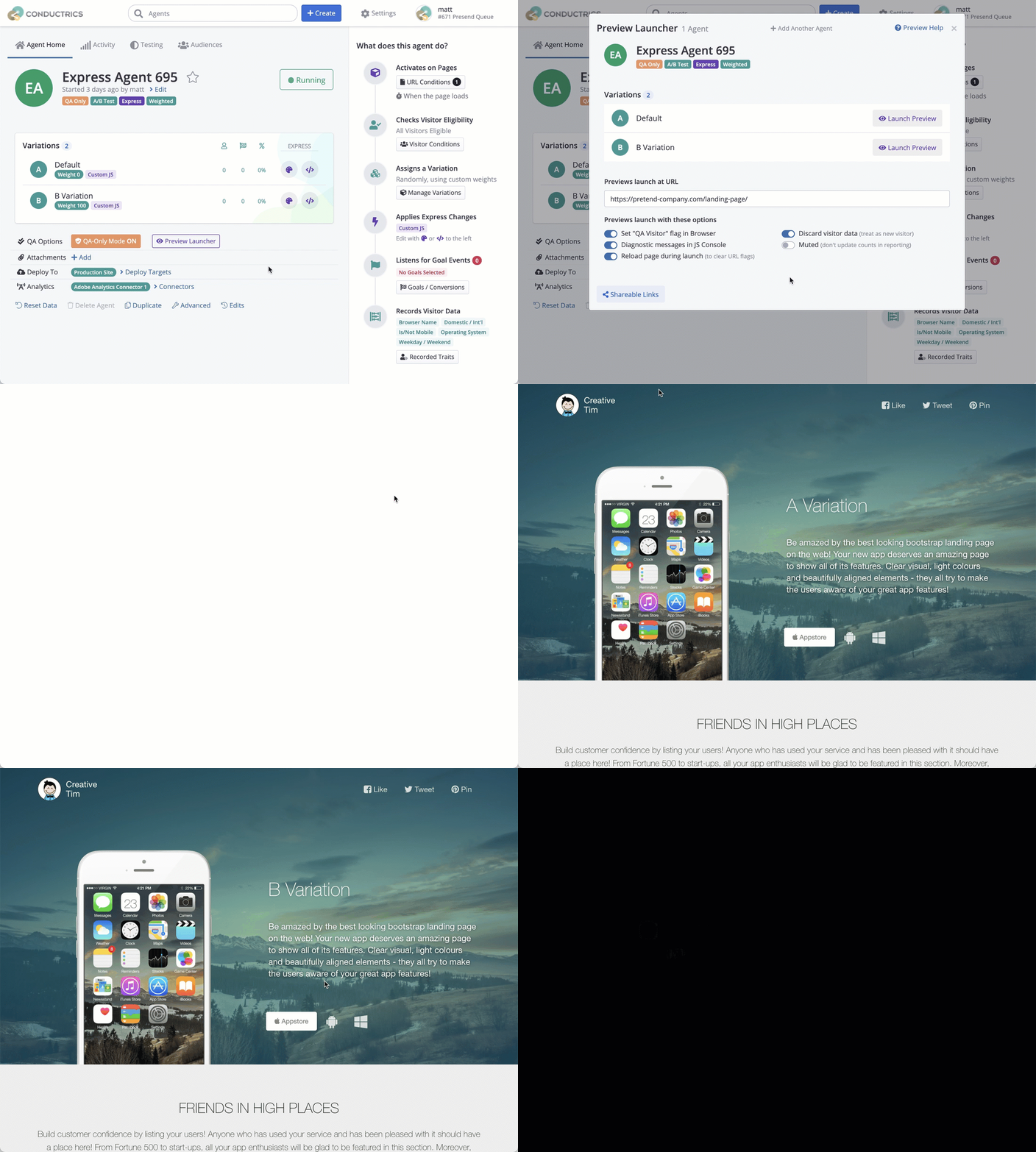
The TL;DR version :)
Launching a Preview
Launching a preview session is simple:
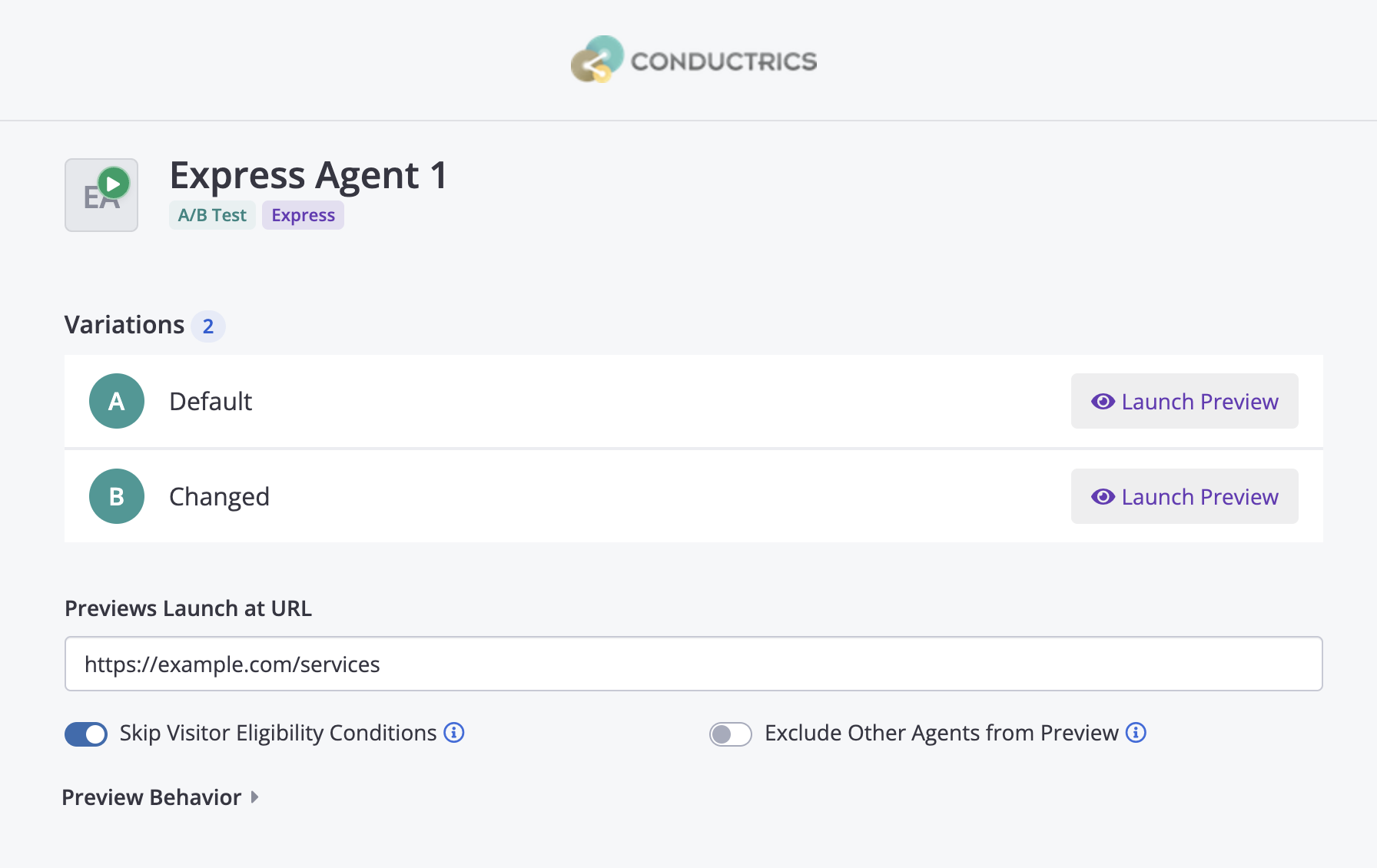
- Go to an agent's page in the Conductrics Admin, then click the Preview Launcher button.
- Provide the page URL that you would like your preview to start at.
- Click Launch Preview for the variation you want.
Conductrics will open the URL in a new browser window, and you should be "forced into" whichever variation you requested.
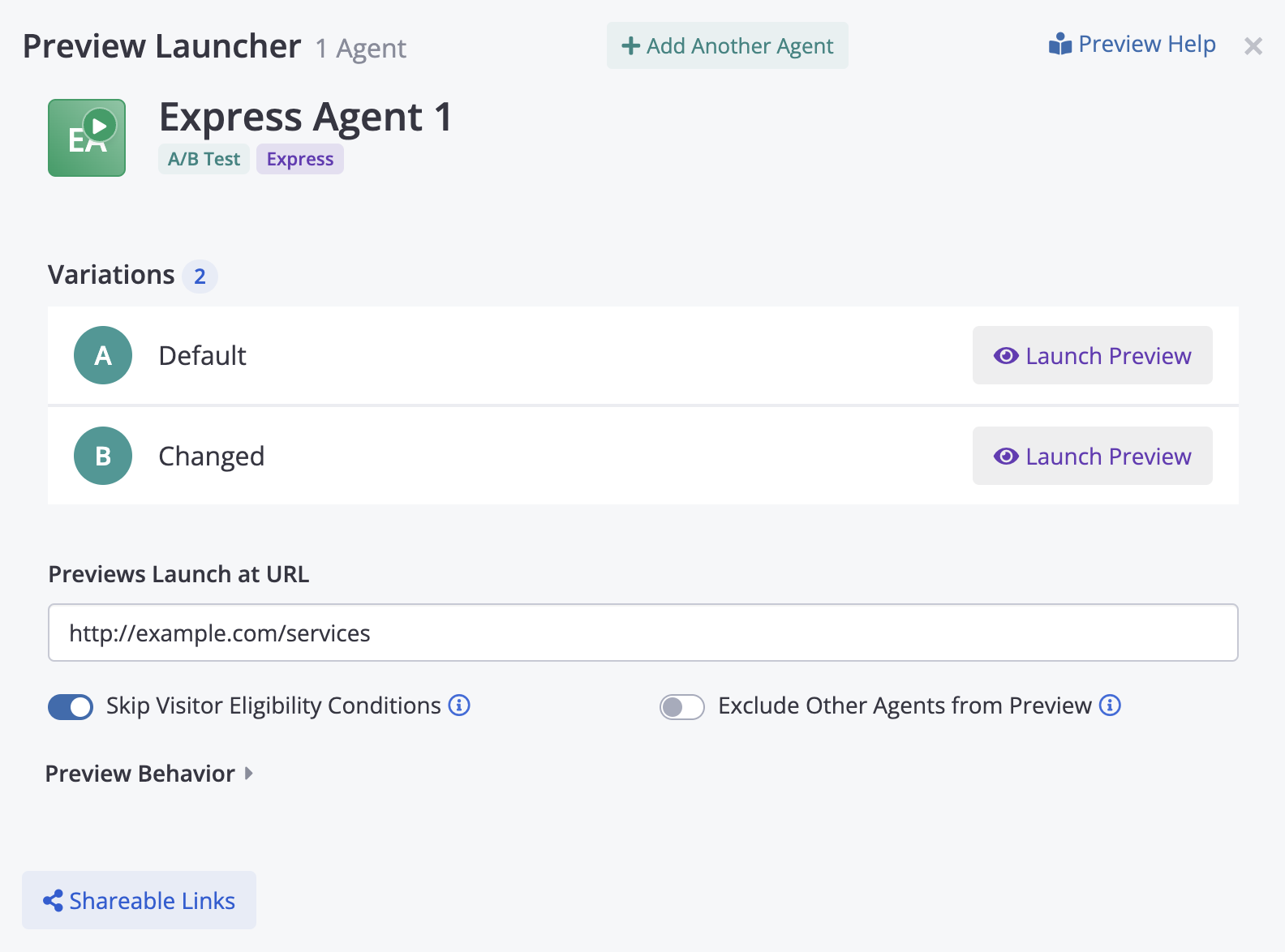
There are a few options under the URL:
-
Skip Visitor Eligibility Conditions - If you have any "Visitor Eligibility" Conditions on your agent, it's most common to want to skip those conditions, so you are eligible to actually preview the variation. But if you want to QA the eligibility conditions themselves, you can turn this switch off so that the eligibility conditions are considered. You can set this off by default under Company Preferences > Advanced Settings.
-
Exclude Other Agents from Preview - Use this option if you do not want other tests, surveys, and other Conductrics agents to fire during your preview. Only the agent(s) that you are specifically previewing will activate. You can set this on by default under Company Preferences > Advanced Settings.
There are a few more options under Preview Behavior:
-
Set "QA Visitor" flag in Browser - When this switch is on, launching the preview will "tag" you as a QA Visitor (for the browser you're using, on the device you're using). This means that you may be included in any agents/tests that have QA Only Mode set to On, or that use "QA Visitor" in a Condition or Targeting Rule. It also means that your "traffic" will be kept separate in the "QA Data Set" in the reporting.
-
Diagnostic messages in JS Console - When this switch is on, launching the preview will add a setting to your browser which should cause helpful diagnostic messages to be printed to your browser's JavaScript console. These messages can be helpful in understanding how your conditions are being evaluated, when goals are triggered, and so on. Note that the debugging messages must also be enabled at the Deploy Target level (the "Enable debugging messages" option, under the JavaScript tab).
-
Reload page during launch - When you launch a preview, the page does a quick "reload" to remove some special URL parameters that are used internally to power the preview. In certain cases that may not be desired, in which case you can flip this switch off before launching the preview. The preview should still work, but the extra URL parameters will remain in the browser's URL bar.
-
Discard visitor data (treat as new visitor) - When this switch is on, launching the preview will cause your browser to treat you as a "new visitor" as far as Conductrics is concerned. This is generally helpful in a QA scenario, so you can re-qualify for goals and so on. However, there may be cases where you don't want to be considered a new visitor; just turn this switch off before launching the preview.
-
Muted - If you turn this switch on, launching the preview will set a "muted" flag in your browser. This means that Conductrics will behave normally, except that your variation selections and goals/conversions will not be recorded (in neither the "Production" nor the "QA" Data Set). The flag will persist in your browser until you clear your cookies (or close a Private / Incognito window), or until you launch another preview with the switch turned back off.
When you launch the preview, Conductrics will set c-conductrics-qa to true, which means that you will remain "tagged" as a QA Visitor going forward (unless you're using a Private/Incognito window or clear your cookies, etc).
Launching a Preview for Multiple Agents
Sometimes you might want to force yourself into variations for multiple agents. You can do so by clicking Add Another Agent at the top of the Preview Launcher window, then picking the agent you want to add.
The UI will change to a multiple-agent mode as shown below, with drop-downs to select the combination of variations that you want. Everything else about the previews should work the same.
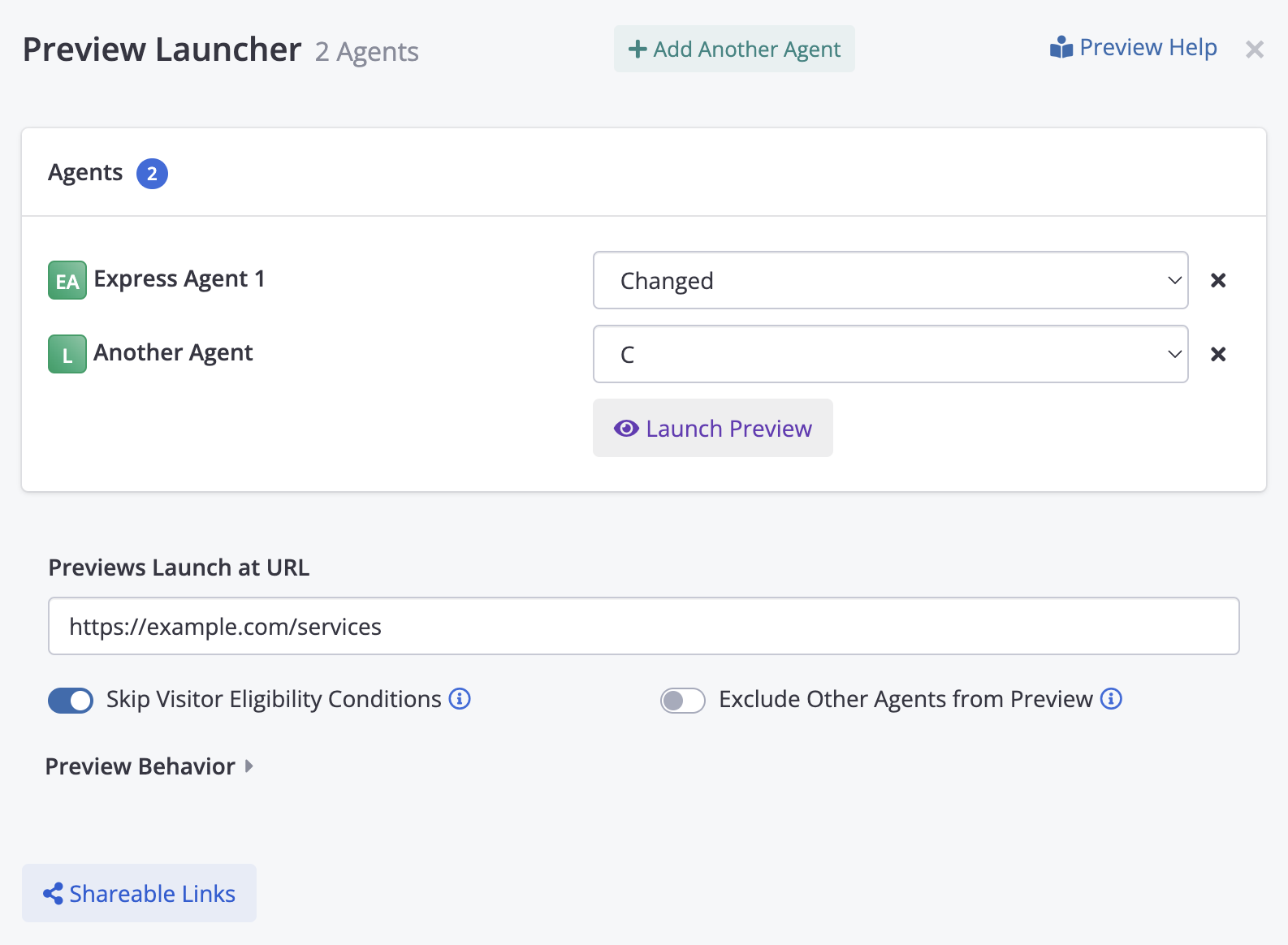
Note that you can also use this multiple-agent preview mode to force yourself into the default/control experience for other agents that might also be running, if for whatever reason you want to see a "real" variation for one agent.
Sharing Preview Links
You might want to share preview links with other team members and stakeholders, so they can easily check out how your pages look with the "A" vs "B" vs "C" variation, and so on.
To share a preview link:
- In the Conductrics admin, click Preview Launcher as discussed above.
- Click Shareable Links at the bottom of the Preview Launcher window.
- Click New Shareable Link, then hit the Copy Link button to copy the link URL to your clipboard.
Now you can share the link with whomever you need via email, Slack, text message, etc.
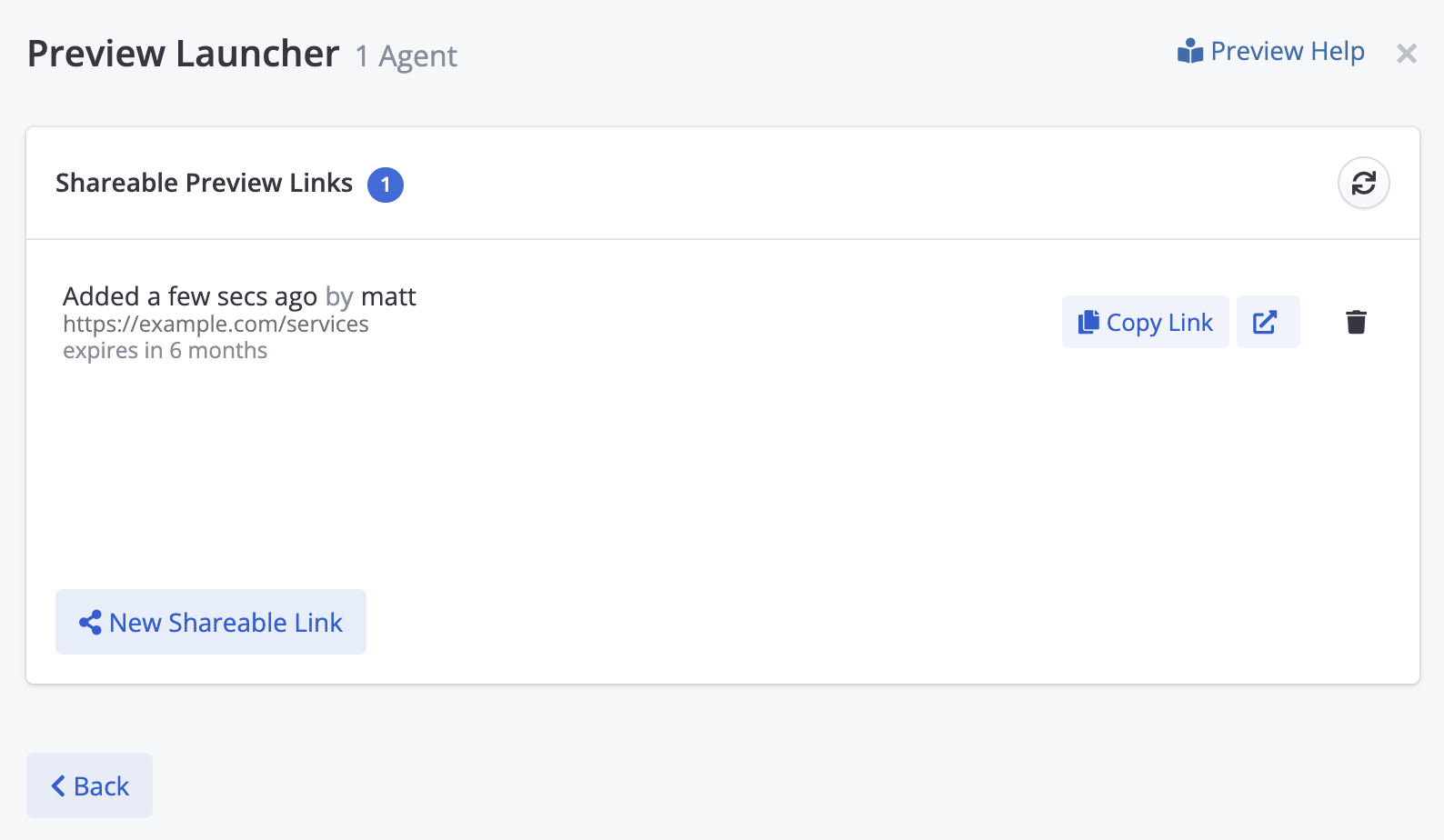
Remember that Shareable Links do not require access to the Conductrics Admin, which means that anyone with the link will be able to force themselves into variations.
When the recipient clicks the link, they will get a page which is very similar to the one within the Conductrics Admin itself, where they can launch a preview for any of the agent's variations (or a set of variations if you included more than one agent when you created the shareable link).
Link ExpirationLinks remain valid for six months by default, as long as the agent is Running or Paused. You can change the default expiration period by setting the "Preview Token TTL" setting, under Company Preferences > Advanced Settings.
If you wish to manually revoke/delete a preview link before it expires, just return to the screen above and use the trash can icon to discard the preview link. The link will no longer work, but you can always generate another one.
Disabling Previews in Your Production Environments
Some companies may wish to disable all of the above preview functionality in their production environments. To disable, go to Settings > Deploy Targets and hit Setup for the Deploy Target that represents your production environment, then uncheck Enable Previews and QA Features (under the Express tab). The Preview Launcher and any preview links will no longer work for that Deploy Target / environment.
Assuming that you have a separate Deploy Target for a Staging or QA type environment, you'll still be able to use the Preview Launcher in that environment.
Previews via URL Parameters
Generally speaking, you will probably find it most convenient to use the Preview Launcher UI discussed above to preview your variations. That said, there might be cases (for instance an automated testing suite) where you want to control previews and related options "manually".
Forcing Variation Selections
You can request to be "forced" into a particular variation by providing a URL parameter called c-conductrics-preview:
- Specify the variation you want as an agent/variation pair in the form
agent-code:variation, encoded as a Base64 string via the btoa method. Use commas to specify multiple agent/variation pairs as needed. - For instance, to get variation
Bfor agenta-Kz6zJ04vU695you can useencodeURIComponent(btoa("a-Kz6zJ04vU695:B")to get the value to pass asc-conductrics-preview, resulting in something likehttps://example.com?c-conductrics-preview=YS1LejZ6SjA0dlU2OTU6Qg%3D%3D. - The URL param will cause Conductrics to store the value in Local Storage, which means that your request to "force" the variation(s) will remain in effect until you remove the item from local storage by clearing your cookies/storage in your browser (or closing the current tab/window if using your browsers's Private / Incognito mode).
- Alternatively, you can set the value in SessionStorage or LocalStorage directly. If so, skip the Base64 encoding (so, don't use
btoa). For instance,sessionStorage.setItem("c-conductrics-sels", "a-Kz6zJ04vU695:B").
Skipping Visitor-Eligibility Requirements
When previewing, it normally makes sense for Conductrics to skip any "Visitor Eligibility" Conditions, so that you are "let into" the test/agent for purposes of previewing the desired variation(s). But you may sometimes want the eligibility conditions to be enforced, so you can QA the eligibility conditions themselves.
Specify the agents whose visitior-eligibility conditions you want to be enforced by their agent codes (which usually start with a). If there are multiple, separate them with commas. Then provide them in a URL parameter called c-conductrics-entry-enforce. This parameter should also be Base64-encoded (such as encodeURIComponent(btoa("a-Kz6zJ04vU695")) for passing in the URL.
Please note that this c-conductrics-entry-enforce parameter only affects those agents that are being actively previewed (that is, those agents that are present in c-conductrics-sels discussed above).
Additional Preview-Related Flags
In addition, the following "flags" can be set by appending them to a page URL as simple URL parameters with a value of true or false. When provided, Conductrics will store the corresponding value in SessionStorage or LocalStorage, so that the value is retained for subsequent page views (at least until you clear cookies/storage, or close the window if you're using a Private / Incognito tab, etc).
For instance, say you want to turn the "QA" and "New Visitor" flags on, without necessarily forcing any particular variation. You might add URL parameters something like this:
https://www.example.com/my-page?c-conductrics-qa=true&c-conductrics-new=true
| Flag / Parameter | Explanation |
|---|---|
c-conductrics-qa | Set to true or false to control whether you should be considered a "QA Visitor" going forward. Being a QA Visitor means that you may be included in any agents/tests that have "QA Only Mode" set to On, or that use "QA Visitor?" in a Condition or Targeting Rule. It also means that your "traffic" will be kept separate in the "QA Data Set" in the reporting. |
c-conductrics-debug | Set to true or false to control whether diagnostic messages should be added to your browser's JavaScript console. These messages can be helpful in understanding how your conditions are being evaluated, when goals are triggered, and so on. Note that the debugging messages must also be enabled at the Deploy Target level (the "Enable debugging messages" option, under the JavaScript tab). |
c-conductrics-muted | Set to true or false to control whether Conductrics should consider you "muted" (where "muted" means that all other Conductrics processing happens normally, but any variation selections and goals/conversions are not recorded at all in the Conductrics reporting). |
c-conductrics-new | Set to Unlike the other flags, this value will be cleared from LocalStorage after it does one "discard" of the visitor session. For instance, if you start at one page with |
c-conductrics-abort | Set to true or false to control whether Conductrics should abort all processing. You can use this as an "off switch" for your current browser/device, if you want to view your site without any Conductrics variations, goal processing, or other interventions. |
c-conductrics-preview-only | Set to true or false to control whether Conductrics should exclude all other agents for purposes of the preview. This corresponds to the Exclude Other Agents from Preview option in the Preview Launcher UI. |
Setting the Flags ManuallyAlternatively, you can set the flags "manually" by setting the corresponding key/value pair in your browser's Local Storage. You can do that in your browser's Developer Tools UI, or via JavaScript in your browser's JS Console, for example:
localStorage.setItem("c-conductrics-qa", "true")
Disabling These Flags/ParametersIf you want to disable these parameters in your production environment, see the "Disabling Previews in Your Production Environments" section above.
Updated over 1 year ago