
Enabling Debug Messages
Printing messages to the JavaScript console in Web Pages
Sometimes you may want to see some information from Conductrics as it executes on your web page. This can help you confirm that your agents and other options are working as expected, or help explain what's up if they aren't.
JavaScript OnlyThe information here is for Conductrics Express or the Local JavaScript API. To get debugging messages when using the Web Service API over HTTP, check out the "debug" flag in the Runtime API Reference.
Enabling Debug Messages
First, make sure that debugging messages are enabled for your deploy target.
-
Go to Settings > Distribution and look at your deploy target.
-
Look for the option marked Enable Debugging Messages and make sure it's checked.
(Leave the "Log in console for all visitors" option unchecked.)

Turning on Debug Messages for Your Browser
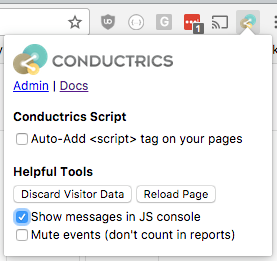
If you are using our Chrome Extension , you can just click Show messages in JS console as shown below:
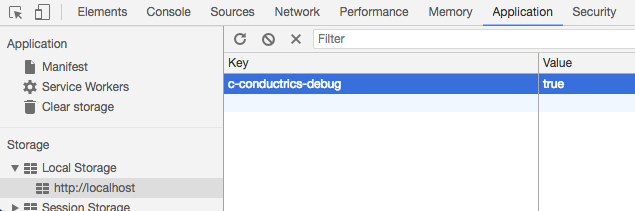
Or go to your JavaScript console and add a LocalStorage entry called c-conductrics-debug with the value true.The steps to add this little debugging flag is a bit different depending on the browser you're using. For example, in Chrome, you go to the Application tab, then open up Local Storage, and select the item for your site (instead of "localhost" as shown the screenshot below). Then double-click in the "Key" column and type c-conductrics-debug, then type true in the "Value" column, like so:
Or just use this line of JavaScriptIf you find it easier, just copy and paste this line of code into your JavaScript console and hit Enter. This will do the same thing as clicking around in the Local Storage part of your browser UI (above):
localStorage.setItem('c-conductrics-debug', 'true');
Looking at Debugging Messages
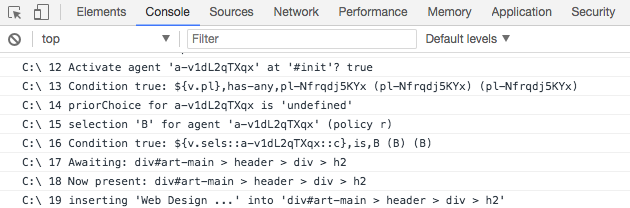
Once you've enabled the debugging messages, reload the page and look in your JavaScript console. You should see messages that print as your Conductrics agents activate and so on. The messages all start with C:\, which you can filter on to help focus if you wish.
The messages can often help you understand how a particular condition or filter will be evaluated when real visitors come to your pages, and so on.
The LocalStorage setting is origin-specificLike all LocalStorage values, the c-conductrics-debug flag cannot be read "cross-domain". This means that if you have a project that spans multiple hostnames (www.yoursite.com vs checkout.yoursite.com, etc), you need to add the flag separately for each. You also need to add it separately for http:// versus https:// pages (if your site uses both).
Disabling Debugging Messages
To stop the debugging messages from showing in your console, just remove the Local Storage flag (or set the value to false instead of true). The messages will continue to show for other people on your team (or your visitors) who have the flag set to true.
To stop the messages from showing to anyone, go back to Settings > Distribution and uncheck the Enable Debugging Messages for your deploy target.
Updated over 1 year ago