
Suggested Flowlet Usage for Content-Based Apps
For building implementations that decouple test/agent management from runtime logic
For certain types of content-driven pages and apps, you may want to use a Flowlet that returns information about all running agents, including provisional selections for each agent. You can use this information to dynamically wire in page or screen modifications, and set up listeners on your side to send goals to Conductrics when appropriate.
Create a Flowlet
The first step is to create a Flowlet, which is what will be "called" by your system's code.
- Go to Developers > API Flowlets in the Conductrics Admin.
- Hit New Flowlet and provide a name and API code as shown below. The API code is what you'll use to "call" the flowlet. The screenshot below uses the API code
app-entryto indicate that this Flowlet will be called when a visitor enters the app, but you can use whatever name and API code you wish. - Hit Create to create your new Flowlet.
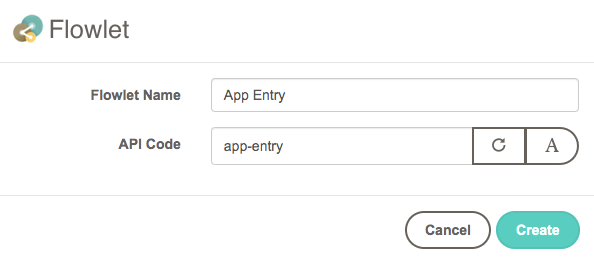
Creating the Flowlet
Now you'll add some diagram nodes to your Flowlet:
- Hit the Edit Link for your new Flowlet, which brings you to the visual diagramming page as shown below.
- Drag the Select from All item from the right margin, and drop it onto your Flowlet's start node (labeled "App Entry" in this case).
- Now drag the Return Goal Info item, and also drop it onto your Flowlet's start node.
Your diagram should look something like the following:
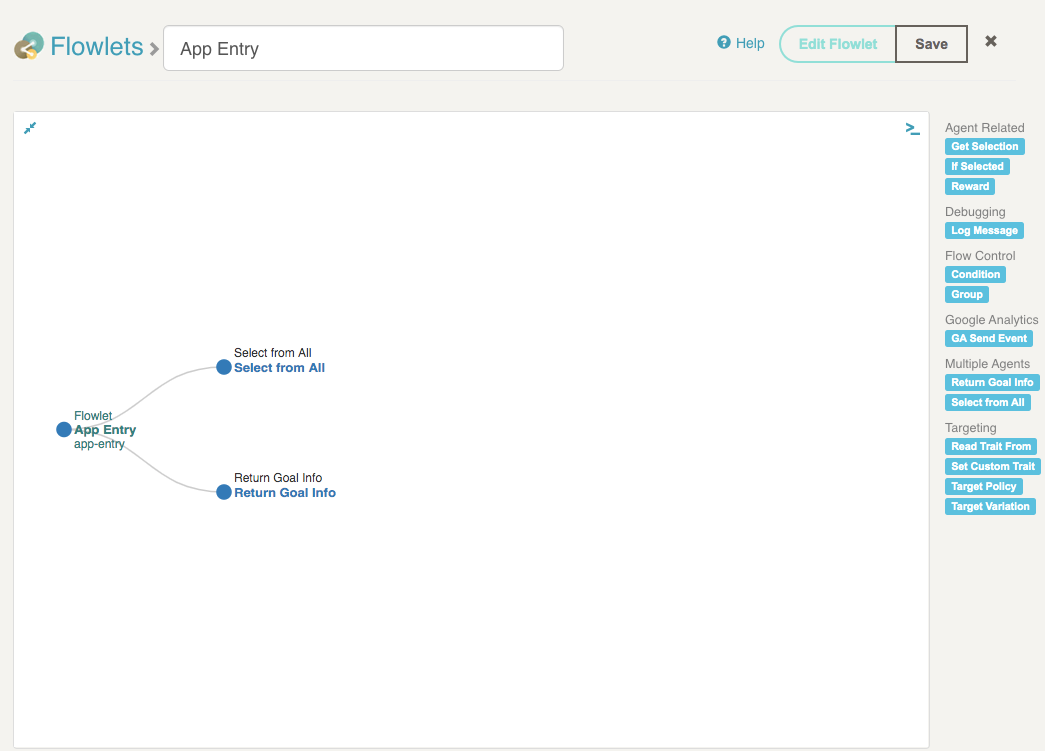
Adding the two diagram nodes to the Flowlet
Note that the connecting lines for both of the nodes you added each branch off of the App Entry node, in a sideways "Y" arrangement. When the Flowlet is actually called, it will first "execute" the Select From All node, and then "execute" the Return Goal Info node. Please see Using Custom Flowlets for more about creating and using flowlets generally.
Because it will dynamically contain information about all your active agents, you may not need to edit your Flowlet much once it's been created; you may just leave the diagram as shown above. But it's also a place where you could add ad-hoc conditions or branching, should you need any in the future.
Asking For Provisional Selections
In our example scenario, we want the agent selections to be made as provisional selections, so let's modify the "Select from All" node accordingly:
- Click on the "Select from All" node in your Flowlet diagram.
- In the dialog that appears, choose Provisional for "Selection Status" as shown below.
- Click OK to return to the diagram, then save your changes to the Flowlet.
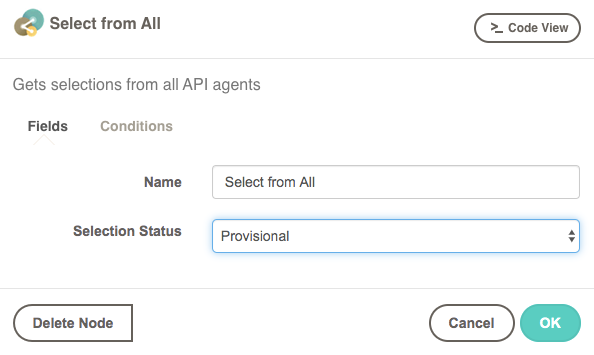
Specifying that you want Provisional Selections when your Flowlet is executed.
Calling the Flowlet
Now that you've created the Flowlet, you can call it via our REST-Style API or our Local JavaScript API. You just specify the Flowlet's API code, and the Flowlet will get a "selection" from each of your active Conductrics agents, without you needing to specify the individual agent codes. It will also return information about the goals currently associated with those agents.
One way to execute the Flowlet at first is to use the API Testbed:
- Make sure you have a couple of API Agents created, and set their status to Running.
- Go to Developers > API Testbed in the Conductrics Admin.
- Use the Flowlet Command dropdown in the right margin to add the "command" for your Flowlet. In this case that command is
{"t": "app-entry"}as shown below. - Choose the "HTTP / Server-Side" or "Local JavaScript" option as appropriate (choose the former if you intend to use our REST-Style API).
- Now you can click Run Commands to execute the Flowlet.
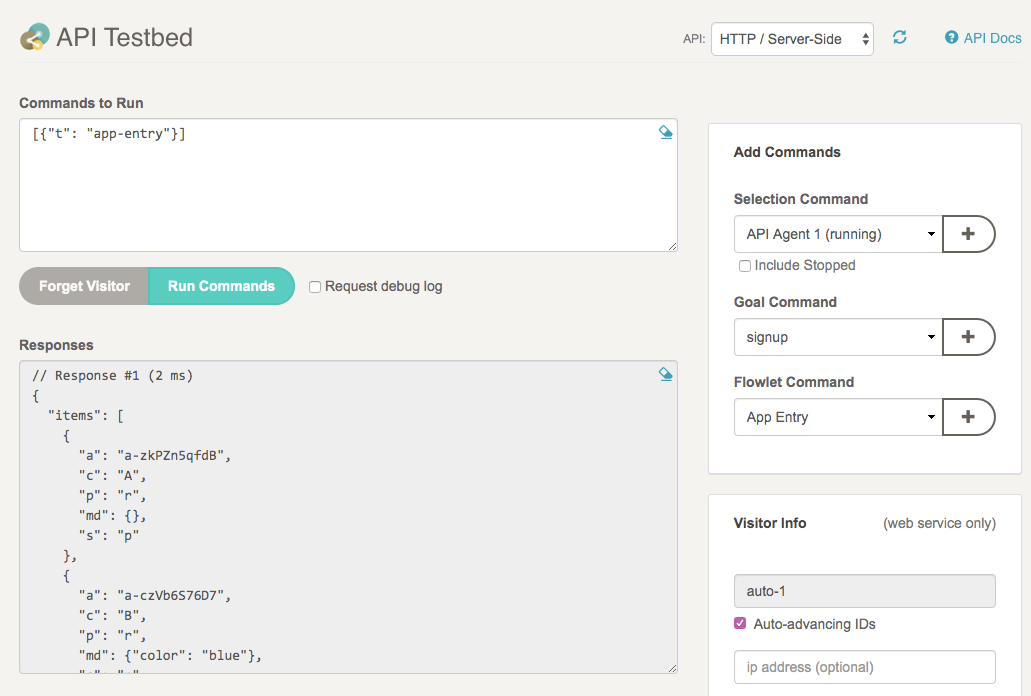
The API response should look something like the following example response:
{
  "items": [
    {
      "a": "a-zkPZn5qfdB",
      "c": "A",
      "p": "r",
      "md": {},
      "s": "p"
    },
    {
      "a": "a-czVb6S76D7",
      "c": "B",
      "p": "r",
      "md": {"color": "blue"},
      "s": "p"
    }
  ],
  "sels": {
    "a-zkPZn5qfdB": "A",
    "a-czVb6S76D7": "B"
  },
  "traits": [],
  "ext": {
    "goals": {
      "g-qKgWI49BSi": {
        "md": {},
      "g-5kbv72yHlH": {
        "md": {"video-id": "123"}
      },
      "g-zKhLfEaSYy": {
        "md": {"selector": ".cta-button"}
      }
    }
  }
}
The example above shows a result when there are two currently-running agents, with agent codes a-zkPZn5qfdB and a-czVb6S76D7, which happened to select variations A and B, respectively:
- Because there were two agents running, the
itemsarray has two selection items in it, but the actual number will vary depending on how many agents are running at the time. - The
selsobject also contains the two agent selections, one for each active agent. (Theselsobject is just a convenience - it always reflects the same selections as theitemsarray.) - The selection items have
mdsub-objects, which can contain "meta-data" about each selected variation. The meta-data is up to you - you can use it to pass back whatever identifiers or other ad-hoc info that will help you do what's required on your side. In this example, one of the agents returns a piece of meta-data aboutcolor, which would presumably be used to set the color of some part of the UI toblue(you might have another piece of meta-data at the same level which specifies which elements to change the color for). - Note that the selection items show an
sfield ofp, which means they have "provisional" status.
Provisional SelectionsBecause the selections made by this example Flowlet are "provisional", your application needs to "confirm" the selections when the visitor has actually been shown the variation content (or exposed to whatever the variation represents conceptually). See Using Provisional Selections to details on how to confirm the provisional selections. If this extra step isn't right for your application, change the Selection Status in your Flowlet to Normal instead of Provisional (see above section).
Handling Goals
The example response shown above also contains information about each goal type that is associated with any of the agents in question. In this case, there are 3 such goal types.
For each goal type, you also get a md sub-object which contains any meta-data you may have set at the goal level. You can use the meta-data to provide your application with "hints" about when the goals should actually be sent back to Conductrics.
For instance, in this example the third goal type (g-zKhLfEaSY) includes a piece of meta-data called selector with value .cta-button. Your application could use this to set up a "listener" on your side which listens for "click" or "touch" events, sending the corresponding goal event to Conductrics when the event actually occurs. You would do that by sending an API command like {"g": "g-zKhLfEaSYy"} to the REST-Style API or Local JavaScript API.
Wiring the Flowlet Into Your App
How and when you actually call the flowlet and make subsequent API calls depends on the nature of your application and what kinds of test or optimization use cases you plan to support in your site or app.
The conceptual sequence for the Flowlet example shown above would probably be:
- When the visitor first arrives (perhaps when they launch your mobile app, or when the first page in a web session, etc), you call the Flowlet as shown in the section above. Conductrics returns a response something like the example response shown above.
- Depending on your requirements, you might cache the response from Conductrics at this point, especially if you are using our REST API (if you do, you will of course need to cache it on a per-visitor basis).
- Based on the response from the Flowlet (page views or view changes, etc), you display whatever content or do whatever else is appropriate to show/render the variations conceptually. To help with that, you might place meta-data at the variation level in your Conductrics agents, which will be returned to you in the
mdobject for each variation selection (see examples above). - If you've set your Flowlet to return "provisional" selections, then you MUST confirm the variation selection after the visitor has actually been exposed to a variation. See Using Provisional Selections for details on what that looks like (it's simple).
- Note that you'll use the agent codes, not the Flowlet code, when confirming the selections.
- You may confirm multiple selections in one call, if you want to batch them together (and it's likely to be more efficient to do so if using our REST API).
- There's no harm done if you confirm the same provisional selection multiple times, but only the first confirmation has any effect (per visitor, per goal). So you may want to remember/cache the fact that you've confirmed them to be more efficient, especially if you want to reduce the overall number of calls to our REST API.
- Also based on the response from the Flowlet, you should wire up whatever "click" or "conversion" type events are called for. To help with that, you might use some meta-data you have set at the Goal level, which will be returned to you in the
mdstructure for each goal type (see example response in the section above). - When the actual "click" or "conversion" or other goal type events actually occur in the page or app, you should send the corresponding goal call to Conductrics. You can use the REST API or Local JS API for the goal-sending, but it needs to be the same API as you used to call the Flowlet (you can't call the Flowlet using the REST API and send the rewards via the Local API or vice-versa).
Updated over 1 year ago