
Analytics Connectors
Conductrics provides "Connectors", which can send information about the Variations that your Conductrics Agents select for each visitor. For instance, if you have an agent running which is selecting between an "A" and "B" experience on your website, you might want that information to be sent to your internal systems (perhaps for custom, in-house reporting of some kind), or to another system such as Adobe Analytics for ad-hoc analytics and reporting.
Connectors work "server-side", meaning that they send information from Conductrics without integrating with third-party libraries in a web browser. While the "sending" is server-side, connectors can work with "client-side" Conductrics (Express or the Local JS API), as well as "server-side" Conductrics (our REST-style API).
Please see the following sections, depending on the connectors that you are interested in using:
- Setting up a Snowplow Connector
- Setting up a Connector for Adobe Analytics
- Setting up a Connector for Google Analytics
- Enabling Connectors on a Per-Agent Basis
- Setting up a Custom Connector via Pub/Sub
- Allowing the Passing of Visitor Info to Connectors
Setting up a Connector for Adobe Analytics
If you use Adobe Analytics, you can set up a Connector that sends information about Conductrics agent variations from Conductrics to your Adobe Analytics report suite. This way you can see which visitors got selected for which variations in your Adobe reporting.
Behind the scenes, the connector will use the Adobe Data Insertion API to send information to Adobe Analytics. If the Data Insertion API is not enabled for your Adobe Analytics account, you'll need to get it enabled before you can use this connector.
To get started:
- Go to Settings > Connectors in the Conductrics Admin.
- Click Add Connector > Adobe Analytics.
- Fill out the form as discussed below.
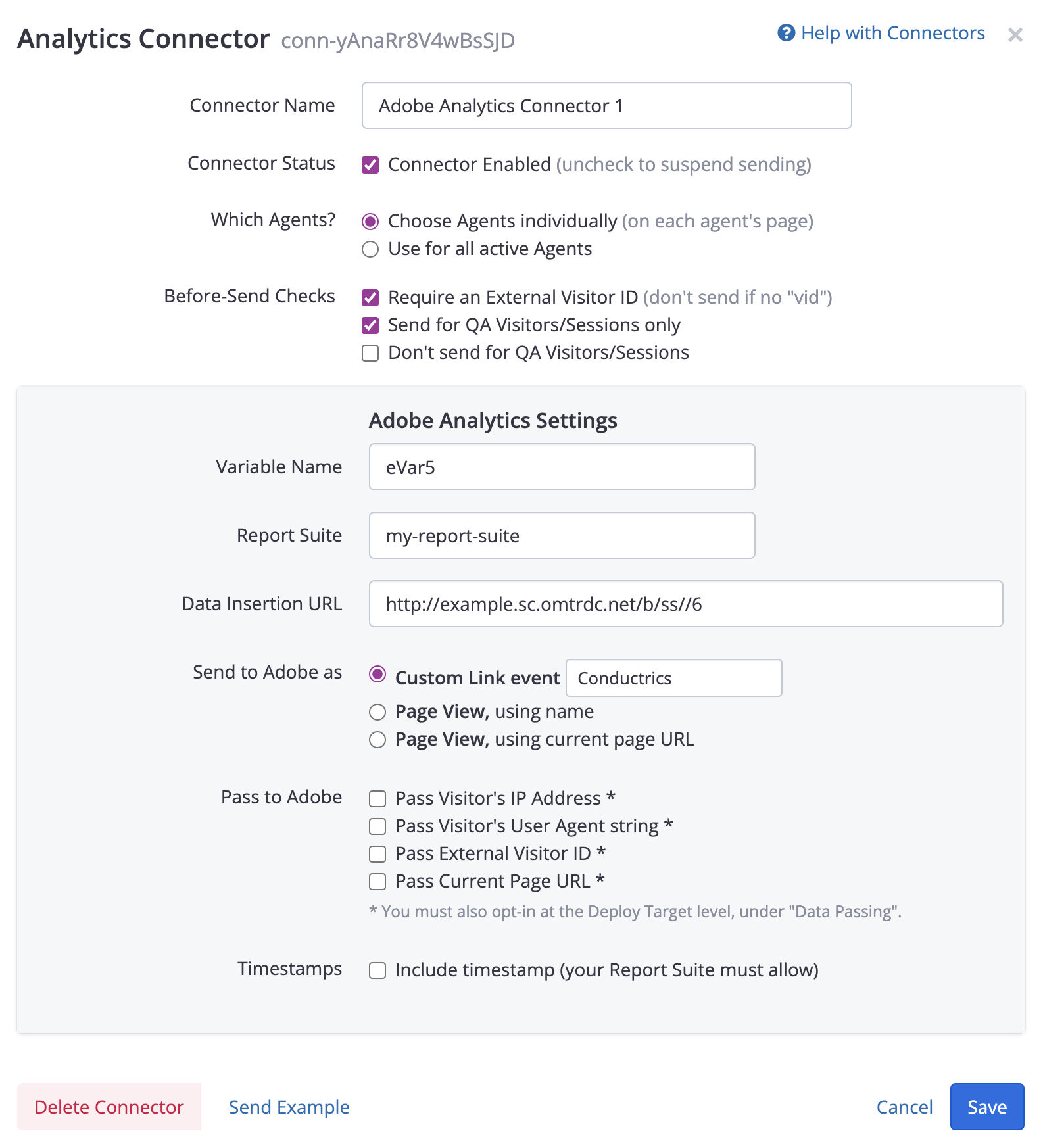
Setting up a Adobe Analytics Connector
In the form above:
- The Connector Name can be anything you wish, as it's just for display in the Conductrics Admin. You might end up creating multiple connectors for different Adobe Report Suites, so you might end up with names like "Adobe Analytics - Marketing" vs "Adobe Analytics - Storefront" or similar.
- The Connector Status should be enabled, unless you want to temporarily disable the connector while you are getting things set up.
- For Which Agents, you have the choice of enabling the connector for all running agents, or choosing which agents should use the connector on a case-by-case basis. We recommend leaving this at "Choose Agents individually" at first, so you can test the connector on just one agent. You can always come back and enable for all agents later.
The next few fields specify how Conductrics "connects" to Adobe Analytics:
- For Variable Name, provide the eVar or List Variable that you would like Conductrics to populate with selected variations when sending information over to Adobe Analytics. You can use an eVar such as eVar5, or a List Variable such as list2 (these names are case-sensitive). Regardless of whether you provide an eVar or a List Var, Conductrics will populate it in the form
agent-code:variation-code, such asmy-test:B. - For Report Suite, provide the Report Suite ID that you want Conductrics to send information to. You'll get this ID from your Adobe Analytics account.
- For Data Insertion URL, provide the URL for the Adobe Data Insertion API. This URL typically looks like
http://my-company.sc.omtrdc.net/b/ss//6(except with your own company's name or abbreviation instead of "my-company"). Please note that the trailing//6at the end of the URL is mandatory.
For the Send to Adobe as option, you can control whether you want Conductrics to send the events to Adobe as Page View events, or as Custom Link events. There are currently three options to choose from:
- Choose Custom Link Event if you want Conductrics to send to Adobe as custom link events. When you choose this option, you must specify a link name, such as "Conductrics Variation" or similar. Conductrics will use this same name for all events it sends to Adobe (for this Connector).
- Choose Page View, using name if you want Conductrics to send the events to Adobe as page views. When you choose this option, you must specify a page name, such as "Conductrics Variation" or similar. Conductrics will use this same name for all events it sends to Adobe (for this Connector).
- Choose Page View, using current page URL if you want Conductrics to send the events to Adobe as page views, with Conductrics sending the current page URL as the page that was viewed. For this option to work, Conductrics needs to know the current page URL in the first place. If you are using Conductrics Express or our JavaScript API in the browser, the page URL is already known, so you don't need to pass it explicitly. However, if you are calling the REST API from your own servers, you will need to pass through the URL that the visitor is currently at by supplying the
locparameter (see the Runtime API Reference for details). Either way, you must also enable the Allow Passing of Current Page URL option under Data Passing at the Deploy Target level (see discussion below).
For the Pass To Adobe options, you can choose whether additional information is passed over to Adobe with each request:
-
Choose Pass Visitor's IP Address if you want Conductrics to provide the visitor's IP address when sending events to Adobe. Please note that you must also enable the Allow Passing of IP Address option under Data Passing at the Deploy Target level (see discussion below).
-
Choose Pass Visitor's User Agent string if you want Conductrics to provide the visitor's User Agent information when sending events to Adobe. Adobe uses this information to populate browser-specific information in your Adobe Analytics reporting. Please note that you must also enable the Allow Passing of User Agent option under Data Passing at the Deploy Target level (see discussion below).
-
Choose Pass External Visitor ID if you want Conductrics to provide a visitor ID when sending events to Adobe. For this to work, Conductrics needs to know the visitor ID that you want to pass. If you are using our client-side support in the browser, you can pass a custom visitor ID to us by storing the ID in a cookie or Local Storage value. If you are using our REST API, you can pass it as the
vidparameter. See Passing an External Visitor Identifier for details. Either way, please note that you must also enable the Allow Passing of External Visitor ID option under Data Passing at the Deploy Target level (see the "Allowing the Passing of Visitor Info to Connectors" section below).
Setting up a Connector for Google Analytics
If you use Google Analytics (GA), you can set up a Connector that sends information about Conductrics agent variations from Conductrics to GA. This way you can see which visitors got selected for which variations in your GA reporting.
To get started:
- Go to Settings > Connectors in the Conductrics Admin.
- Click Add Connector > Google Analytics.
- Fill out the form as discussed below.
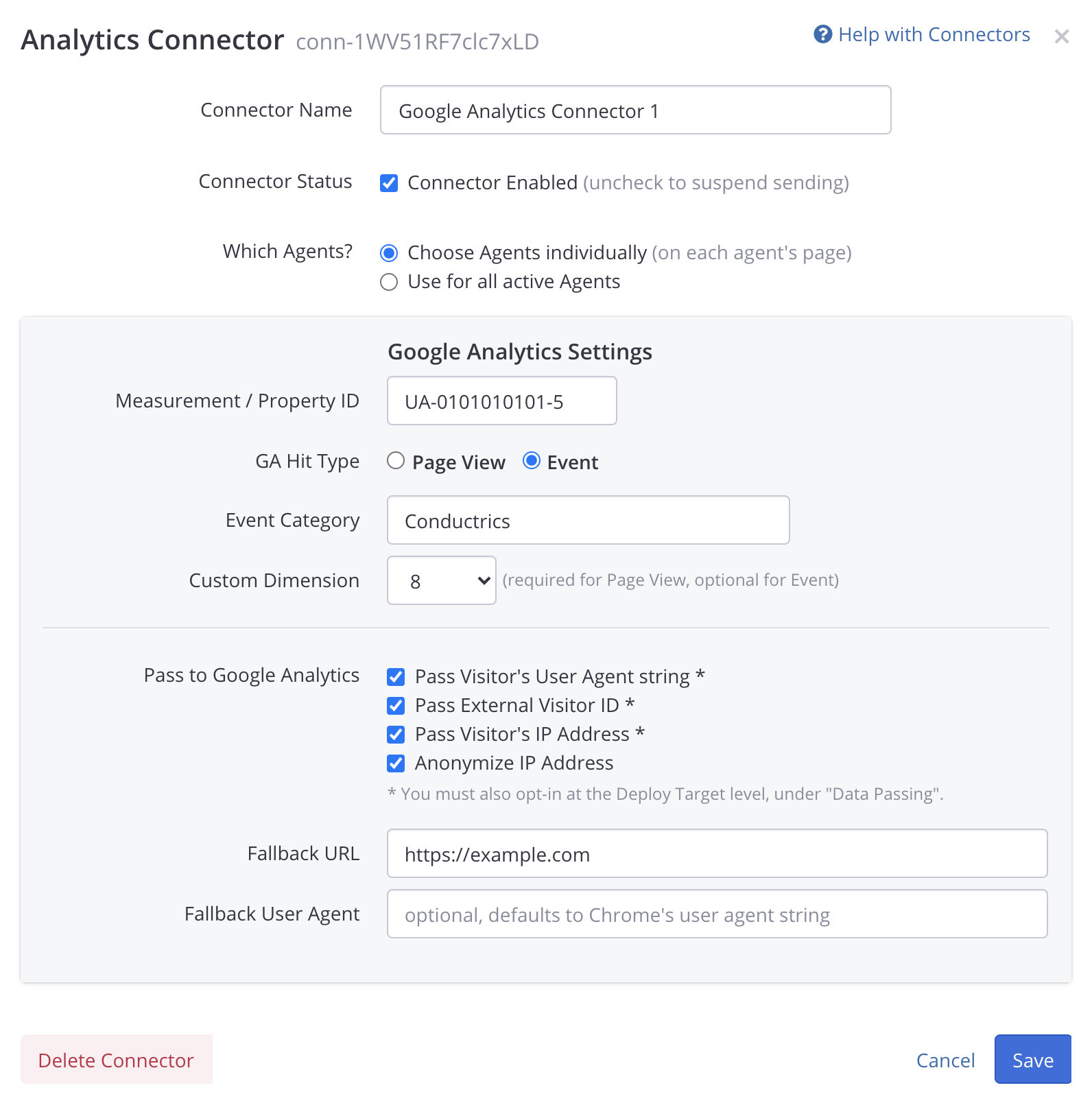
Setting up a Google Analytics Connector
In the form above:
- The Connector Name can be anything you wish, as it's just for display in the Conductrics Admin. You might end up creating multiple connectors for different Google Analytics properties, so you might end up with names like "Google Analytics - Marketing" vs "Google Analytics - Storefront" or similar.
- The Connector Status should be enabled, unless you want to temporarily disable the connector while you are getting things set up.
- For Which Agents, you have the choice of enabling the connector for all running agents, or choosing which agents should use the connector on a case-by-case basis. We recommend leaving this at "Choose Agents individually" at first, so you can test the connector on just one agent. You can always come back and enable for all agents later.
The next few fields specify how Conductrics "connects" to Google Analytics:
- For Measurement / Property ID, provide the identifier for the GA property (traditionally starting with
UA-) that you want Conductrics to send events to.
For the GA Hit Type option, you can control whether you want Conductrics to send the events to GA as "Page View" hits, or as custom "Event" hits. There are currently two options to choose from:
- Choose Event if you want Conductrics to send to GA as Event hits. When you choose this option, you must specify an Event Category, such as "Conductrics" or similar. Conductrics will use this same category name for all events it sends to GA (for this Connector). Conductrics will also populate your agent's API code as the Event Action
- Choose Page View if you want Conductrics to send the events to Adobe as page views, with Conductrics sending the current page URL as the page that was viewed. For this option to work, Conductrics needs to know the current page URL in the first place. If you are using Conductrics Express or our JavaScript API in the browser, the page URL is already known, so you don't need to pass it explicitly. However, if you are calling the REST API from your own servers, you will need to pass through the URL that the visitor is currently at by supplying the
locparameter (see the Runtime API Reference for details). Either way, you must also enable the Allow Passing of Current Page URL option under Data Passing at the Deploy Target level (see discussion below).
For the Custom Dimension, you can choose a dimension from 1 - 200. The Custom Dimension is required if you are using the Page View hit type; it's optional for the Event hit type. Conductrics will populate the dimension with the API codes for the agent and variation, separated by commas (for example: my-first-test:B). Make sure the dimension is available in your GA account, and is not already being used for some other purpose.
For the Pass To Adobe options, you can choose whether additional information is passed over to GA with each request:
-
Choose Pass Visitor's IP Address if you want Conductrics to provide the visitor's IP address when sending events to GA. Please note that you must also enable the Allow Passing of IP Address option under Data Passing at the Deploy Target level (see discussion below).
-
Choose Pass Visitor's User Agent string if you want Conductrics to provide the visitor's User Agent information when sending events to GA. GA uses this information to populate browser-specific information in your Adobe Analytics reporting. Please note that you must also enable the Allow Passing of User Agent option under Data Passing at the Deploy Target level (see discussion below).
-
Choose Pass External Visitor ID if you want Conductrics to provide a visitor ID when sending events to GA. For this to work, Conductrics needs to know the visitor ID that you want to pass. If you are using our client-side support in the browser, you can pass a custom visitor ID to us by storing the ID in a cookie or Local Storage value. If you are using our REST API, you can pass it as the
vidparameter. See Passing an External Visitor Identifier for details. Either way, please note that you must also enable the Allow Passing of External Visitor ID option under Data Passing at the Deploy Target level (see the "Allowing the Passing of Visitor Info to Connectors" section below).
Enabling Connectors on a Per-Agent Basis
You can pick and choose which agents send information to your connectors.
For instance, consider a company that uses Adobe Analytics, and let's say this company uses two different Adobe Report Suites for two different divisions: Marketing and Mobile. So, they create two Connectors in Conductrics using the steps discussed above, one for each report suite. The connectors would look something like this in the Conductrics Admin:
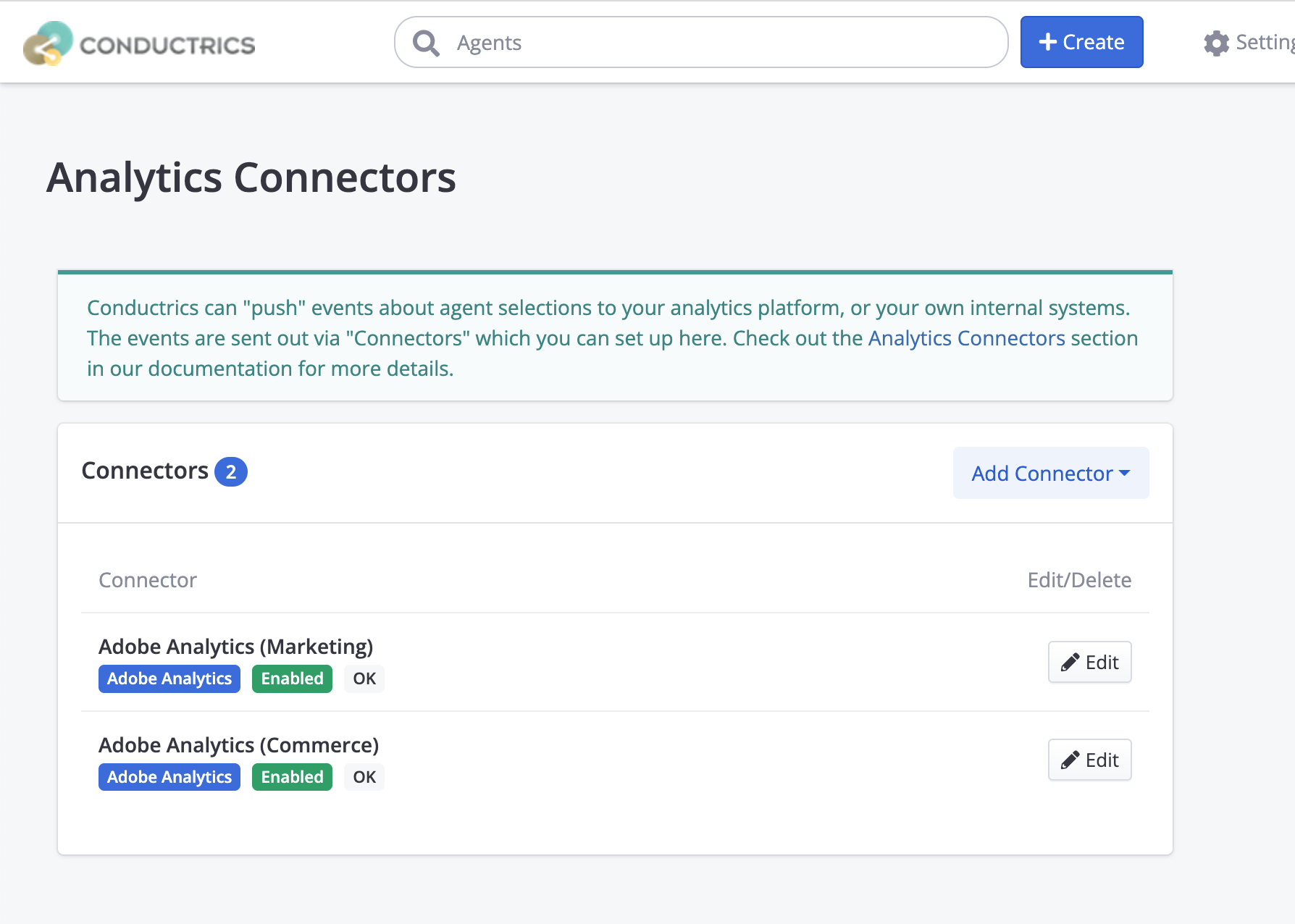
Now the company can decide which report suite(s) should get information from which agents, by enabling or disabling the connectors at the agent level.
To enable/disable connectors on a per-agent basis:
- Go to any agent in the Conductrics Admin.
- Click Edit Agent at top right.
- Check the connectors you want, then click Save.
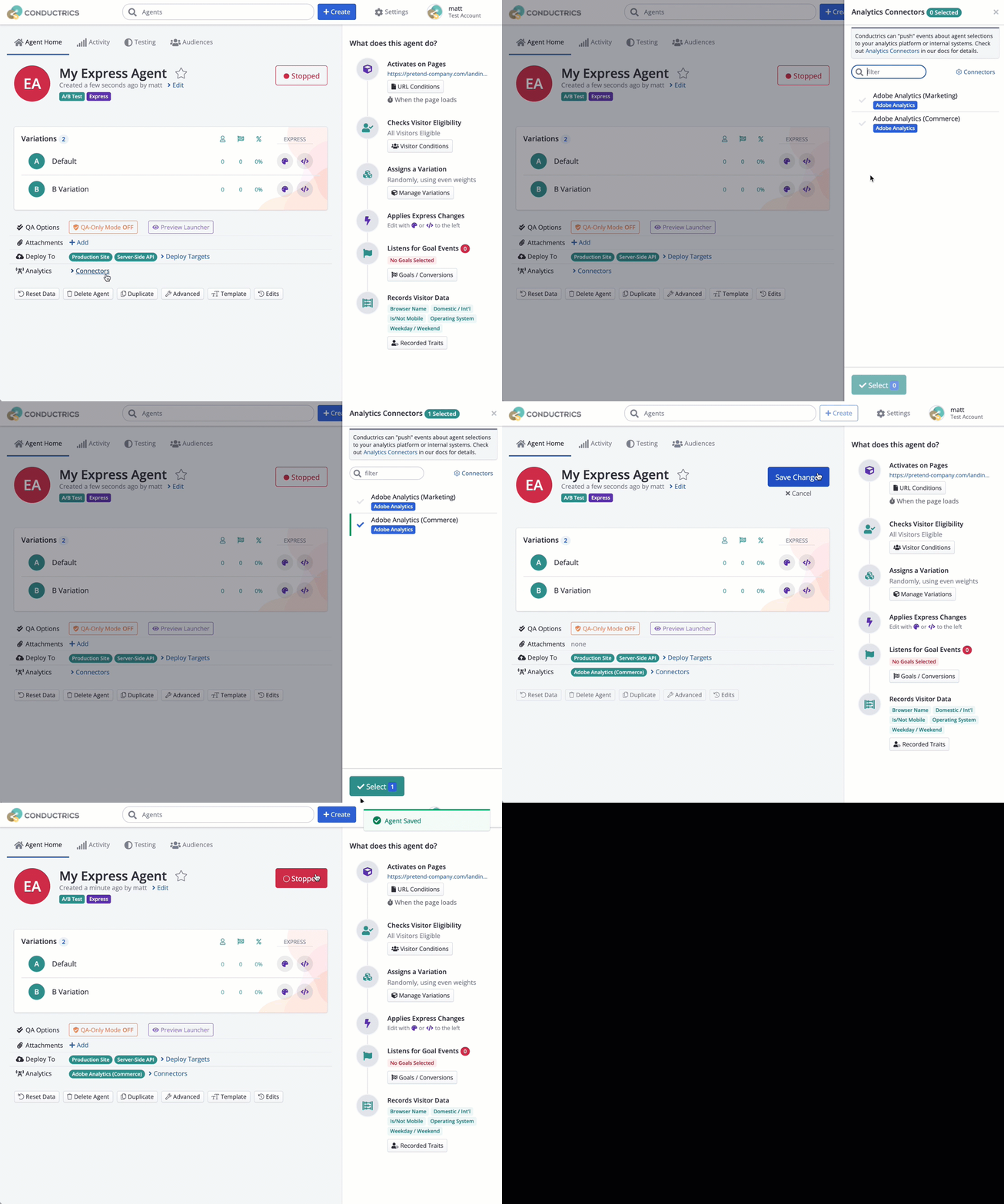
If you've set the "Send for all agents" option for a connector, the corresponding checkbox in the agent's page will be shown as "checked" as a reminder that the connector will get events for the agent, but the checkbox is greyed-out. This is the case for the "Marketing" connector in the fictitious scenario shown above.
Setting up a Cloud Pub/Sub Connector
You can also create a Connector which passes information to a Pub/Sub Topic on the Google Cloud Platform (GCP). From there you can create subscriptions to the Topic as you see fit, to pass the messages to other systems, do some kind of processing on them via Google Cloud Functions, or insert them into some kind of database.
First, you'll need a Pub/Sub Topic in your own GCP account, which Conductrics has permission to publish messages to:
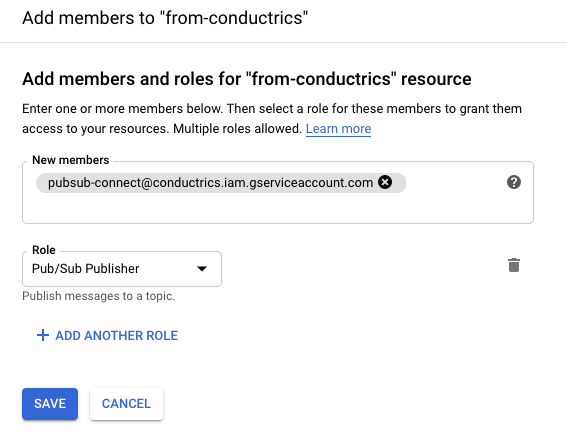
- Log into your Google Cloud Console and create a Pub/Sub Topic. In the examples below, we're using a Topic called
from-conductricsbut you can use whatever name (Topic ID) that you wish. - Also in the GCP Console, select your Pub/Sub Topic, then hit Add Member in the Permissions pane on the right.
- Add
[email protected]as a new member, with the Role set to Pub/Sub Publisher as shown in the screenshot below:
Now that you have a Pub/Sub Topic to use, you can add the Connector in Conductrics.
- Go to Settings > Connectors in the Conductrics Admin.
- Click Add Connector > Google Pub/Sub.
- Fill out the form as discussed below.
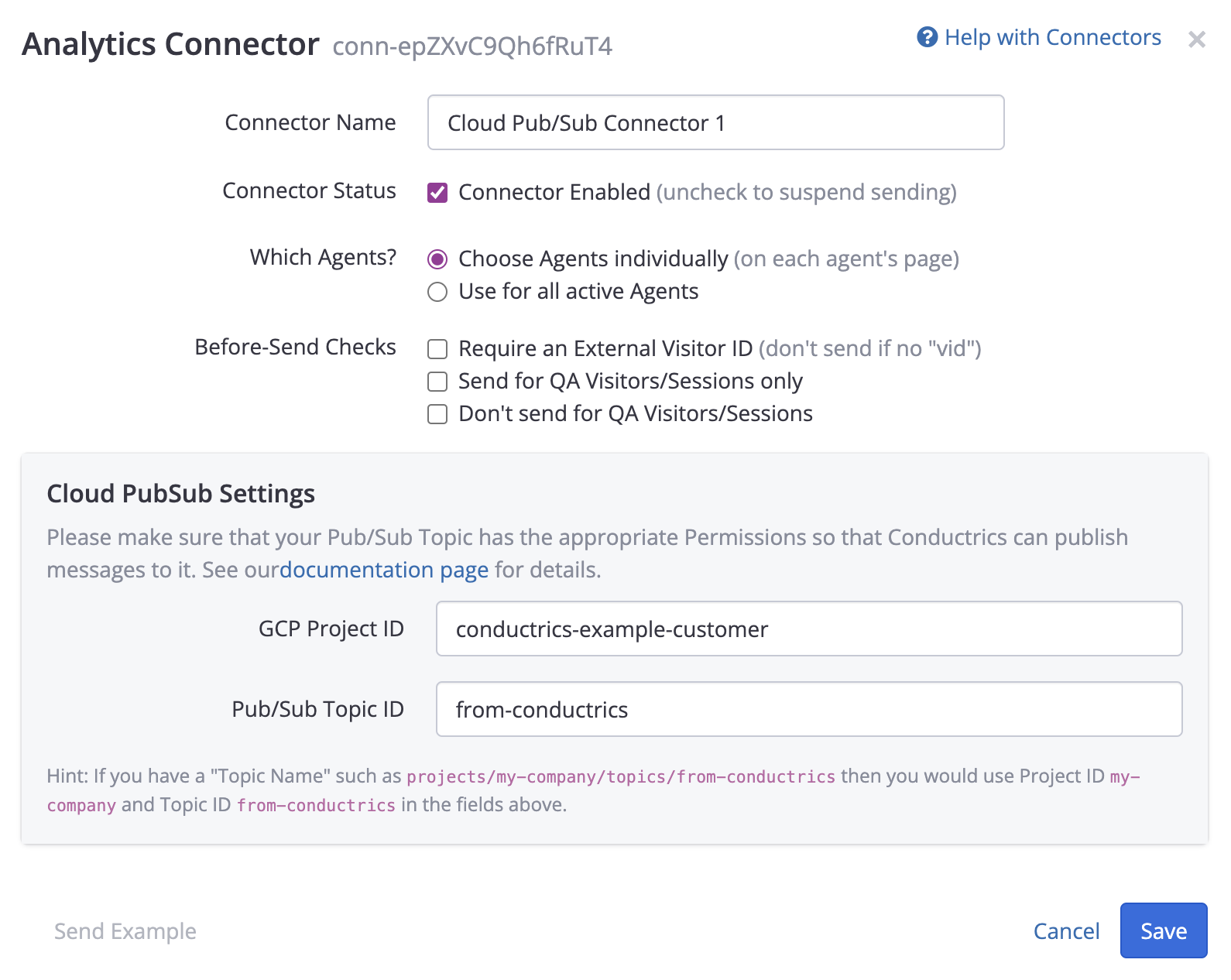
Creating a Pub/Sub Connector
In the form above:
- The Connector Name can be anything you wish, as it's just for display in the Conductrics Admin.
- The Connector Status should be enabled, unless you want to temporarily disable the connector while you are getting things set up.
- For Which Agents, you have the choice of enabling the connector for all running agents, or choosing which agents should use the connector on a case-by-case basis. We recommend leaving this at "Choose Agents individually" at first, so you can test the connector on just one agent. You can always come back and enable for all agents later.
If you go for the "Choose Agents individually" option, you can enable the connector on each agent's page in the Conductrics admin (see screenshot in the Adobe section, above).
The remaining fields are where you specify the Pub/Sub topic that you'd like Conductrics to use:
- The GCP Project ID is the unique identifier for your Google Cloud Platform account, often based on your company name. You can get this from the GCP Console.
- The Pub/Sub Topic ID is the Topic ID of the Pub/Sub Topic that you want Conductrics to post messages to. You can get this from the Pub/Sub section of the GCP Console.
Using the Pub/Sub Messages
When selections are made by your Conductrics agents, we will publish messages to your Pub/Sub Topic. You can create subscriptions that receive and process the messages to accomplish whatever you need. For instance, you can also easily create a Cloud Function that executes for every message received, or use Cloud Dataflow to process the messages, perhaps inserting them into a database that you can query via BigQuery, and so on. Check out the Pub/Sub documentation for details.
Each of the Pub/Sub messages that we publish to your Topic will include an array of event items similar to the following:
[
  {
    "t": "d",
    "a": "a-ptkBTwIE7Y",
    "c": "B",
    "p": "r",
    "traits": ["status:vip"],
    "dts": 1579044637,

    "ua": "Mozilla/5.0 (Macintosh; Intel Mac OS X 10_14_6) AppleWebKit/537.36 (KHTML, like Gecko) Chrome/79.0.3945.88 Safari/537.36",
    "loc": "https://www.example.com/offers",
    "vid": "123456789"
  }
]
For each event item:
- The
tfield indicates the type of event item. At this time you would see onlydin this field, which indicates a selection event from a Conductrics agent. - The
afield is the agent code for the Conductrics agent that made the selection. - The
cfield is the variation code for the variation that was selected (oftenAorB, etc). - The
pfield is the "selection policy" that was used to make the selection, such asrthe agent is making random selections. See Selection Policies for details. - The
traitsfield is a list of Custom Visitor Traits that had been set for the visitor at the time the agent selected the variation. See Custom Visitor Traits for details. - The
dtsfield is the timestamp (in seconds) of the agent selection.
In addition, there may be some additional information provided, if enabled for passing at the Deploy Target level (see "Allowing the Passing of Visitor Info to Connectors" section below):
uafor the visitor's User Agent string, if known to Conductricslocfor the visitor's current Page URL, if applicable and known to Conductricsvidfor the External Visitor ID associated with the visitor, if applicable.ipfor the visitor's IP address, if applicable and known to Conductrics.
The example above shows just one event item, but there may be multiple items included in the array. Make sure that any code on your side handles all the items in the array.
Allowing the Passing of Visitor Info to Connectors
If you want a Connector to have access to certain contextual information from Conductrics, you can opt-in at the Deploy Target level. This will cause the Conductrics runtime code (in the browser, or mobile device, or within our REST API, etc) to make the information available to connectors. This in turn allows the connector to do something useful with the information (such as pass it onward to your internal analytics system, etc).
For instance, if you're using the Adobe Analytics connector as discussed above, and you want it to pass the visitor's IP Address or User Agent string through to Adobe, you need to "allow" those pieces of information to be "passed out" at the Deploy Target level. This is in addition to enabling the corresponding options at the Connector level.
To allow the passing of visitor info:
- Go to Settings > Distribution in the Conductrics Admin.
- Hit Setup for your Deploy Target.
- Under Data Passing, check the options you want and save your changes.
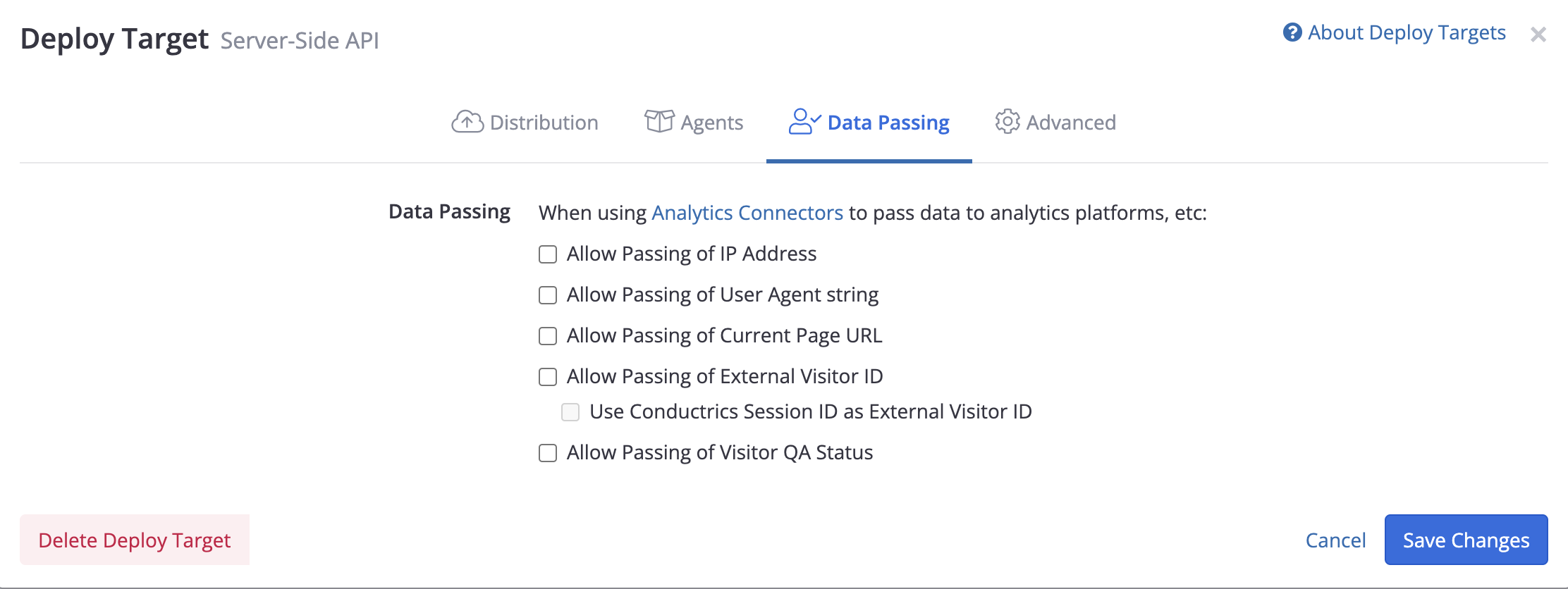
Allowing the passing of Page URL or other Visitor Info via Connectors
In the screenshot above, you can see the various Data Passing options available:
- Allow Passing of IP Address - enable this option if you want the visitor's IP Address to be made available to Connectors. Please note that if you are using the REST API from your own servers, you may need to provide the visitor's IP Address explicitly via the
ipparameter as discussed in the Runtime API Reference (otherwise we will end up passing the IP Address of your own servers). - Allow Passing of User Agent string - enable this option if you want the visitor's User Agent string to be made available to Connectors. Please note that if you are using the REST API from your own servers, you may need to provide the visitor's User Agent string explicitly via the
uaparameter as discussed in the Runtime API Reference (otherwise we will end up passing the User Agent provided by the HTTP Client that you're using to call the REST API). - Allow Passing of Current Page URL - enable this option if you want the visitor's current page URL to be made available to Connectors. Note that if you are using the REST API from your own servers, you may need to provide the visitor's current URL explicitly via the
locparameter as discussed in the Runtime API Reference. - Allow Passing of External Visitor ID - enable this option if you want a "External Visitor ID" to be passed to Connectors. Note that if you are using the REST API from your own servers, you may need to provide the External ID explicitly via the
vidparameter as discussed in the Runtime API Reference. See Passing an External Visitor Identifier for details. - Use Conductrics Session ID as External Visitor ID - If you're using the REST API, enable this option if you want Conductrics to provide the Session Identifier to Connectors, as if it were an explicit "External Visitor ID". Use this option if you are already providing a "meaningful" identifier to Conductrics as the session identifier, and don't want to change your implementation to also provide that same identifier explicitly via the
vidparameter.
Please note that for Deploy Targets that are set to deploy manually, you will need to do a "Deploy Now" in order for these "Data Passing" changes to take effect. See Deployment Options for details.
Connector-Related Usage Stats
You can view some basic counts about the number of events/hits sent to your analytics service via your Connectors. These can be helpful if you have questions about the numbers you are seeing in Conductrics versus your analytics reporting.
- In the main "Agent List" page of the Conductrics Admin, click on Usage Stats at the bottom of the sidebar.
- Click Details to see the full list of stats as shown below.
- Focus on the Connector-related stats by typing part of the word "connector" for the filter.
- Optionally, you can adjust the date range you want to get stats about.
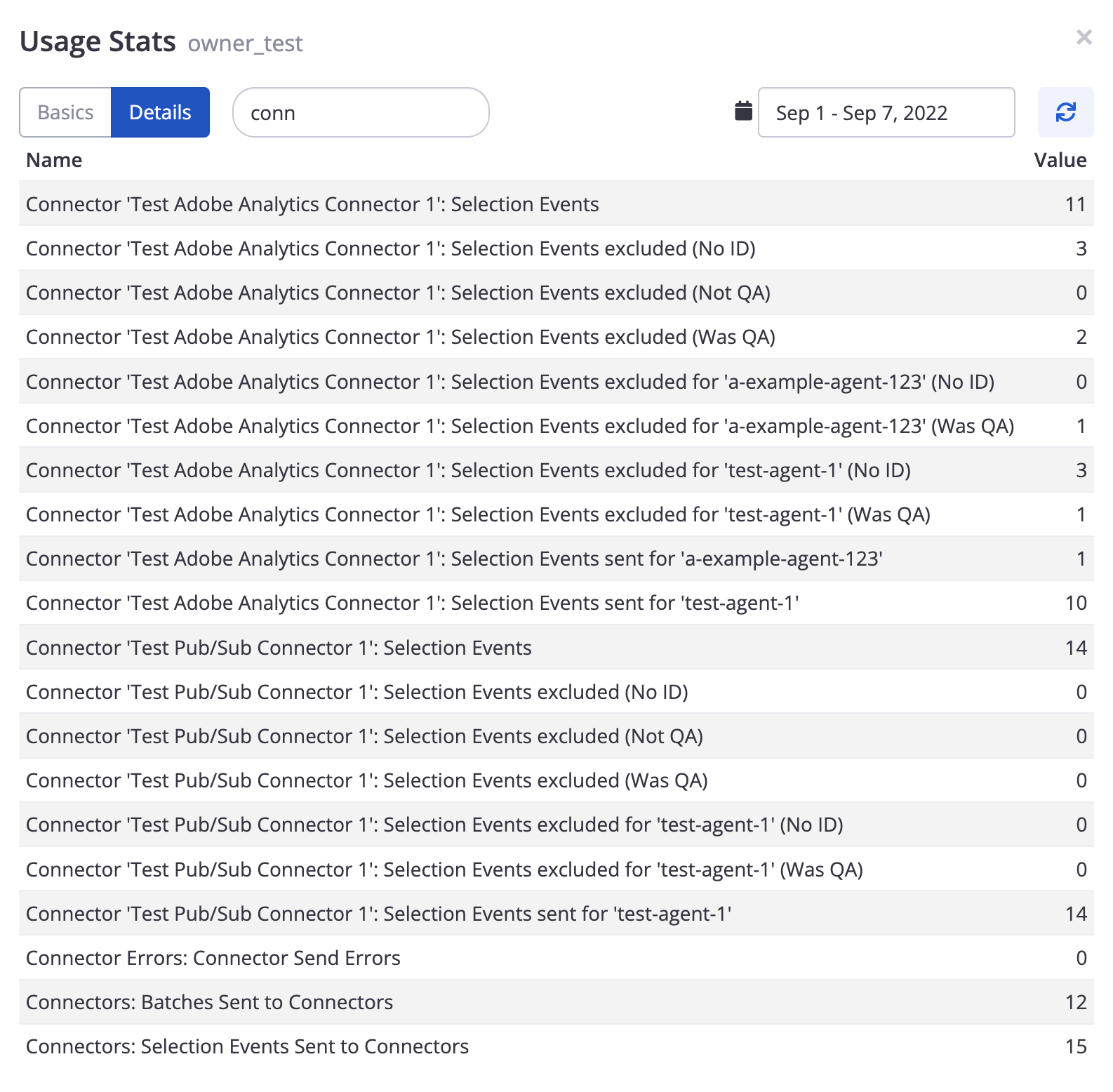
For each of your Connectors, you will see:
- Selection Events - The total number of variation selection events that were sent through the connector to your analytics. Selection events are sent once per visitor, per agent variation (for instance, if a visitor returns the next day, Conductrics will keep them at the same variation, but it does not send a new event through your connectors).
- Selection Events excluded (No ID) - As discussed above, an External Visitor Identifier is required to send the events through to your analytics service. This stat helps you see how many selection events were not sent due to a lack of an identifier.
- Selection Events excluded (Not QA) - If the connector is set to ONLY send QA traffic, this count helps you see how many selection events were excluded because the selections were for non-QA visitors.
- Selection Events excluded (Was QA) - Conversely, if the connector is set to EXCLUDE QA traffic, this count helps you see how many selection events were excluded because the selections were for QA visitors.
- You also get the above four stats broken down by agent (see screenshot above).
There are a few additional connector-related stats at the bottom, which are more about how Conductrics queues events for sending. These are mostly for Conductrics internal use.
- "Connector Send Errors" - The number of times Conductrics couldn't forward events to its internal queuing system.
- "Batches Sent to Connectors" - The number of calls Conductrics made to its internal queueing system.
- "Selection Events Sent to Connectors" - The total number of selection events that Conductrics sent to its internal queueing system.
Updated 9 months ago