
The Agent List Page
Your home base for managing your A/B Tests, Targeting, and Surveys
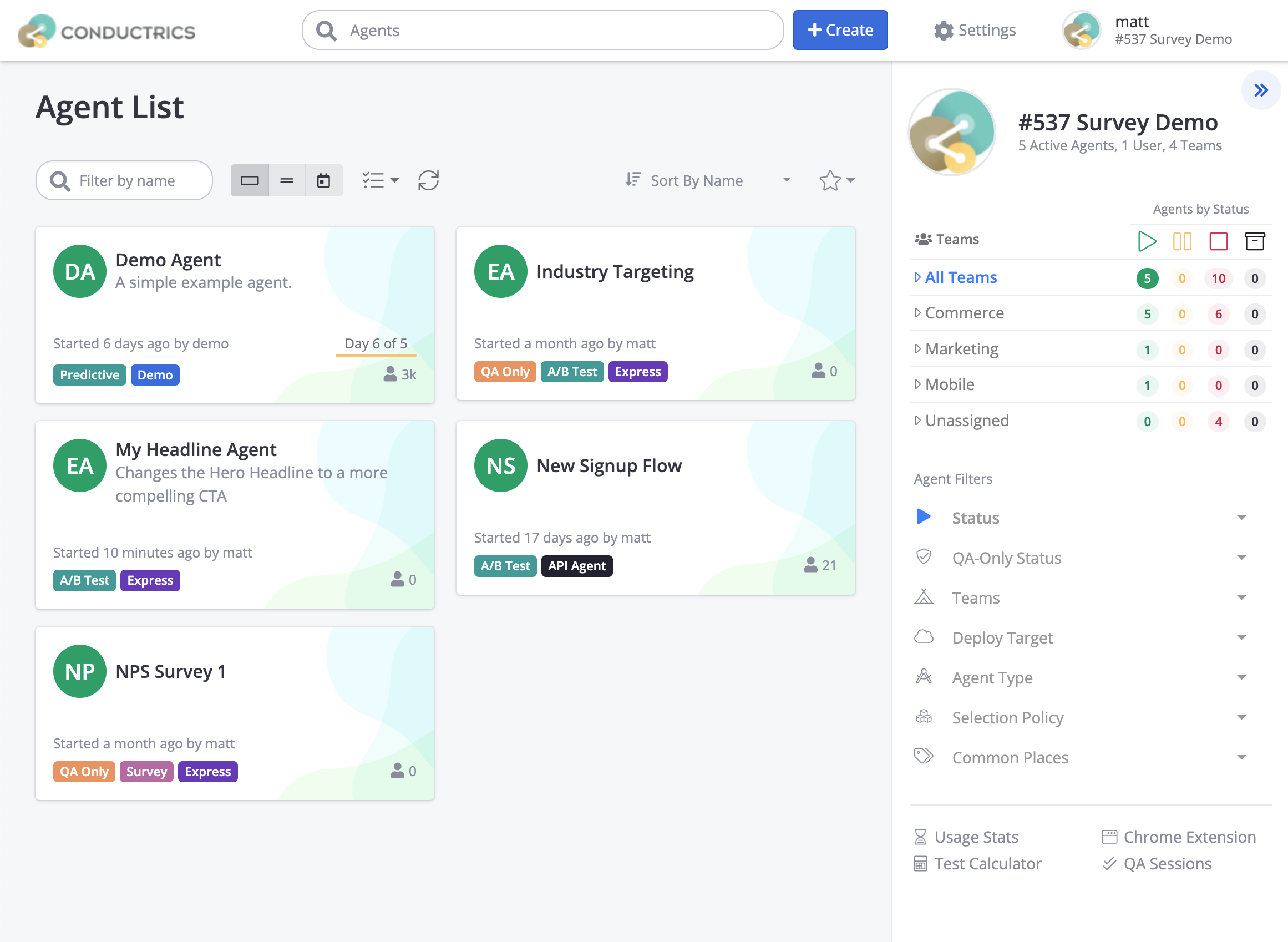
When you log into the Conductrics Admin, you'll land at the Agent List page.
Creating a New A/B Test, Optimization, or Survey
Just hit the Create button at the top of the page to create a new "Conductrics Agent", which is an umbrella term for an A/B Test, Targeting project, Optimization, or Survey.
See Creating an Express Agent for details.
Getting a Quick View
When you hover over an existing New Test, Optimization, or Survey, you'll get two buttons:
- Hit View to quickly get most details about that Conductrics Agent, with a button to quickly change its status, and links to its report pages.
- Hit Home to jump straight to the Agent's Home Page for all the details about your A/B Test, Optimization, or Survey.
Filtering by Team & Status
You can quickly focus on past or future projects via the Agents by Status area at top right. You'll see the number of Conductrics Agents by status (Running, Paused, Stopped, or Archived). Click on the numbers to quickly filter the list.
If you're using Teams in Conductrics, you'll see a breakdown by Team, so you can quickly see the current or past agents for the team you want. You can also click on the Team name to see all agents for that team, regardless of status.
You can also filter the agent list by QA Status, Selection Policy, and more via the Agent Filters area in the right sidebar.
Changing the View
You can use the symbols at the top of the agent list to control how the list is displayed:
- Details - Shows the agent name and description, its current status, who created / started it and when, total visitors to date, and various colored "badges" that help you understand what the agent does at a glance.
- Table - Just the basics per agent, so you can see more agents at a time.
- Calendar - Shows a calendar that shows when agents were initially created, when they are/were running, and so on. Scroll through the months to go back in time.
Starred Agents
If there are certain agents you'll be focusing on for now, you can use the Star icon to mark it as important to you. Starred agents move to the top of your agent list, and appear first when you use the search field in the page header.
Starring an Agent is just for you. It doesn't affect other people that use Conductrics. Use Tags or Teams if you want to organize agents in a way that will affect other admin users.
Bulk Actions
You can hit the "checklist" icon above the agent list to enter Bulk-Select Mode. You can use that to make certain changes to multiple A/B Tests, Optimizations, or Surveys at once. For instance, you could select several A/B Tests to "start" or "stop" in one go, or assign them to a different Team.
Updated over 1 year ago