
Creating a Survey
Creating a survey is fairly simple:
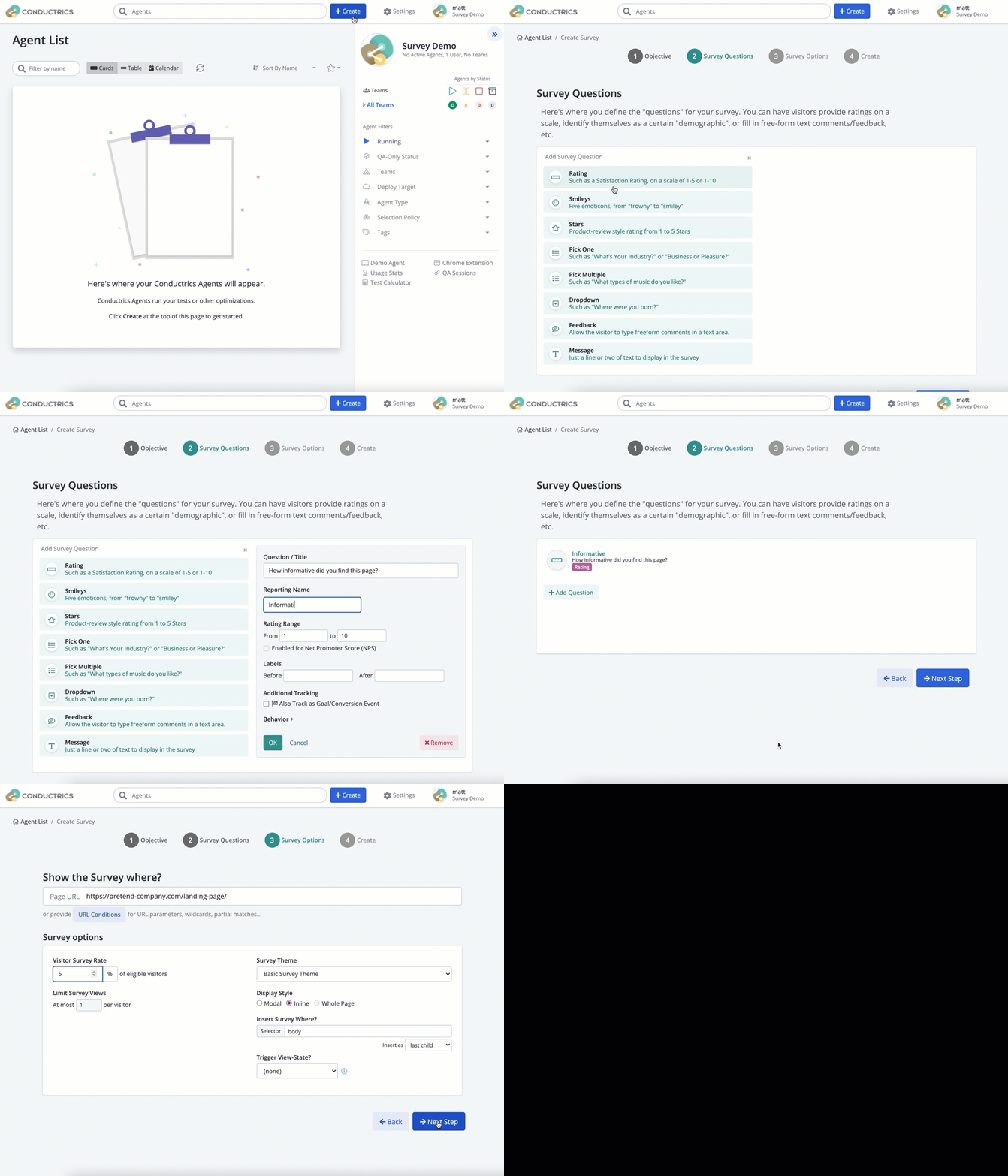
In the Conductrics Admin, hit Create at the top of the page, then proceed through Steps 1-4 as shown in the animated screenshot below:
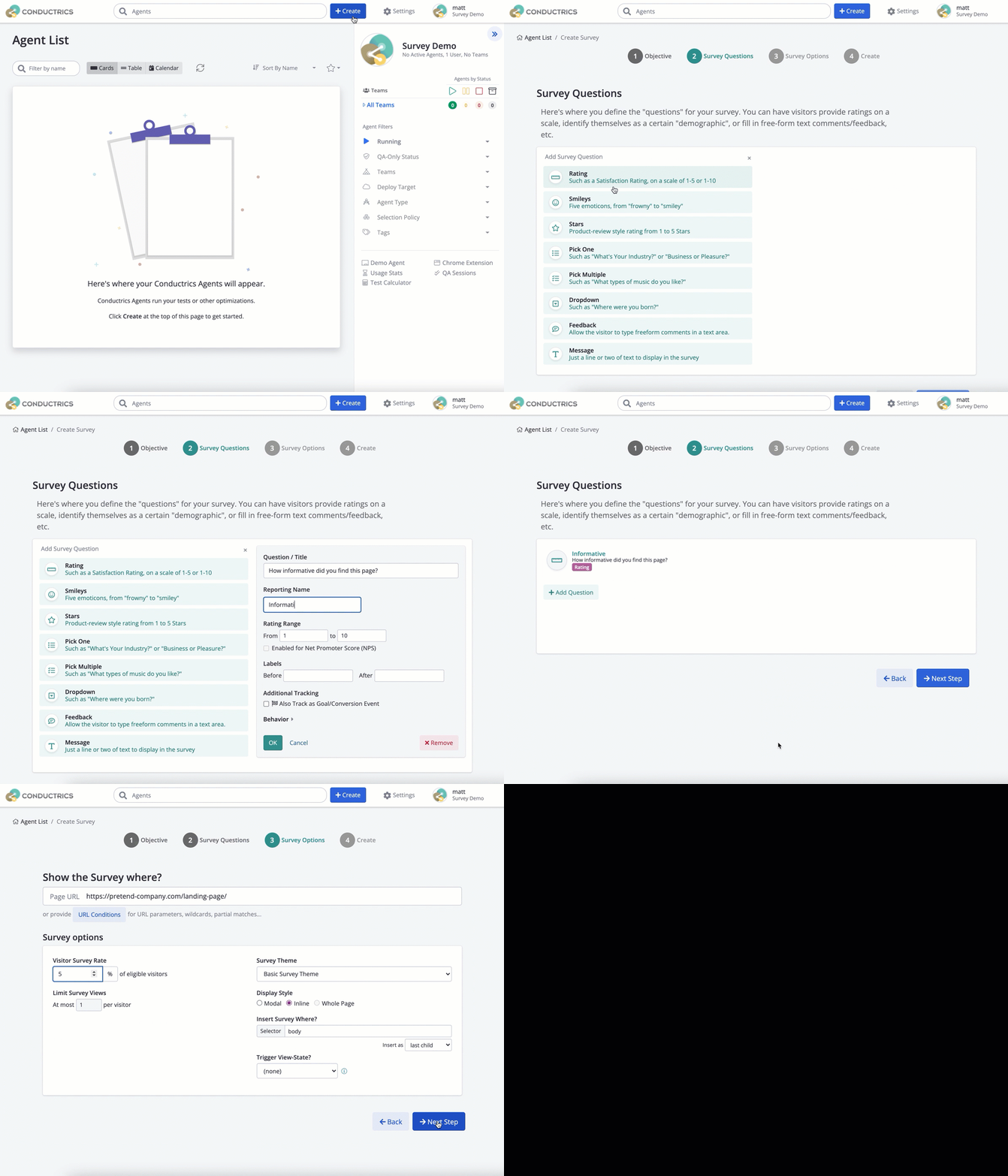
- The first step is where you choose your overall objective. Choose the Market Research option.
- The second step is where you define your survey's questions. Click Add First Question, then choose one of the question types and fill out the associated fields (see Survey Question Types for details). In the screenshot below we add a simple "Rating" question, where the visitor is asked to rate a page's content from 1-10.
- The third step is where you can define some additional options for your survey. In particular you can define what page (or pages) the survey should display on, and you can also say what percentage of visitors should get the survey. See Survey Options for more details.
- The fourth and final step is where you provide a name for the survey, plus an optional description. You can also say whether to create the survey in "QA" mode, which can be helpful for previewing the survey before making it live to your actual visitors.
Hit Create to add the survey to Conductrics. Don't worry, it won't go live yet.
Updated over 1 year ago
Did this page help you?