
Survey Themes
You can create Survey Themes to customize the colors, fonts, and general look and feel of your surveys.
Creating a custom theme currently requires an understanding of CSS. Please feel free to reach out to Conductrics if you need help or need someone to do it for you.
Creating a Custom Theme
To create a Survey Theme:
- To go Settings > Survey Themes in the Conductrics Admin, then click Add Theme.
- For Theme Name, provide whatever name will be helpful for other admin users.
- Under Base Theme, choose Basic Survey Theme. (Alternatively, you could choose No Styling if you want to start completely from scratch without any CSS from Conductrics.)
- Provide whatever CSS rules you want to "override" the CSS rules provided by the Base Theme. In the example below, we are simply providing a custom color to use for the survey's "primary buttons" (such as the "Submit" button).
- Click Save to create your new theme.
The CSS code that you provide will be included in your pages automatically by the Conductrics script on the page, as its own stylesheet (using a
<style>tag). It will be inserted after the CSS for the base theme, so your rules will take precedence (due to higher specificity).
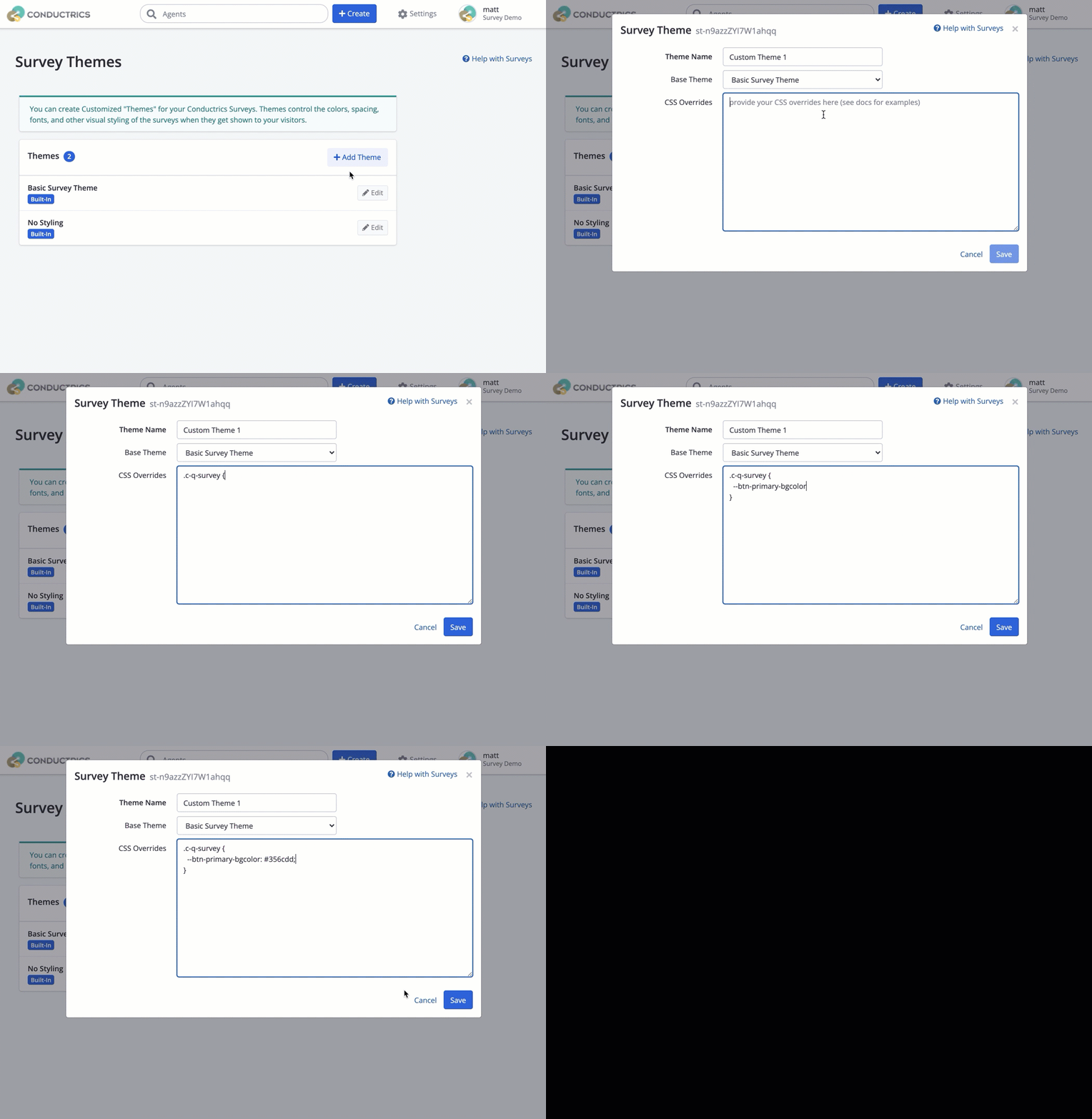
Creating a new survey theme
Once you hit Create, the theme should be available for use with actual surveys. You can make an existing survey use your new theme via Survey Details > Survey Options as shown below:
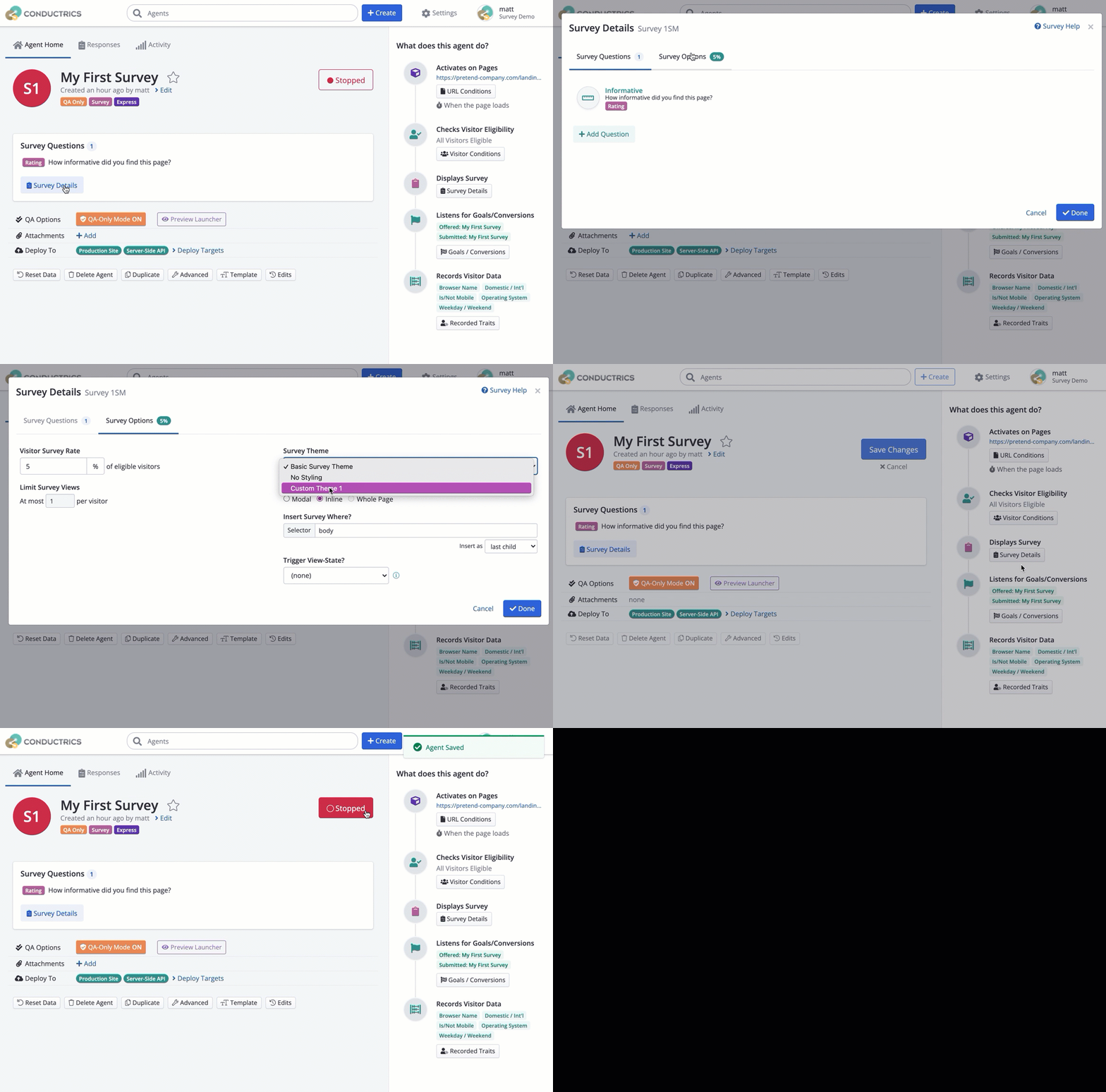
Changing the theme for an existing survey
Previewing Your ThemeYou'll probably want to test out the look and feel of your survey theme before it goes live. See Survey Preview / QA for ways to do that.
Using CSS Variables
The Basic Survey Theme stylesheet defines a number of CSS Variables that you can override to make quick adjustments without digging into specific selectors and properties. You can provide your own values for these variables by placing them in a .c-q-survey block as shown in the animated screenshot shown near the top of this doc page.
If you're not familiar with how CSS Variables work, check out Using CSS Variables at MDN.
/* CSS Variables used by Basic Survey Theme */
.c-q-survey {

  /* general colors for the survey UI "chrome" */
  --bgcolor: #fff; /* white background by default */
  --text-color: #444; /* dark grey text */
  --gray-1: #333;
  --gray-2: #777;
  --gray-3: #aaa;
  --gray-4: #c0c0c0;
  --gray-5: #ddd;

  /* these colors affect most buttons in the survey */
  --btn-primary-bgcolor: #010080; /* submit buttons, etc (navy by default) */
  --btn-primary-fgcolor: #fff; /* white */
  --btn-secondary-bgcolor: #010080; /* most other buttons (navy by default) */
  --btn-secondary-fgcolor: #fff; /* white */

  /* color of focus outlines for numeric rating and 'blocky buttons' radios */
  --input-focus-color: #219ebc;

  /* should most survey content be centered or left-aligned? */
  --align-horiz: left; /* 'center' likely better if multiple questions */

  /* control over the animation used to show/hide the survey */
  --anim-enter-duration: 0.5s; /* how fast should the survey fade/slide in? */
  --anim-exit-duration: 0.5s; /* how fast should the survey fade/slide out? */
  --anim-enter-delay: 0s; /* don't use this to delay when the survey appears */
  --anim-exit-delay: 0.5s; /* a small delay here feels more natural */

  /* colors for the "smiley/frowny" question type */
  --btn-rating-icon-color-1: #f51120; /* red  */
  --btn-rating-icon-color-2: #fd870d; /* orange */
  --btn-rating-icon-color-3: #ffca3d; /* neutral yellow */
  --btn-rating-icon-color-4: #77d62f; /* light green */
  --btn-rating-icon-color-5: #37b647; /* dark green */
}
Providing a Logo
A common need is to show a company logo at the top of the survey. You can add a logo by adding a background-image to the .c-q-heading element. You'll typically also need to set the height of the same element, as shown in the example below:
.c-q-heading {
  background-image: url("https://example.com/img/logo-30x30.png");
  height: 30px;
}
Or, if you want to embed the image into the theme's CSS itself rather than using a URL (for instance, if the logo image isn't available at a public URL), you could include it as a Base64-encoded Data URL. That would look something the following, where the xxxxxxxxxxxxx part is the actual Base64 string that represents your logo image:
.c-q-heading {
  background-image: url("data:image/png;base64,xxxxxxxxxxxxxxxxxxxxx");
  height: 30px;
}One way to get the Base64 string is to right-click the image in the Sources pane of your Chrome DevTools and choose Copy image as data URI, or in Firefox you can select the image in the Inspector pane, then choose Copy > Image Data-URL.
Overriding Other CSS Rules
You can also override the other CSS selectors and properties used by the base survey theme. These have not be documented properly at this time, but you can inspect them easily via your browser's Developer Tools. You can then provide whatever CSS rule you wish to customize the look and feel for your theme.
Just as a quick example, say you wanted to adjust the font size used to show the text of each question. You could use your Dev Tools to find that the CSS class in question is .c-q-field-label, and thus override the font size to 16px using a simple CSS rule such as:
.c-q-survey .c-q-field-label {
  font-size: 16px;
}All of the CSS class names used by Conductrics start with the prefix
c-q-which should make it relatively easy to identify them (and keep them from clashing with your page's own CSS classes and rules).
Updated over 1 year ago