
Using the MCP Inspector
Inspecting responses from the Conductrics Admin MCP Server
If you are considering connecting a system to the Conductrics Admin MCP Server, you may want to test out its capabilities interactively, perhaps before giving your LLMs or coding agents access to it.
You can use the MCP Inspector for this purpose.
The MCP Inspector is the reference developer tool for testing and debugging MCP servers, and is not specific to Conductrics. It is developed and provided by the MCP Inspector Working Group.
Getting Set Up
First, install the MCP Inspector per the Quickstart Instructions.
Once the inspector is running in your browser, go to Add Servers > Add Manually.
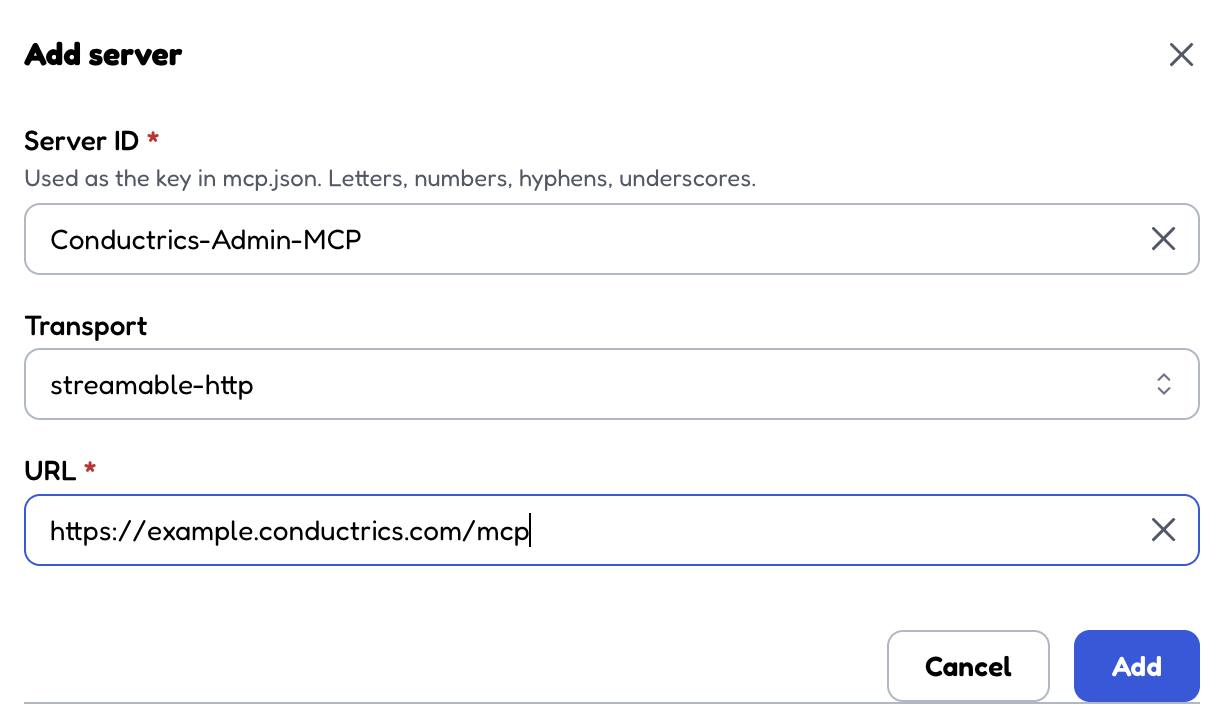
- For the Server ID, use
Conductrics-Admin-MCPor similar. - For the Transport, choose
streamable-http - For the URL, provide the base URL you use to access the Conductrics admin, followed by
/mcpas shown below.
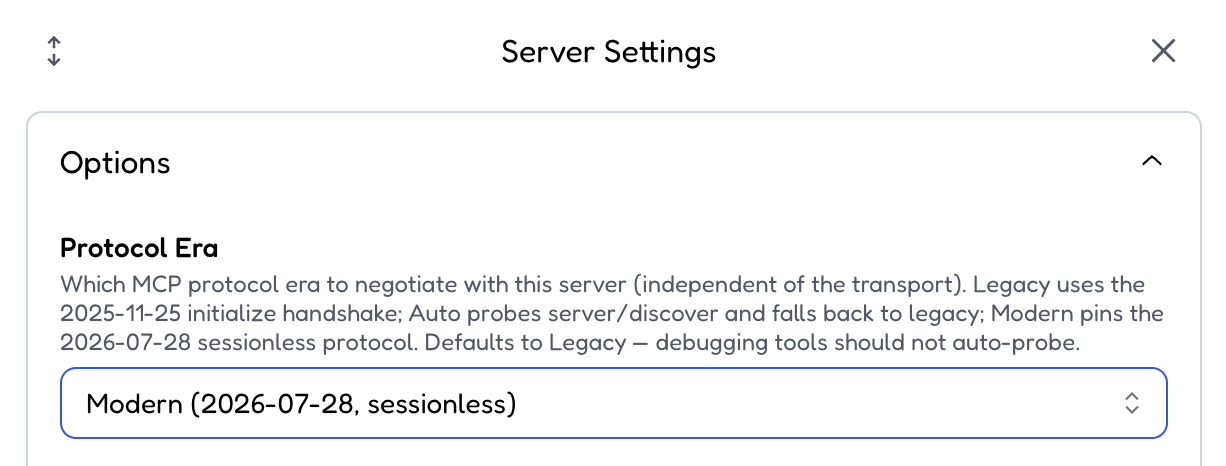
Next, hit Settings for the just-created server item, and:
- For the Protocol Era, choose Modern.
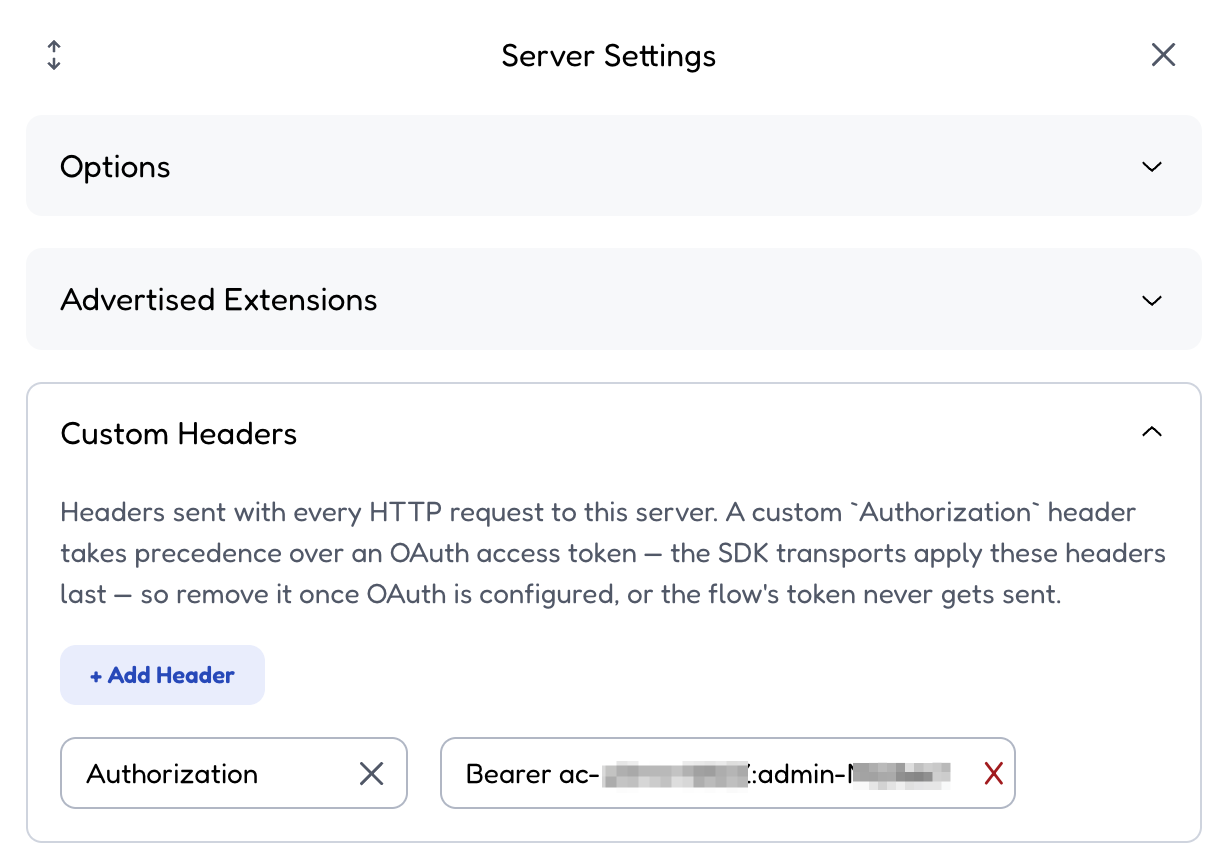
- Under Custom Headers, add header name Authorization, with the value
Bearer ac-xxx:admin-yyywhere theac-xxxpart is your Conductrics account code, and theadmin-yyypart is an Admin API Key from Settings > API Keys / Info in the Conductrics Admin. Note that the word Bearer is capitalized, followed by a single space, and there is a colon between the account code and the API Key.
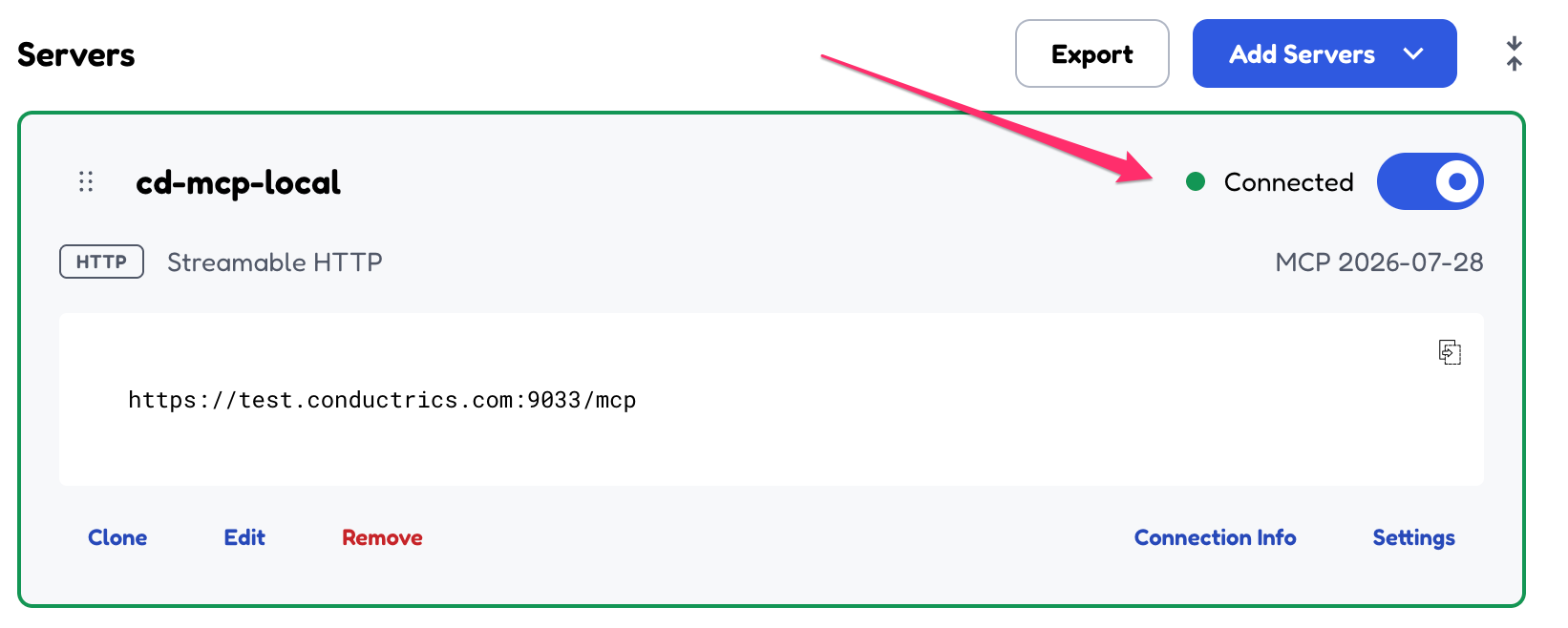
With those edits in place, you should be able to switch the status to Connected:
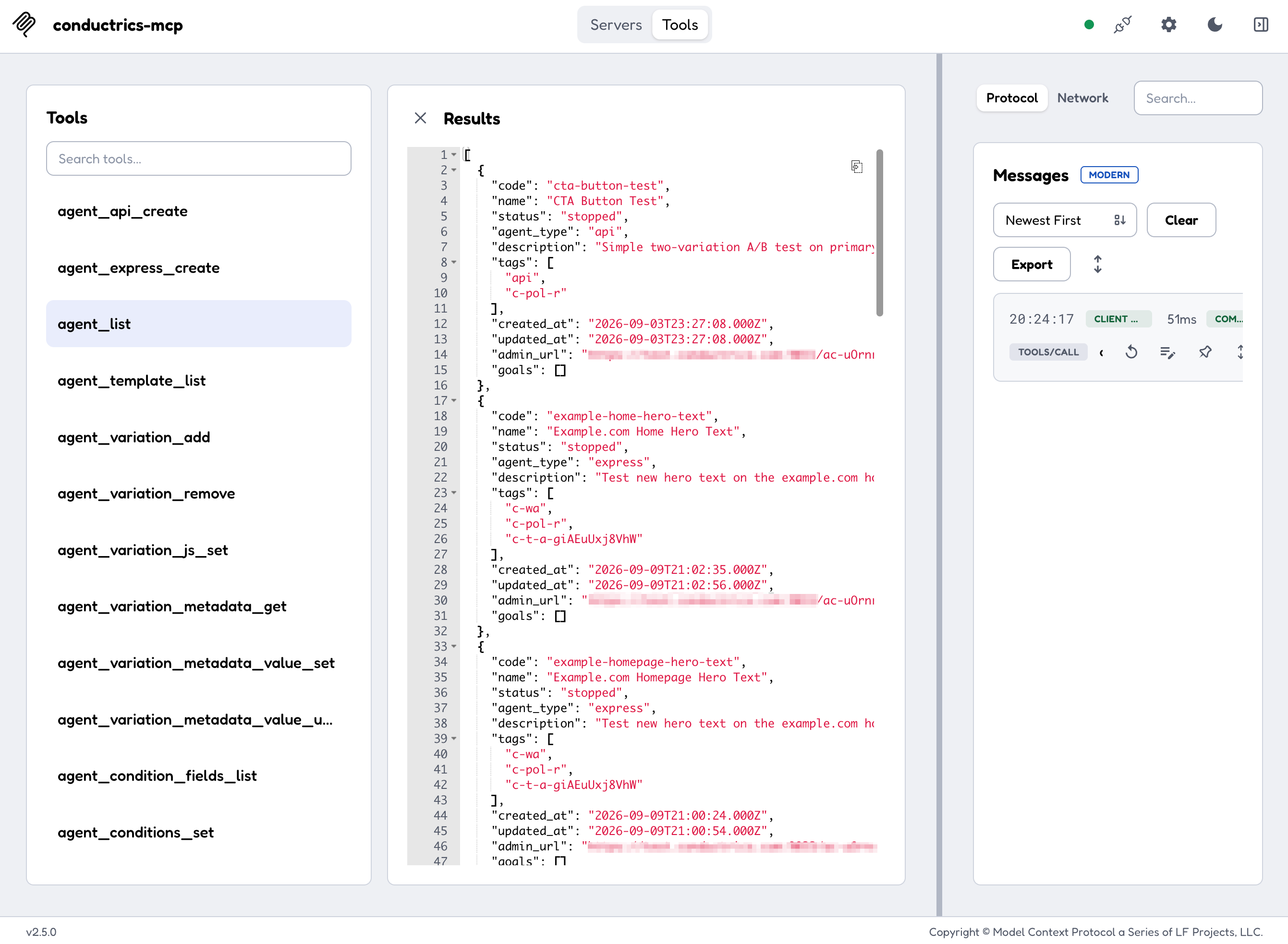
You can then switch to the Tools view in the top nav, and see a tool listing from the Conductrics MCP. You should be able to run one of the tools, such as agent_list, as shown below:
Updated 1 day ago