
Survey Responses in the Data Layer
For passing visitor responses to analytics or other downstream process
As of Conductrics 3.7.11, you can have Conductrics place responses to your Conductrics Surveys into your page's Data Layer.
From there, you can use your third-party tools (or your own JavaScript) to pipe the responses into other analytics, logging software, or similar.
Enabling Survey Responses in the Data Layer
To tell Conductrics to push Survey Responses into the Data Layer:
-
Go to Settings > Deploy Targets and click Setup for the appropriate Express / JavaScript Deploy Target. See Deployment Options for more information about Deploy Targets in general.
-
Under the JavaScript tab for your Deploy Target, verify that the Data Layer option you need is turned on (that's either the Enable Analytics Data Layer or Enable Conductrics Simple Data Layer checkbox). See Data Layer Support or Simple Data Layer for more info about the data layer options.
-
Check the Include Survey Responses in Data Layers checkbox, then save your changes to the Deploy Target.
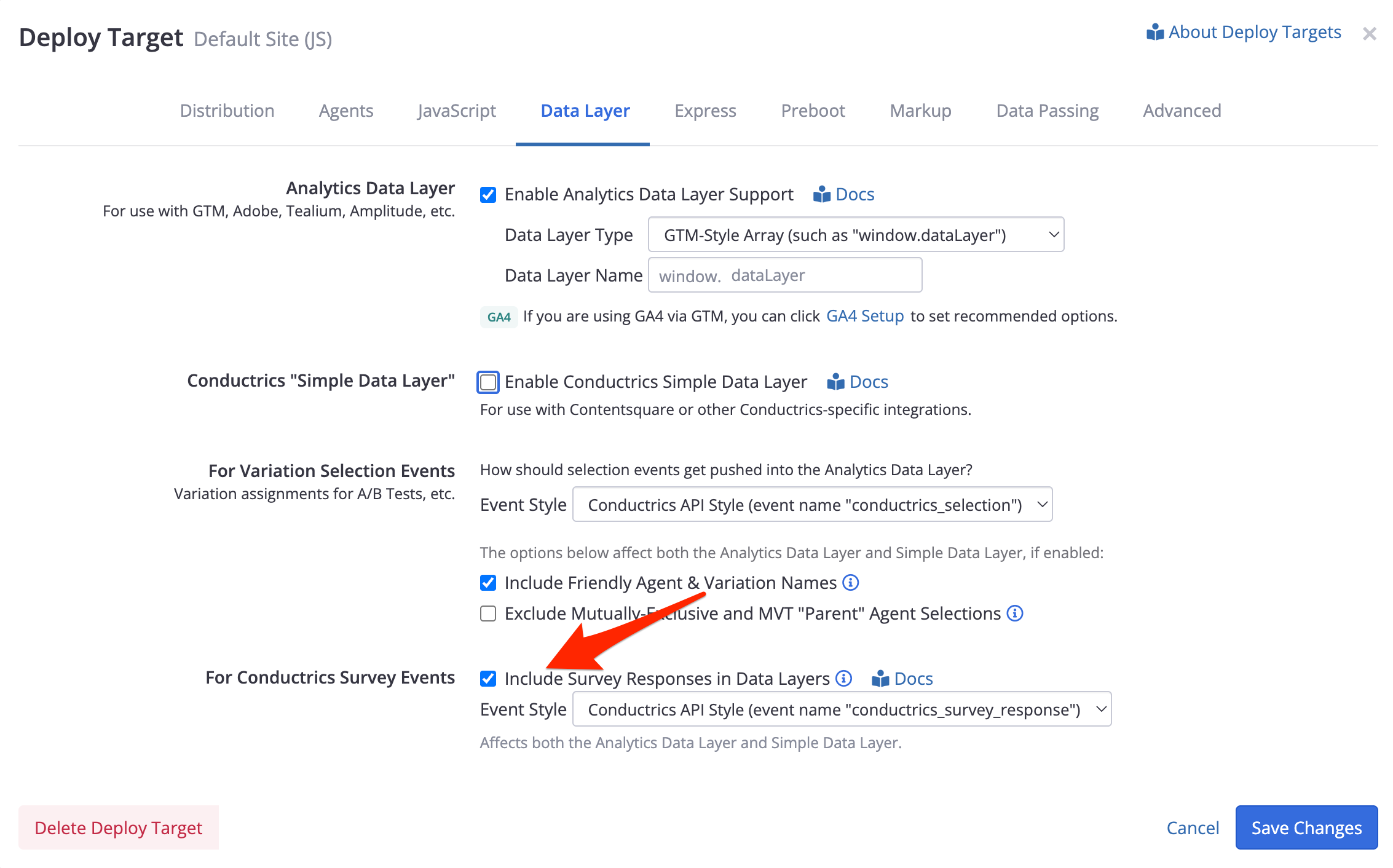
Note that if your Deploy Target is set to use Manual Deploys, you'll need to do a Deploy Now for your changes to actually take effect on your site.
Survey Response Item Format
Once you've enabled the Include Survey Responses in Data Layers option (see above), Conductrics should "push" survey responses into the data layer whenever users submit a survey.
Conductrics doesn't push survey responses into the data layer right when the visitor answers each question. It's when the survey is submitted that Conductrics pushes the survey response into the data layer.
An exception is made for multi-step surveys where the user has filled out some of the steps, and then explicitly closes the survey - in that case Conductrics will push a partial survey response into the data layer, with just the answers that the visitor provided.
Here's an example of the information that gets pushed into your Data Layer when visitors respond to a survey:
{
  "item": {
    "rid": "qs-xxxxxxxxx",
    "survey": "a-123456789",
    "survey_name": "My First Survey",
    "answers": [
      {
        "Q": "What's Your Industry?",
        "A": "Music"
      },
      {
        "Q": "NPS",
        "A": 9
      }
    ]
  }
}
Here's what each of those fields mean:
rid- a unique id for the survey response - you may want to store this in your analytics, in case you'd like to look up a given survey response in the Conductrics Admin.survey- the "agent code" which uniquely identifies the survey (typically starts witha-)survey_name- the name of the survey agent (as displayed in the Conductrics Admin)answers- an array of one or more answers to the survey's questions, where each answer contains:Q- the Reporting Name for the question, provided when Creating a SurveyA- the answer to the question, which may be astringor anumber, depending on the type of question (in the example above, note that the answer for Industry is a string, while the answer for the NPS question is a number).
Some survey questions may have multiple answers, in which case there will be multiple items for that question (all with the same
Q) in theanswersarray.
If you have the "Include Friendly Names" option unchecked (see screenshot in section above), the
survey_namewill be set to the survey agent code (same assurvey), each answer'sQwill be set to the question's unique identifier, and each answer'sAwill be set to the answer's unique identifier (the latter is applicable only to questions where a list of options has been provided).
In Array-Style Data Layers
If your data layer is a simple JavaScript array, as promoted by Google Tag Manager / Google Analytics and also recommended by Adobe, the response item is included as a property named conductrics_survey_response, with the event name also set to conductrics_survey_response, as follows:
{
  "event": "conductrics_survey_response",
  "conductrics_survey_response": {
    "item": {
      "rid": "qs-xxxxxxxxx",
      "survey": "a-123456789",
      "survey_name": "My First Survey",
      "answers": [
        {
          "Q": "What's Your Industry?",
          "A": "Music"
        },
        {
          "Q": "NPS",
          "A": 9
        }
      ]
    }
  }
}
See the "Survey Response Item Format" section above for details about the item properties.
See Data Layer Support for general info about GA/GTM Data Layers and Conductrics.
In Other Analytics Data Layers
For a "Customer Experience Digital Data Layer" (aka digitalData, recommended previously by Adobe), the survey response item is pushed into the data layer's "events" array (so, typically window.digitalData.event).
For an Tealium Style Data Layer (typically utag_data), the survey response item is set as the conductrics_survey_response property of the data layer object (so, typically window.utag_data.conductrics_survey_response). Note that if there are multiple surveys on the same page, the responses could overwrite each other.
In the Conductrics Simple Data Layer
Here's an example of what a survey response looks like when pushed into the Conductrics Simple Data Layer, if enabled for your Deploy Target:
{
  "item": {
    "t": "qs",
    "rid": "qs-xxxxxxxxx", // unique id for the survey response
    "survey": "a-123456789", // survey agent code
    "survey_name": "My First Survey", // friendly name for the survey
    "answers": [
      {
        "Q": "What's Your Industry?",
        "A": "Music"
      },
      {
        "Q": "NPS",
        "A": 9
      }
    ]
  }
}
See the "Survey Response Item Format" section above for details about the item properties.
Omitting Certain Questions from the Data Layer
If there are some questions that shouldn't have their answers included in the Data Layer, you can uncheck the Include in Data Layer option at the Survey Question level, as shown below.
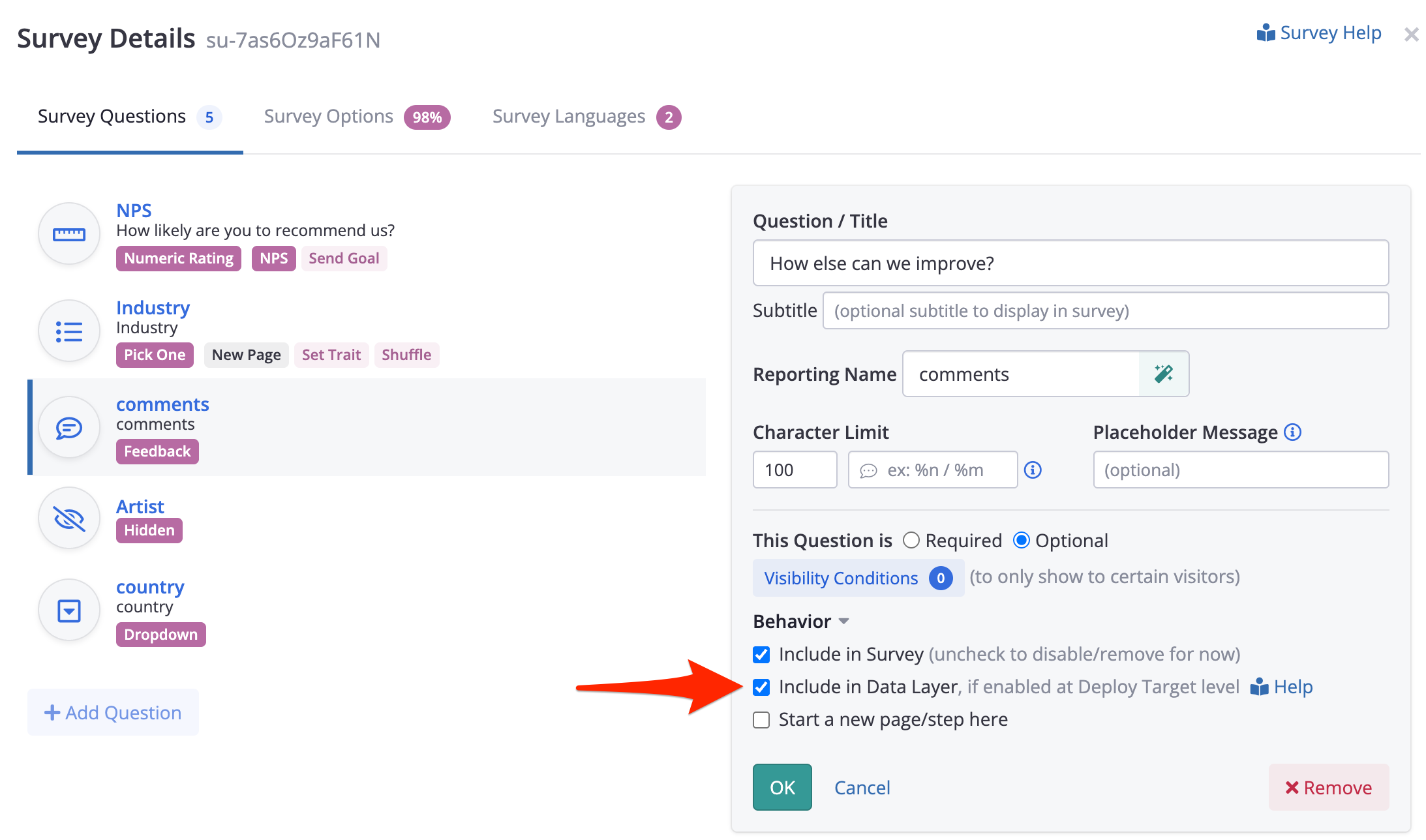
Note that these answers will still be included in the Survey Responses view in the Conductrics Admin.
Updated 10 months ago