
First-Party Event Reporting
For reporting on "offline" or "downstream" conversion events
Beta FeatureThis First Party Event Reporting feature is available in Beta as of our 3.7.15 Update. The exact functionality and requirements could change based on feedback as the Beta proceeds. Please reach out to Conductrics if you're interested in participating!
What's This?
This First Party Event Reporting feature is designed to allow Conductrics to provide reporting for "first-party" or "zero-party" conversion metrics that would otherwise be difficult to instrument.
Consider metric scenarios such as:
- Analysis of Video Plays per type/category, where the length of the "plays" can't easily be counted client-side, perhaps because the videos themselves or at least their analytics are hosted by another system.
- Purchase Amounts, where the actual purchase events occur "offline" or on a checkout page that Conductrics isn't included on.
- Total Lifetime Value or other "computed" metric that depends on your company's internal tracking and calculations, and which Conductrics thus wouldn't be able to determine on its own.
For metrics such as these, it might be difficult or impossible to simply pass the events to Conductrics as they happen in your web pages or apps, either because Conductrics is not present, or perhaps because the metrics only become available later.
For such situations, you may be able to use this First Party Event Reporting feature, which allows Conductrics to present traditional experimentation-style reporting using "your" conversion metrics.
Visitor Privacy is Preserved Through Data MinimizationAs you look through this page, you'll note that the "first-party data" you provide to Conductrics is "rolled up" to total counts, with no per-visitor information whatsoever. This is consistent with how Conductrics stores its own reporting data, which is only retained in aggregate form to preserve visitor privacy through data minimization. See also our Visitor Data & Privacy page in these docs, and this conference presentation from our own Matt Gershoff.
What You'll Need
Your systems will need to make aggregated counts available to Conductrics, which will require a few steps on your side:
- Your internal database (or data lake/warehouse) will need to contain the variation assigned to each visitor for each of your Conductrics agents (at least those agents that you want to use with this feature).
- Your internal database (or data lake/warehouse) will also need to know about the actual conversion counts for each of the metrics that you want to use with this feature.
- You'll need to create a "job" or "export" on your side that does the appropriate querying and generates a CSV file that contains the needed counts. See the CSV Data File Structure section below.
- Your systems will need to place the resulting CSV file in a (secured, private) S3 Bucket that Conductrics can fetch the files from. See the S3 Bucket / Permission Requirements section below.
Note that the counts/data that you'll be providing to Conductrics will be in aggregated, completely anonymous form only. In keeping with our privacy-first design, the data you provide to Conductrics for this feature will NOT contain visitor-specific information.
Define Your Data Source in Conductrics
You'll need to create a "Data Source" in Conductrics, so we know where to fetch your data from:
- Go to Settings > First Party Reporting in the Conductrics Admin.
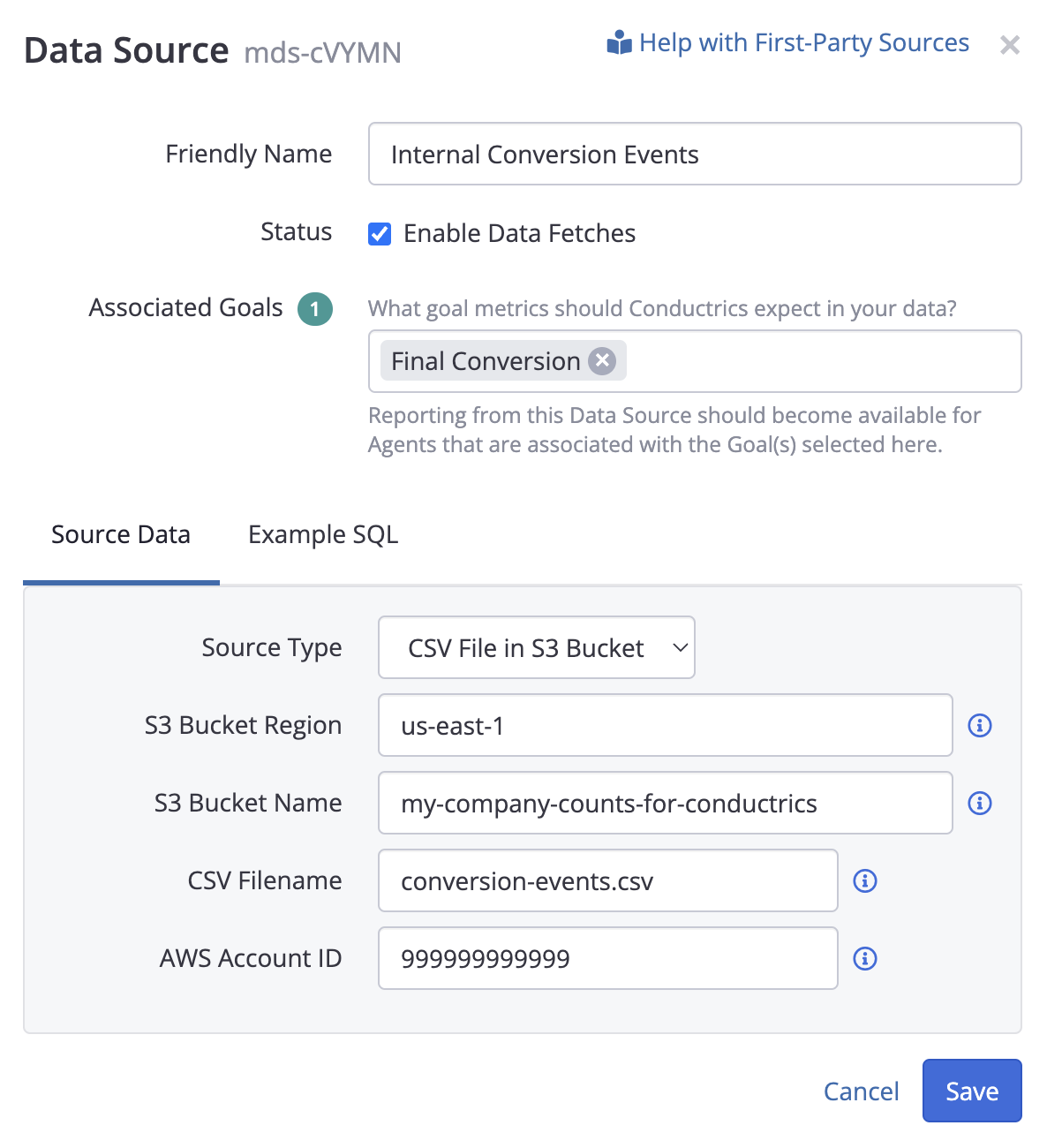
- Click Add Data Source and provide a Friendly Name for your data source (see screenshot below).
- For Associated Goals, select the Goal (or Goals) that you created earlier.
You can come back and do this part later if you prefer. - Under Source Data, leave the Source Type at CSV File in S3 Bucket (currently the only option), then provide your S3 details:
- For the S3 Bucket Region, provide the AWS region code that your S3 bucket belongs to, such as
us-east-1oreu-west-2. - For the S3 Bucket Name, provide the name of your S3 bucket, as it appears in your AWS Admin console. Please do not provide your bucket's ARN or URL, just its name.
- For the CSV Filename, provide the name of the generated CSV file (with your actual counts and so on). Use slashes to represent folders if needed.
- For the AWS Account ID, provide your 12-digit AWS account number, which is used to verify that the bucket is under your control (see note below).
- For the S3 Bucket Region, provide the AWS region code that your S3 bucket belongs to, such as
- Click Save to finish creating your Data Source.
About the AWS Account IDConductrics provides this account number to AWS as the
ExpectedBucketOwnerparameter when requesting data/counts via S3, to verify that the bucket is (and remains) under your control. See Verifying bucket ownership with bucket owner condition in the AWS documentation.
No need to make the file public!You do not need to make your S3 Bucket or your data file publicly available. While there shouldn't be any sensitive data in the file, Conductrics still recommends that you ONLY make it available to Conductrics as general "information hygiene" (perhaps adding a carefully-considered list of users/services in your organization if needed).
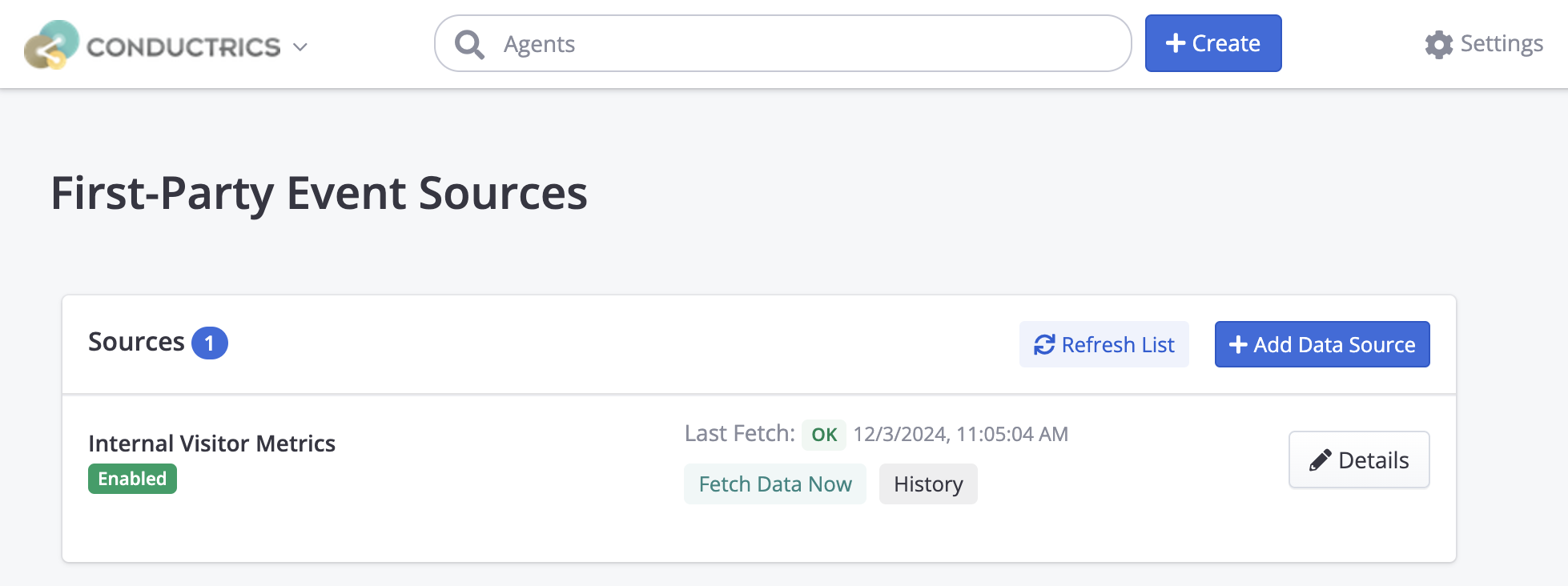
After the Data Source is created, it should appear in the list under Settings > First Party Reporting as shown below:
CSV Data File
Your system should create a standard comma-separated (CSV) file:
- A header row (defining the column names) is expected, with the required column names explained below.
- Values must be separated by commas. Rows must be separated by newlines. Quoting of string values is optional.
- The filename is up to you (ending with
.csvis optional, but recommended for clarity).
The querying or other process is up to you, and may be different depending on whether you are using a SQL-based database, a time-series style datastore, or some other type of system.
Required Fields
At a minimum, the following columns MUST be provided in the CSV:
Date(integer) - The Day in question, as a Unix-style timestamp (seconds since Jan 1, 1970). Will be floored to the nearest day (in other words, only the date matters; any time portion is ignored).Agent(string) - The Conductrics Agent code (aka "API Code") as found in the Conductrics Admin.Variation(string) - The Variation code (such as "A" or "B") as found in the Conductrics Admin.Sels(integer) - The number of visitors that were exposed to the variation on the date in question.
In addition, for each Goal / Conversion type selected under Associated Goals for your Data Source (see earlier screenshot), you should provide:
<goal code>(integer) - The table must have a column named after the unique Goal API Code as found in the Conductrics Admin (so, if your goal code isg-sales, then the column would be namedg-sales). The values in this column should reflect the total number of goal/conversion events for the agent and variation on the day in question.<goal code>_sumsq(integer) - The table must also have a corresponding column name with suffix_sumsq(such asg-sales_sumsq). This should be the "sum of squares" for the goal/conversion events (see Providing the Sum of Squares section below). Note that if each visitor can only reach the goal once, the values in this column will be the same as the<goal code>column.<goal code>_val(number) - For Goals that accept numeric values (see Goals / Conversions), you should also provide a column with the total numeric value of the events reflected in the<goal code>column. You may omit this column for non-numeric goal types, or provide the same value as<goal code>(essentially saying that each goal event is worth1).<goal code>_val_sumsq(number) - For Goals that accept numeric values, you must also provide the "sum of squares" for the numeric values of the goal/conversion events. You may omit this column for non-numeric goal types, or provide the same value as<goal code>_sumsq(again, essentially saying that each goal event is worth1).
Providing the Sum of Squares
As noted above, some of the columns provide sum-of-squares columns (_sumsq) for each of your "first party" metrics. This is a simple technique used to power the necessary statistics for the Conductrics reporting (such as confidence intervals, distances from the mean scores, estimated "lift", and so on).
By using the sum-of-squares, we can provide the statistical calculations you need while avoiding visitor-level information at all, which is an important part of our approach of preserving visitor privacy via explicit data minimization. Check out our blog post about privacy engineering for further discussion.
What this means in practice is that you'll need to provide a "squared" version of the accumulated counts or values for each conversion event. For each visitor that hits the conversion event once, they should be counted as 1 in the sum-of-squares. But for each visitor that hits the conversion event twice, they should be counted as 4 in the sum-of-squares. The same overall pattern is followed for any numeric values for the conversion events.
Note that if each visitor can only reach a goal/conversion type once due to the actual conversion events in the real world, the sum-of-squares will be, by definition, the same as the corresponding "normal" counts or values.
Let's Consider an Example:
- A Conductrics Agent called
agent-1which is running an A/B test with two variations,AandB. - Let's say there have been 10 Visitors assigned to
Aand 9 Visitors assigned toBso far. - For A, there has been just 1 conversion event so far, with a numeric value of 9.99. That conversion should be counted as 1 in the
salescolumn, and also as 1 in thesales_sumsqcolumn (because 1 squared equals 1). In thesales_valcolumn that conversion should be counted as 9.99, and 99.8001 in thesales_val_sumsqcolumn (because 9.99 squared is 99.8001). - For B, there have been 3 conversions, for 2 visitors:
- One of the 9 visitors made a single purchase for 9.99. That conversion should be counted the same as the "A" conversion above, so 1 in the
salescolumn, and 1 in thesales_sumsqcolumn. And in thesales_valcolumn they should be counted as 9.99, and 99.8001 in thesales_val_sumsq. - Another visitor made two separate purchases: The first purchase was 9.99 and the second purchase was for 10.99. These two conversions should be counted as 2 in the
salescolumn, and 4 in thesales_sumsqcolumn (because 2 * 2 = 4). In thesales_valcolumn these two conversions should be counted as 20.98 (9.99 + 10.99), and as 440.1604 in thesales_val_sumsqcolumn (20.98 * 20.98). - Thus the aggregated
salestotal for B should reflect 1 for the first visitor and 2 for the second visitor, so a total of 3. Likewise we should see 5 forsales_sumsq(1 + 4). Forsales_valwe should see 30.97 (9.99 + 20.98) and forsales_val_sumsqwe should see 450.1504 (9.99 + 440.1604).
- One of the 9 visitors made a single purchase for 9.99. That conversion should be counted the same as the "A" conversion above, so 1 in the
The final aggregated counts to provide to Conductrics would look like this:
| Date | Agent | Variation | Sels | sales | sales_sumsq | sales_val | sales_val_sumsq |
|---|---|---|---|---|---|---|---|
| 1710720000 | agent‑1 | A | 10 | 1 | 1 | 9.99 | 99.8001 |
| 1710720000 | agent‑1 | B | 9 | 3 | 5 | 30.97 | 450.1504 |
Saved in plain CSV format, that would result in a file like this:
Date,Agent,Variation,Sels,sales,sales_sumsq,sales_val,sales_val_sumsq
1710720000,agent‑1,A,10,1,1,9.99,99.8001
1710720000,agent‑1,B,9,3,5,30.97,450.1504Depending on what you're using to generate the CSV, the column names in the header row (and the agent/variation codes in the remaining rows) might have quote marks around them. That's fine but optional for use with Conductrics.
Including Visitor Traits (Optional)
You MAY also include counts specific to Custom Visitor Traits. To do so, you provide separate counts for each Visitor Trait by including these additional columns in your CSV:
- Trait_Group (string)- This column should match the Group API Code for your Custom Trait Group.
- Trait_Value (string) - This column should match the Trait API Code for your actual trait values.
You would then include separate rows for each actual visitor trait.
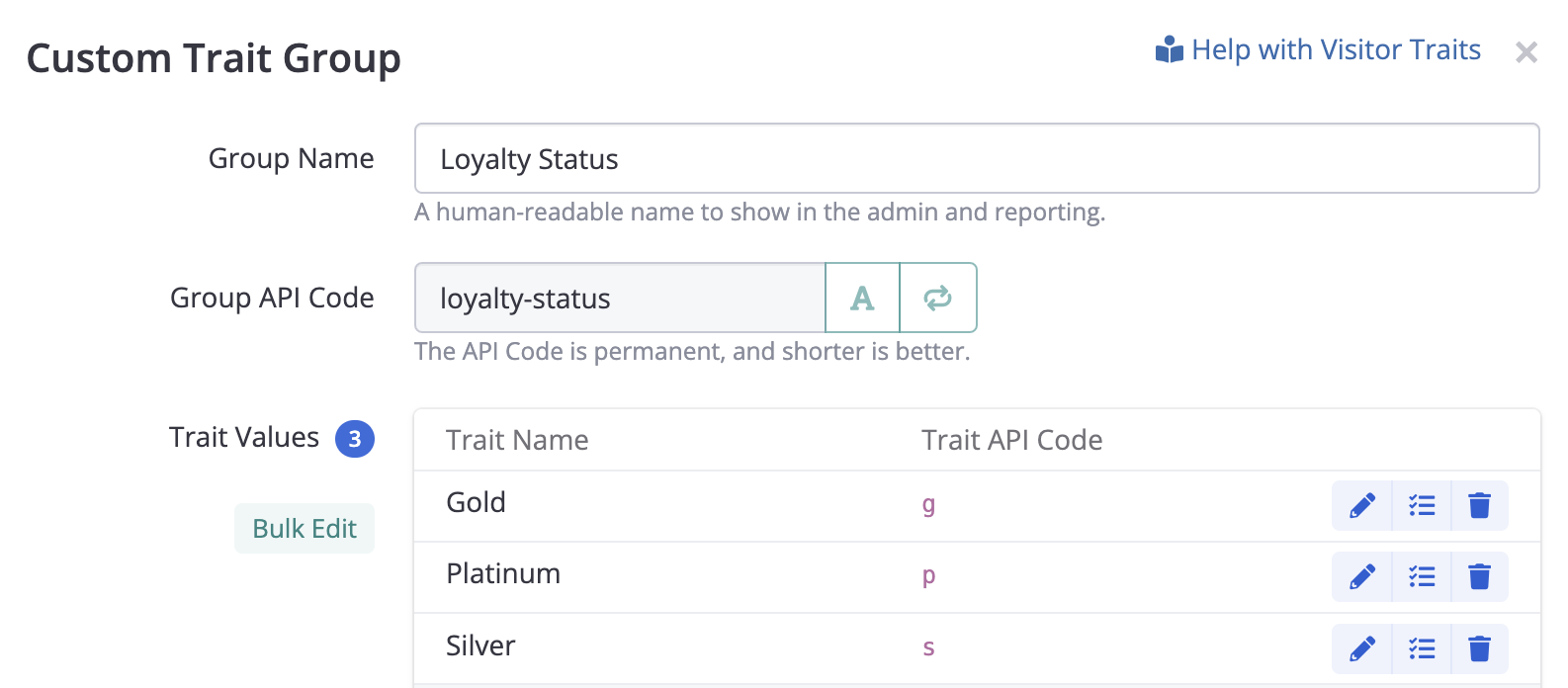
For instance, if you had a Custom Trait Group like this (under Settings > Visitor Data), then the corresponding rows in the CSV file should have loyalty-status for the Trait Group column, and g or s or p to indicate Gold / Silver / Platinum.
Including Selection Policy (Optional)
If your Conductrics agents may use a variety of Selection Policies either now or in the future, you may want to return the selection policy code back to Conductrics in the CSV. This will allow you to discern between Fixed and Random selections for agents that use "fixed rules" to assign visitors to variations, or discern between Random and Predictive selections for Predictive agents (see How Predictive Agents Work.
- Policy - The selection policy code, such as
rfor Random selections (such as for A/B Experiments) orffor Fixed selections. You would get the selection policy from the original Conductrics selection event via the Runtime API or Data Layer or Analytics Connectors.
If not provided, the numbers will be assumed to be for the Random policy (r).
S3 Bucket / Permission Requirements
Your S3 Bucket must allow Conductrics to read your CSV file(s), by granting the s3:GetObject permission to the following ARN from Conductrics's AWS account:
arn:aws:iam::661082963978:user/conductrics-third-party-data-access
Please see See Bucket Policies in the AWS S3 Documentation for details on how to create a Bucket Policy that grants this permission. Here's an EXAMPLEof such a S3 Bucket Policy:
{
    "Version": "2012-10-17",
    "Statement": [
        {
            "Sid": "Allow Conductrics To Read CSV Files",
            "Effect": "Allow",
            "Principal": {
                "AWS": "arn:aws:iam::661082963978:user/conductrics-third-party-data-access"
            },
            "Action": "s3:GetObject",
            "Resource": "arn:aws:s3:::com.my-company.counts-for-conductrics/*.csv"
        }
    ]
}
Read-Only Access, PleaseThere's no need to grant Conductrics the ability to write files to your S3 Bucket. Conductrics recommends that you grant read-only access (that is, the
s3:GetObjectpermission) ONLY.
No Over-Sharing, Pretty Please!The data being shared via CSV files should be completely innocuous. Nonetheless, Conductrics encourages you to validate that Conductrics is ONLY given read-only access to the CSV files that you plan to use for this First-Party Event Reporting feature. AWS provides good documentation and tools for this purpose.
Custom KMS Encryption Keys
Your data files on S3 may be encrypted using "AWS Key Management Service keys" (SSE-KMS) defined in your AWS account, as opposed to using the default "Amazon S3 managed keys". If so, you will also need to grant permission for the kms:Decrypt action to Conductrics for the KMS Key in question.
You can do that by editing the Key policy for that encryption key, granting the permission to the same ARN (from our AWS account) as shown above. Here's an example of what that might look like, though your organization may want to grant the permission another way:
{
    "Sid": "Enable Conductrics to Decrypt",
    "Effect": "Allow",
    "Principal": {
        "AWS": "arn:aws:iam::661082963978:user/conductrics-third-party-data-access"
    },
    "Action": "kms:Decrypt",
    "Resource": "<your key's ARN here>"
}
You would add the above statement or equivalent to whatever existing statements are already in the Key policy. See this AWS Repost article for further details on how to grant permission to the kms:Decrypt action and why it is needed.
Refreshing Source Data
Data is refreshed from your data source periodically. The default is Daily shortly after 9AM local time (according to your your account's Timezone preference, under Settings > Company Preferences). Contact Conductrics if you would like a different refresh schedule.
You can also request a refresh manually, via the Fetch Data Now button under Settings > First Party Reporting. See screenshots in preceding sections.
CSV Fetches Overwrite Prior Fetches for the same Agents and DatesEach time Conductrics fetches and imports your CSV file, the data in the CSV completely replaces the data for each agent and date combination, overwriting whatever counts had previously been fetched for the same agent(s) and date(s) from the last CSV fetch. Other dates and agents from prior CSV fetches are not affected. The built-in Conductrics counts (including "normal" Express or API Goals) are also not affected.
Viewing Report Data
Once you've created a Data Source, then you should be able to view the numbers and analysis via the Activity Report and Testing Report.
Agents that use any Goals that you've associated with the Data Source should allow you to switch over to the Data Source's numbers via the More button that appears next to the usual "Data Set" selection (where you select between Production and QA numbers normally):
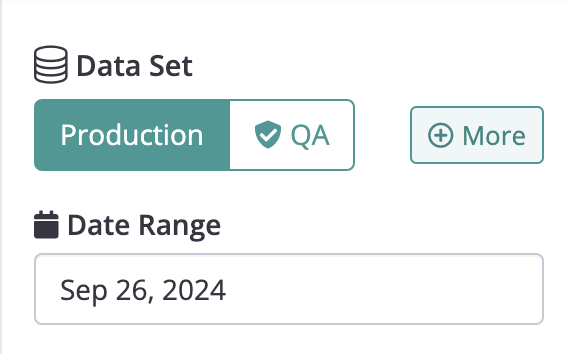
You can then choose the Data Source (such as Internal Conversion Events) from the dropdown that appears.
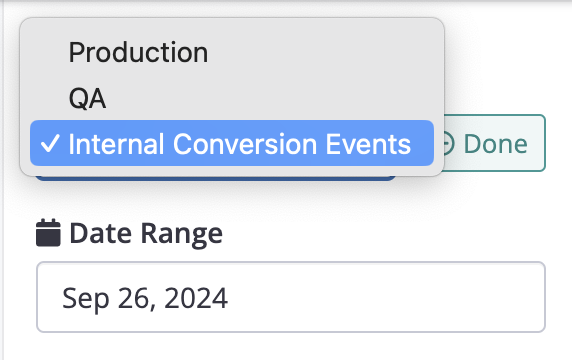
Now you should be able to view the report normally. Other report functions such as the Download button and various filtering and display options should be operational as they would be for "normal" Conductrics numbers.
Click Done (see above screenshot) to return to the normal Production vs QA options.
If you don't see the More button, verify that the agent in question is using one of the Goals/Conversion types that is associated with your Data Source.
Viewing Fetch History
You can view a history of when Conductrics tries to fetch data from your CSV file.
- Return to Settings > First Party Reporting in the Conductrics Admin, then hit the History button for your Data Source.
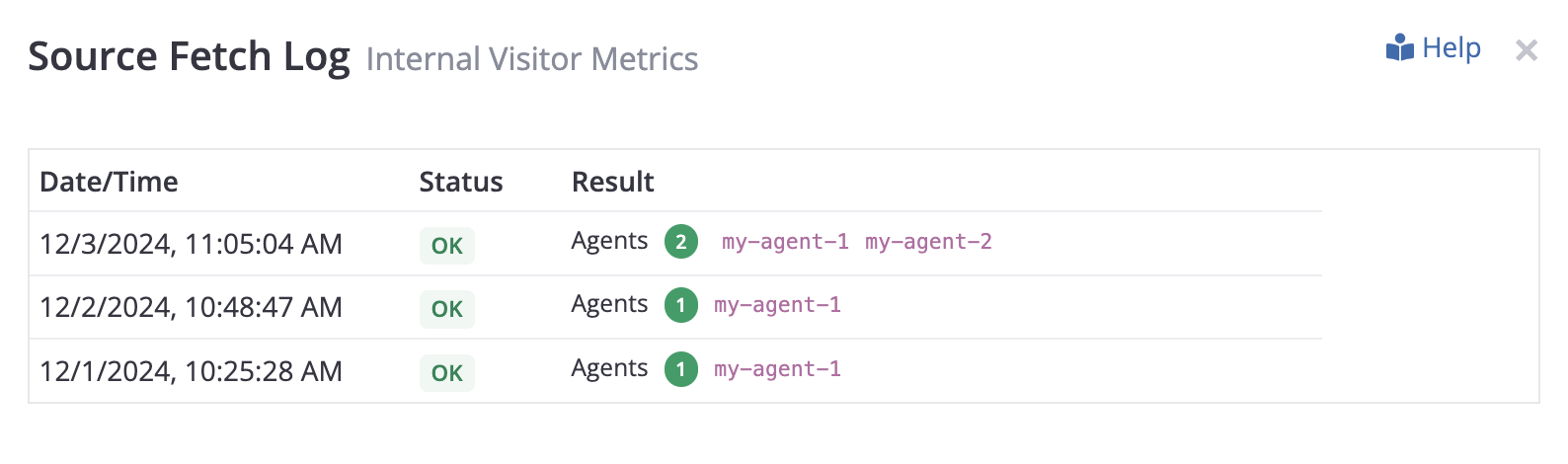
- The Source Fetch Log window appears with a simple list for attempted fetch.
- For each successful fetch, the Status column shows the number of agents for which data was fetched, and their agent codes (see screenshot below):
Error Messages
If the fetch was not completed successfully, the Status column in the Fetch Log (see above) shows Error, with the type of error displayed in the Result column in place of the agents.
Some of the error messages from AWS can be confusing in this context:
- AccessDenied: User XXX is not authorized to perform: s3:ListBucket on resource YYY because no identity-based policy allows the s3:ListBucket action - This error may mean that the filename you provided doesn't exist in the given S3 Bucket.
- PermanentRedirect: The bucket you are attempting to access must be addressed using the specified endpoint. - This error may mean that you have provided the incorrect S3 Bucket Region.
- AccessDenied: User XXX is not authorized to perform: kms:Decrypt on the resource associated with this ciphertext - This error probably means that the data file on S3 uses a "custom" AWS Key Management Service key defined in your AWS account, but you haven't granted the
kms:Decryptpermission to Conductrics. See the "Custom KMS Encryption Keys" section above.
Updated over 1 year ago