
Admin Users / Access
You can have multiple admin users (logins) for your Conductrics account. Each user gets assigned a particular Role level, which affects what they have permission to do within the Conductrics Admin.
You can also organize your admin users into Teams, which can be helpful as more and more people within your company begin to use Conductrics.
Adding and Removing Users
To add or remove users, head over to the Settings > Users / Teams page, then hit Add User and fill in the form that appears:
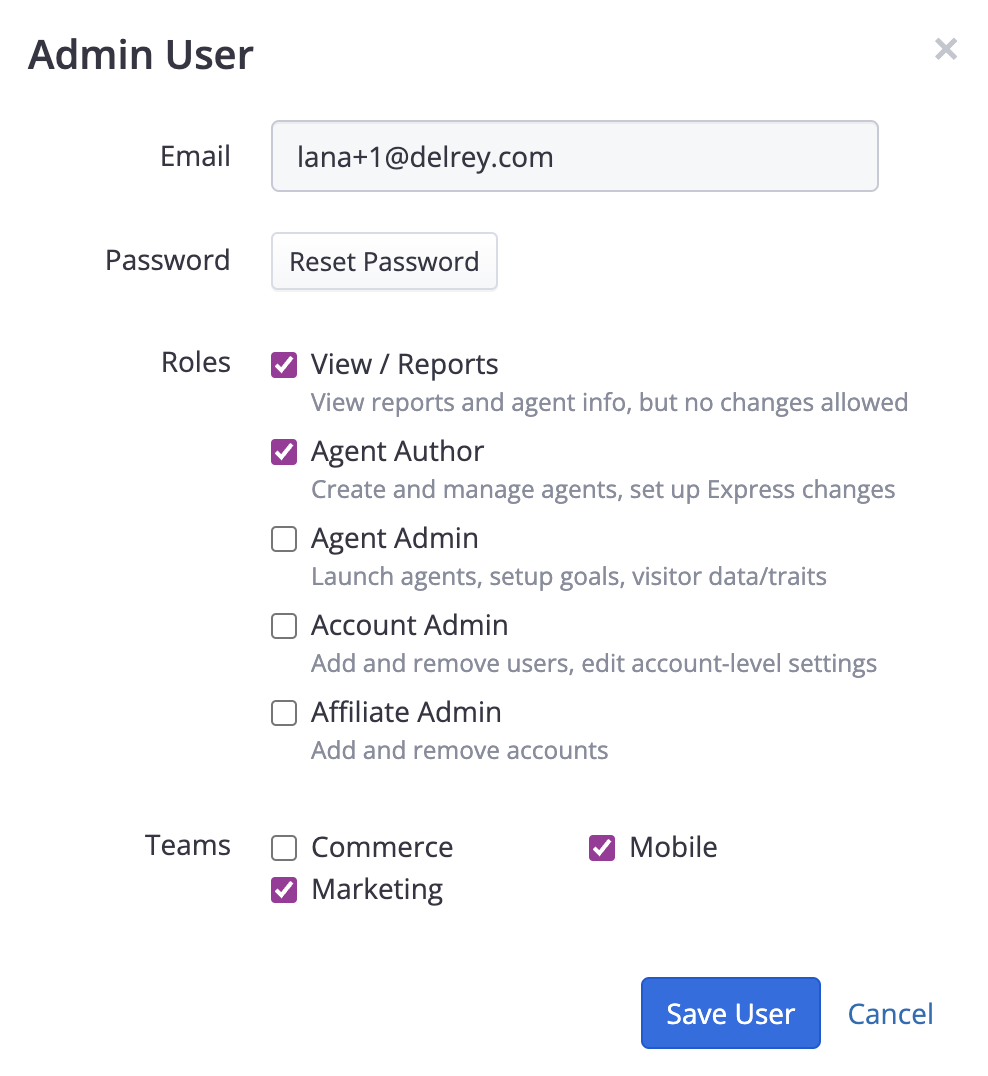
As you can see, there are a few different roles available, which control what the user will have access to when they log into the admin. Assign the role that's appropriate:
- View Reports to create a "read only" user that can just view agents and reports
- Agent Author for a user that can set up new agents/tests, set up conversion/goal events, etc.
- Agent Admin if the user should be able to do everything except for account-level settings and creating new users
- Account Admin if the user should also be able to access your account-level settings and add other users
Once you've added the new user, they will appear in the list as shown below:
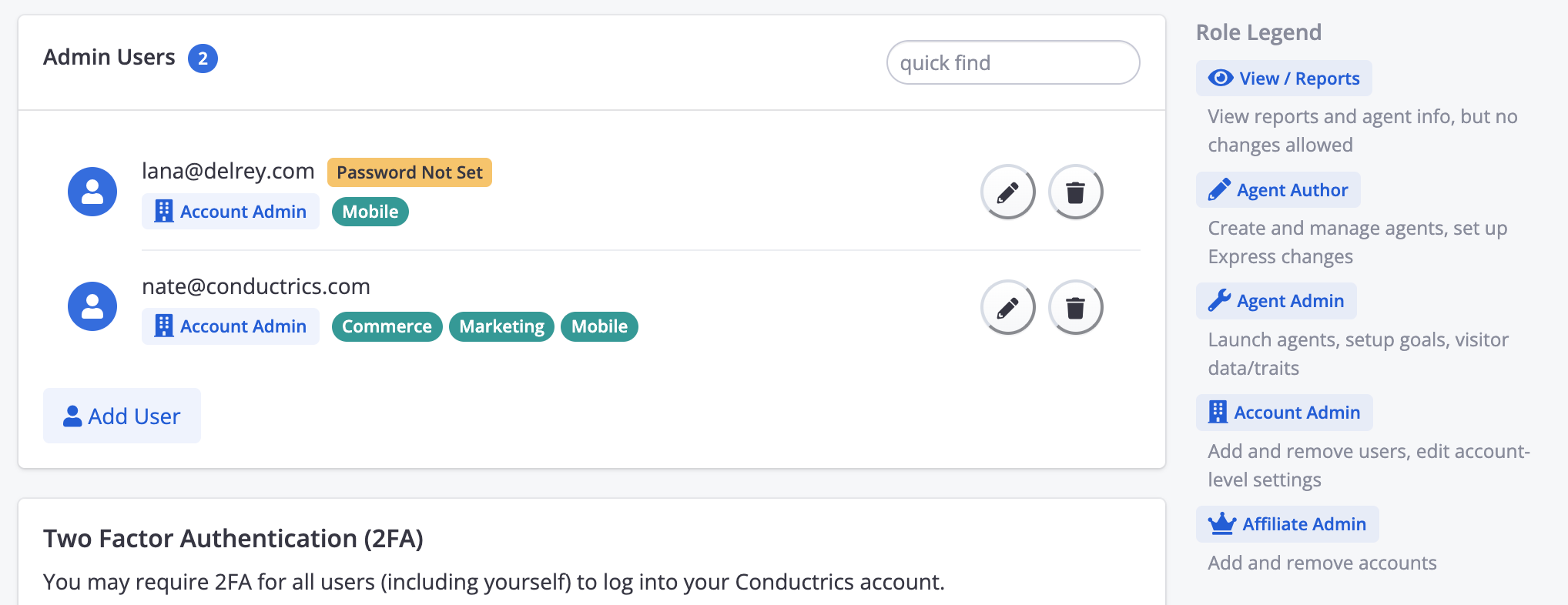
The user should now receive an automated email from Conductrics, which contains a link to establish their password. Until they do, they will be marked with a "Password Not Set" badge as shown in the screenshot above.
If the user does not receive the automated email from Conductrics, see the "New Account or Password-Reset Email Not Received?" notes at the bottom of this page.
Enabling Two-Factor Authentication (aka 2FA or MFA)
You can require two-factor authentication when logging into the Conductrics Admin. Admin users will need to provide a 6-digit code when logging in
Conductrics recommends enabling two-factor authentication, especially if you are using Conductrics Express (since it provides the ability for users to make changes to your site).
You can also require a separate 2FA step for new tests/agents or other changes to get deployed to production. See Two-Factor Deploys for details.
Passwords and Resets
Sometimes an admin user will forget their password and need to reset it. They can use the "Forgot Password" link on the login page, which will send them an email with a link to reset their password.
Or you can go to Settings > Users / Teams in the Conductrics Admin, then hit the "Edit" button for the user (as shown above) and click the Reset Password button there. That will also send the user an email with a link to reset their password.
Logged-in users can also change their own password by clicking on their name/avatar at top right of the Conductrics admin, then choosing My Password / 2FA from the drop-down menu.
Single Sign-OnLet us know if your organization uses a SAML-based single-sign-on (SSO) provider that you would like your users to be authenticated against, instead of having a separate Conductrics password.
Password RequirementsLet us know if your organization has special requirements about password length, special characters, etc. We can configure your company's Conductrics setup accordingly.
New Account or Password-Reset Email Not Received?
Conductrics sends an automated email when:
- An admin user is first added to the system
- An admin user tries to reset their password via the "Forgot Password" link on the login page
- You reset a user's password via the Reset Password button for the user on the Settings > Users/Teams page.
The automated email contains a link to proceed.
If the user does not receive the automated email from Conductrics, they should first check if it may have landed in their "spam" folder. If you're sure the user's email address is correct, and the automated email has not appeared in a "spam" folder, then your company's email servers may be rejecting emails from Conductrics. Ask your email administrator if [email protected] needs to be added to their "allow list" or "whitelist". Feel free to contact Conductrics with any questions.
As a workaround, someone who has full access to the Conductrics Admin can go to Settings > Users/Teams and hit the Reset Password button for the user in question. After you confirm that the password should be reset, look for the "Send Manually" callout at the top of the list of users. You can open that up to get the link that would normally be sent via email, and send the link directly to the affected user (via text message or Slack direct message, etc). The link will expire after an hour.
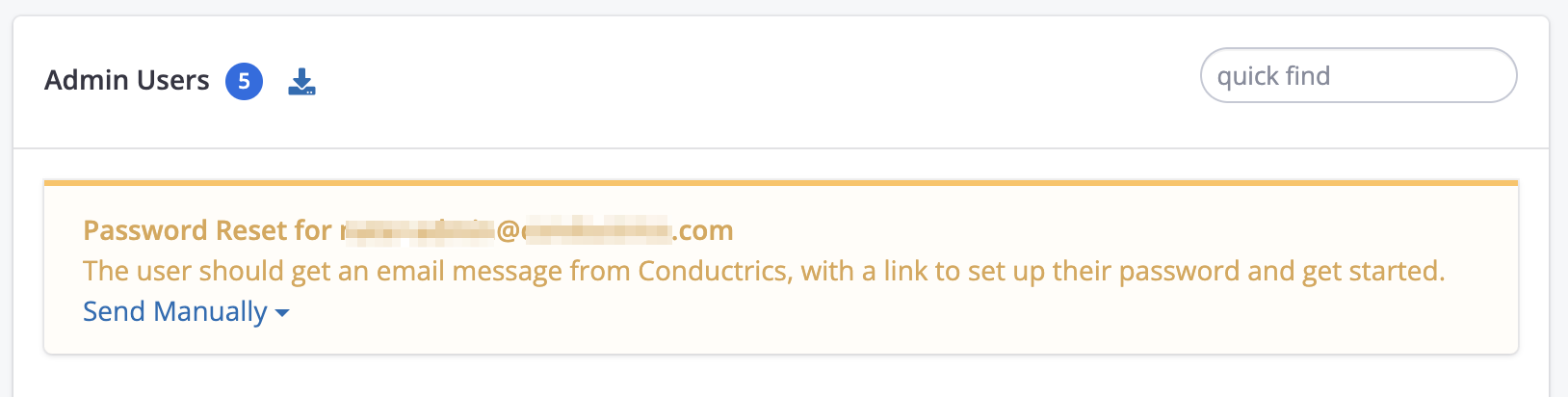
We don't recommend using the "Send Manually" workaround as a permanent solution, especially if you are the only user who has full administrative access, as you could end up with no way into your account if you forget your own password. It would be strongly recommended to take whatever steps are needed internally to get our automated emails whitelisted. Let us know if you have any questions.
Updated over 1 year ago