
Okta SSO
If you happen to be using Okta, this page will guide you through the necessary steps to add Conductrics as an "App Integration" within your Okta account.
The necessary steps are:
- Go to the Applications page in your Okta admin
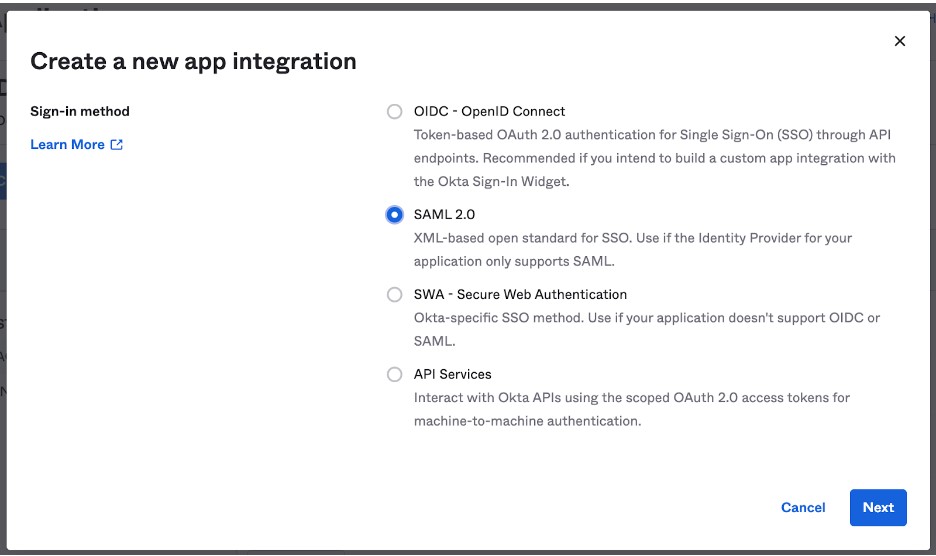
- Hit the Create App Integration button
- Specify SAML 2.0 as the "Sign-in Method" (see screenshots below)
After that, you will get to the Configure SAML page like the image below
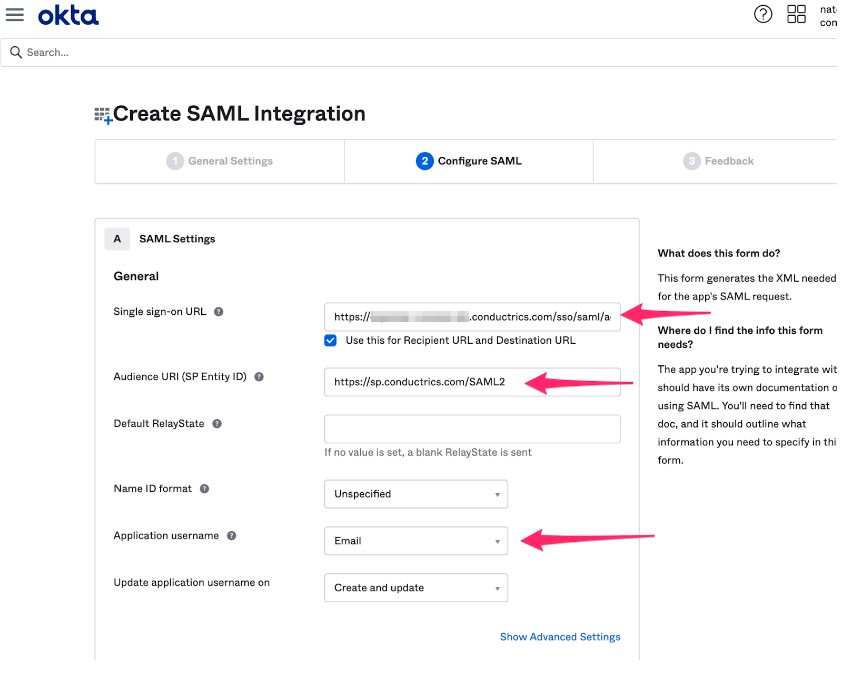
For filling this page, you'll need:
- Single sign-on URL: https://xxxxx-console-d2.conductrics.com/sso/saml/ac-xxxxx/callback
- SP Entity ID: https://sp.conductrics.com/SAML2
- Default Relay State: (leave blank)
- Name ID format: (leave at Unspecified)
- Application username: Email
Everything else can be left at the defaults.
Single sign-on URLYour Single sign-on URL can be taken from your login page and use the exact base URL (i.e https://company-console-d2.conductrics.com) plus
/sso/saml/ac-xxxxx/callbackusing your actual Conductrics account/owner code instead ofac-xxxxx. In the end you should have something likehttps://company-console-d2.conductrics.com/sso/saml/ac-xxxxx/callback
Once you’ve created the Conductrics Application in Okta, go to the “Sign On” tab for the Conductrics app (still in the Okta admin). You should see a View SAML setup instructions button in there. That should give you a page that looks like this:
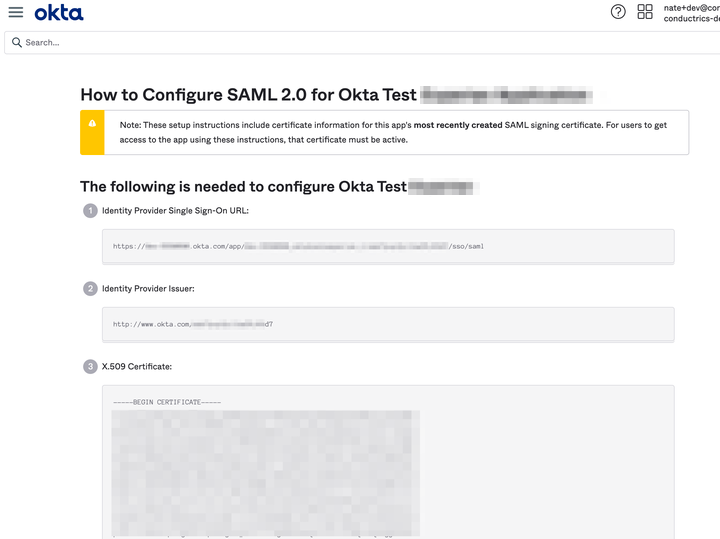
Once on that page, you can either save that page as a PDF or just send us the 3 pieces of info (the URL, Issuer, and cert) that the page provides. We need that to finish the setup from our side. So once we have those, we can start testing out the integration.
Please NoteEach user still needs to be in the Conductrics account, and their permissions come from the role in Conductrics (not from their permission level or similar in Okta). In SAML-speak this is just re-iterating that Okta is being used here for authentication as opposed to authorization. Also note that the email address known to Okta for each admin user must match the email address shown in the Conductrics account.
Updated 12 months ago