
Event Logging
For debugging or QA purposes when using the Conductrics REST API
When using the Conductrics REST API, you may find that there are scenarios where you'd like to be able to see the "calls" that your application is making.
For instance, you may suspect that your application is making too many calls to Conductrics (due to component re-rendering), or that the session or vid parameters aren't being sent in the way that you expect.
A simple "Event Logging" feature is provided to help "debug" in such a situation:
- You can turn on "Event Logging" for a given REST API Deploy Target that your site or app is actively calling.
- Conductrics logs some very basic information about your API calls for a 30-minute window (or until you turn the logging back off).
- You download the log records as a simple CSV file for further examination.
The Event Logging feature is intentionally limited in scope, meant for debugging / QA scenarios only. See the Caveats and Limitations section later in this page.
Conductrics also offers a separate feature called QA Sessions for the REST API, which provides much more detail. But you need to provide the specific visitor "session" IDs that you want to log, whereas the simple event logging discussed on this page logs all agent selections for all visitors (albeit with fewer details and only for a brief window).
Enabling Event Logging
To get started:
- Go to Settings > Deploy Targets in the Conductrics Admin
- Hit the Setup button for your REST API Deploy Target (make sure you pick the right one if your account has multiple REST API deploy targets).
- Go to the Data Passing tab and hit the Enable button under Event Logging.
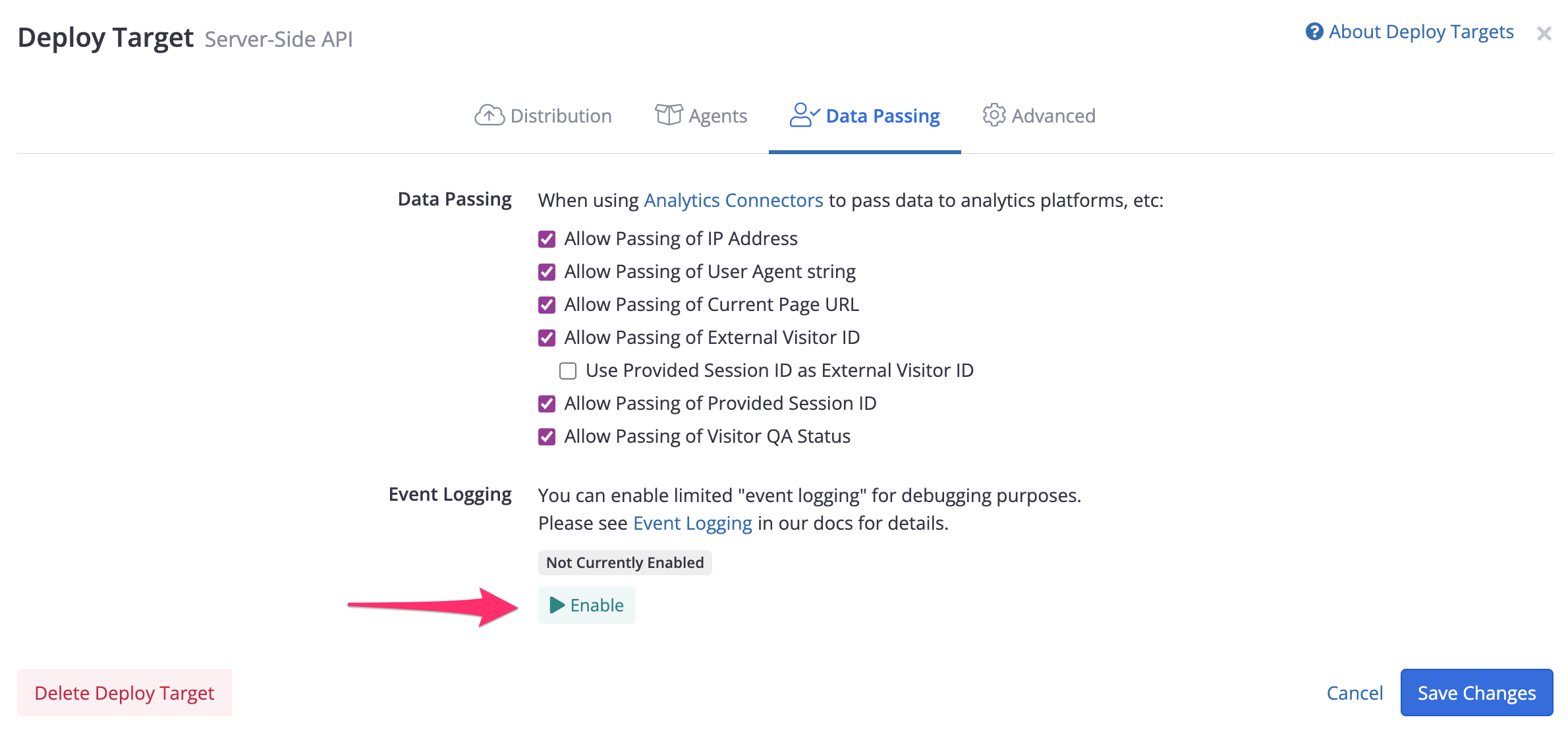
The Event Logging feature was added in Conductrics 3.7.10, and may not be enabled for your account yet. Please feel free to contact Conductrics if the Event Logging feature isn't enabled for your account. There is no charge to enable the feature.
Downloading the Event Logging Records
After you enable the logging, you can check back in a couple minutes to see the number of records logged so far (see screenshot below).
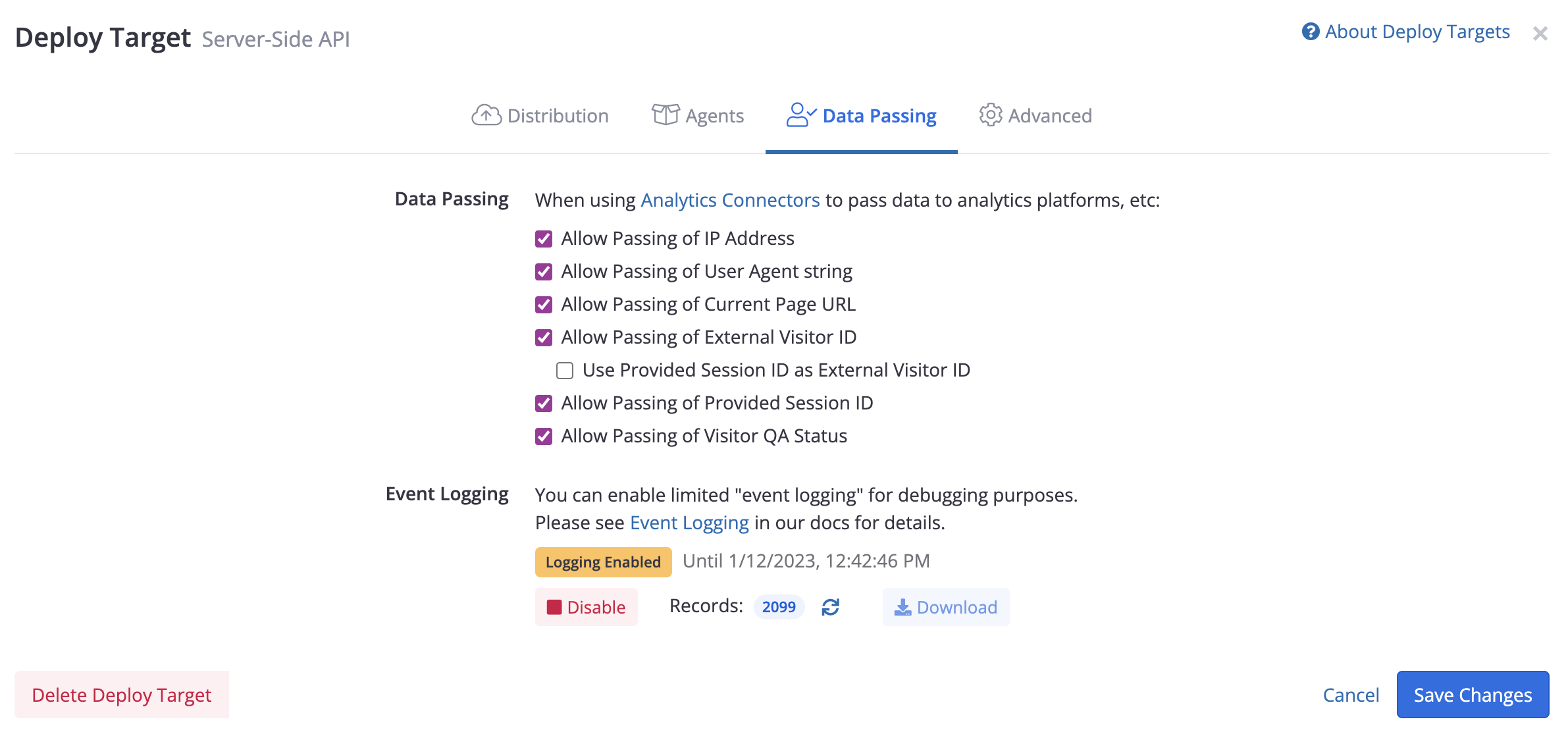
You can hit the "Refresh" button next to the record count to refresh the count. If it remains at zero, confirm that you enabled the the logging for the correct Deploy Target (that is, make sure that your application is using that Deploy Target's REST API endpoint URL).
The Download button is only available if there are any records to download, which will only be the case if logging is currently enabled (or was very recently). See also the Limitations section below.
Once the record count shows that some records have been collected, you should be able to use the Download button to save the records to your computer as a standard CSV (Comma-Separated) file.
Most browsers will not show the downloaded CSV file in the same "Downloads" type list as other downloaded files from other sites. You will probably need to specifically find and open it via your operating system (Windows File Manager or Mac Spotlight / Finder, etc).
Opening the File in Excel or Other Program
After you download the log file, you can open it in:
- Microsoft Excel
- Other spreadsheet program such as Google Sheets or Numbers from Apple, etc
- Any text editor or other program that can open an ordinary CSV file
The CSV file should contain these columns:
event- the type of event, which will be either:dto indicate a variation selection event (that is, when a visitor gets a new variation assignment for a given test/agent)rto indicate a Goal/Conversion event (that is, when the visitor encounters a conversion-style event in your site or app)
timestamp- the date/time that the event occurred (as a Unix-style timestamp, see callout in next section)session- the ID that was provided as thesessionparameter when calling the REST APIvid- the ID that was provided as thevidparameter (if any) when calling the REST APIagent- the API code of the Conductrics Agent that was calledvariation- the API code of the Variation that the Agent selectedpolicy- the Selection Policy that the agent used to select the variation (most commonlyrfor random, indicating an A/B test scenario).goal- the API code of the Goal/Conversion event that was sent (for events of typeronly - blank otherwise)goal_value- the numeric value of the Goal/Conversion event that was sent (for events of typeronly - blank otherwise)ip- the IP address that was provided as theipparameter to the REST API, or the underlying IP address if not provided (in which case it may be the IP address of your servers or middleware rather than the visitor's IP address).url- the URL that was provided as theurlparameter to the REST API, if any, or thereferer[sic] string (if any) provided by the underlying HTTP request if the parameter is not provided.user_agent- the user-agent string that was provided as theuaparameter to the REST API, or the User-Agent string from the underlying HTTP request if not provided (in which case it is likely the default User-Agent provided by your application's HTTP framework).
The fact that the IP Address, User Agent, Page URL, and so on are in the Event Logging records does not indicate that Conductrics is retaining that information. It is specifically stored for the Event Logging feature only, and discarded after 2 hours (see Limitations section below).
For example, here's what a short sample file looks like in Excel:
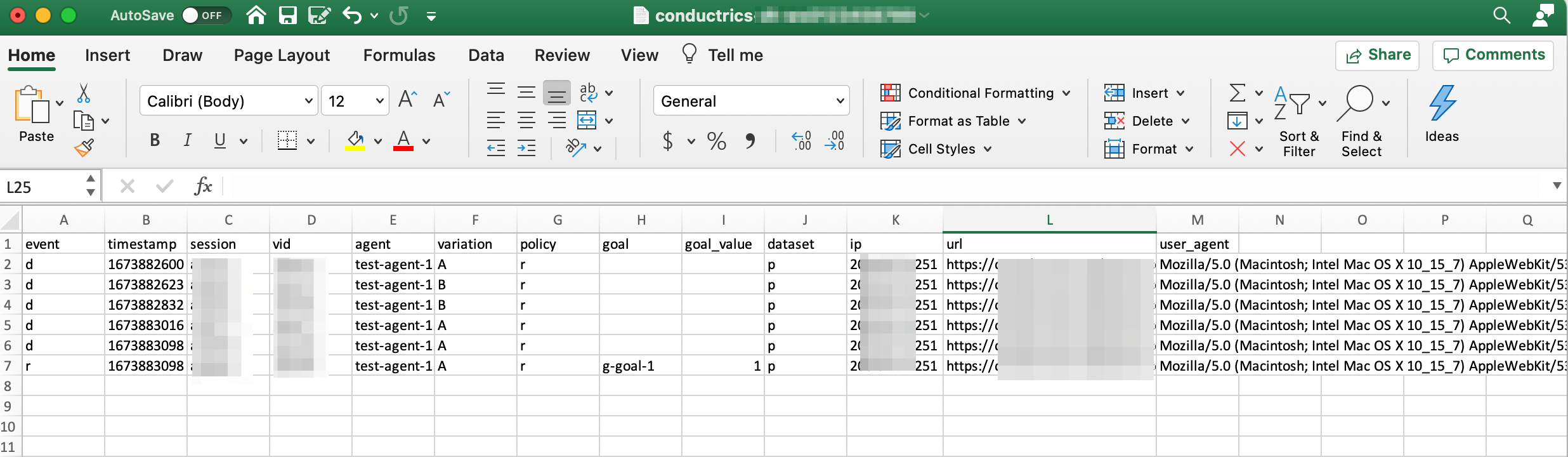
The timestamp column is in the Unix style (number of seconds since Jan 1 1970). If you want to display it in a normal date/time format, add a column that divides the timestamp by 86400 and adds 25569. For instance the Excel formula=$B2/86400+25569can be added to the first cell in the new column, then copied to the remaining rows. You can then change the column's format to Time.
Caveats and Limitations
Because the Event Logging feature is meant for debugging only, the following limitations apply:
-
The Event Logging feature is currently only available for REST API Deploy Targets. Express / Local JS and other types of Deploy Targets may also be supported in the future.
-
Only Selection Events (when an agent picks a variation for a visitor) and Goal/Conversion Events are included in the log at this time. Let us know if you have a scenario where it would help for Survey Response Events to be logged as well.
-
Only those events that would be counted in the Conductrics Reporting are logged, which means that:
- "Sticky Selections" (when an agent returns the previously-selected variation for a test/agent that the visitor previously encountered) are not logged (see Selection Policies).
- Provisional Selections are also not logged until the selection is "confirmed".
- Goal/Conversion Events that would not be counted in the Conductrics reporting are also not logged. For instance, if the "Accepts Up To" limit count for the Goal (for the visitor and agent in question) has been reached, or the goal's numeric value is outside the min/max value (for Goals that accept numeric rewards), the Goal event will not be logged. See Goals / Conversions.
-
Once turned on, the Event Logging feature remains enabled for 30 minutes only, at which time it will automatically turn itself off (see screenshot above). There is no option to turn it on permanently.
-
Event Logging records delete themselves after 2 hours, so you should download them pretty soon if you want to review them.
-
The columns for IP Address, User Agent, Page URL, Session ID, and External Visitor ID are dependent on the corresponding Data Passing options being enabled (see screenshots above). If not enabled, the corresponding "column" in the downloaded file will be blank/empty.
-
The fact that the IP Address, User Agent, Page URL, and so on are in the Event Logging records does not indicate that Conductrics is retaining that information long-term. It is specifically stored for the Event Logging feature only, and discarded after 2 hours as discussed above.
-
The amount of logged data is "capped". If you were to hit the "cap", new log records will overwrite older ones from the same logging session (so the number of records will appear to plateau at a certain point). Contact Conductrics if you hit the cap during a 30-minute logging session; we may be able to raise it for you temporarily.
-
If you are using "Manual Deploys" for your REST API Deploy Target, you will need to do a "Deploy Now" after checking/unchecking any of the "Allow Passing of" checkboxes (see screenshots earlier in this page). You do not, however, need to do a "Deploy Now" after you enable or disable the event logging feature.
Updated over 1 year ago