
Goals / Conversions
How to set up and send your "reward" or "conversion" events
For any optimization or content experiment to be complete, we need to set up at least one type of goal reward. This is how the Conductrics system will measure the value of your variations over time.
What are Goal Events?
The purpose of any Conductrics agent is to measure the effectiveness of your variations. Goal Events are how you tell your agents what to use for that measurement.
Conceptually, after an agent selects a variation, it listens to receive a goal event sometime thereafter. If it does, it updates its internal scores for the selected variation, crediting the variation as the conceptual cause of the goal event.
If one variation tends to generate more goal events than the other variations, reliably enough to be a statistically significant difference, then it may be considered a winning variation.
Goal Events and AudiencesOften, different groups of visitors respond differently to your variations, resulting in more goal events for one variation over another depending on the audience. See the Conductrics Audience Report for a nice way to look for those differences.
Some Examples of Goal Events
Every company is different, so what you consider a Goal Event will be different depending on what you are trying to achieve as a business, and what you are using your Conductrics agents for.
For instance, you might want to send Goal Events to Conductrics when some of these things happen:
- Purchases
- Registrations
- Leads
- Downloads
If you're using Conductrics for a website, you might want to trigger Goal Events when the visitor:
- Clicks a call-to-action or other important button or link
- Reaches some page in your site
- Fills out a form
- Gets to your "Thank you for your order" step
Adding a new Goal Type
You can easily create a new Goal Type in the Conductrics Admin.
- Go to the Agent Home Page for the Test / Agent that you'd like to add the Goal / Conversion to.
- Hit the Goals / Conversions button in the right sidebar to see the list of available Goals.
- Click New Goal Type (unless the Goal you want is already in the list).
If the Goal was already added in the past (perhaps for some other A/B Test), you can just select it from the list rather than re-defining it again. If you don't see the existing Goal that you want, try clicking the Reveal Hidden switch (shown in above screenshot). See the "Keeping the List of Goals Tidy" section below for details.
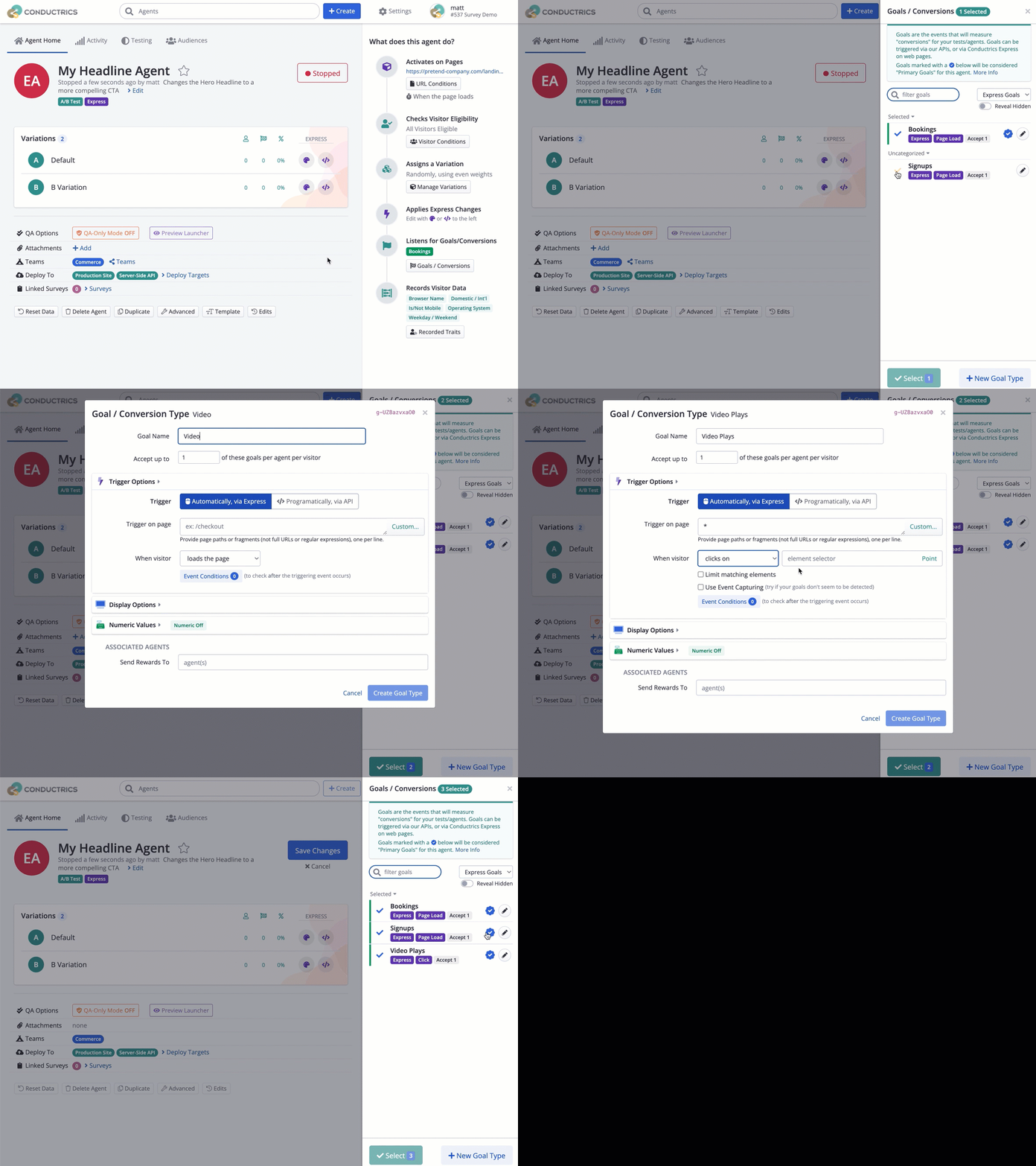
Adding a new Goal Type
If you're using Conductrics Express, there are a few additional fields to fill out, which we'll discuss in the Triggering Goal Events with Conductrics Express section below.
Triggering Goal Events with Conductrics Express
If you're using the Conductrics Express to visually set up your agent variations, you can also set up your Goal Events to trigger on your web pages without having to write any code.
Triggering Goals via the APIIf you're using the Conductrics API rather than the visual Conductrics Express framework, you can skip this section, as you'll send goal events to your agents using the Runtime API. See the Runtime API Overview for details.
You can trigger a Goal Event to fire when the user:
- Gets to a particular page on your site
- Clicks on a button, link, or some other conceptual call-to-action (CTA).
- Does something that fires an Event in Google Analytics, if you are using our GA Integration.
Sending the Goal Event in response to Page Loads
The most common thing is to send a reward when the user gets to a particular page. You set this up by specifying the Trigger on page field, under Automatically via Express:
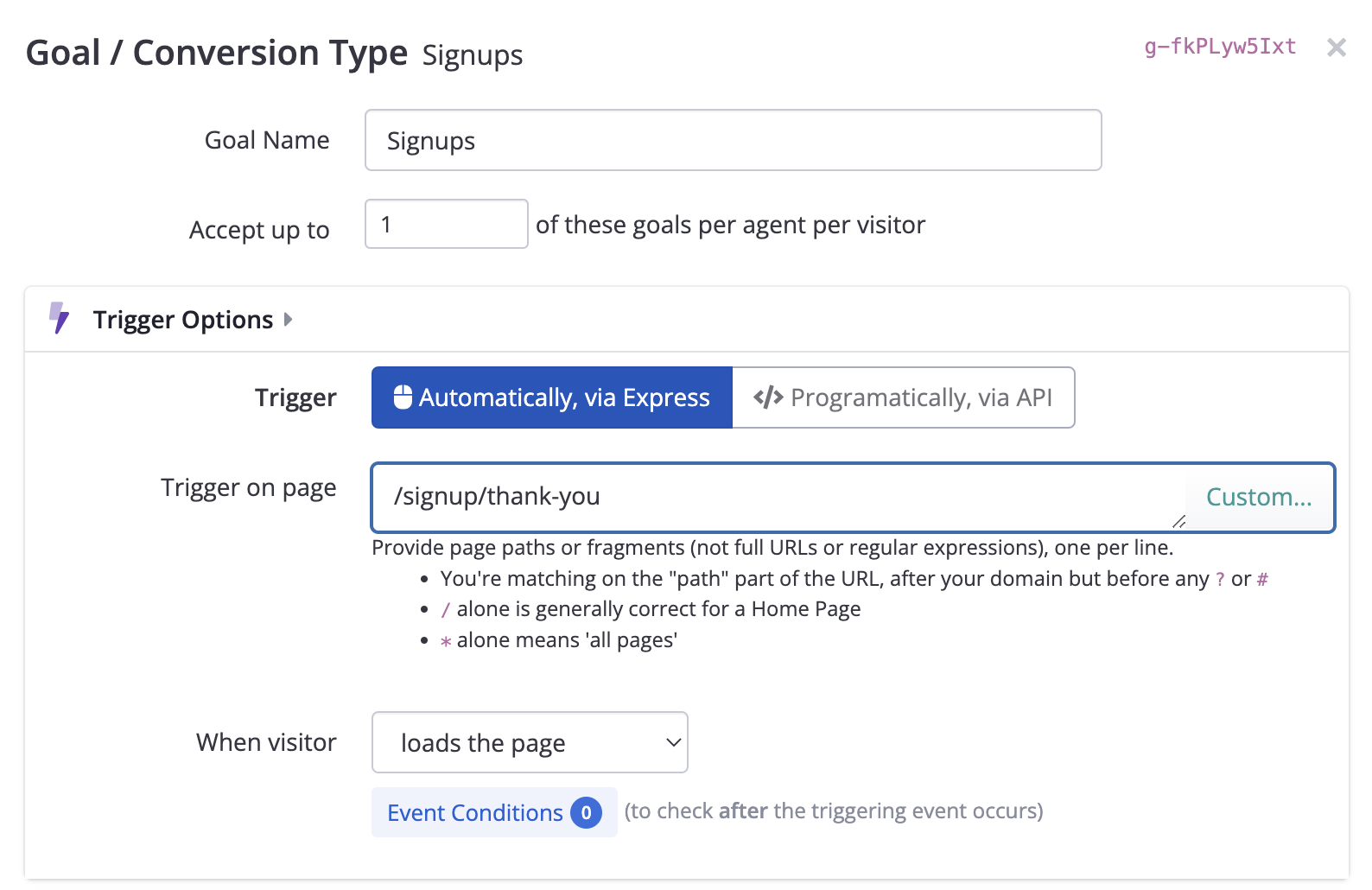
Triggering a Goal when visitor clicks a button
Just provide a URL fragment so that Conductrics knows on which pages you want to send the goal event. For instance, if you want to send a goal event when the visitor reaches the /signup/thank-you page, just enter that URL fragment as shown above.
- You can use
*as a wildcard - You can specify multiple URL fragments, just use your Enter key to put one on each line.
- Use the Custom button if you want to use URL parameters or wildcards, or match multiple URLs, etc.
Sending the Goal Event in response to clicks
Sometimes you'll want to consider a click on a button or link to trigger your Goal Event.
Click events are easy to set up:
- Change the When visitor dropdown to Clicks on
- Provide the Selector for the button or other page element, or use the Point button to identify the button or link (or other element) on your page visually.
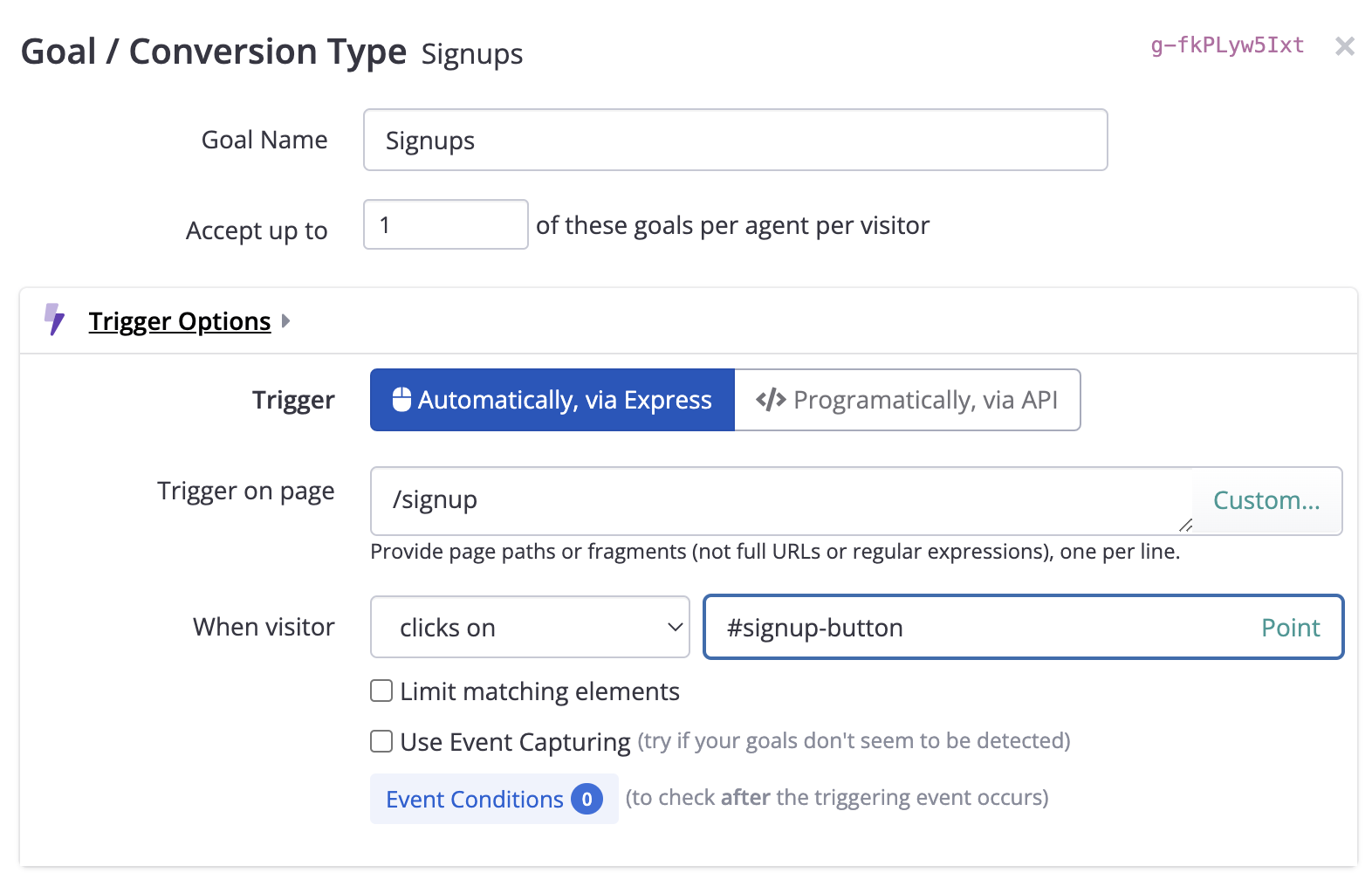
Can't Point and Click?Sometimes you might not be able to point to the element you want for some reason (maybe it's on a page you can't reach without making a purchase, etc). While in "Point" mode, try hitting the Shift+Enter key on your keyboard (instead of clicking) to select it.
You can also type or paste in a CSS Selector for the button/element instead of pointing to it. See CSS Selector Primer for the basics on selector syntax.
Sending the Goal Event in response to Data Layer Events
If you are using our Data Layer Support, you can have Conductrics record a goal when certain events are pushed into your data layer. This can make things easier to manage if your events are already instrumented for your data layer (which is likely if you use Google Tag Manager, for instance).
Sending the Goal Event in response to Google Analytics Events
If you are using our Google Analytics Integration, you can have Conductrics record a goal when desired GA events occur. This can make things easier if you've already got your conversion and other interesting clicks and other events wired up as GA events. For details, please see the Triggering Conductrics Goals when GA Events Fire section under Google Analytics Integration in these docs.
Keeping the List of Goals Tidy
Over time, you may end up with quite a few Goals in your Conductrics account. We provide a few helpful options to keep the list manageable:
- You can say whether the Goal / Conversion type should be shown or hidden by default when selecting Goals for other Agents in the future.
- Choose "Shown" if this is a common Goal that might be used in the future (like "Bookings", or "Purchases").
- Choose "Hidden" otherwise, to keep it out of the list by default when others set up new Tests / Agents. They can always use the "Reveal Hidden" switch to find it later if needed.
- You can also provide a Category for the Goal, to help organize the list of Goals a bit.
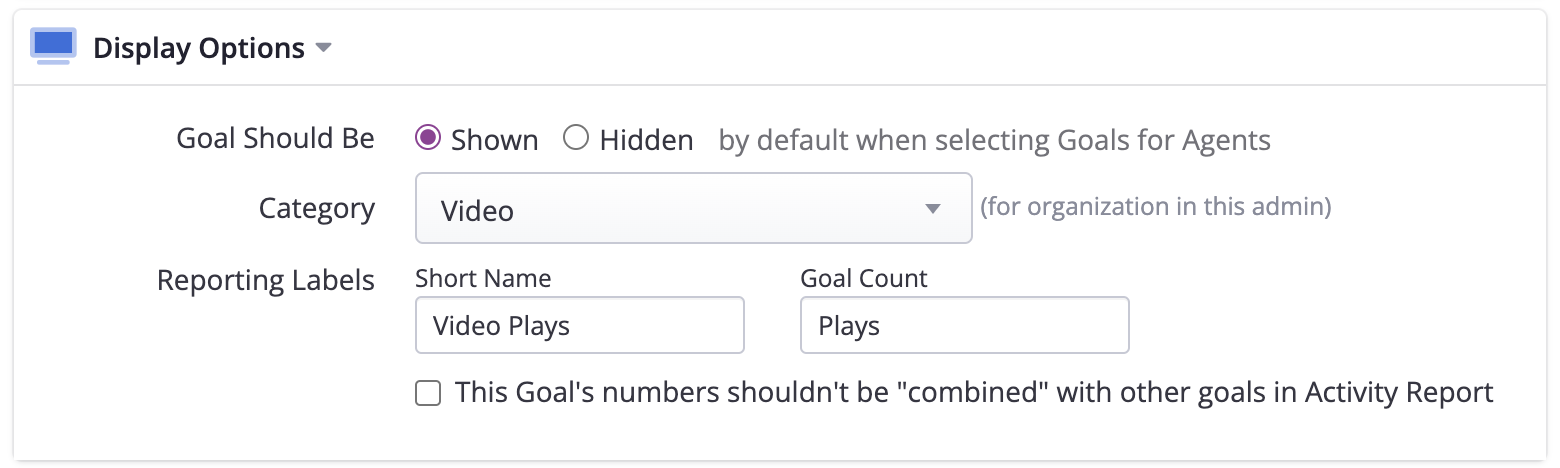
Valued Rewards (for e-Commerce, etc)
In e-Commerce or certain other scenarios, it often makes sense to assign a numeric value to each Goal Event that gets sent to Conductrics.
For instance, if the goal you're sending is that a user just completed a purchase, you can provide the actual dollar amount of the purchase as the reward. This will let our service learn in terms of how much money it can conceptually "make" by picking a particular option when making decisions in the future.
What about non-valued rewards?For Goal Types that don't use Valued Rewards, Conductrics uses a value of
1internally when accepting goal events for your visitors. The result in the reporting is the same as if you were using Valued Rewards, but the actual reward amount was always one. There is nothing wrong with using the default value of one. It simply means that our service will be learning in terms of how many goals occur, not on the monetary or other value of the goals.
To get started, just check the Valued Rewards checkbox, and provide the expected numeric range that should be accepted in the min and max fields:
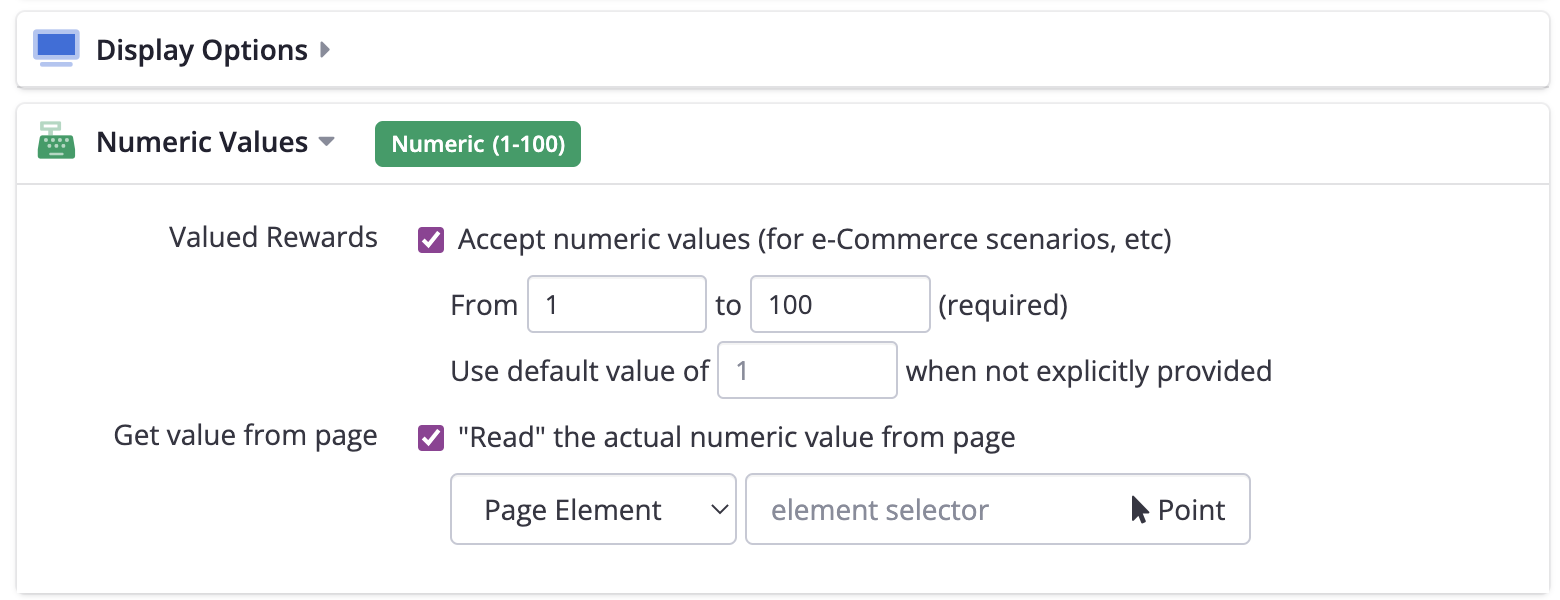
Enabling Valued Rewards
If you're using Conductrics Express (as opposed to the API), you'll have a Read value from option to fill out, as shown above. Enter the selector for an element on the page where the numeric value will appear. For instance, if an actual purchase amount sits in a <div> on the page with ID "purchase-total", then you could provide #purchase-total as the selector. When an actual visitor reaches this page, the Conductrics scripts on the page will "parse" the numeric value out of the corresponding page element. Assuming a numeric value can be parsed out of the element, it will be sent to Conductrics along with the goal event itself.
Getting the numeric value from a<meta>tagSome e-commerce systems place the purchase amount in a special
<meta>tag in the page's HTML. If that's the case on your pages, you can change page element above to meta tag, and provide the exact name of the meta tag in the field that appears.
Pulling the numeric value from your Data LayerIf you are using our Data Layer Support, you can change page element above to Data Layer Key and provide the exact name of the data layer property (key) that will hold the numeric value. You may use dot notation if the value is nested within the data layer model.
API UsersIf you're using the Conductrics API, you'll send the actual numeric reward value at runtime, via the
vfield for your Goal commands. See the Runtime API Overview for details.
Currency Conversions
Additionally, you can have Conductrics convert your numeric values into your company's "home" currency. When goal events occur, their numeric values will be converted to "your" currency, using that day's latest currency conversion rates. For instance, if you have EUR selected as the target currency as shown below, and a "purchase" type event occurs for 19.99 in Canadian Dollars (CAD), Conductrics converts the 19.99 to Euros before counting it for purposes of the Conductrics reporting (about €13.50 at the time of this writing).
For Express Goals, you'll need to have the currency code (such as EUR or GBP or USD) available in your Data Layer and have the Conductrics Data Layer Support enabled. Specify the name of the data layer property via the Read source currency code option, as shown below:
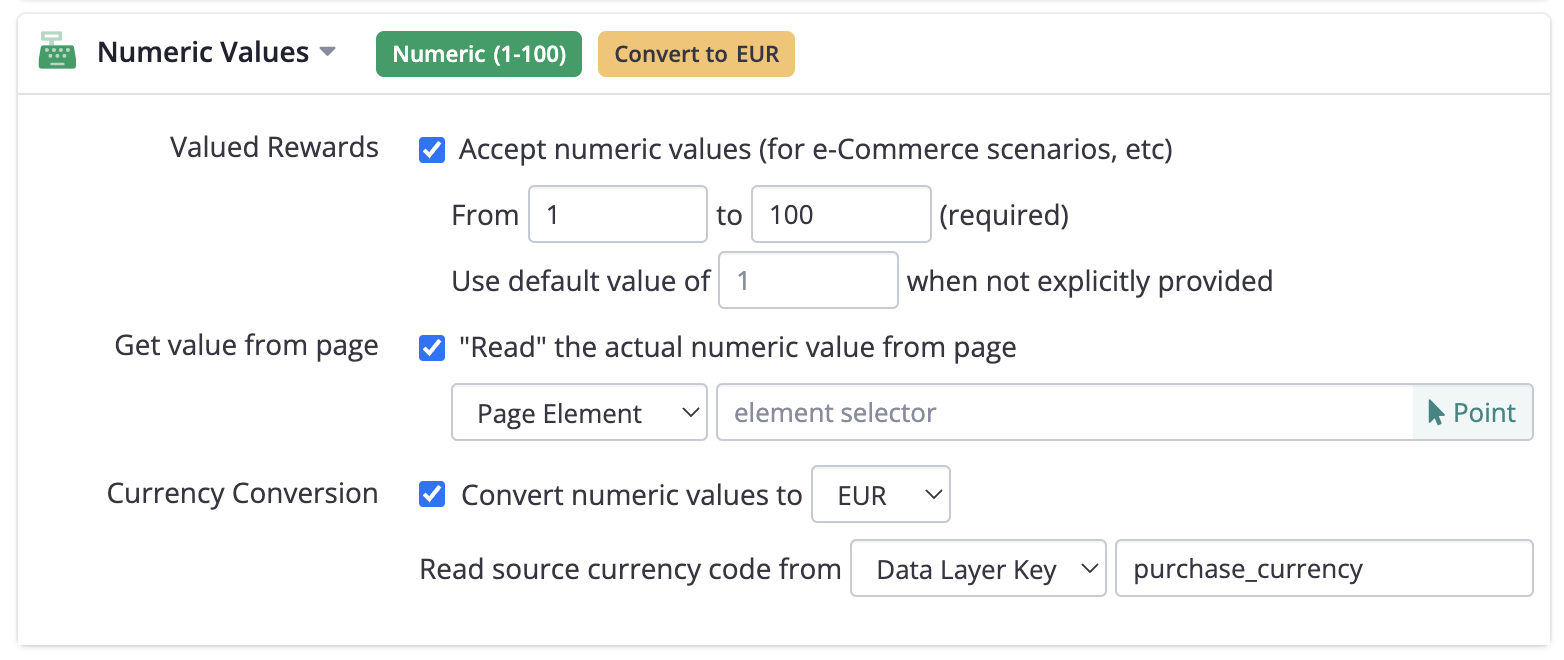
For API Goals, you can specify the visitor's currency via the vc field for your Goal commands. See "Sending Goal/Conversion Events" under Runtime API Reference for details.
Updated over 1 year ago