
Two-Factor Deploys
Added security for rolling out Agents within your Conductrics implementation
You can require Two-Factor Authentication (2FA, aka MFA) for added security and peace of mind when deploying new or updated agents to your site or app.
There are three basic steps:
- If you haven't already, register your mobile device for 2FA for your Conductrics login
- Enable the 2FA requirement for your Deploy Target
- Provide your 2FA code when actually deploying changes
These simple steps are explained below.
Register your Conductrics login for 2FA
Go to Your Profile / Login from the menu under your company name at top right in the Conductrics Admin and hit Register Device. You'll get a window letting you know that you'll need an app like Google Authenticator or Authy, which you can get from the App Store or Play Store on your mobile device:
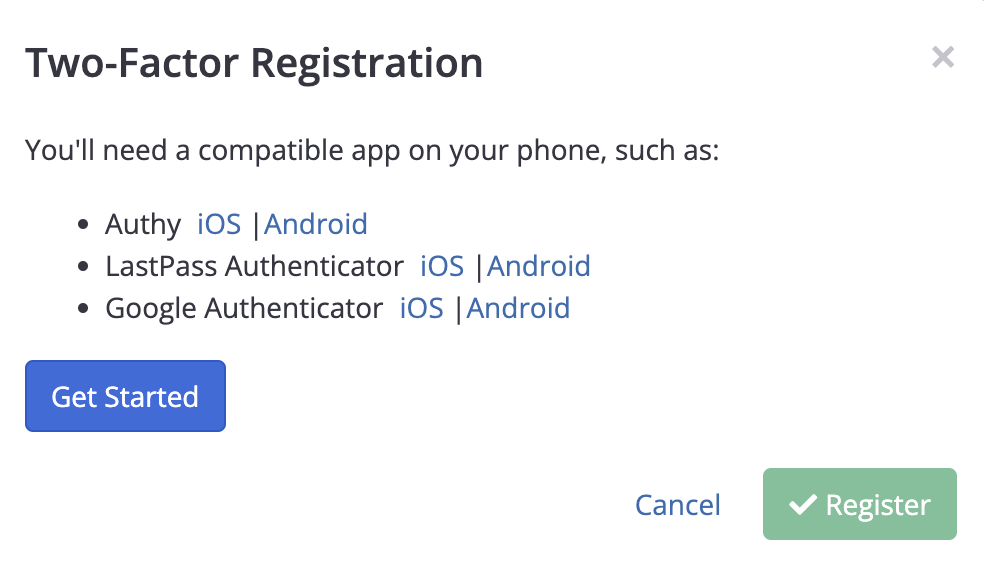
Assuming you have one of these apps on your device, hit Get Started. You'll be shown a QR Code, which you can now scan into the app on your phone or other device:

Once you scan the QR Code into your app, you'll see a 6-digit code (in the app). The code changes every 30 seconds or so. To complete the registration in Conductrics, type the 6-digit code and hit Complete. You should now see a message saying that your device is registered for 2FA.
The 6-digit codes expire after 30 seconds or so, so don't take too long to type the code in and hit Complete. if you get an error message saying your 2FA code was invalid, try again with the next code that appears in the app on your device.
Require 2FA for Your Deploy Target
Now that you've registered your device for 2FA, go to Settings > Distribution and hit Edit for the Deploy Target you're using.
Under Security, enable the Require Two-Factor Authentication when deploying option. Please note that this option is available only if you choose Manually under Timing and Conductrics-Hosted under Delivery:
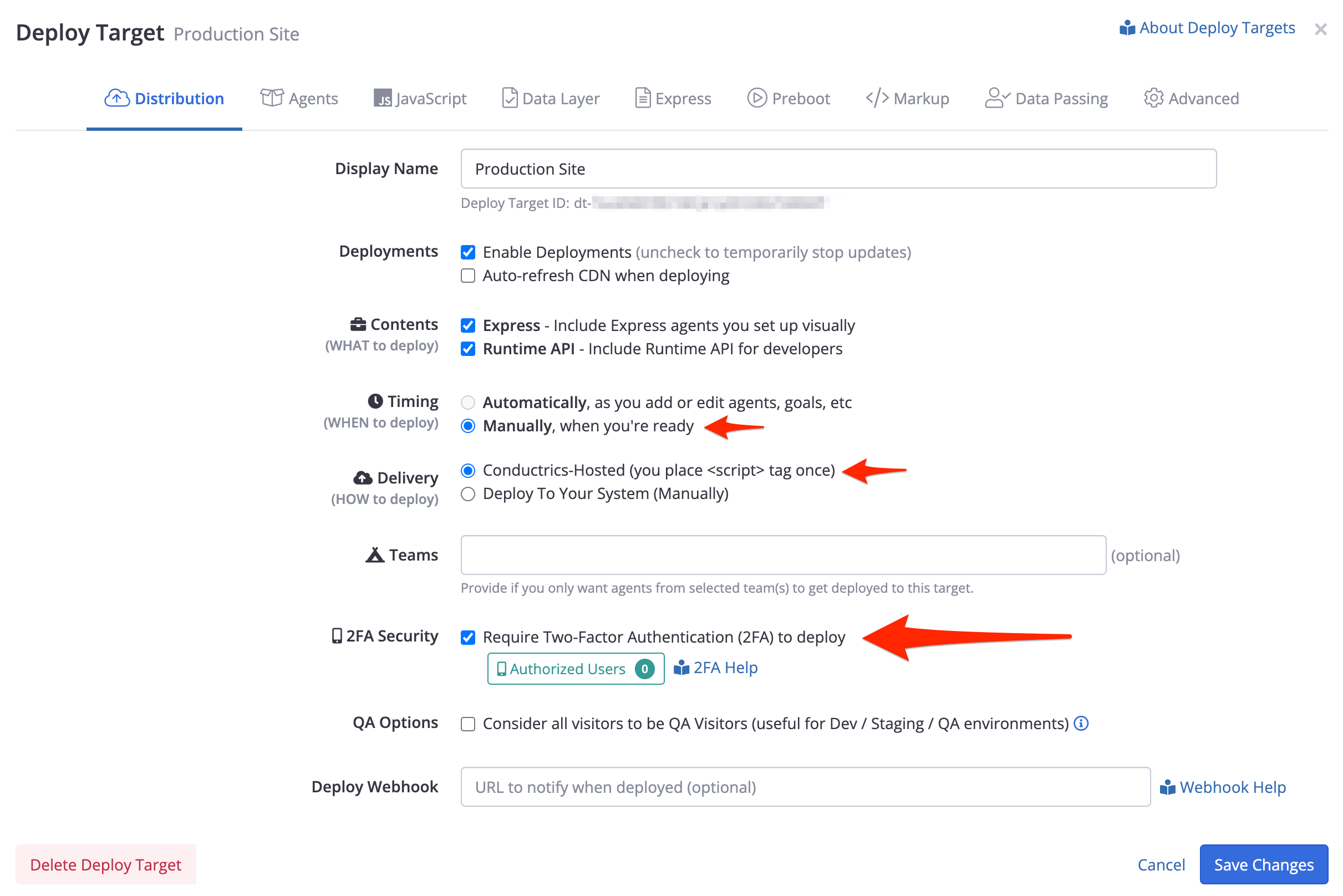
Now click Authorized Users to select which 2FA-enabled users should be able to perform a deployment.
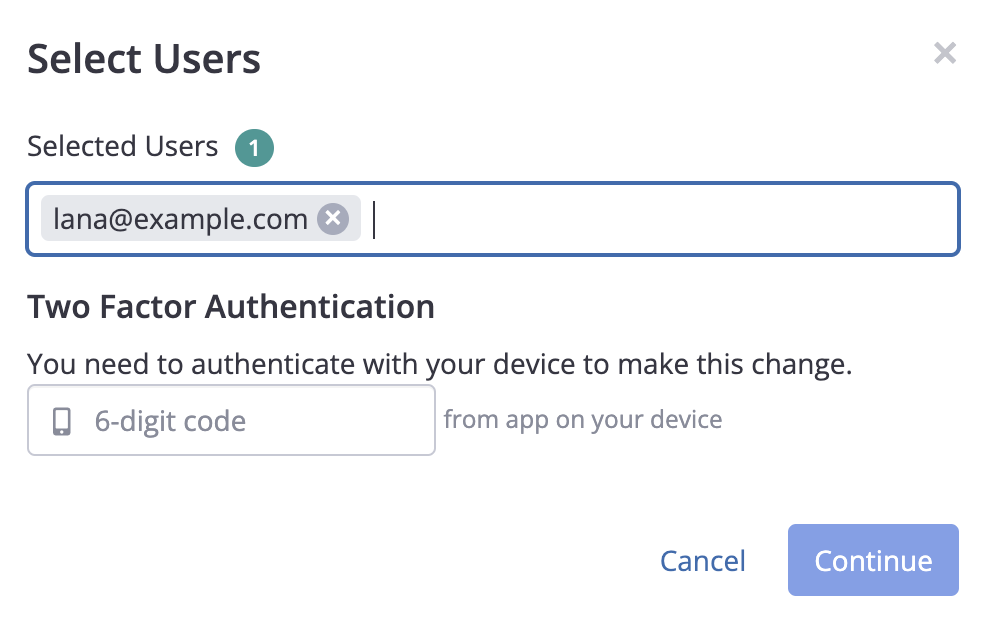
Select the users that you'd like to authorize for deployments. You'll need to provide a 2FA code from your own device to continue. Provide a current 6-digit code from your app just like you did in the previous section, then hit Continue.
Now save the changes to your Deploy Target, and you're done in terms of the setup.
Only those users that have registered their device for 2FA will be available for selection in the window shown above.
Provide your 2FA Code when Actually Deploying Changes
Now that everything's all set up, you're ready to do actual deployments with 2FA.
You'll want to do this whenever you do something like:
-
Create a new Conductrics Agent
-
Start, Stop, or make other changes to an Agent
-
Create or make changes to a Goal
-
Update your Visitor Data or other settings
Yes, You Now Have to Deploy ManuallyEven though you've made some changes like the above in the Conductrics Admin, the changes won't actually roll out to your site or app until you manually deploy with 2FA to prove you're authorized. This extra step is the whole point of the 2FA requirement.
When you're ready to deploy, go to Settings > Distribution and hit Deploy Now:
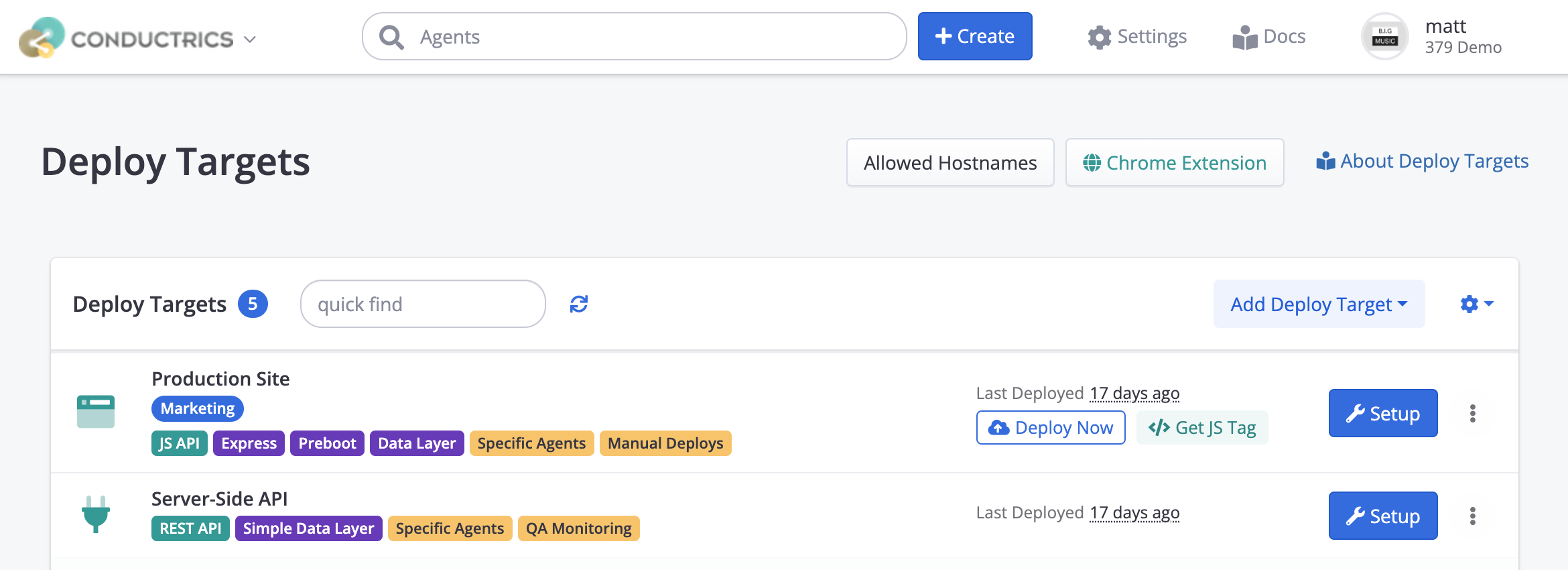
You'll be presented with a summary of what the deployment will contain, and a prompt for the current 6-digit code from your phone or other device:
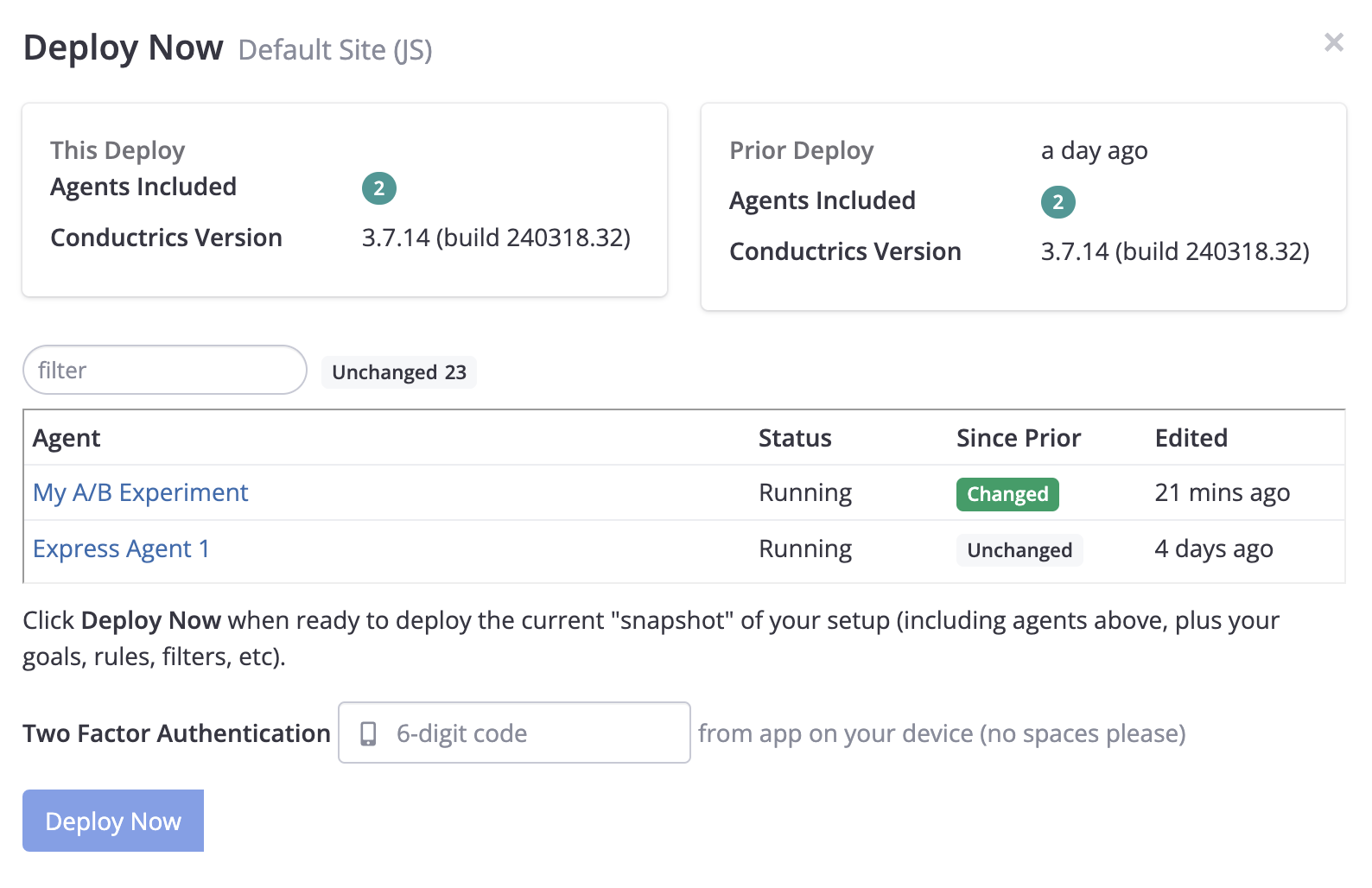
Once you've provided the 6-digit code, hit Deploy Now and then Confirm as shown above. After a few moments, you should see the Current Deployment date change to a few seconds ago or similar to reflect that the new code has been deployed.
Depending on traffic, it may sometimes take a minute or two for the updated code to get distributed via the CDN.
Frequently Asked Questions about 2FA Deploys
Q: This page talks about 2FA for deploys specifically. What about 2FA for just logging into the Conductrics Admin?
A: That's supported too. See the section about 2FA on the Admin Users / Access page.
Q: Can we require 2FA for deploying to our Live/Production site but not to our Staging / QA environment?
A: Sure, just use two Deploy Targets, one for each environment. Each will have its own <script> tag to put in your pages if you're using Conductrics Express, Markup, or the JS API, so make sure to paste the right one into each site. Then require 2FA for the one that represents your live environment.
Q: What if we want to turn off 2FA for our deploy target?
A: You can't. But you can create a new deploy target (which will require using a new script tag on your pages if you're using Conductrics Express, Markup, or the JS API) that doesn't require 2FA. Contact Conductrics if you need help.
Q: What if a phone is lost or stolen?
A: You can either create a new Deploy Target (which will require updating the script tag on your site if you use Conductrics Express, Markup, or the JS API), or you can delete and then re-add the user's login via Settings > Admin Access. The user will have to create a new Conductrics password and re-register for 2FA.
Please contact Conductrics if you have any other questions or problems regarding 2FA for deployments.
Updated about 1 year ago