
Screenshot Monitoring
"Visual" verification that your experiment variations are rendering as expected
Especially for A/B tests or other experiments that you plan to run for a long time, it's quite possible that the underlying page layout or content will change at some point, perhaps without your knowledge. It can be hard to keep track of which technical changes, design refreshes, content changes and so on could potentially cause your variations to no longer show up the way you want them to.
Conductrics now includes a Screenshot Monitoring feature that will periodically check your pages (like a friendly "crawler" or "bot") to make sure that your variations are actually showing up in a "pixel perfect" way on your pages.
Here's how it works:
- First, you tell Conductrics what page to "visit" and what area of the page it should screenshot.
- Conductrics takes an initial screenshot, which you approve as the "expected" screenshot.
- Conductrics then follows up by periodically attempting to screenshot the same area of the page. Hopefully the screenshot matches the "expected" one. If not, Conductrics tags the agent as having a "Screenshot Mismatch" in the Admin and can optionally send you a Notification via Slack or email.
Screenshot monitoring is available in Conductrics 3.7.15 as a Beta feature. If you don't see the options discussed here, please reach out to Conductrics so we can enable them for you.
Client-Side Only For NowRight now, screenshot monitoring is available for client-side Conductrics only, meaning Conductrics Express or the Local JS API. Let us know if you're interested in screenshot monitoring for experiments run via the REST API as well.
Creating a Screenshot Check
To get started:
- Go to your your Agent's Home Page in the Conductrics Admin.
- Click Checks, located near the bottom of the page.
- Click New Screenshot Check as shown in the screenshot below.
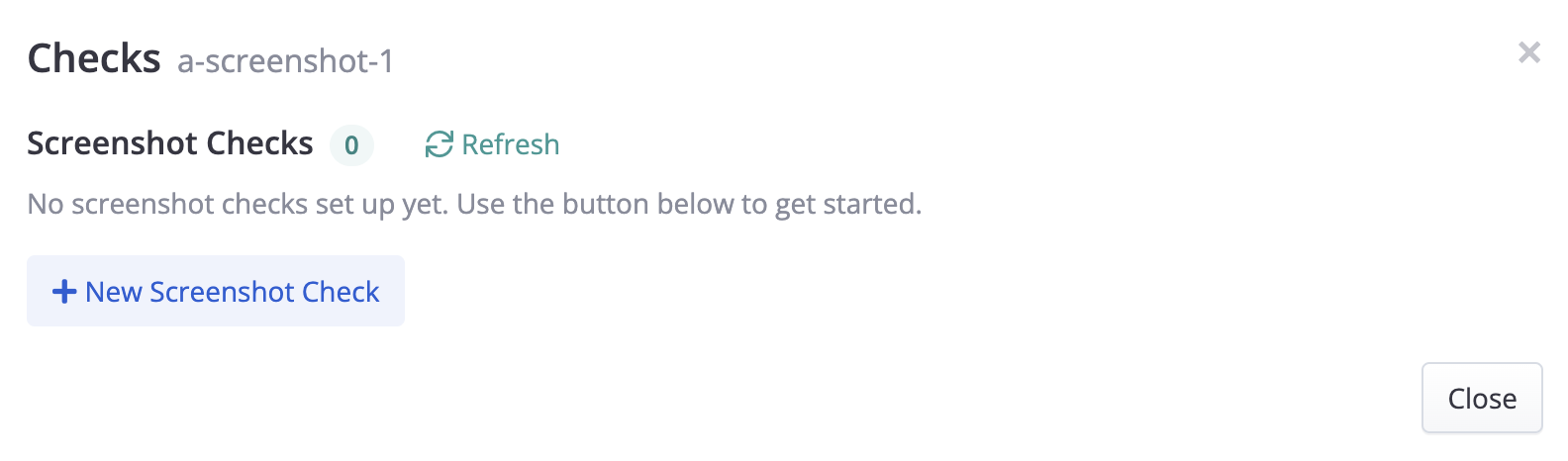
When you click New Screenshot Check, you'll provide some basic info to establish the "expected" screenshot:
- Variation - The agent variation that you want to verify via screenshot monitoring.
- Screenshot URL - The URL that Conductrics should "visit" to take the screenshot. For an Express agent that activates at a single URL, that same URL will be pre-filled in for you.
- Element Selector - A CSS-style Selector that identifies the element on the page that Conductrics should screenshot.
- You can type or paste a hand-crafted selector, or you can use the Point button to select the element visually. See also our CSS Selector Primer.
- It's important to use an element that's "big enough" to include the visuals for this variation, but "small enough" to not be affected by other site changes (so you don't get "nuisance" alerts).
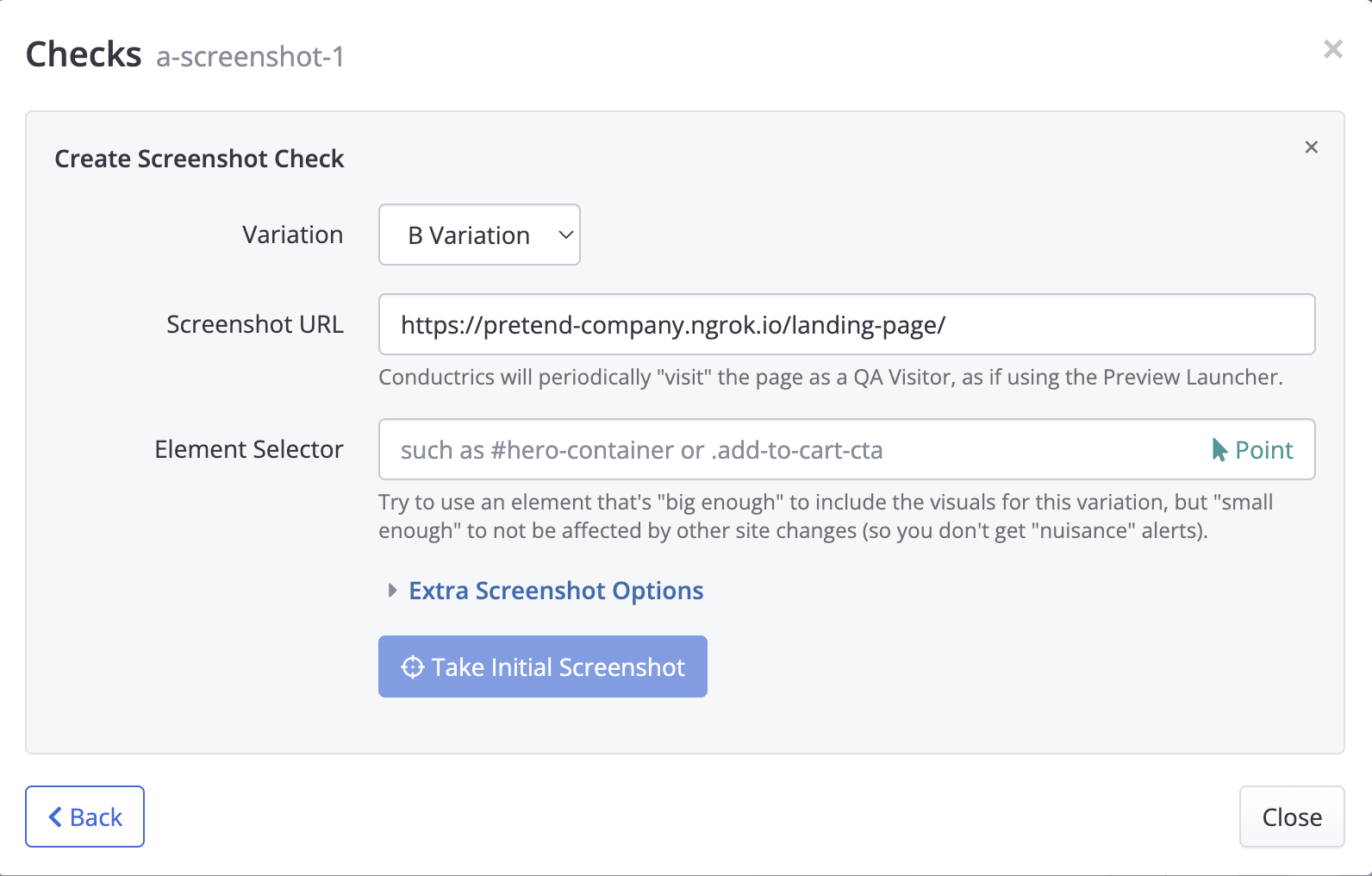
Click Take Initial Screenshot once you've provided the above info.
Conductrics will attempt to take the screenshot, which may take a few moments (typically 10-15 seconds).
Assuming Conductrics is able to take the screenshot successfully, it will be displayed for your review:
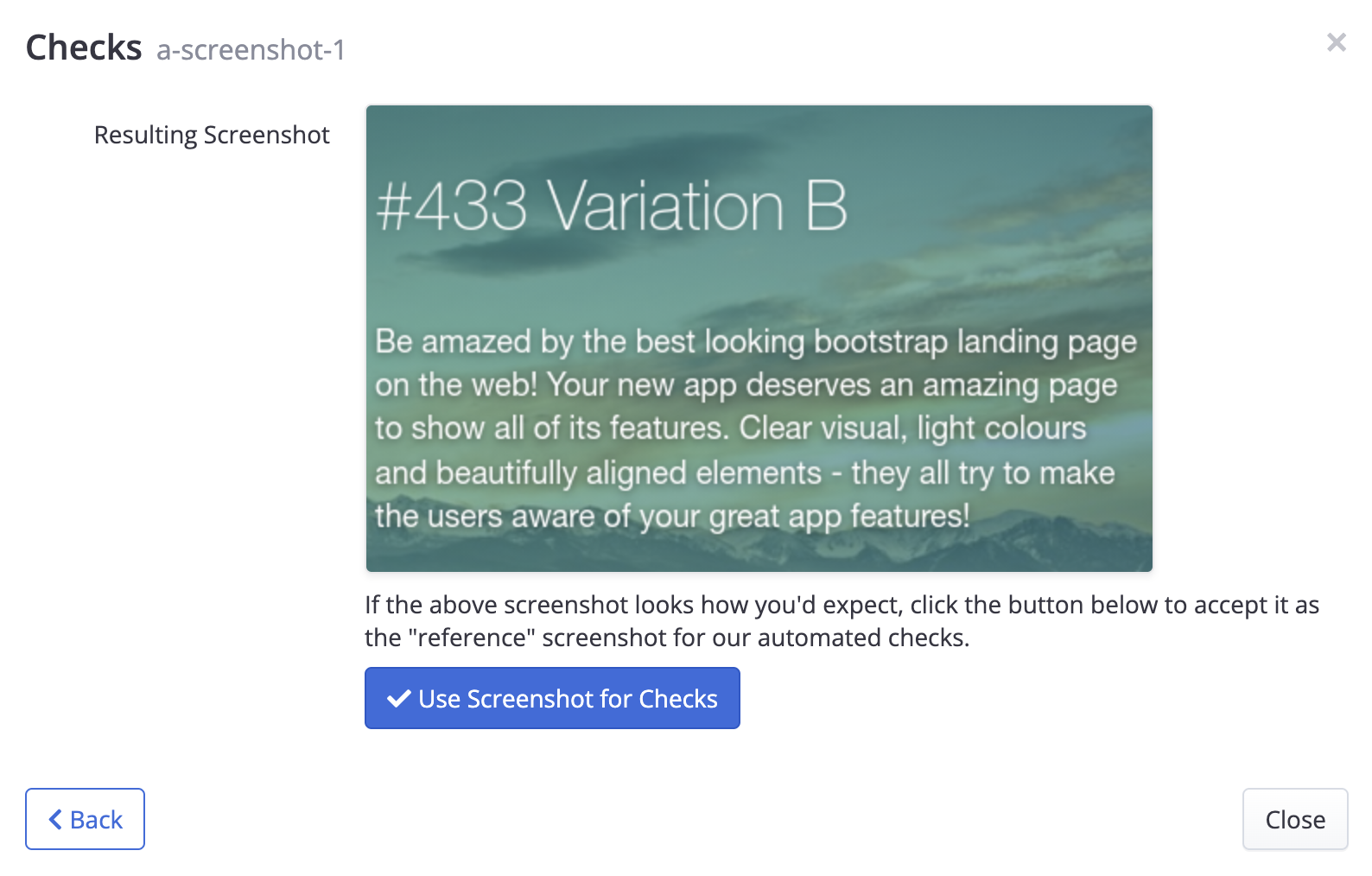
If the screenshot looks how you'd expect, click the button below to accept it as the "reference" screenshot for our automated checks. The screenshot should then appear in the list of checks, something like this:
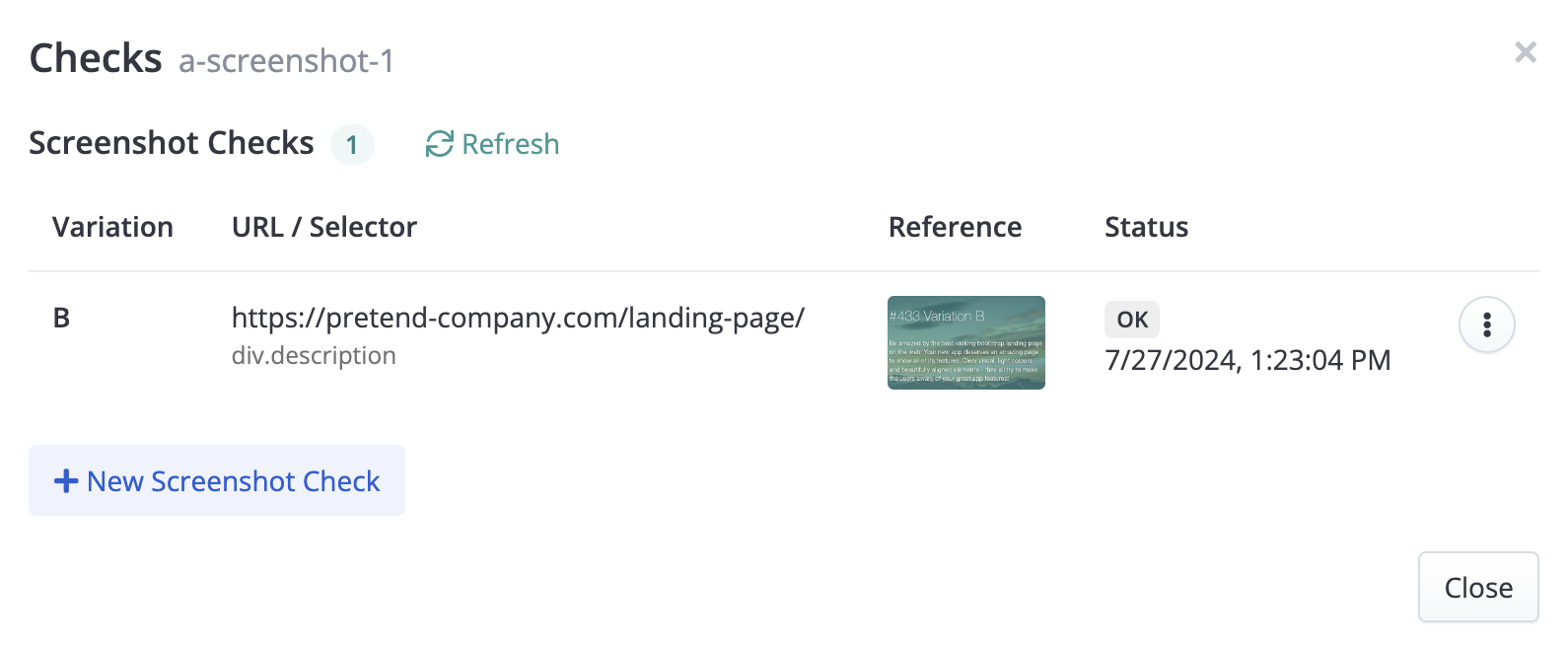
At this time you can only create one screenshot check per variation. In the future we may support multiple checks per variation (for instance, for checking mobile vs. desktop layouts, or to check multiple pages).
Internally, the screenshotting uses the same "previewing" mechanism as the Preview Launcher. For this reason, the "Enable Previews and QA Features" option must be enabled at the Deploy Target level (under the Express tab).
Extra Screenshot Options
Depending on the situation, you may need to provide some additional info in order for Conductrics to successfully take a screenshot of the area you need.
Open up the Extra Screenshot Options when creating the screenshot, which looks like this:
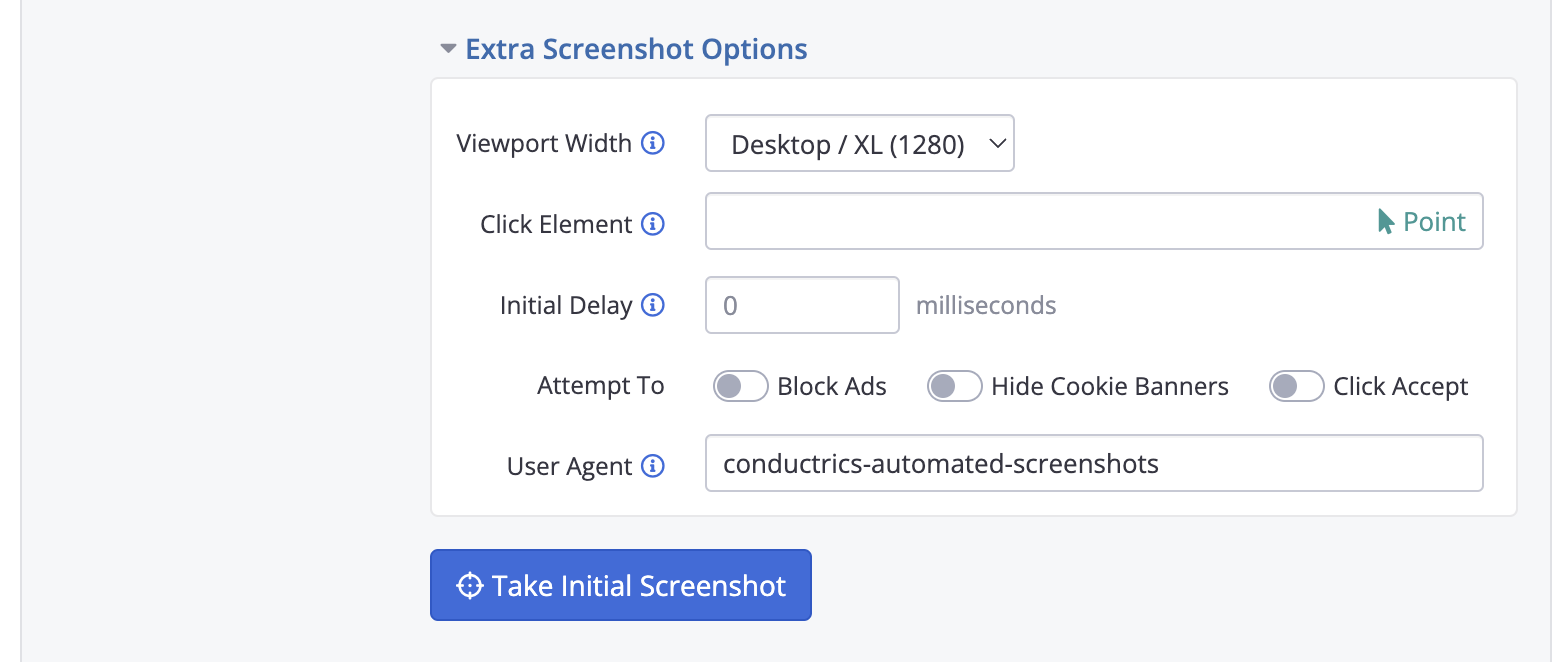
The current Extra Screenshot Options are:
- Viewport Width - Simulates the selected viewport (browser window) width when taking the screenshot. For sites with responsive designs this can be used to request a mobile vs desktop layout, etc.
- Click Element - Simulates a "click" on some element on the page, before trying to take the screenshot. Use this if the variation would not normally be shown until the visitor clicks a button or link, etc.
- Initial Delay - Delays the screenshot by the specified amount of time. Use if there would normally be a delay before the variation would be shown to visitors.
- Attempt To Block Ads - Turn on if your page might contain ads that would interfere with the successful screenshotting of your page (especially if the ad appears in the same area of the page that you're screenshotting). Please note that this only blocks well-known ad networks; not all ads will be blocked successfully.
- Attempt To Hide Cookie Banners - Turn on if your page uses a "Cookie Consent" banner that would get in the way of successful screenshotting. Please note that this only hides banners from well-known cookie consent managers; not all banners will be hidden successfully.
- Attempt to Click Accept - Turn on if your Conductrics agent / variation would only activate after the "visitor" (in this case, the automated screenshotting process) clicks "Accept" on a cookie-consent type banner. If possible, the Accept button will get a simulated "click" in an attempt to dismiss the banner and continue.
- User Agent - Uses the given User-Agent string when requesting the screenshot. Use to simulate a particular browser type. You can set the default via "Screenshot Monitoring: User-Agent String" under Settings > Company Preferences > Advanced Settings. Otherwise the default is
conductrics-automated-screenshotsas shown above.
We may add more of these "Extra Screenshot Options" in the future. Please let us know if the current options don't seem to provide enough flexibility to take the screenshots needed to meaningfully monitor your experiments.
Viewing / Modifying a Check
From the "three-dots" menu for each Screenshot Check, you can:
- View / Edit the check's details. If you make changes, you'll be shown the initial screenshot for your approval, similar to when you created the check.
- Make Due Now if you want to force the check to happen again right away, rather than at its next scheduled time.
- Remove the check if you no longer need it.
Screenshot Checks actually run for Live Agents onlyScreenshot checks only run for "Live" agents, so you don't need to bother removing your screenshot checks when your experiments come to an end.
Viewing a Check's History
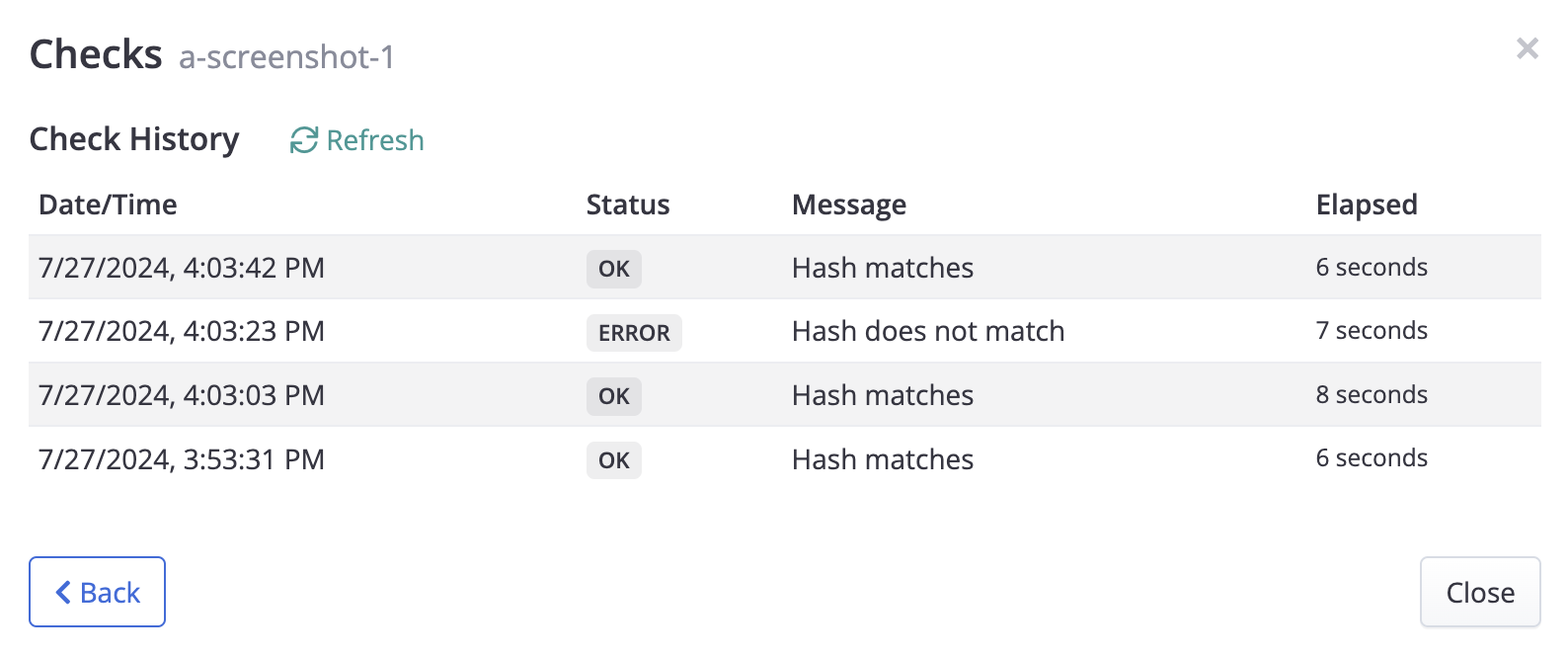
From the "three-dots" menu for each Screenshot Check, you can Show History to review the recent times that Conductrics attempted the screenshot check.
- You'll see OK each time that Conductrics is able to successfully screenshot the page, and the screenshot matches the "expected" one you provided when setting up the check.
- You'll see ERROR for times when Conductrics wasn't able to successfully screenshot the page, or if the screenshot doesn't match the "expected" screenshot you provided.
Updated over 1 year ago