
Using the QA Overlay
Conductrics includes a QA Overlay that appears on your pages, to make it easier to understand what Experiments and other Conductrics Agents are making changes and tracking goals/conversions on your pages.
Use it to confirm an experiment works before and after it goes live:
- Check that the expected Agent run on the pages you want
- Confirm which Variation(s) you are assigned to
- Watch Goals trigger as you click through a conversion path
- Watch which Visitor Traits are assigned and when
- Switch to another variation without going back to the Conductrics Admin
The QA Overlay works with client-side Conductrics, which includes Conductrics Express and the Local JS API. It doesn't yet work with the REST API or our Mobile Support.
Initial Setup
First, the QA Overlay needs to be enabled for your Deploy Target.
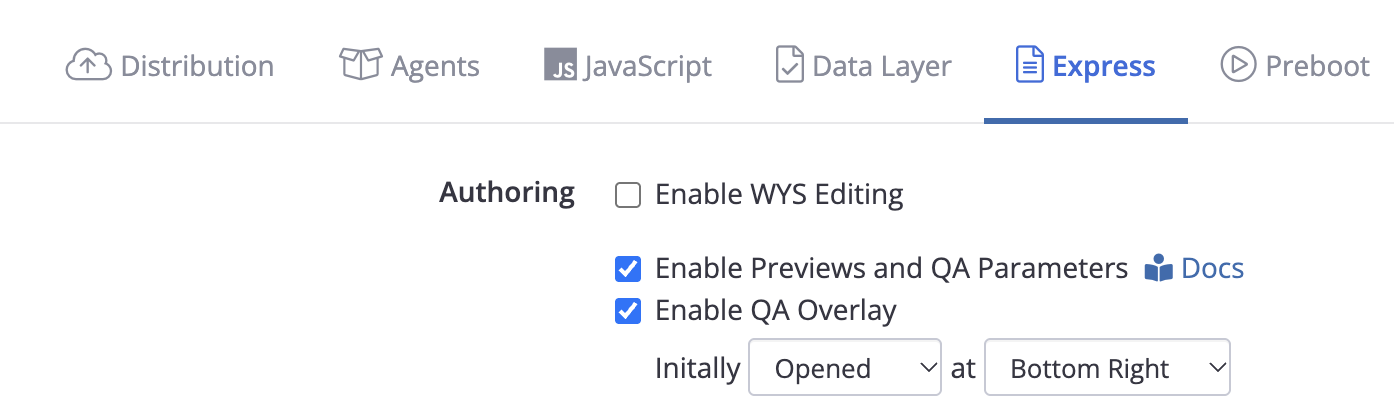
Go to Settings > Deploy Targets and hit Setup for the Deploy Target you're using. Under the Express tab, make sure the Enable Previews and QA Parameters option is checked, then check the Enable QA Overlay option. You can also adjust whether the
Displaying the Overlay
You get to the QA Overlay via the Preview Launcher.
- Go to an Express agent's page in the Admin, then hit Preview Launcher.
- Hit the Launch Preview button for one of the variations.
- The QA Overlay should appear.
- You can move the overlay around on the page by dragging its title bar at the top.
- If you want to get the overlay out of the way, you can also minimize or restore it to its original size via the little icon at top right. You can also close it via the "X" icon; it will come back in mimized mode the next time.
- If you don't want the Overlay to show for a given preview, you can use the Show QA Overlay switch, under Preview Behavior within the Preview Launcher window.
The Agents Tab
This tab helps you understand which Experiments / Agents you were eligible for, and what variation you were assigned to for each.
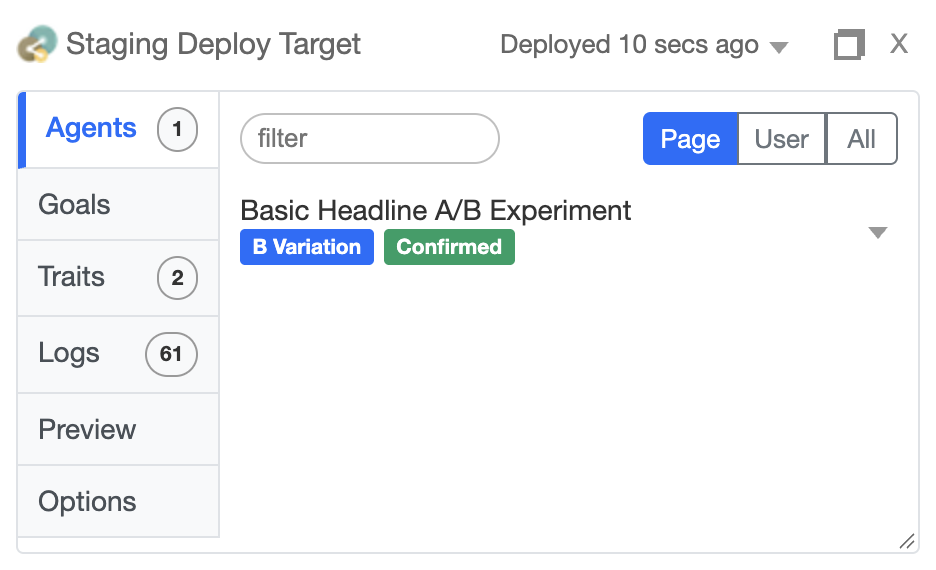
You can use the Page / User / All toggle shown above to focus on just the Conductrics Agents that potentially activate on the current Page, versus the ones that your User session has encountered, versus All agents currently included in the Deploy Target.
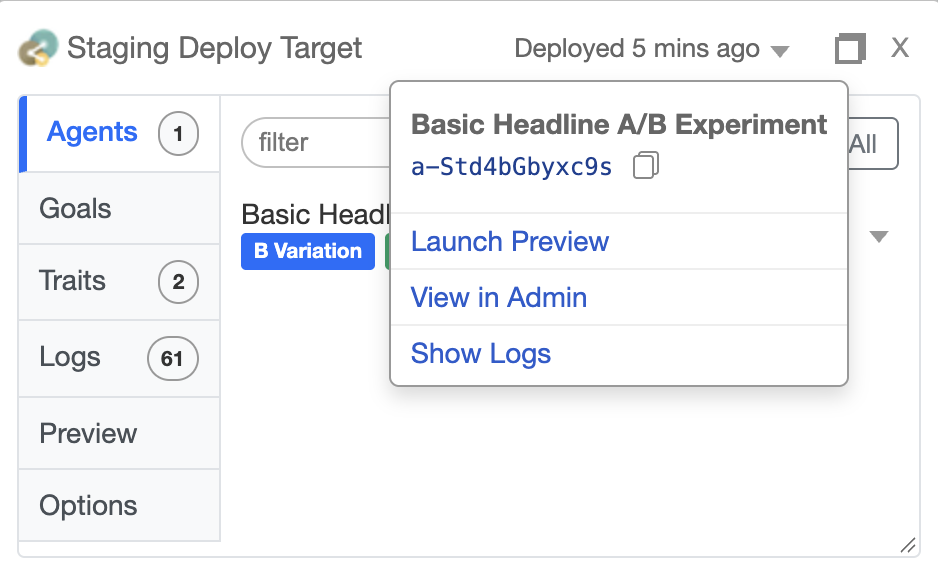
You can use the little triangle menu for each agent to get the agent's unique identifer, view it in the Conductrics Admin, or show corresponding log messages:
The Goals Tab
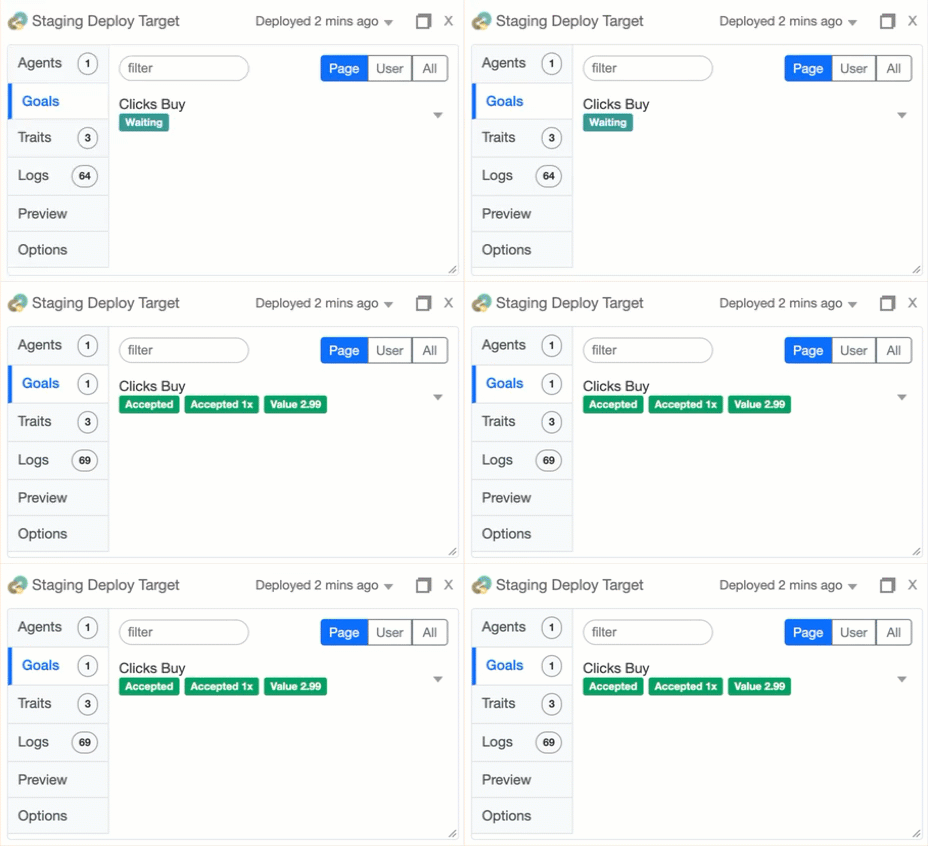
The Goals tab helps you understand whether your Goals / Conversions are firing as expected. You can view the ones that fire (or not) on the current Page, or for the whole User session. You can also view all Goal types currently known to the Deploy Target, via the "All" toggle.
The Traits Tab
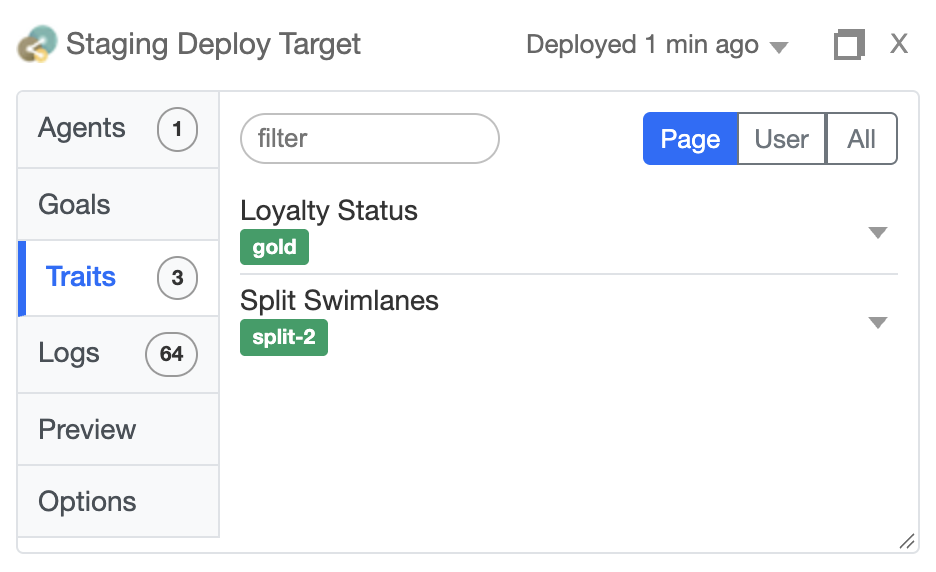
The Traits tab lists the Custom Visitor Traits that have been assigned, either on the current Page or for the whole User session. You can also view all Trait Types currently known to the Deploy Target, via the "All" toggle.
The Logs Tab
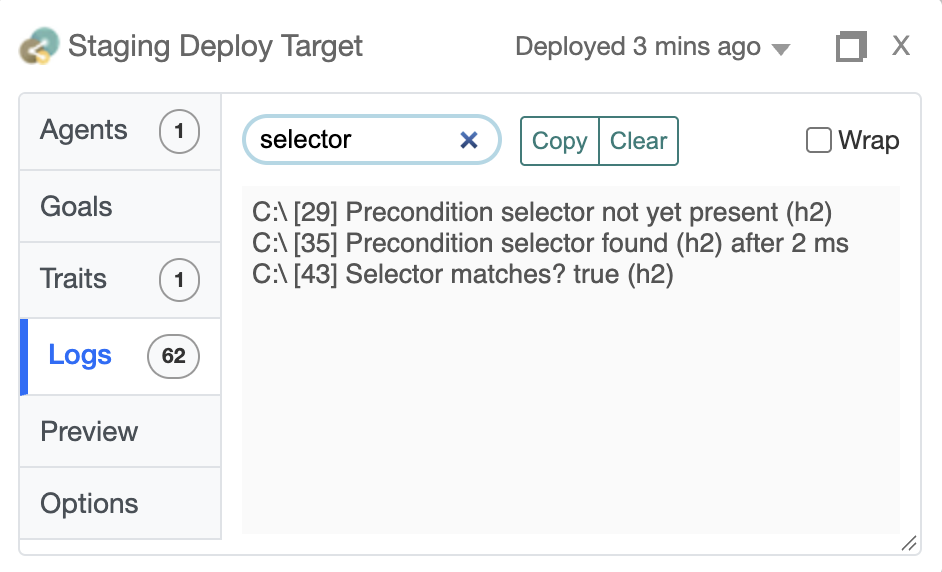
Sometimes it's helpful to view the internal logs from Conductrics, to understand exactly what's happened and in what order. These are the same log messages that appear in your browser's Developer Tools.
The Preview Tab
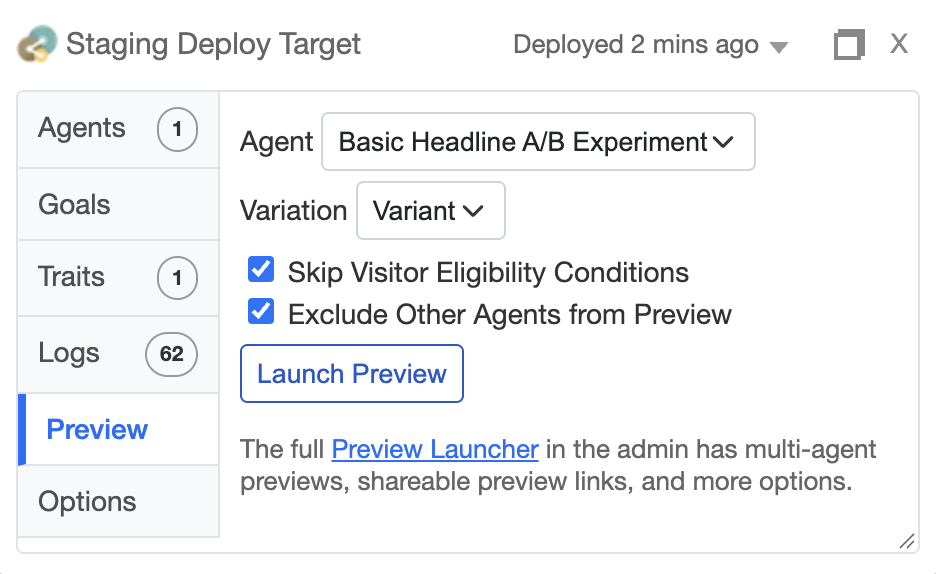
You can use the Preview tab to switch to a different variation, which can speed your QA tasks.
The Options Tab
The Options tab provides a number of switches to control preview behavior for your web session going forward. See the QA with Express Previews page for details about what each of these switches do.
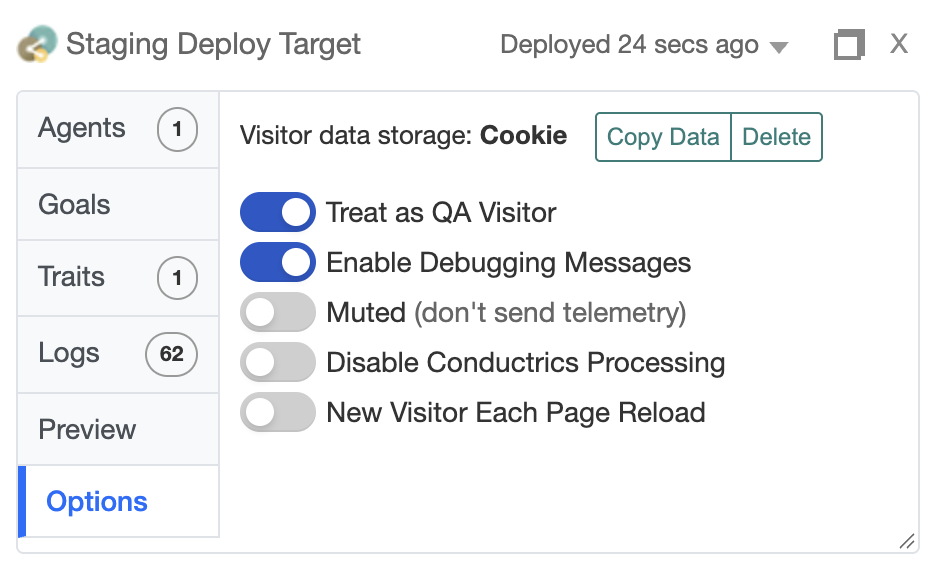
You can also Copy or Delete the Conductrics session record (from Local Storage or Cookies, depending on how your Deploy Target is configured).
Deploy Info
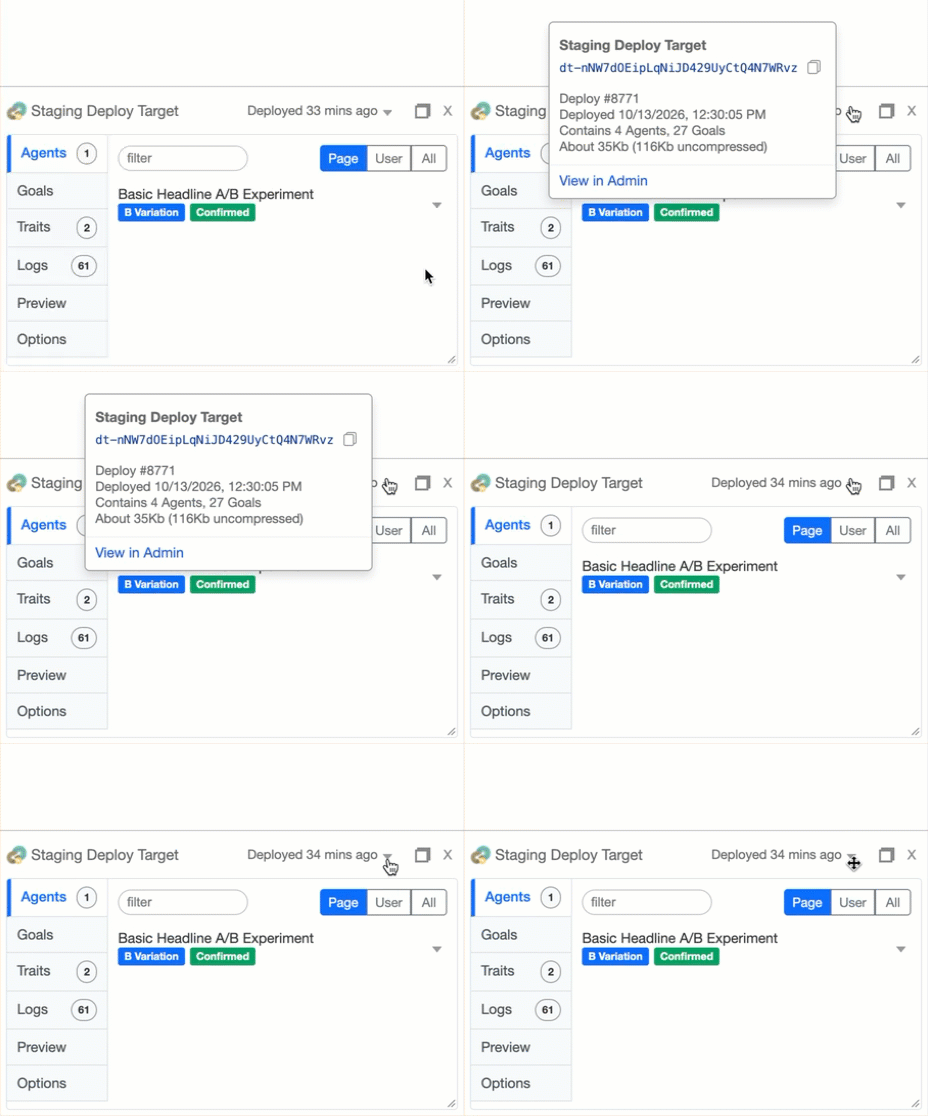
The title bar at the top shows the name of your Deploy Target, and when the version loaded in your browser was deployed. You can click for some more details, such as the Deploy Target's unique code, date and time of the current deploy, and the size of the generated JavaScript bundle.
Troubleshooting
- The overlay doesn't appear — Confirm Enable QA Overlay is on for the Deploy Target and that it has been redeployed. Confirm Show QA Overlay was checked in the Preview Launcher.
- The overlay stopped working after a while — Access lasts about 30 minutes. Launch a new preview from the admin.
- The overlay disappeared after I changed an option — Turning off Treat as QA Visitor also turns off the overlay. Launch a new preview.
- An Agent is missing from the Page view — Switch to All. If it is listed there, the page or the visitor didn't meet the Agent's conditions; check Show Logs for the reason. If it isn't listed, add it to the deployment and redeploy.
- "Deployed … ago" shows an unexpectedly old time — Your page may be serving a cached copy of the Conductrics code. Wait a few minutes or clear your browser cache. If your Deploy Target uses Manual Deploys, you may need to use the "Deploy Now" function.
- I keep getting the same variation — Conductrics remembers your assignment. Use the Preview tab, turn on New Visitor Each Page Reload, or use the Clear Data button on the Options tab.
Updated 15 days ago