
QA for Express Agents
This page is about QA for Conductrics Express. If you are using our REST API, either directly or via one of our mobile helper libraries, please see Using QA Sessions.
QA in a Staging / QA Environment
If your company has a separate version of your site for QA purposes (sometimes called a "Staging" environment), you can set things up so that you can deploy your Conductrics Express agents to the different environments separately. This is generally the cleanest, most desirable way to do your QA.
Getting Set Up
If you'd like to do your QA this way, you'll want a separate "Deploy Target" for your QA environment:
- Go to Settings > Distribution in the Conductrics Admin and create a new Deploy Target for your QA environment. The deploy target will have its own script tag URL. Get that script tag placed on the pages in your QA environment. See Deployment Options for more about Deploy Targets.
- For your "QA" Deploy Target, you'll want most of the settings to be the same as your "Production" Deploy Target.
- For your "Production" Deploy Target, make sure to set the Agents to Include setting to Specific Agents, rather than all agents.
So now you have two Deploy Targets for Conductrics Express, one for your QA/Staging environment and one for your Live/Production environment. They might look something like this:
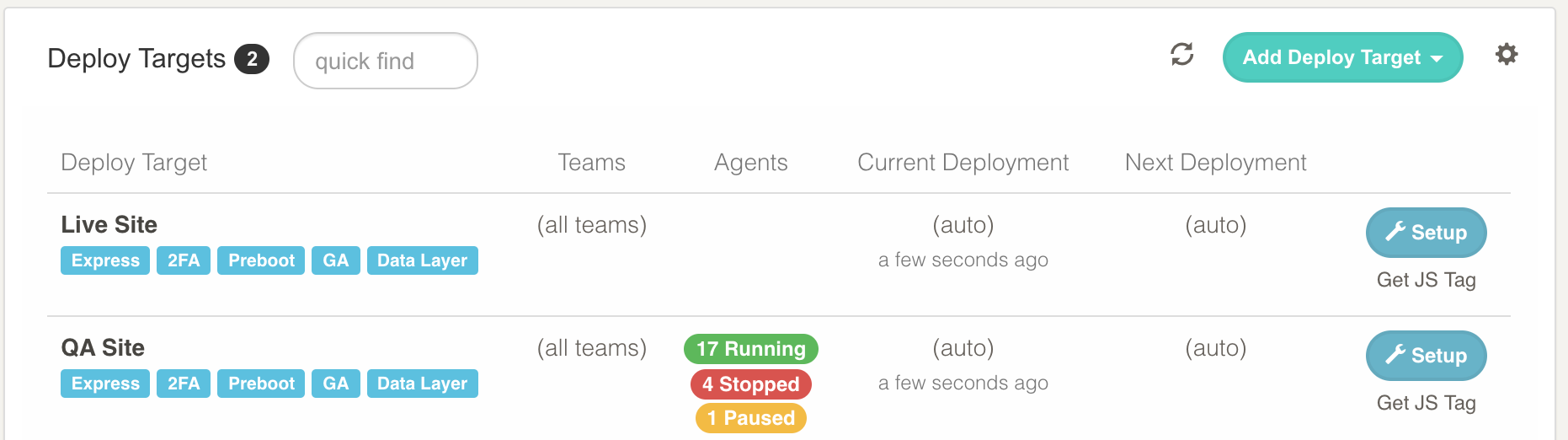
Starting Your Express Agent for Your QA Environment
Now that you have the two Deploy Targets, you can decide which of them each agent gets deployed to, under Deploy To on the main page for each agent (near the bottom of the page).
Assuming that your "QA" Deploy Target is set to include all agents (see above section), it will appear already selected under the "Deploy To" section, something like this:

Now you can Start Your Agent and start verifying its behavior to your satisfaction. Because it is currently set to deploy to the QA Deploy Target only, Conductrics will only "push it out" to the CDN for your QA environment.
Deploying Your Express Agent to your Live/Production Environment
Once you're happy with your Express Agent and ready to push it live, you just need to tell Conductrics to push it out to the CDN for your Live/Production environment.
- Hit Edit Agent at top right of the agent's main page.
- Check the checkbox for your live environment's Deploy Target (screenshot below).
- Click Save at top right to keep your changes. Conductrics will update the CDN for your Live/Production environment, and the test should be live within a minute or so (unless the deploy target is set for manual deployments, see note below).
You may wish to reset your agent's reporting data back to "all zeros" before pushing the test live. See the "Resetting your Agent's Reporting Data" section later in this page.
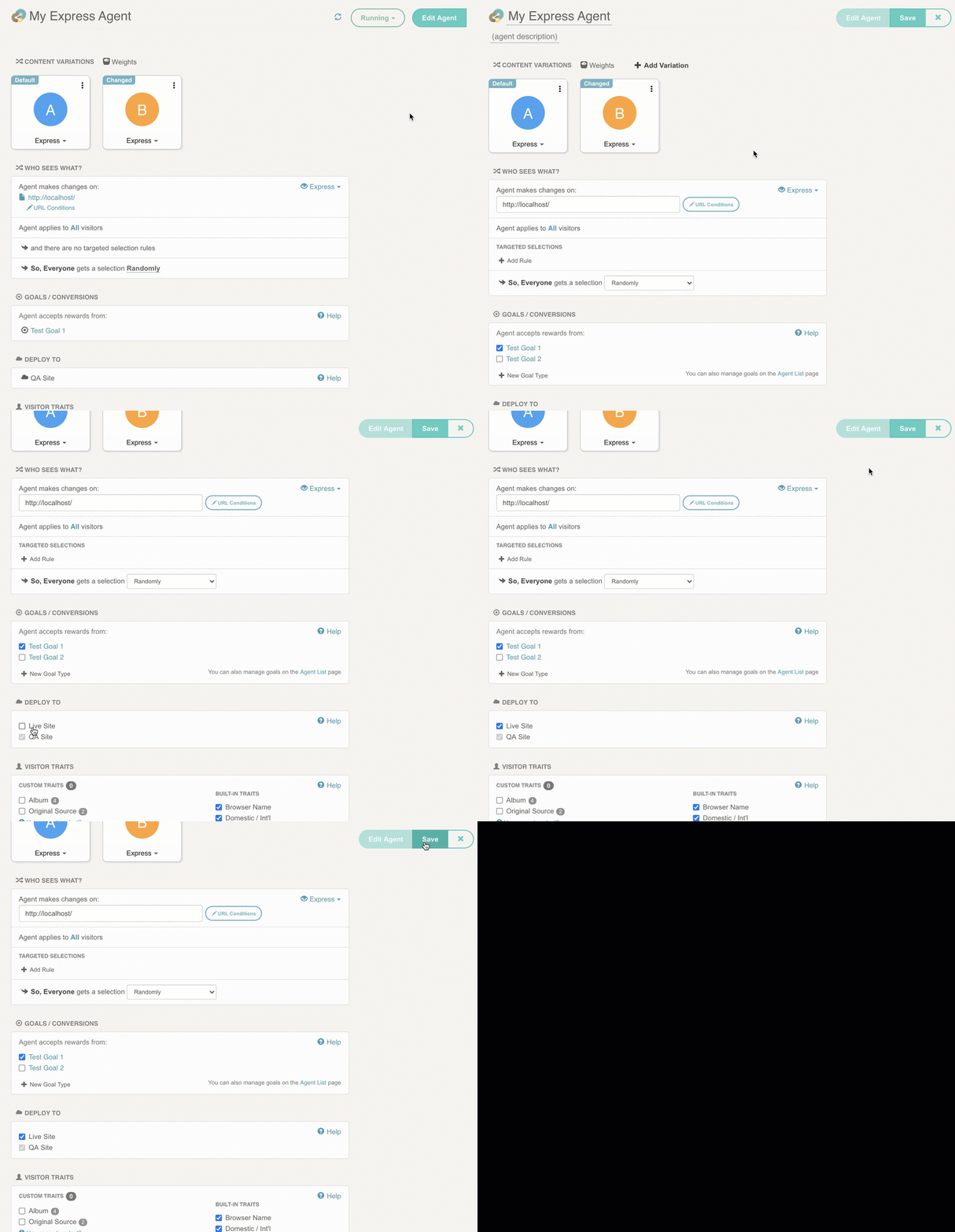
Alternatively, you can go to the setup window for your Live/Production deploy target (under Settings > Distribution) and select your newly-QA'd agent for inclusion there. Including an agent that way (from the Deploy Target's settings) is equivalent to checking it off for inclusion on the agent's page (shown above).
Your company may be using the "manual deployment" option for your Live/Production deploy target. If so, the agent won't be deployed to production until an authorized person goes to Settings > Distribution and hits *Deploy Now**. They may also be required to provide a Two-Factor Authentication (2FA) code before Conductrics will update the CDN. See Two-Factor Deploys for details.
QA in Your Live / Production Environment
If you don't have a separate QA / Staging type environment, or aren't in a position to use it for a particular agent, you can do your QA in your Live / Production environment instead. You do this by identifying yourself as a "QA Visitor", and restricting the agent to only allow QA Visitors.
- Add a "Agent Applies To" Condition, telling the agent to only include "QA Visitors" (see screenshot below).
- Start the agent by setting its status to Running.
- Identify yourself as a QA Visitor by adding a value to your browser's Local Storage by executing this line in the JavaScript Console in your browser's developer tools:
localStorage.setItem('c-conductrics-qa', 'true'). (Alternatively, you can set the Local Storage value directly via the developer tools UI in your browser.)
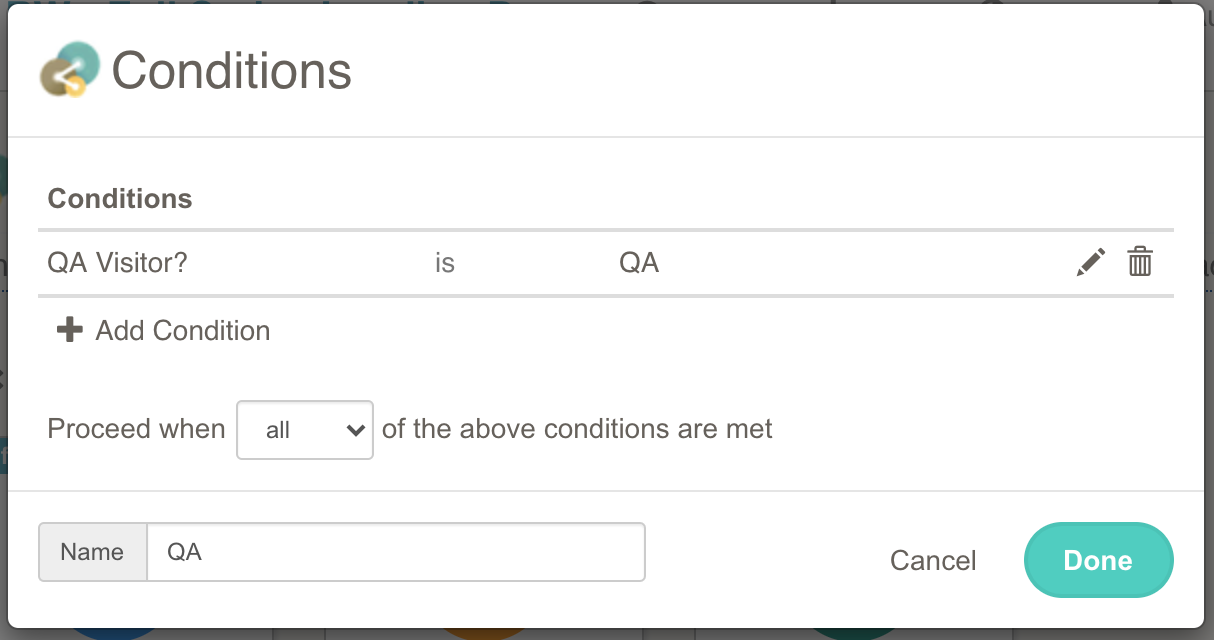
Adding a condition to include "QA Visitors" only.
You should now be able to QA your test/agent. The Condition that you added in Step 1 should allow you into the test/agent, while keeping your public visitors out.
Later, you can remove your "QA Visitor" status by executing this line in your JS console: localStorage.removeItem('c-conductrics-qa').
Going LiveWhen you're satisfied with your QA, you can simply stop the agent and remove the "QA Visitors" only condition.
Alternatively, you can use a "secret" URL parameter or ad-hoc cookie to identify your internal "QA" users. Just provide the parameter or cookie name on the Settings > Visitor Data page, then use it in conditions much like the above.
Resetting your Agent's Reporting Data
After the QA process, you may way want to reset your agent's reporting data back to "all zeroes" so that you're starting clean when you launch the test to the public.
- Stop the agent.
- Reset Data at the bottom of the agent's page in the Conductrics Admin.
- Once you confirm, the agent's data will be zeroed out, ready for you to start the test "for real".
Updated over 1 year ago