
Custom Concerns
For making sure your team knows about important notes or issues for your tests/agents.
Conductrics can automatically detect certain possible issues while your agents/tests are running (for instance, Sample Ratio Mismatch situations, or unexpected Test Interactions). These show up in the Conductrics Admin as Concerns.
In addition, you can create your own "Concerns", if you have some kind of known problem or general status that you want other people at your company to be aware of when looking at the agent in the Conductrics Admin.
Creating a Custom Concern
To create a custom concern:
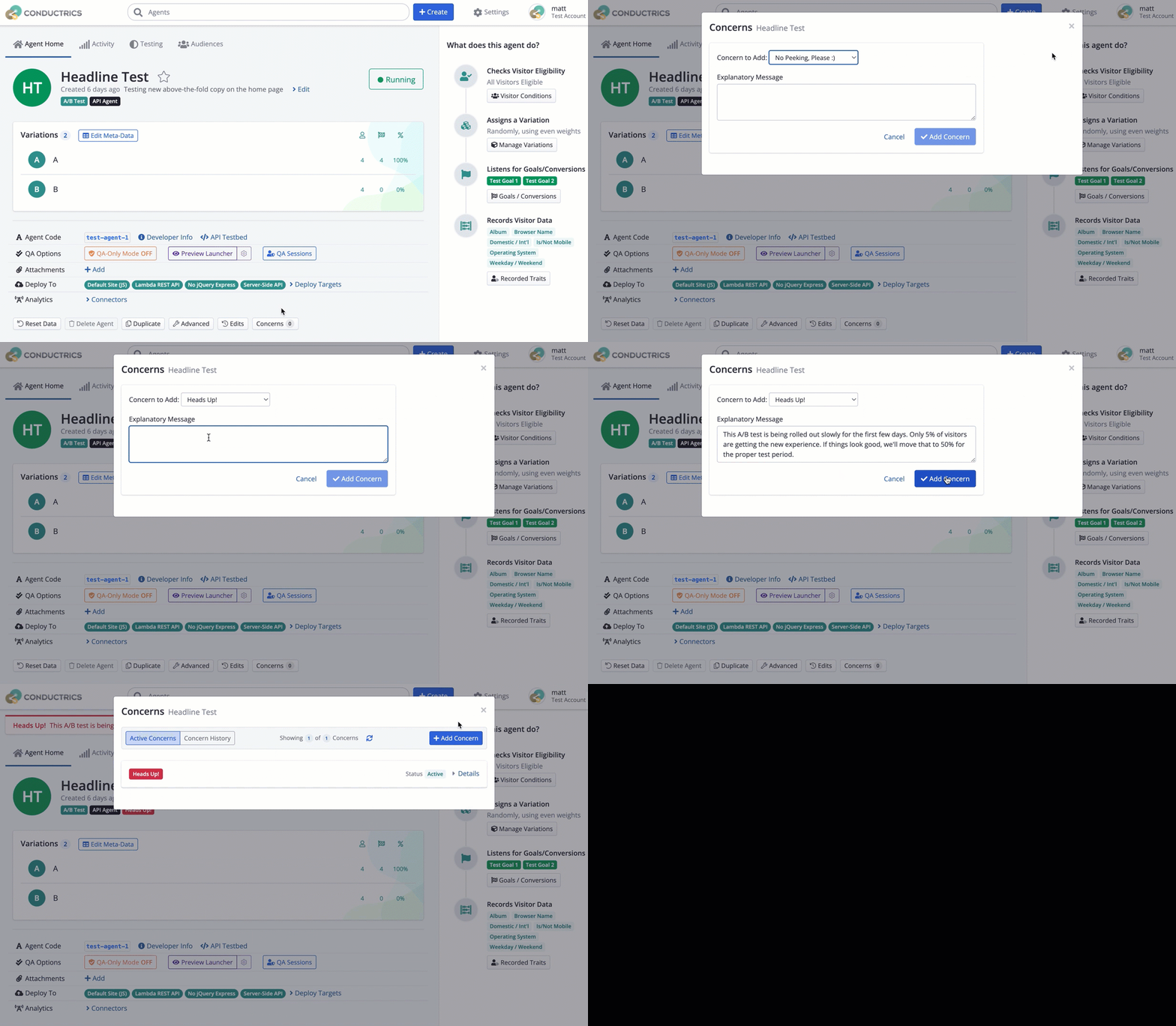
- Hit the Concerns button at the bottom of the agent's page in the Conductrics Admin.
- Click the Add Concern button as shown in the screenshot below.
- Choose the type of concern. At this time the choices are No Peeking Please, Please Ignore this Agent, Known Problem, and Heads Up.
- Provide an Explanatory Message, which will be shown to admin users when they go to the agent's main page or reporting pages.
- Click Add Concern to finish adding the concern.
You must have the Agent Author role to create a new concern for an agent. See the section below for details about the Roles / Permissions required for Concerns.
What Admin Users Will See
Once your custom concern has been created, anyone who goes to the agent's main page or reporting pages in the Conductrics Admin (including yourself) will see a prompt with the "Explanatory Message" that you provided.
For example:
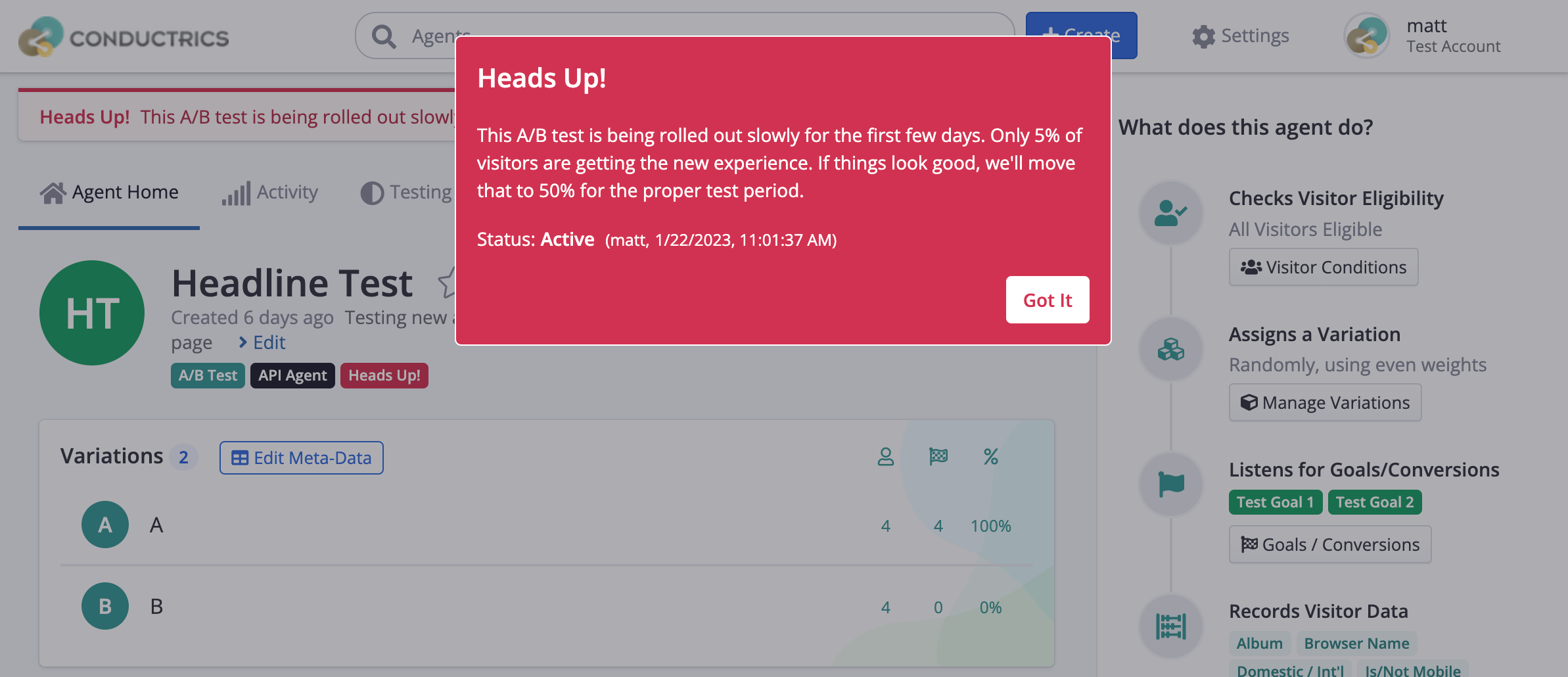
The concern prompt is "modal", meaning that Got It button must be clicked in order to use the page or report as usual.
Once you hit Got It, you won't get the prompt again until your next admin session (that is, the next time you log into the Conductrics Admin) or 8 hours, whichever comes first.
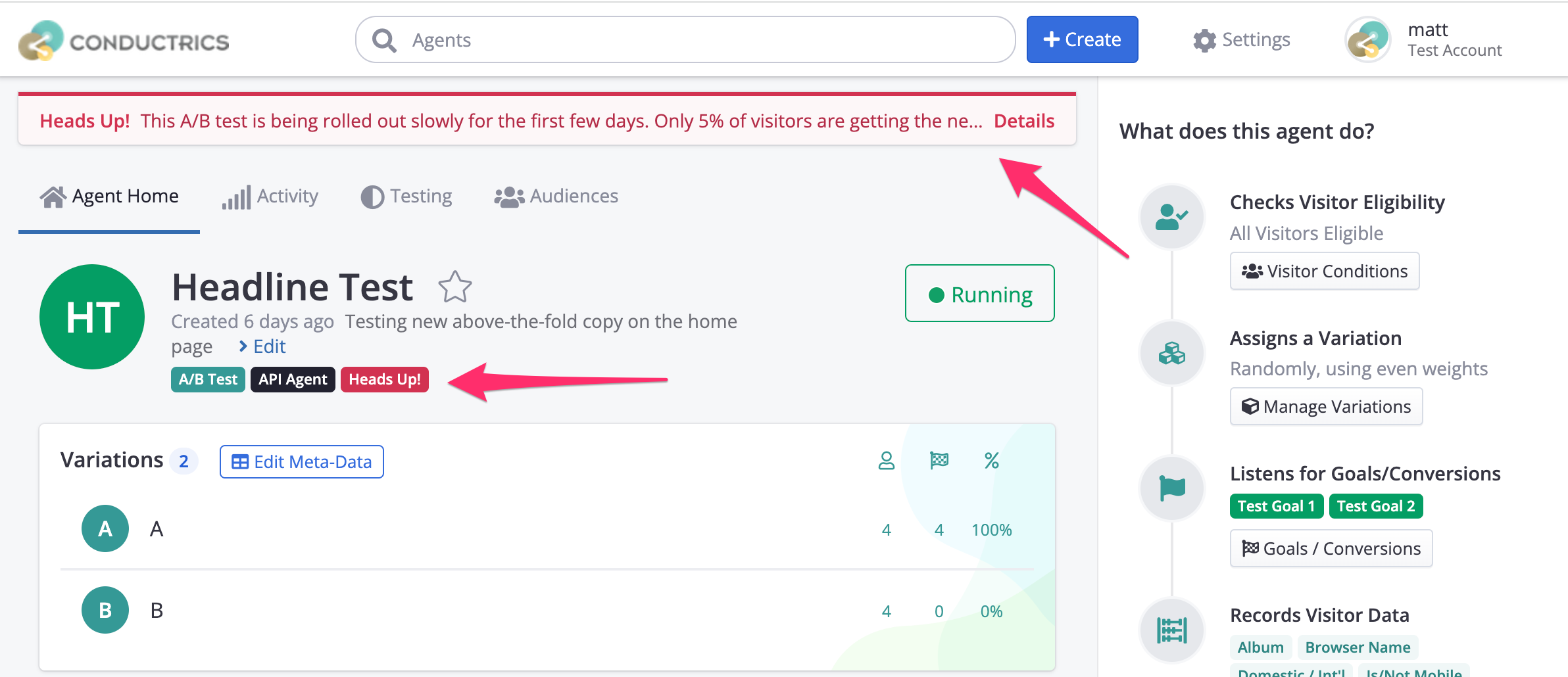
Even after hitting Got It, the user will still see the concern:
- It appears as a "banner" at the top of the page (see screenshot below)
- It also appears as a "badge" under the agent's name (see below)
- The concern "badge" (such as "Heads Up") also shows up in The Agent List Page and other similar locations in the Conductrics Admin.
Dismissing a Concern
At some point, the real-world "concern" will probably have been addressed, so you'll want to stop showing it in the Conductrics Admin.
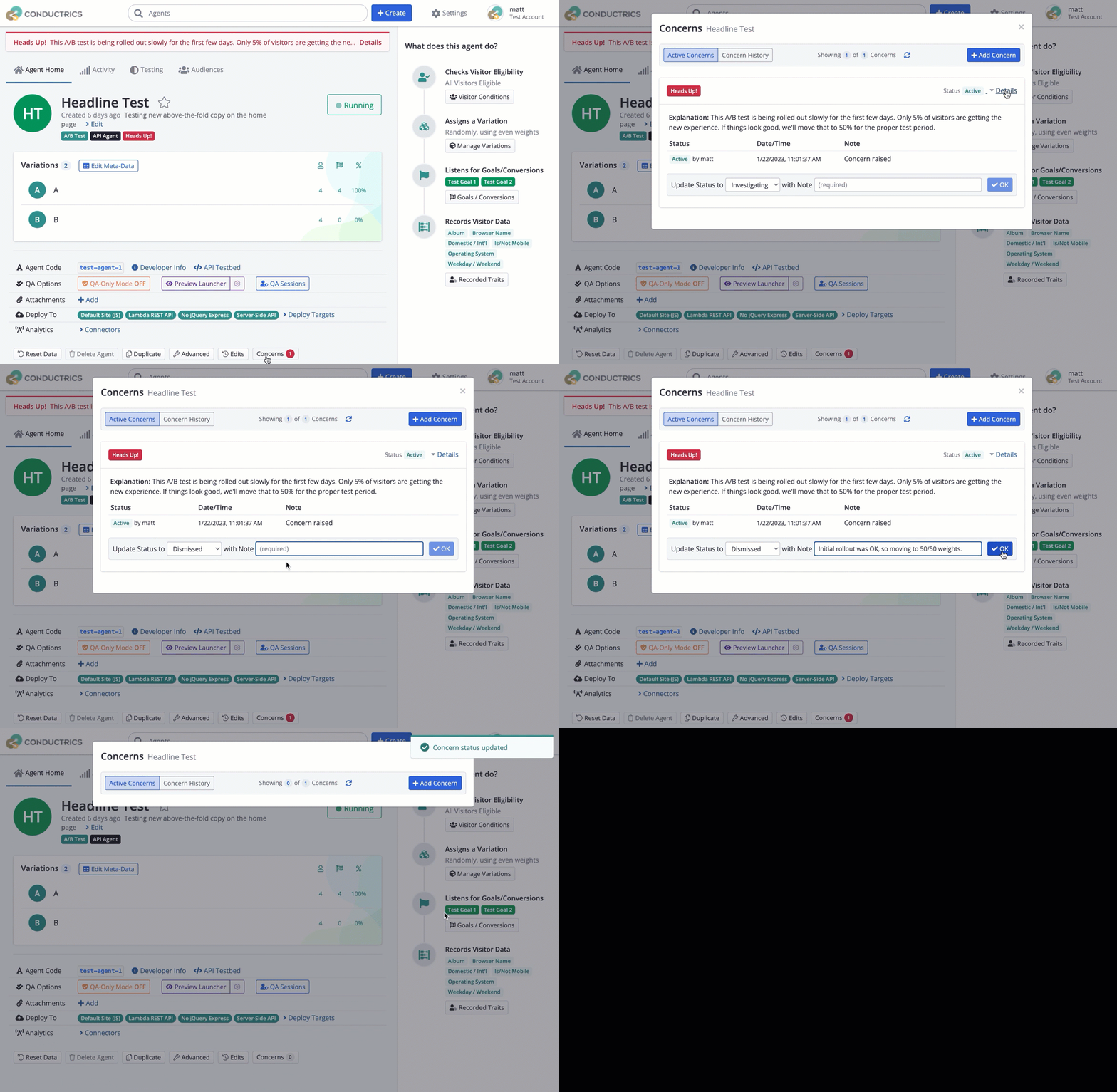
- Click Concerns at the bottom of the agent's main page (or click "Details" in the concern's banner at the top of the page).
- Click Details to open up the concern item in question (if it's not expanded already)
- For Update Status to, pick "Investigating" or "Dismissed" as shown below.
- Provide a Note for the status change (perhaps a comment about what changed in the interim).
- Click OK to save the change.
This is for everyone, not just you!Changing the concern's status, whether it's to Investigating or Dismissed, affects all users of the Conductrics Admin, not just you. Your status change will be shown in the concern's history, with your name and the date/time.
If you changed the status to Dismissed, the Concern will no longer be displayed in the Conductrics Admin, except for under the Concern History tab (see screenshot above).
If you changed the status to Investigating, the Concern still shows up in the Conductrics Admin, but users will be able to see the "Investigating" status both in the big red prompt when navigating to the agent's home page or reporting pages, and also in the history for the concern (via the "Concerns" button at the bottom of the agent's home page).
You can dismiss or change the status of a Custom Concern that you created yourself. Only Account Admin users can dismiss or change the status of other users' concerns. See the section below for details about the Roles / Permissions required for Concerns.
Permissions / Roles Required
Here's which Permissions / Access Roles are required to work with Concerns:
-
You need the Agent Author Role or higher to create a new Custom Concern (discussed above).
-
Anyone can dismiss or change the status of a Custom Concern that they created themselves.
-
You need the Account Admin Role to dismiss or change the status of a custom concern that someone else created.
-
You need the Agent Admin Role or higher to dismiss or change the status of SRM & Interaction Concerns detected by Conductrics.
| Role | Create Custom Concerns | Dismiss Custom Concerns | Dismiss Built-In Concerns |
|---|---|---|---|
| View/Reports | No | No | No |
| Agent Author | Yes | Only Your Own | No |
| Agent Admin | Yes | Only Your Own | Yes |
| Account Admin | Yes | Yes | Yes |
All users will see and be prompted about active concerns when they go to the agent's home page or reporting pages in the Conductrics Admin, regardless of Role.
Updated over 1 year ago