
Custom Geo Areas
For defining metro areas around city centers or other areas, generally for targeting purposes.
Sometimes you might want to create some kind of relatively "granular" targeting rule in Conductrics, based on where the visitor appears to be located.
For instance, you might want to restrict an experiment to visitors that appear to be in the Toronto or Montreal metro areas. Your first thought might be to try to use the visitor's city name, but it can be hard to find and list all of the neighborhoods and suburbs that might be returned as the "city name" from a typical geo lookup.
For these sorts of scenarios, Conductrics supports "Custom Geo Areas", which allow you to define a city center (or other area of interest) and how close the visitor should be to be considered "within" the city and its surrounding area. You can then use the custom areas in targeting conditions for your experiments or surveys.
BetaThis "Custom Geo Areas" feature is currently in Beta, and subject to change and availability. The feature may not yet be enabled for your account. Please contact Conductrics if you'd like to try it.
Geo Lookups Are Approximate🤞Like most geo lookups, Conductrics bases ours on the visitor's IP address, which could be obscured by a VPN, the visitor's computer network, or cellular connection. The lookups may also be made intentionally less precise by Apple's Private Relay feature or similar. So, while this feature can certainly be useful, please don't expect it to be 100% accurate for every visitor.
Viewing Your Custom Geo Areas
You may or may not have some Custom Geo Areas in your Conductrics Account already.
To find out, go to Settings > Visitor Data in the Conductrics Admin, then Geo Areas. Any Custom Geo Areas will be listed there.
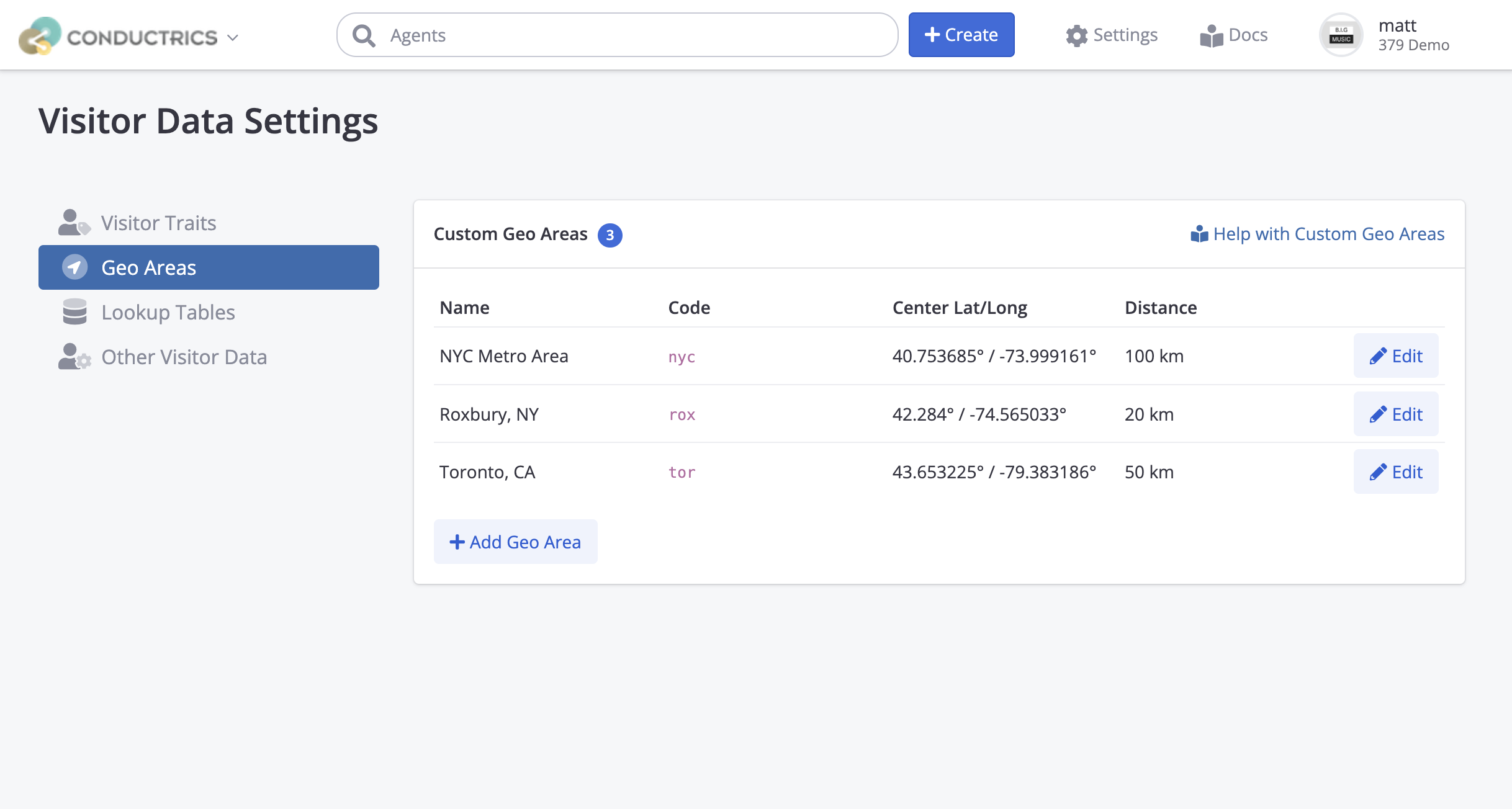
If you need to add a Custom Geo Area to the list, you can do that with the Add Geo Area button, discussed next.
Creating Custom Geo Areas
To get started:
- In the Conductrics Admin, go to Settings > Visitor Data, then Geo Areas if you haven't already.
- Hit the Add Geo Area button, then fill in an area name, coordinates, and other details as shown below.
- Click Save to finish adding your new Geo Area to the list.
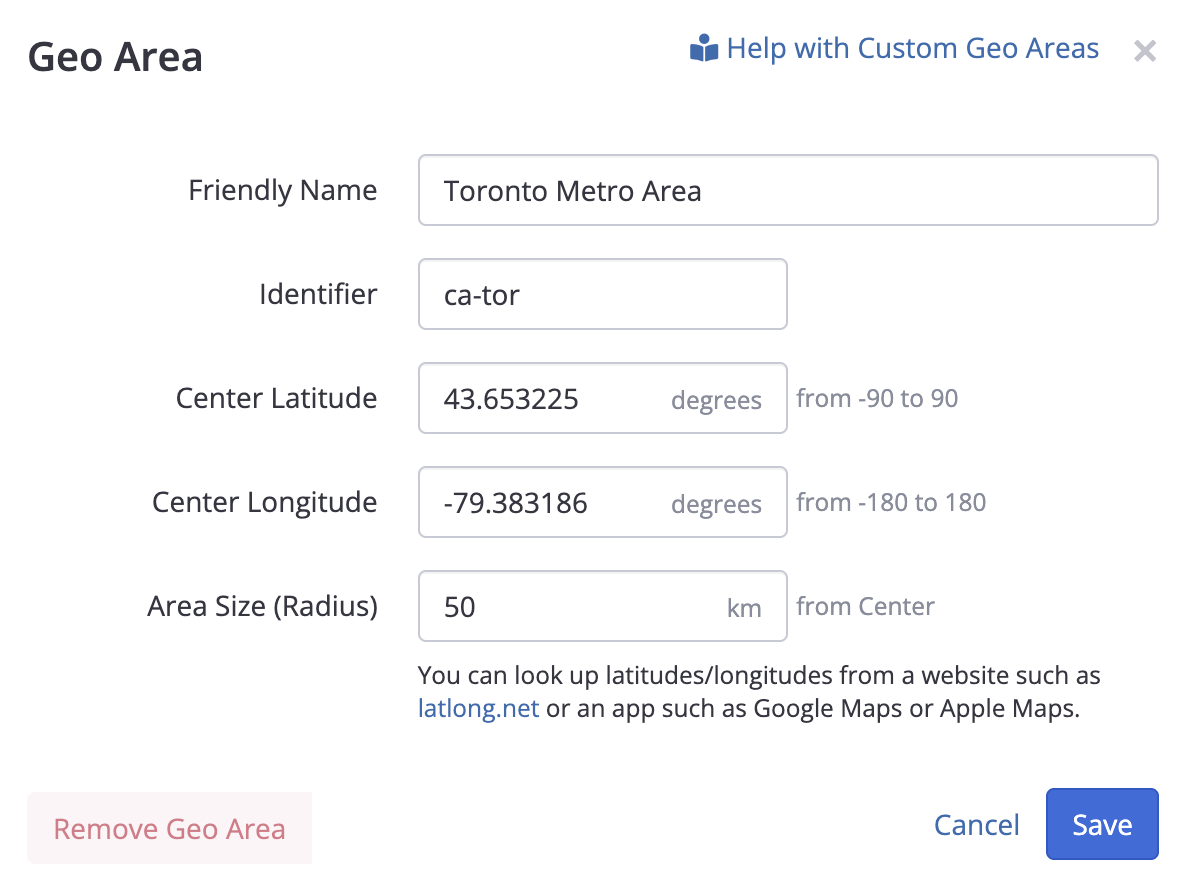
Here's what you'll need to fill out in the form above:
- Friendly Name - Provide a name for display in the Conductrics Admin.
- Identifier - Provide a unique identifier for the "area". It's best to keep this short. Like most identifier codes in Conductrics, only plain letters, numbers, dashes and underscores are allowed. You probably will never need to use the identifier directly, but you may see it in our Debugging Messages if you're doing QA later.
- Center Latitude and Longitude - This is where you define the geographic area itself, as a pair of latitude and longitude "coordinates" (often called lat/long for short). We don't provide a way to look up the latitude and longitude within the admin, but you can use a website such as latlong.net or an app such as Google Maps, Apple Maps. You can also usually just Google a city that you're interested in, etc.
- Area Size (Radius) - The geographic area is defined as a circle (on planet Earth 🌍), with your lat/long coordinates at the center. The Area Size (Radius) determines how big that "circle" is. For instance, providing 50 here means that if a visitor appears to be within 50 km of your lat/long coordinates, they will be considered "in" the Geo Area.
Custom Geo Areas are "global" 🌐 if you'll excuse the pun. They are defined at the Account level, shared between all Teams and Deploy Targets within your Conductrics account.
Using Geo Areas in Conditions
Once the needed Custom Geo Areas have been defined in your account, you can use them in targeting conditions for your individual experiments.
For instance, if you want to restrict an experiment to visitors that appear to be in the Toronto or Montreal metro areas, you could go to the Agent's Home Page, hit the Visitor Conditions button in the right margin, and add a condition something like the following:
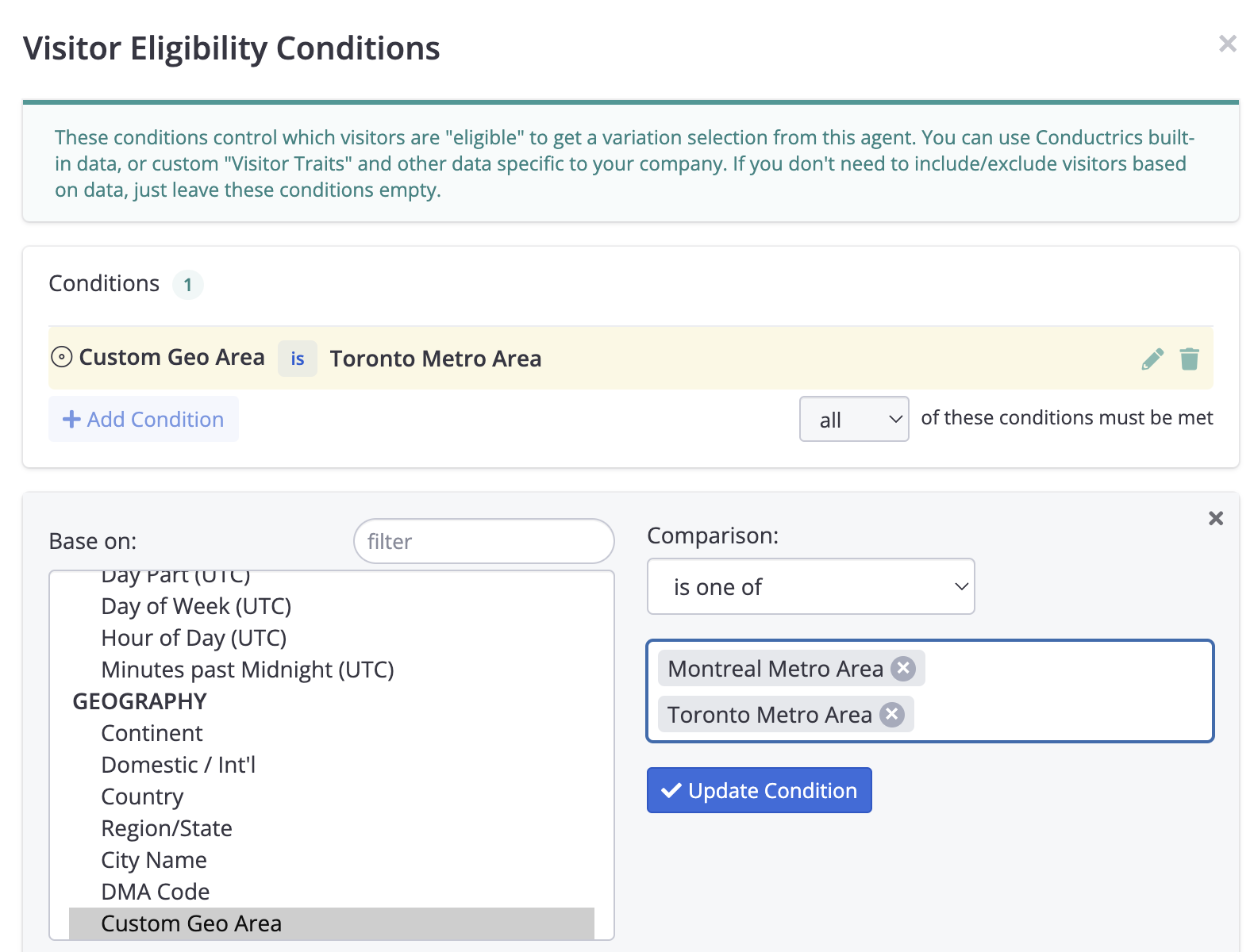
You could also use similar conditions in the "Manage Variations" window (also from the agent's main page) to target your "B" variation to Toronto and the "C" variation to Montreal, and so on. See Targeting with Conductrics for more about targeting rules in general.
A visitor will only be considered to be in one Custom Geo Area at a time. If there is a "conflict", which could happen if your custom geo areas "overlap", the first Geo Area (alphabetically, by Friendly Name) wins.
Geo Lookups Are Approximate 🤞Remember, like most geo lookups, Conductrics bases ours on the visitor's IP address, which could be obscured by a VPN, the visitor's computer network, or cellular connection. The lookups may also be made intentionally less precise by Apple's Private Relay feature or similar.
Updated over 1 year ago